Create a VirusTotal Asset and Task
In the next part of this quick start exercise, use what you've learned in the previous steps to create a VirusTotal asset and task.
You must have an API key in order to set up the VirusTotal asset. If you don't have one, create one, or contact your Swimlane sales or support representative.
Create a VirusTotal Asset
To create a VirusTotal asset:
From the global navigation menu, select Integrations.
- On Integrations, select the Plugins tab and verify that you have the sw_virus_total plugin uploaded.
If you do not have this plugin uploaded, contact your Swimlane representative.
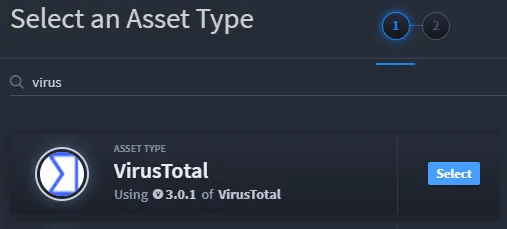
Select the Assets tab and click the plus menu icon or the New Asset button to create a new asset. Select VirusTotal as the Asset Type.
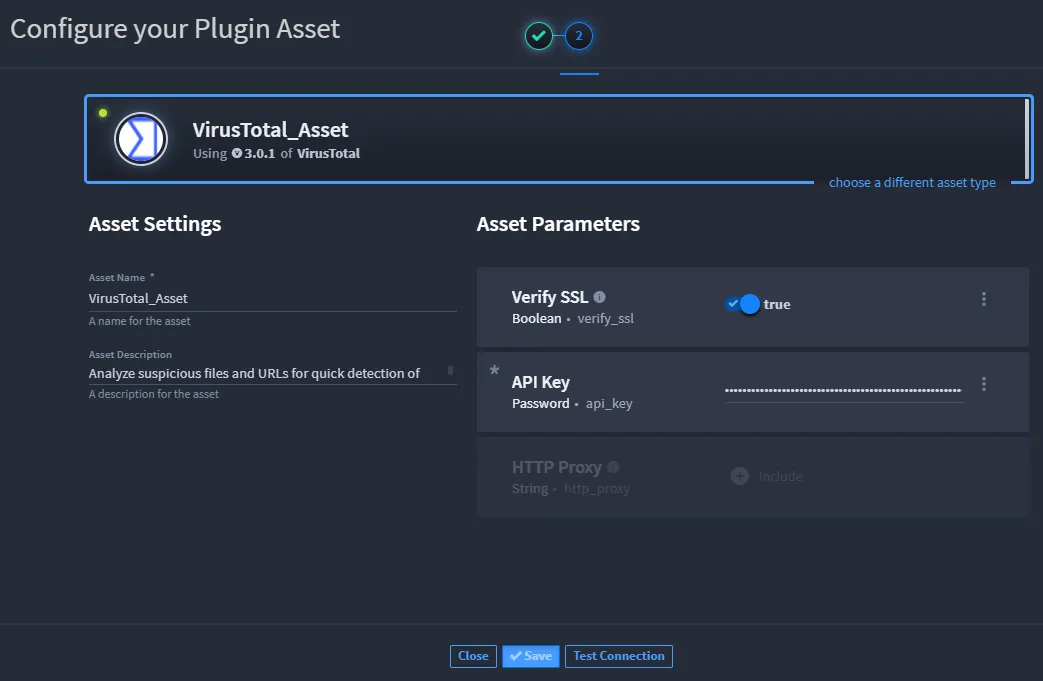
- On the Configure your Plugin window, type in the API key for VirusTotal, enable Verify SSL, and then click Save.
- Important! Don't forget to click Test Connection!
-
Create a VirusTotal Task
To create a VirusTotal task:
From the global navigation menu, select Integrations.
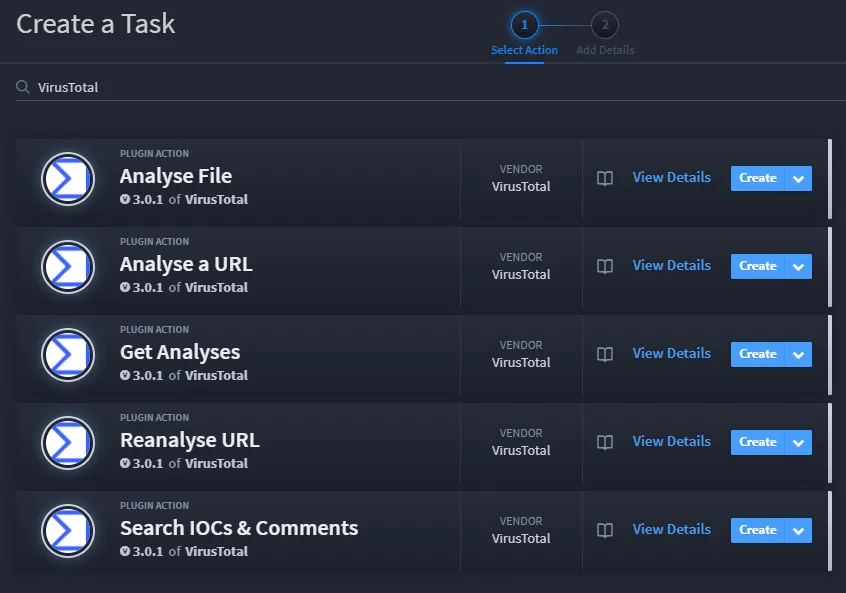
From the Integrations taskbar, click the plus menu icon, and then select Create a task. Filter for VirusTotal and select create on VirusTotal IP Report.
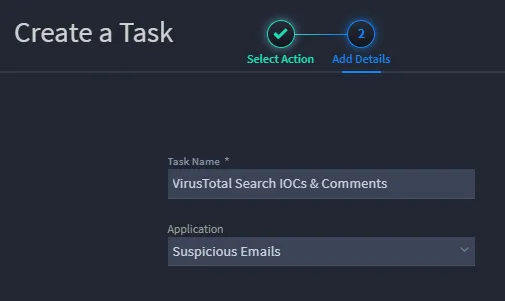
On Create a Task, Add Details, name your task and associate it with the Suspicious Emails application. Click Save.
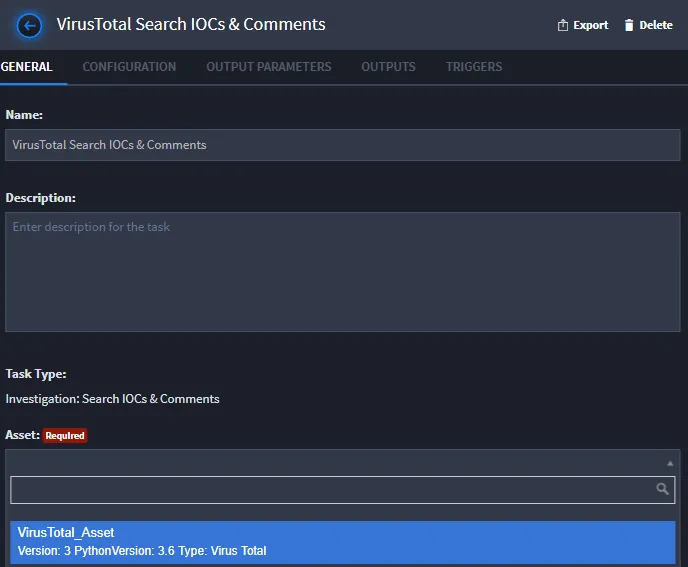
In your new task, associate it with the VirusTotal asset.
- Click the Configuration tab.
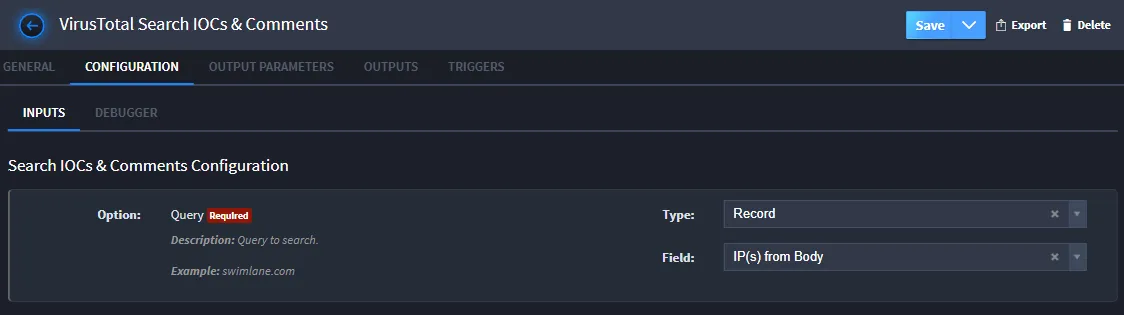
In order to get an analysis from VirusTotal, you need to provide an IP address. Let's configure this task to dynamically send VirusTotal the IP address collected in the IP(s) from Body field in our Suspicious Emails application.
- On the Configuration tab, select Record from the Type pulldown field, and then select IP(s) from Body as the Field.
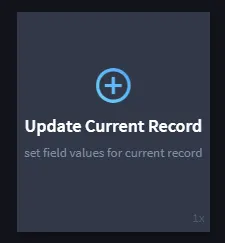
- Next, on the Outputs tab click Update Current Record.
- Now you will need to map all of the response values from VirusTotal to a field in the Swimlane record. To do that, you'll map outputs using the Update Current Record output mapping type.
-
On the next screen, which asks you, "How would you like to proceed?" select Map to Existing Fields.
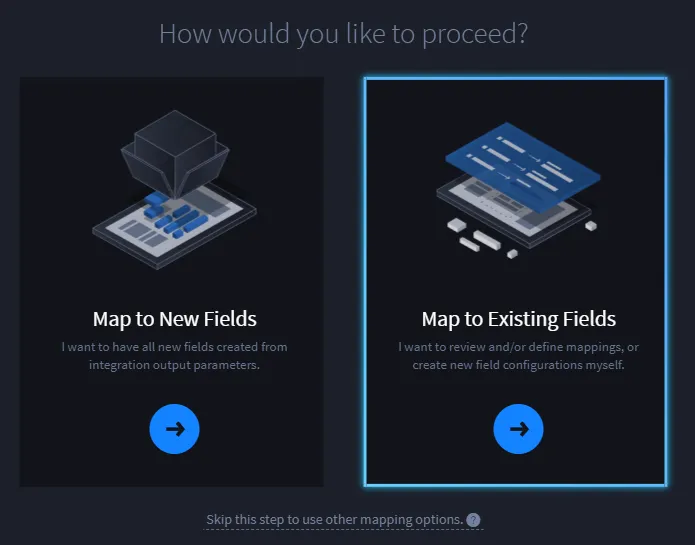
- Click through the next screen, which provides you with introduction to mapping.
-
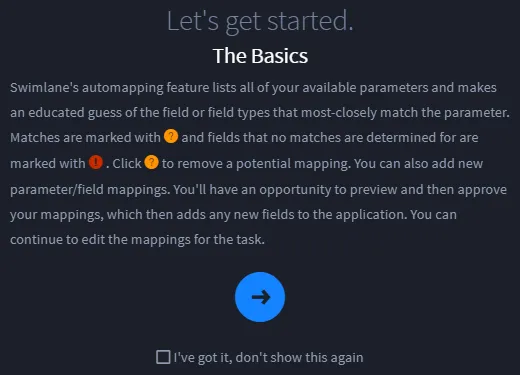
- On Update Current Record, scroll through to review the Swimlane mapped parameters and fields and then select Add Mappings to App.
-

- Click Approve on the next screen to approve the field creation and mappings.
- Click Save.
Related Links
AssetsAssets
Configurations and Input MappingsConfigurations and Input Mappings
IntegrationsIntegrations
Output MappingOutput Mapping
PluginsPlugins
TasksTasks