Create or Edit a Task
A Swimlane task is an action or series of actions that consist of input, configuration details, output, and triggers. Tasks in Swimlane can be very complex and can contain multiple input and output variables.
Use Swimlane's task creation process to fine-tune the tasks that you want an application to run.
Create a New Task
To create a new task:
- From the Integrations, Tasks page, click the plus menu icon, and then select Create a task.
-
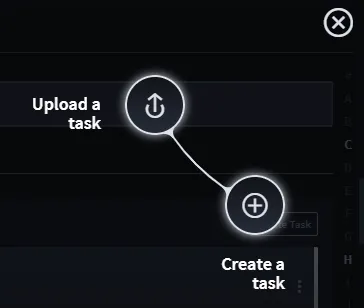
- Alternatively, scroll down the page until you see your application and then click Create Task.
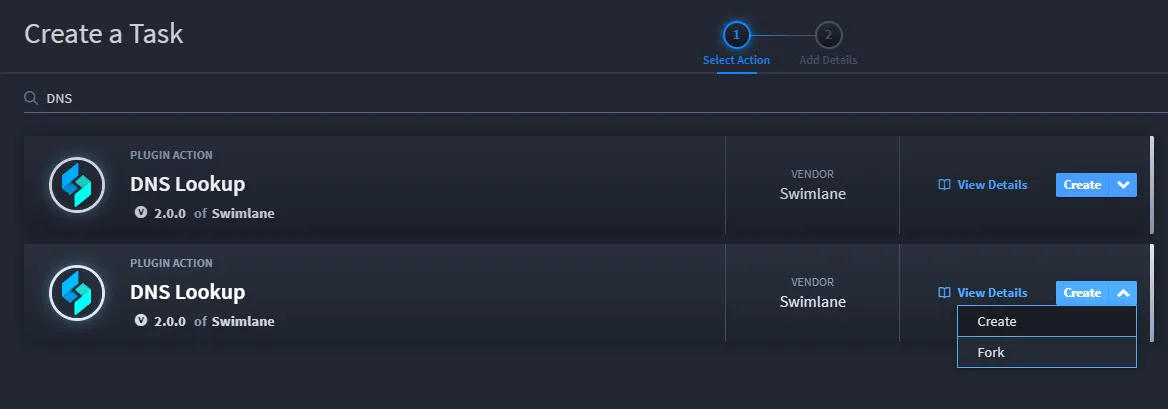
- On Create a Task, Swimlane lists plugin actions. You can filter by vendor (on the right-side of the page), and/or type a task, plugin action, or vendor into the filter field. Once you find your desired task type, click Create.
- If your task is eligible to be forked, you can also select Fork when creating your new task. A forked task is copied as an editable Python script.
-
- Next, Swimlane prompts you to name your task. You can also associate it with a related application or applet or leave it as a common task. Applications and applets can only utilize common tasks or tasks associated with them.
-
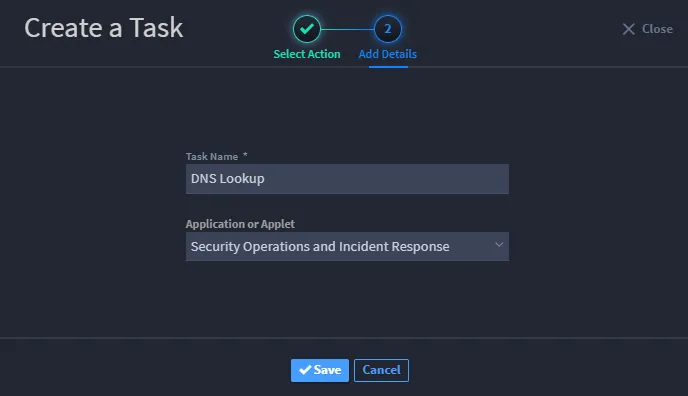
- You must provide a unique name for your task in order to save it.
On the Integration, General tab, you can rename the task, provide a description, select or create an asset, set the appropriate ROI usage metrics, and enable or disable the task. You can also see the task parent and the task type for each task.
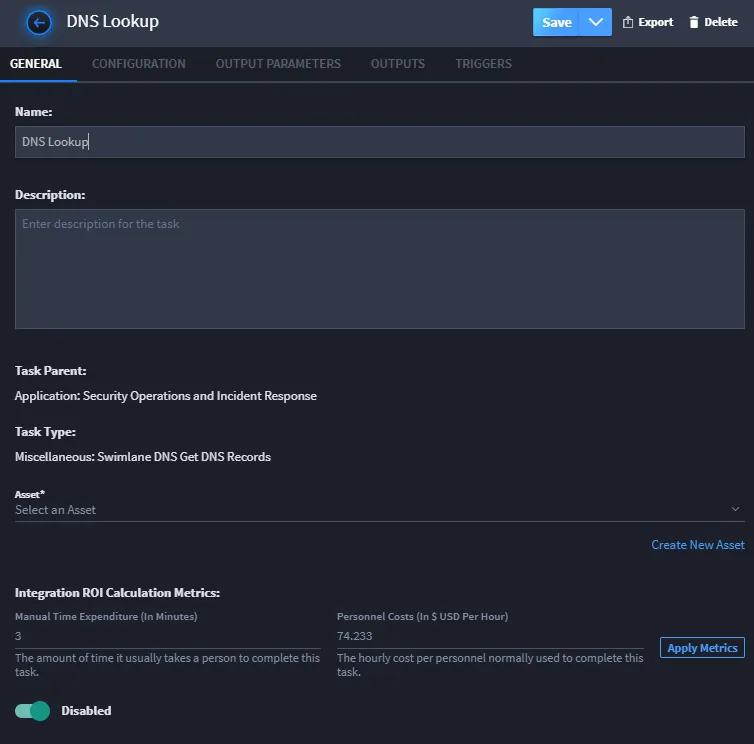
Note: By default, a task is enabled upon creation.
- You can also set up Usage Metrics for this task. Usage Metrics track the time and cost you are saving by automating this task. To set Usage Metrics, under Integration ROI Calculation Metrics fill out the Manual Time Expenditure and Personnel Costs fields so that the value of the automation is calculated in Usage Metrics.
-

- Now you are ready to begin configuring your task.
Configure a Task
Click the Integration, Configuration tab to configure the task.
The details that you configure for your task vary depending upon the type of task that you create. Most tasks have a set of inputs that need to be configured in a form but others, for example Python or Powershell scripts, require a text editor.
Here, you can also reference the plugin details for the plugin that is associated with the task by clicking View Plugin Details.
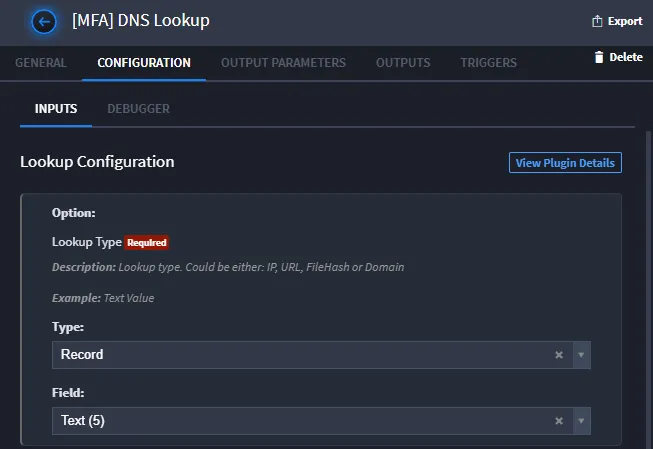
In addition, you configure the outputs as well. Swimlane's automapping helps you step through the process of output mapping.
For detailed information about input and output configuration see:
Swimlane tasks work best when they are short-lived jobs that can be quickly executed. Tasks will timeout and be terminated by the system after 4 hours. When a task times out another execution of the same task is queued to replace it.
Set Triggers
Click the Integrations, Triggers tab to specify the conditions that will cause this task to run.
Tasks can be triggered by the following conditions:
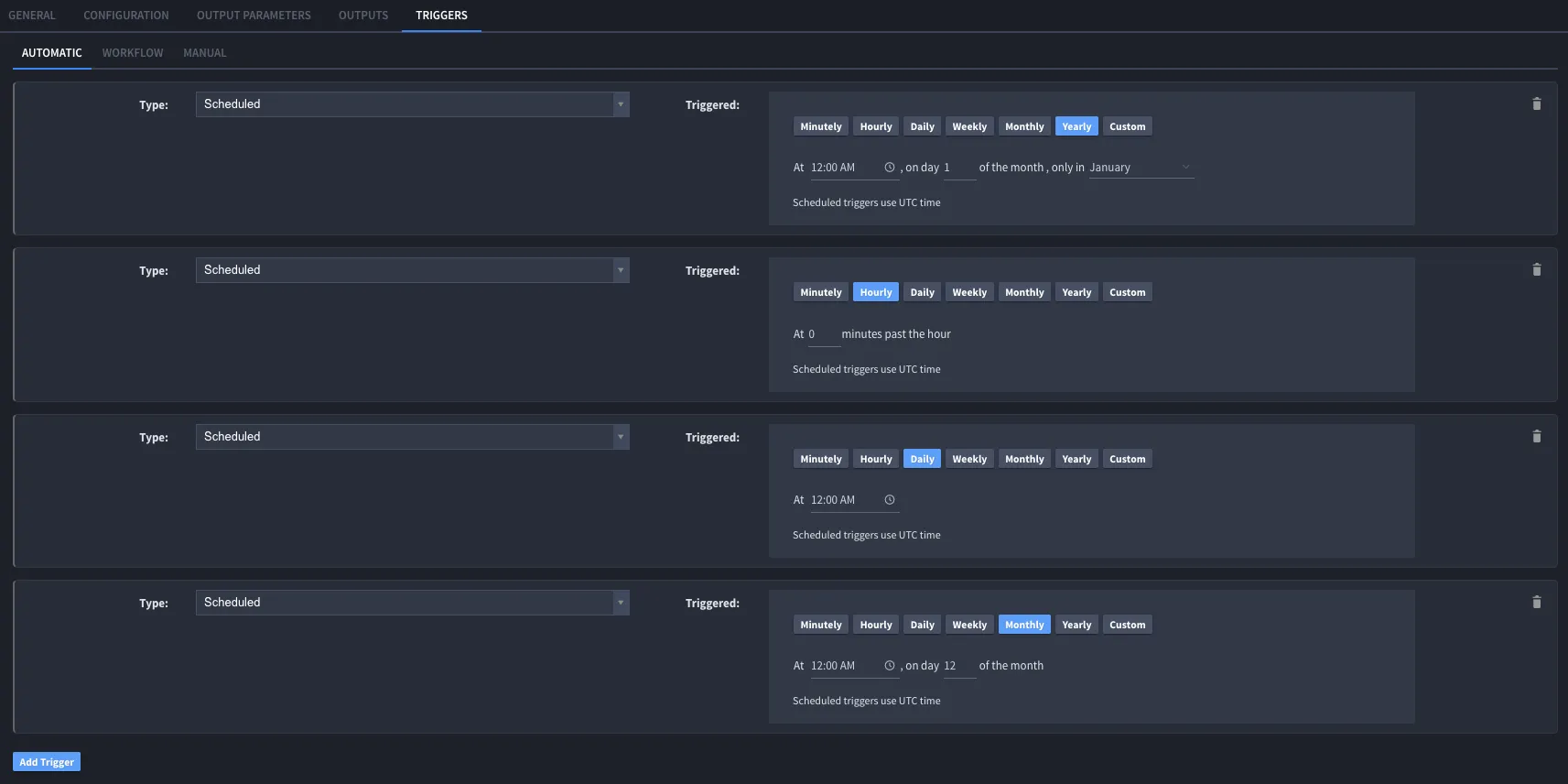
- Scheduled - Task runs by a specified time frame.
- Email - Task runs when a specified email is received.
- Record Save - Task runs whenever a specified record is saved in the associated application.
- Integration - Task runs when an integration runs.
You can also schedule a custom trigger with a valid cron expression.
Tasks can be referenced from workflow or from an integration button in Swimlane's Application Builder. The Workflow tab shows any workflow actions that are associated with the current task. Click Add/Edit Workflow to associate a task with a new workflow action. The Manual tab displays any layout objects associated to the task in Application Builder. Click Open Application Builder to edit the application.
Tasks that are triggered by an integration to update a specific value in a record are set to only affect the value once. This was designed so that integration record value changes do not run in a continual loop.
Set Scheduled Trigger
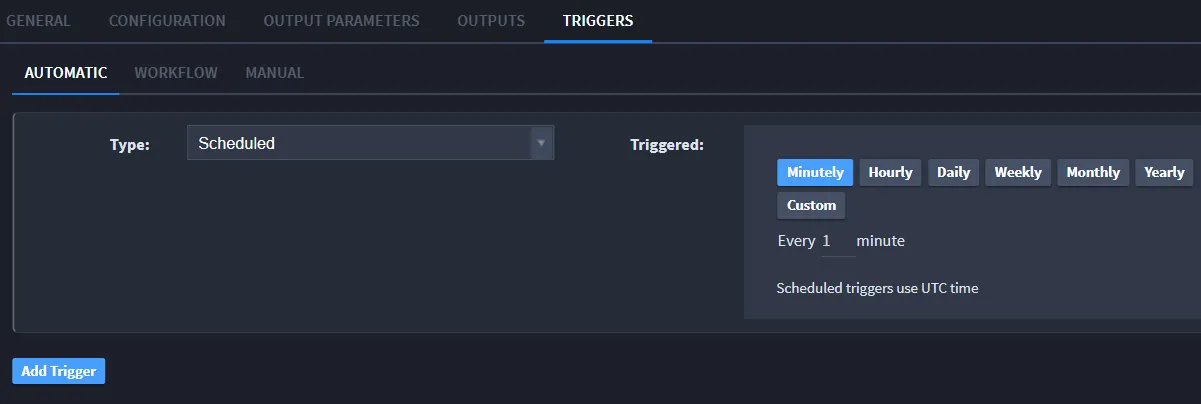
- In your task, go to Triggers and select the trigger type Scheduled.
- Select how often you would like the task triggered. You can specify minutely, hourly, daily, weekly, monthly, yearly, or custom.
-
- Click Save.
Set Email Trigger
To set up an email trigger, you must have an email or IMAP asset, an application with text fields, and a configured task.
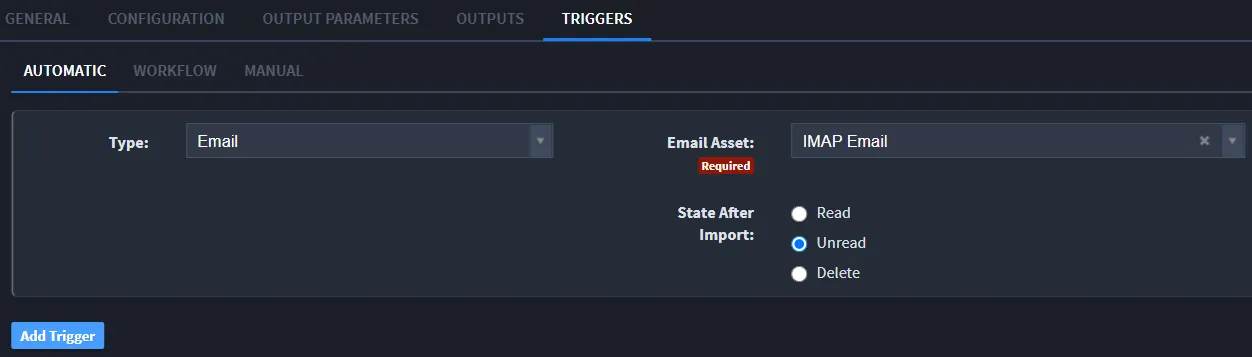
- In your task, go to Triggers and set the trigger type to Email.
- Select the asset you would like to use to trigger the task.
-
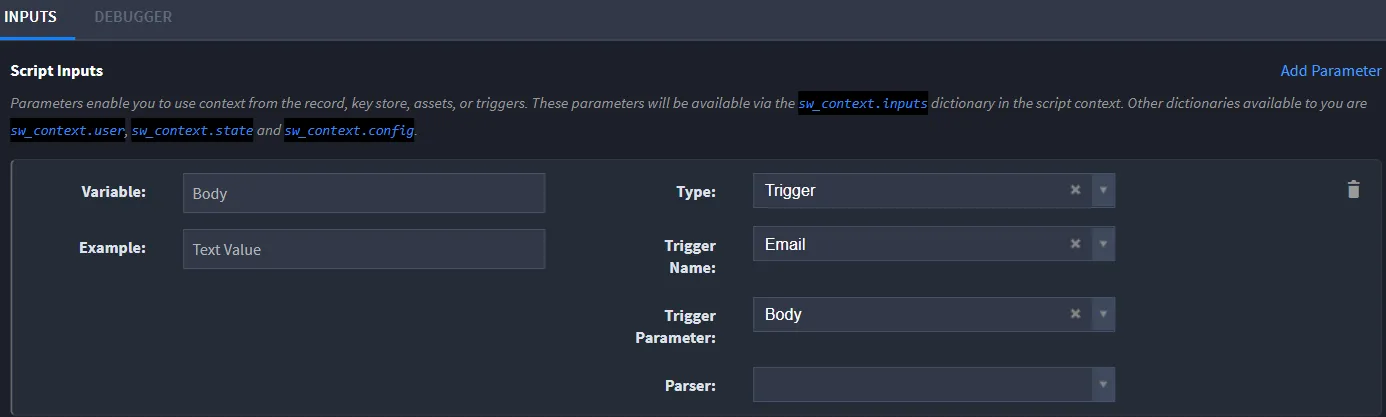
- Under Configuration, click Add Parameter.
- In the box that appears under Script Inputs. select the Type as Trigger, select the Trigger Name as Email, select the Trigger Parameter to the part of the email you want data pulled from, and enter the name of the parameter in Variable. Continue adding parameters for each section of data you want to be pulled from the emails.
-
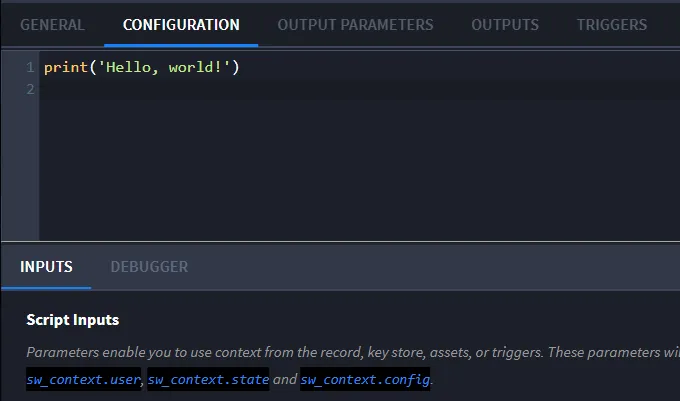
- Add any necessary manipulation in the python code.
-
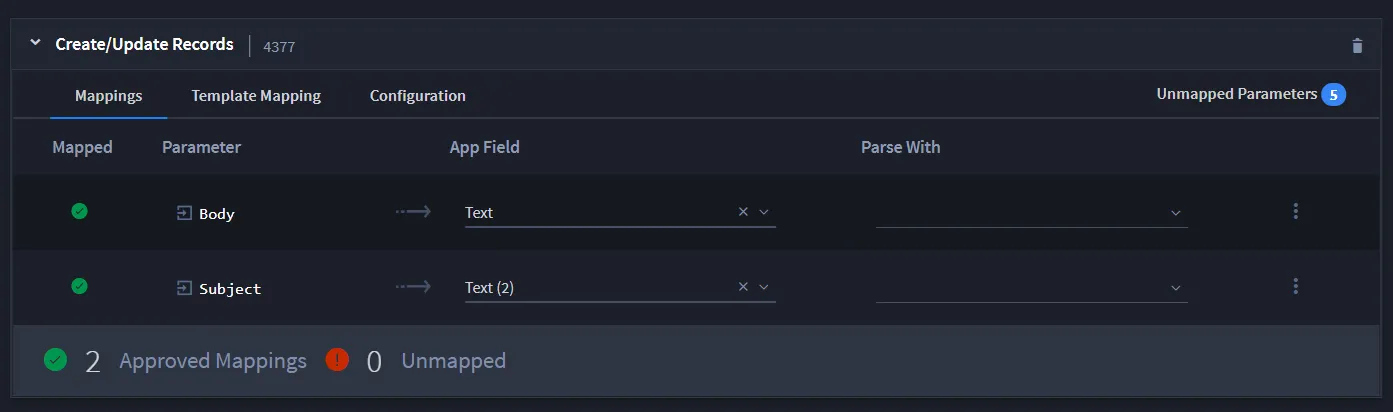
- Under Outputs, add the output type Create/Update Records.
- Select the application and click Map to Existing Fields.
- Map the parameters to a text field. These parameters should show up on the outputs page.
-
- Click Save.
Set Record Save Trigger
To set up a record save trigger, you must have your task associated with an application.
- In your task, go to Triggers and set the trigger type to Record Save. This will trigger the task every time a record is saved.
- Click Save.
-
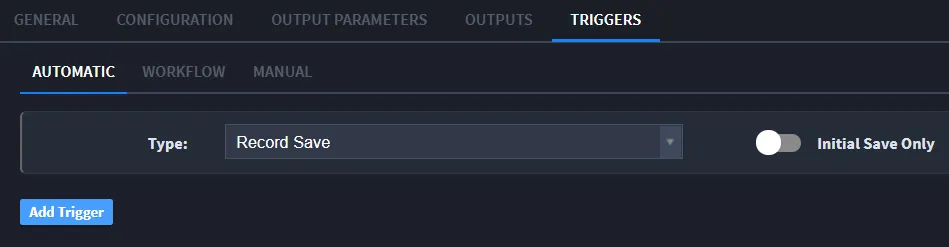
- Note: If Initial Save Only is turned on, the task will only save during the first save of a new record.
Set Integration Trigger
To use an integration trigger, you must have two tasks that you want to use.
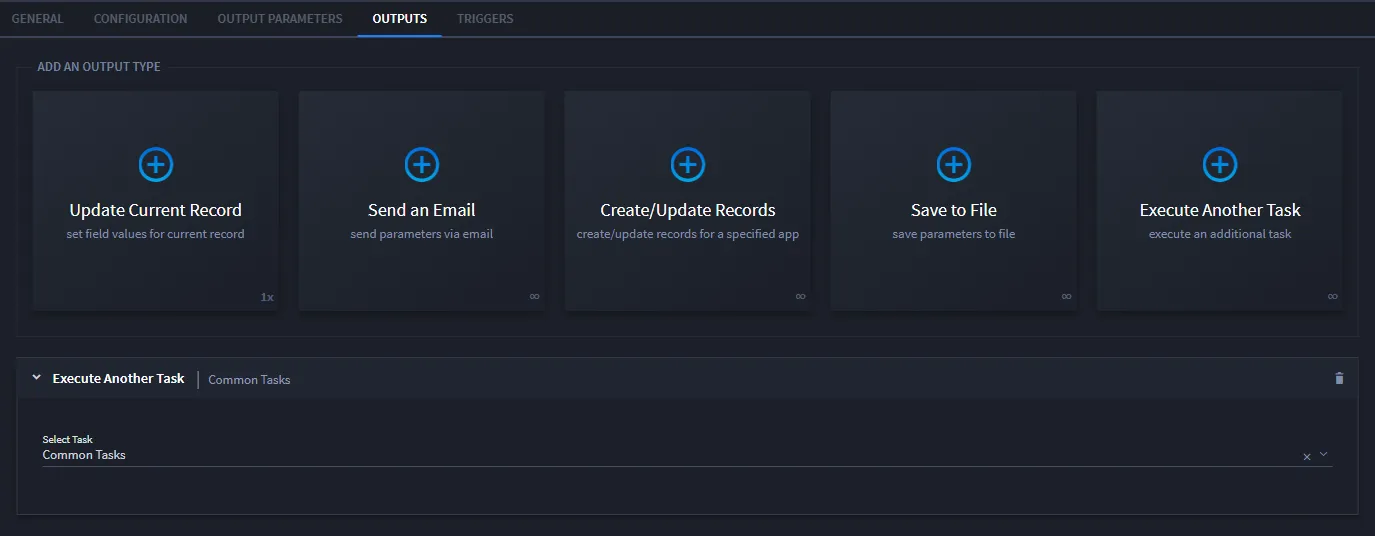
- In your first task, go to Outputs and click Execute Another Task.
- Click the arrow next to Execute Another Task to expand the section. Select your second task. This second task will trigger once the first task is complete.
- Click Save.
-