Create a Suspicious Emails Task
Now that you've created an application that will hold suspicious email records, you are ready to create the task that prompts Swimlane to check for suspicious emails.
To create a suspicious emails task:
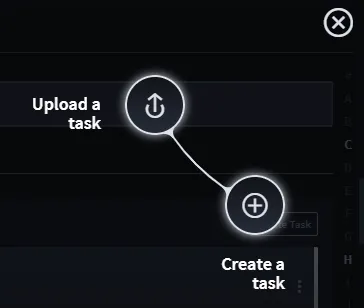
Access the Integrations page, then click the plus menu icon, and then click Create a task.
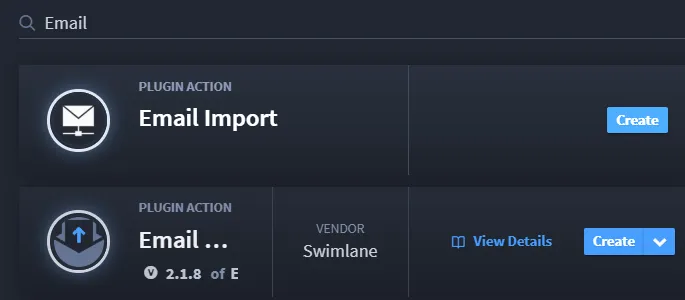
On Create a task, notice how Swimlane has grouped common task types by asset. Filter for Email plugin action name and then click Create on the Email Import plugin action.
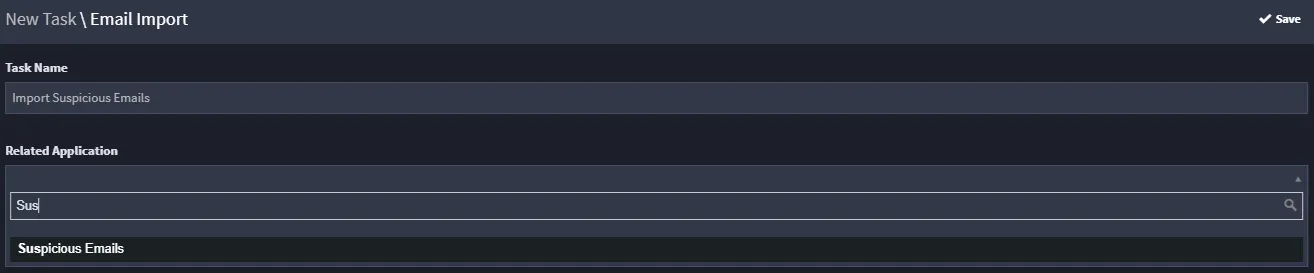
On page 2 of Create a Task, name your task. (We suggest naming it Import Suspicious Emails.) Next, from the Application drop-down field, select the application you just created in the previous topic, "Suspicious Emails," and click Save.
Clicking Save opens your task. From here you can begin to configure the task and map the task outputs.
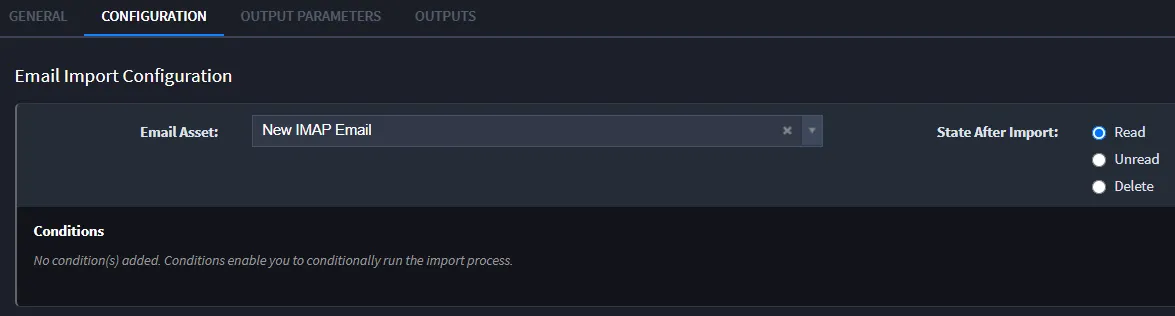
- On Integration/Import Suspicious Emails, click the Configuration tab.
Under Email Import Configuration, select the IMAP Email Asset you created in the Create an IMAP Email AssetCreate an IMAP Email Asset topic, and ensure that you have selected the Read checkbox to indicate the state of the email after the task has run.
Next, click the Outputs tab. To begin the mapping process, click Create/Update Records.
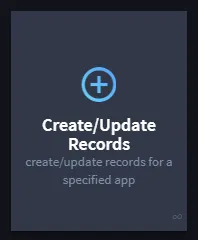
By selecting Create/Update Records you are indicating that you want to update the records of the Suspicious Emails application with the data returned by running this task.
Swimlane prompts you to answer the question, "Which app would you like to use?" Select the Suspicious Emails application you previously created; then click the arrow to move forward with the mapping process.
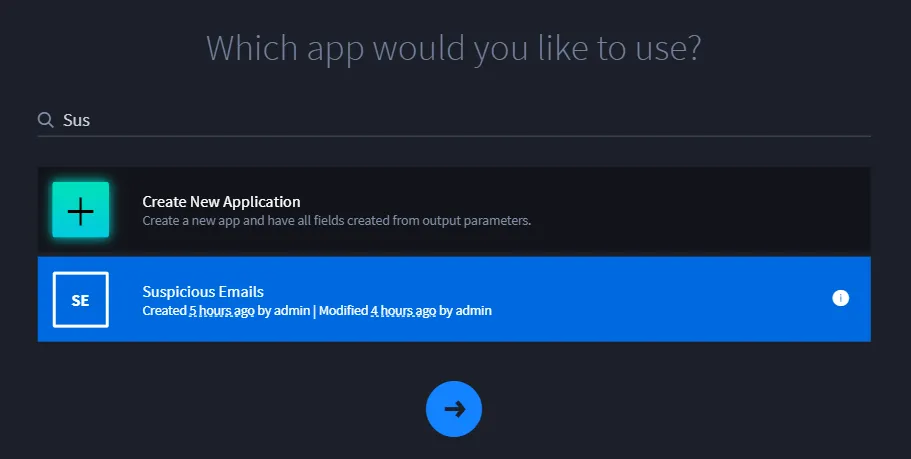
Now you are ready to map the fields in the application to outputs for the task to record.
- On Create/Update Records for Suspicious Emails, map the fields as follows:
Parameter | App Field/Field Type |
|---|---|
Attachment | Attachment |
Body | Body |
Sender | Submitted By |
Subject | Subject |
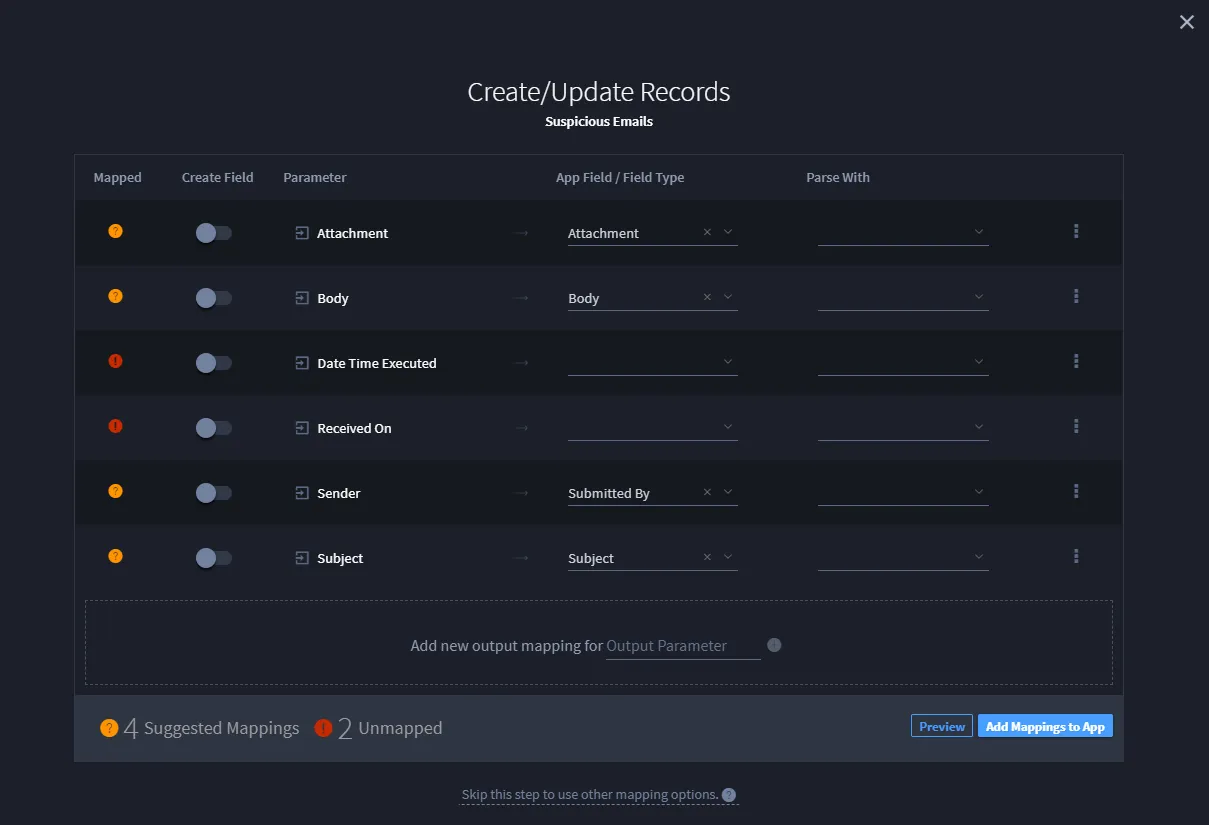
When finished, click Add Mappings to App.
- On Approve Field Creation & Mappings, review the field mappings you've created and click Approve.
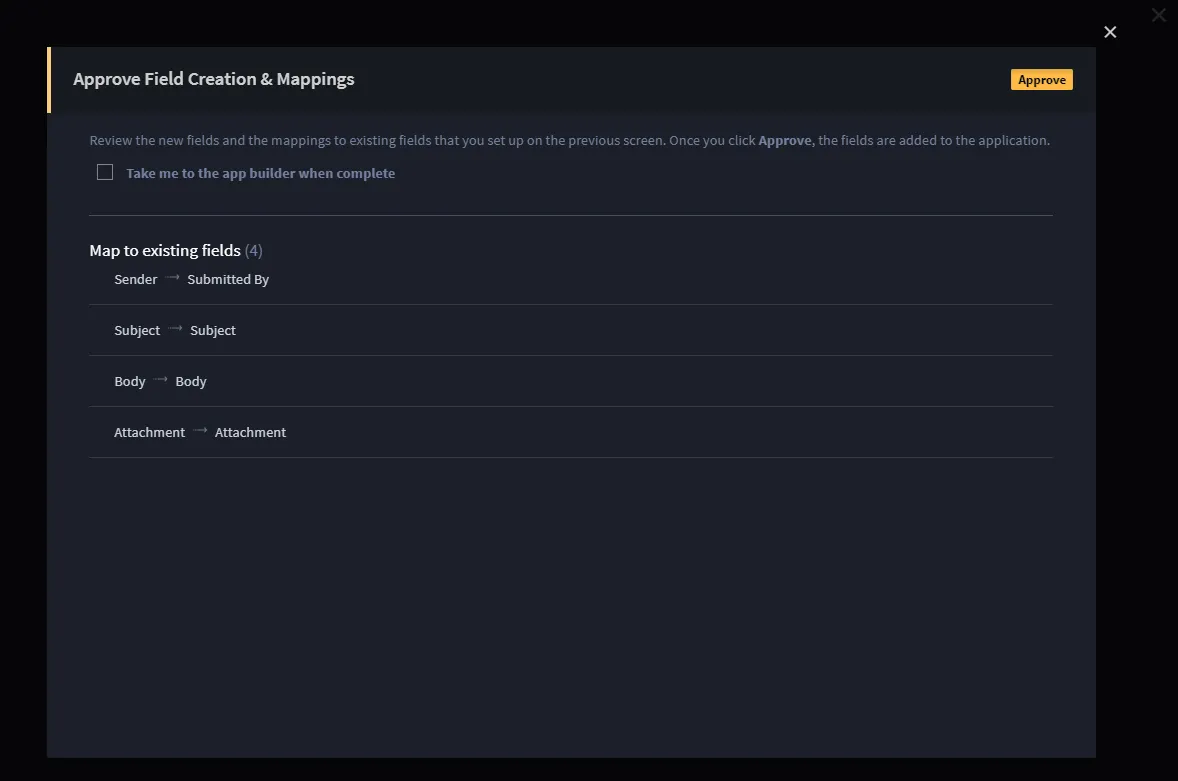
- On Integration/Import Suspicious Emails, click Save.
Swimlane will now begin checking every 60 seconds for new emails based on your task.
Related Links
Configurations and Input MappingConfigurations and Input Mapping
IntegrationsIntegrations
Output MappingOutput Mapping
PluginsPlugins
RecordsRecords
TasksTasks