Application Builder
Application Builder is the starting point for building and managing applications. With Swimlane Turbine's Application Builder you can:
- Create and modify fields and layouts.
- Set field level permissions and properties.
- Append applets to applications.
- Configure calculations.
- Access, build, and update workflow.
- Access reports.
- Run manual validations.
- Create export templates.
- View revision history.
- Delete records associated with an application.
- Delete applications.
Application Builder is available to any user or administrator of Turbine who has permissions set to access applications or a sub-set of applications.
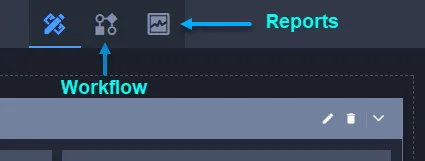
Click the icons in the Application Builder taskbar to jump from the Application Builder view to workflow and reports.
Build with Hero AI
Build with Hero AI edits the application or applet that is already open. It does not create a new application or applet. Create those from Manage Applications and Applets, then open Builder.
Who Can Use Build with Hero AI
You must be able to open the application in Application Builder. The route requires Application update permission for that application. See Application Permissions.
Build with Hero AI also requires Hero AI to be enabled for the tenant. The control does not appear on account-admin pages.
Application Building Mode does not call other Companion agents (for example, the documentation agent).
Build with Hero AI
- Open the application in Application Builder.
- Select Build with Hero AI.
- Confirm the banner Entered Application Building Mode.
- Confirm the footer chip Application Building Mode and Editing application: plus the application name.
- Type the change in Ask Hero AI.
- Wait for the run to finish, or stop it. See Stop a Prompt.
- If the agent changed the application, review the change bar, then select Accept all or Reject all.
- Select Save to keep accepted changes.
The first assistant message is:
Hi, I'm Hero's application builder agent, and I can help you build this application.
Tell me what you'd like to change — add or update fields, adjust the layout, or set up workflow rules — and I'll build it according to your instructions.
If you ask what else the agent can do, it describes the application data model it can change. That reply is generated, so the wording can vary. The scope it reports matches the files the builder sends to the agent:
Area | What you can ask for |
|---|---|
Fields | Add, edit, or remove fields, including text, numeric, date, selection, user or group, attachment, comments, calculated (formula), and cross-application reference fields. |
Layout | Sections, tab sets, HTML items, widgets, and placing fields on the form. |
Workflow | Stages, conditions, and actions on the open application. Hide or show field actions in workflow are not reliable in this release. |
Playbook buttons | Buttons that trigger existing playbooks. Applications only. Applets do not include playbook buttons. |
Record correlation | Matching keys for correlating records. Applications only. Applets do not send correlation data to the agent. |
Use the builder for work the agent cannot do: run or test the workflow, create test records, manage permissions, build reports or dashboards, and save, import, or export the application. After Accept all, select Save to persist changes.
While the agent works, the canvas overlay and the chat show a progress stack. The first line is Processing prompt.... Later lines come from the run (for example, Evaluating...). The overlay includes Cancel.
When a run finishes, the reply can include one or more Completed N steps summaries (for example, Completed 4 steps then Completed 1 step). The agent may:
- State what it will add or change (for example, a Single-Line text field on the layout).
- List current fields, including system fields, and ask you to clarify.
- Report that a matching field is already on the layout and that no further change is required.
Use the thumbs and copy controls on the reply the same way as in Companion.
When the agent changes the application, a review bar opens on the canvas. The title is Hero AI changed plus a count (for example, Hero AI changed 1 field). Counts can also name layout elements or workflow nodes.
The bar lists each change as Added, Modified, or Removed, plus the item name and type (for example, Added Count Field). The new field can appear on FORM LAYOUT with a highlight. Builder can show a change indicator.
- Accept all keeps the changes in the builder.
- Reject all discards the current review. A later prompt can still propose the same changes.
Then select Save to persist accepted changes.
The same Build with Hero AI control is on Applet Builder. The banner is Entered Applet Building Mode. The footer chip is Applet Building Mode. The composer still shows Editing application: plus the applet name. Labels and limits for applets are in Applet Builder.
Stop a Prompt
To stop a run on the canvas, select Cancel on the overlay. The chat then shows Prompt cancelled by user.
If you leave Application Builder while a prompt is in progress, the dialog title is Cancel Request. The body is A Hero AI prompt is in progress. Navigating away will cancel this prompt. Do you want to continue?
- Yes, Cancel Prompt leaves the page and cancels the run.
- No, Stay keeps you on Application Builder.
Companion Stopped on a record chat is a different path. It is not this control.
See Also
Page Components
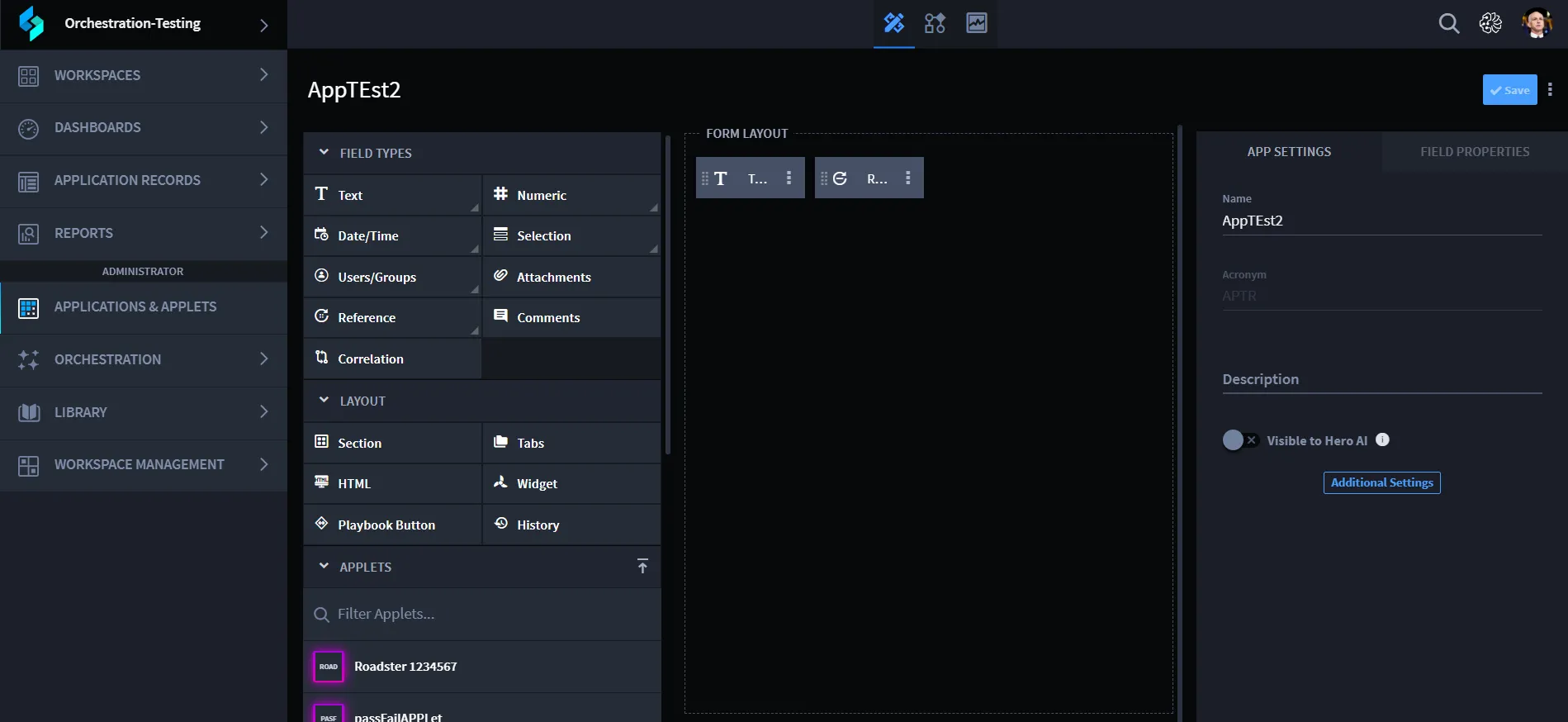
The Application Builder page consists of these main components:
Component | Description |
|---|---|
Field Types | Available fields that you use to build your application. The fields support the various input data for the application records. |
Form Layout | The container where you modify the arrangement of fields for your application. |
App Settings | Settings you assign that are relevant to the entire application, such as Name, Description, Roles, and Workspaces. |
Applet Display | A list of available applets that you can add to your application. |
Field Properties | Settings and properties that you assign for specific fields within the application, such as permissions, size of the field in the layout, values, and whether the field is required. |
Hidden Fields | A list of fields that exist within the application and available for reports and modification in workflow, but that are not visible in the record entry form. |
You control the view of Application Builder. Look for the small keyboard icon in the lower left corner of the application.
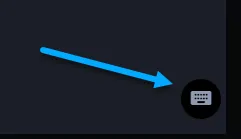
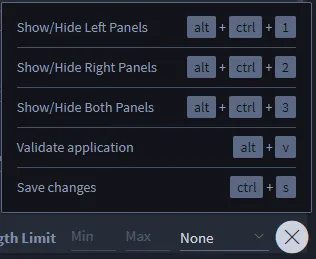
Click the keyboard icon to open a control panel that contains keyboard shortcuts for controlling the view of the application. Adjust your view settings, and then click X to close the control panel.
Hidden Fields
Hidden Fields are fields that exist within the application and available for reports and modification in workflow, but that are not visible in the record entry form.
Hidden fields are visible at the bottom of the Application Builder form layout.
Application Field Limit
Application Builder displays the number of search-indexed fields currently used by the application. The field counter appears in the format:
/ fields used
The counter updates automatically as fields and embedded applets are added or removed.
The following items count toward the configured field limit:
Counts Toward the Limit | Does Not Count |
|---|---|
Visible fields | Comments |
Hidden fields | History |
Fields from embedded applets (each field counts individually) | Layout-only items such as Sections, HTML blocks, Widgets, and Playbook Buttons |
When the configured field limit is reached:
- Field types that count toward the limit become unavailable.
- If the application contains embedded applets, applet fields and correlation fields may also become unavailable.
- Saving the application displays the following validation message:
Maximum number of fields reached.
You have reached the maximum number of fields for this app. Please delete some fields to add more.
Remove existing fields or ask your administrator to increase the Application Field Limit under Tenant Settings > System before saving the application.
Field Validation
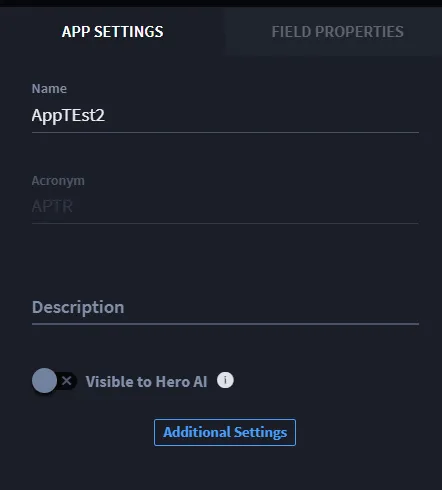
While you build out the forms for your application Turbine validates the fields, looking for duplicate fields or empty fields. You will see inline checks and pop-up error notifications that contain additional detail about the error and how you can resolve it. The pop-up error notification will lead you through the process of resolving the error and will disappear once you have successfully saved the application.
Here is an example of an inline check for a duplicate field name:
Here is an example of a pop-up error notification:
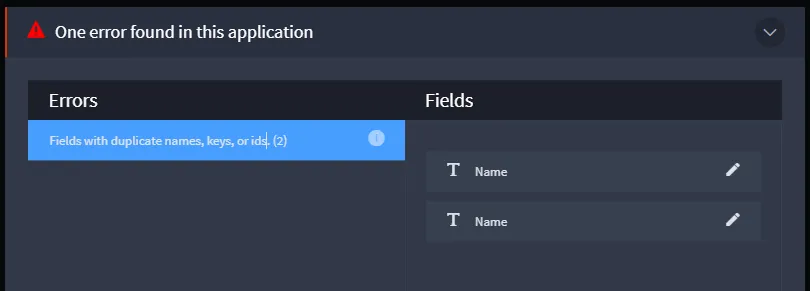
Click the errors, and then the field(s) on the pop-up notification to edit and resolve the error(s).
Application Builder also validates the configured Application Field Limit when saving an application. If the application exceeds the configured limit, the save operation is blocked until the number of search-indexed fields is reduced or the tenant field limit is increased by an administrator.
Playbook and Trigger Flow Assignments
Starting in Turbine 26.3.3, Application Builder no longer blocks save when more than one playbook button, or a playbook button and correlation, already use the same flow. A DateTime field trigger still cannot share a flow with a playbook button, correlation, or another DateTime field trigger.
If save fails with Duplicate flow assignments across triggers, assign the DateTime field trigger to a flow that no other trigger uses, then save again. See Flow Sharing Rules.
Toolbar
Control | What it does |
|---|---|
Builder | Field types, form layout, and application settings. |
Workflow | Application workflow. |
Preview | Preview the record form. |
Build with Hero AI | Opens Application Building Mode so you can change the open application from Ask Hero AI. |
Save | Saves the application. |
Performance Applications
Performance Applications are behind a feature flag and must be enabled; to enable this feature, contact Swimlane Support. Performance Applications are not supported on Turbine On-Prem.
A Performance Application shows the bolt in this toolbar. Hover the bolt for Performance Application / Optimized for high data volumes. This application type is supported for the Vulnerability Response Management (VRM) solution.
Application settings include this notice:
Field Types on a Performance Application are Text, Numeric, Date/Time, Selection, and Reference. Comments, Attachments, Correlation, and Users/Groups are not available. Reference is the field type you add when you need a related record. Layout does not include History.
You can still hide built-in fields such as Tracking Id and Comments under HIDDEN FIELDS. You cannot add a Comments field from the palette.
The notice uses the product wording, including the contraction in the UI string.
Performance Application Limits
Limit | What it means |
|---|---|
Record Event triggers | You cannot configure a Record Event trigger on a Performance Application. The product message is Performance applications are not supported for record event triggers. |
Scheduled or emailed CSV attachment | You cannot include the report table as a CSV file attachment. Download the report as CSV instead. PDF attachments and report links remain available. |
Workflow actions | Set Value and Toggle Time Tracking are not available. Other workflow actions stay available. |