Manage Applications and Applets
The Applications and Applets home page is where you manage your applications and applets.
Performance Applications are behind a feature flag and must be enabled; to enable this feature, contact Swimlane Support. Performance Applications are not supported on Turbine On-Prem.
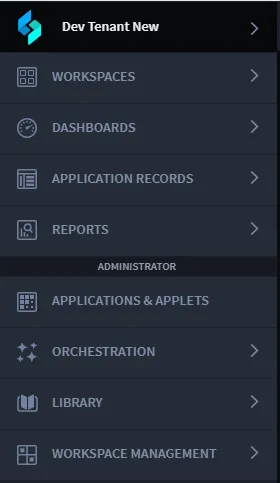
From the main page, you can:
- Create new applications and applets.
- Edit existing application and applet content and settings.
- Copy applications and applets.
- Delete applications and applets.
- View applications, applets, or both.
- Import Swimlane Turbine solution packages.
- Export applications and applets as Turbine solution packages
Feature | Function |
|---|---|
Builder | Opens Application or Applet Builder. |
Workflow | Opens the workflow for the application. |
Settings | Edits the settings for the application or applet, including the name, description and permissions. |
Copy | Creates a copy of the application or applet. Rename the copy, then it is added to your Applications and Applets home page. |
Copy URL to Clipboard | Copies the URL to the clipboard so that you can share it with other interested parties. |
Export | Exports the application or applet as a Swimlane Solution Package (SSP). During export, you can optionally include application records in the package. |
Delete | Deletes the application or applet and all of its associated information. |
You can view and modify the applications and applets you have permissions to view and modify. See Permissions for more information about setting user, group, application, and field permissions in Turbine.
The list of applications and applets can be modified with the sort drop-down menu. You can view all applications, all applets, or view everything.
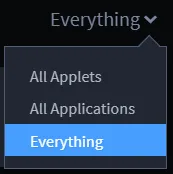
The default sort order of applications and applets lists them by those most-recently accessed.
The menu items available from the drop-down menu depend upon the user's permissions set for applications and applets. For example:
When you select an item on the Applications and Applets home page, the Turbine Builder program (either Application Builder or Applet Builder) opens. You view, edit, and update the application or applet from it is relative builder page.
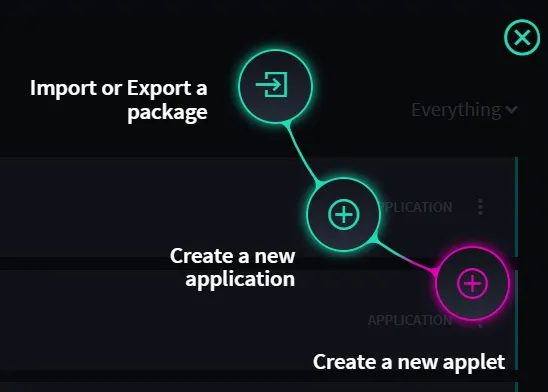
You create new applications and applets from the main page. From the Applications and Applets main page, click the plus menu icon, and then select Create a new application.
You can also Import or Export a package or Create a new Applet.
The Applications and Applets home page is where you manage your applications and applets.
Performance Applications are behind a feature flag and must be enabled; to enable this feature, contact Swimlane Support. Performance Applications are not supported on Turbine On-Prem.
Choose Your Path
Goal | Where to go |
|---|---|
Create a standard application | Plus menu → Create a new application (published steps). |
Add a Performance Application | |
Recognize a Performance Application | |
Open Builder |
Import a Performance Application
The plus menu on Applications & Applets has three items: Import or Export a package, Create a new application, and Create a new applet.
- Select the plus menu.
- Select Import or Export a package.
- Import an SSP that is marked as a Performance Application.
You cannot create a Performance Application from Create a new application. Add one by importing an SSP or a Marketplace package. Performance Applications are supported for the Vulnerability Response Management (VRM) solution.
Identify a Performance Application
On Applications & Applets, a Performance Application shows a bolt next to the name. Hover the bolt.
Tooltip title | Tooltip body |
|---|---|
Performance Application | Optimized for high data volumes |
The bolt also appears in Application Builder. See Application Builder.