History
Turbine keeps a revision each time a record is saved. Review those revisions in Record Activity on the record, or in a History layout field on the form.
Record versions are created whether or not a History layout field is on the application. The History field does not store data. It only displays revisions on the form.
Choose Your Path
If You Need To | Use This |
|---|---|
See who changed a saved record, including playbook, component, widget, and bulk updates | Record Activity on the record toolbar |
Show revision, last updated by, and View Diff on the form | |
Show what created or last updated a record on the form or in a report |
Record Activity
The full procedure is in Record Activity. Open the history icon on a saved record toolbar. The tooltip is Record Activity.
Creation Source and Update Source
When Record Activity is enabled, Turbine adds two read-only fields to a new application, a copied application, and an imported application:
- Creation source records what created the record.
- Update source records what last updated the record.
Applications that already exist do not receive these fields until you copy or import the application while Record Activity is enabled.
The fields start in Hidden Fields. Drag a field onto the form when you want it on the record. On the form, Move to Hidden Fields returns it to Hidden Fields. You cannot remove the field from the application. You can change the name and the description. The key stays locked, and users cannot edit the value.
You can add either field as a column on a report. Record list filters do not include these fields.
The value depends on what created or updated the record.
Source | What the Field Shows |
|---|---|
User | The user display name. |
Playbook | The playbook or solution name, and the flow name when Turbine has one. On the record, the playbook name is a link when the playbook can be opened. RunID opens the run. On a report, select the info icon to see the run ID, copy it, or open the run. |
Component | The component name and RunID, with the same run actions as a playbook. |
Widget | The widget name. |
If Turbine cannot resolve the name, the field shows Not available. If the run cannot be loaded, Turbine shows Run details are currently unavailable.
History Layout
The History field enables users to view the historical changes of a record. Each time the record is updated, a new version is created and displayed as a new row in the history field's table. This row displays the changes made during that update and allows the user to preview the record at that specific version.
Reference and reciprocal changes: A change to a reference field (including a link maintained by reciprocal reference from another application) is still a record change, but the revision row in History can be easier to reason about when the user performs the save on this record. For how Record Updated playbooks apply, see Record Event Triggers.
From Application Builder's Layout Types, select History and then drag and drop it to the Form Layout. Hover over the History tab in Form Layout and click edit icon or click the History tab to edit the Fields Properties.
When to Use History Layout
Use the History layout when you need to:
- Track all changes made to a record over time
- Provide an audit trail for compliance or security purposes
- Allow users to view previous versions of a record
- See who made specific changes and when
- Review the change history with diff comparisons
Adding a History Field
- In the App Builder, navigate to the Layout section in the left panel
- Click and drag the History layout type (clock icon) onto your form layout
- Configure the field properties (see below)
FIELD PROPERTIES
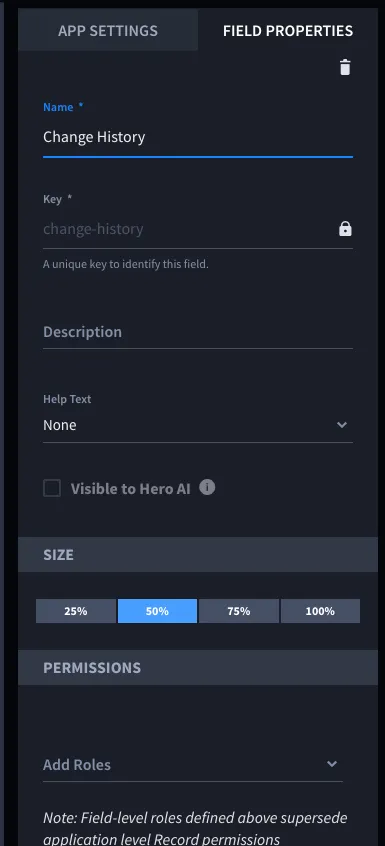
Manage and configure your application's history field settings with the intuitive form layout and field properties interface.
Basic Properties
- Name*: The display name for the history field (for example, "History", "Change History", "Audit Trail")
- Key*: A unique identifier for the field (automatically generated from the name)
- Description: Optional description of the field's purpose
- Help Text: Optional help text that can be displayed above or below the field
- Size: Width of the field (25%, 50%, 75%, or 100%)
Permissions
- Add Roles: Define field-level permissions to control who can view the history field
- Note: Field-level roles supersede application-level Record permissions
Visibility
- Visible to Hero AI: Controls whether the history field is visible to Hero AI
History Field Display
When a History field is added to an application, it displays a table showing:
- Revision: The revision number (clickable link to view that specific revision)
- Last Updated By: The name of the user who made the change
- Last Updated: Timestamp showing when the change was made (displayed in human-readable format)
- Change: A "View Diff" link that appears when changes exist, allowing users to see what changed between revisions
- Comments: (If comment fields exist) Displays comments associated with each revision