Directory Services
Swimlane integrates with two Directory Service types, Microsoft's Active Directory (AD) and OpenLDAP.
Many Swimlane administrators leverage Swimlane's Directory Services to:
- Allow their SOC Engineers and Analysts to log in to Swimlane with previously-established directory credentials.
- Increase the ease of administrative maintenance for groups of users.
Users are synced upon each login. Automatic synchronization occurs every night at midnight, server time.
If you have difficulty configuring Directory Services due to unknown or incorrect fields or attributes, see Directory Services Synchronization: Field Attribute MappingsDirectory Services Synchronization: Field Attribute Mappings.
Setting Up Open LDAP Services
Before you begin, verify that your server settings are correct!
To set up Open LDAP:
- From the left navigation menu, select Settings, Advanced.
- Click > to expand Directory Services and then select Enable Directory Syncing.
-
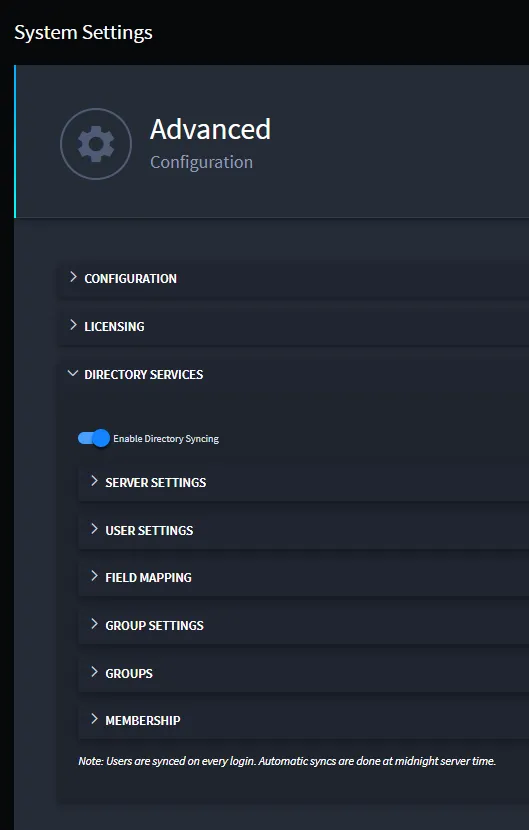
- This expands the selections for the settings that you need to set up.
- Click > to expand Server Settings. On Server Type, select Open LDAP.
- From this field you can either select Open LDAP or Active Directory. The available categories and fields for additional setup vary according to this selection.
- Important! Fields marked with an asterisk are required fields.
- Input your server settings.
- Click > to expand User Settings and review or update the values there.
- The default values for Open LDAP are often the most appropriate, but they may need to be altered to conform to your Directory server’s configuration.
- Delete the default value for Member of Field Target. That field should typically be empty.
- User Location is empty by default. While not required, adding a location is recommended.
- Here is a sample screenshot of Open LDAP User Settings with default values:
-

- Click > to expand Field Mapping and review or update the values there.
- These values rarely need to deviate from the defaults provided.
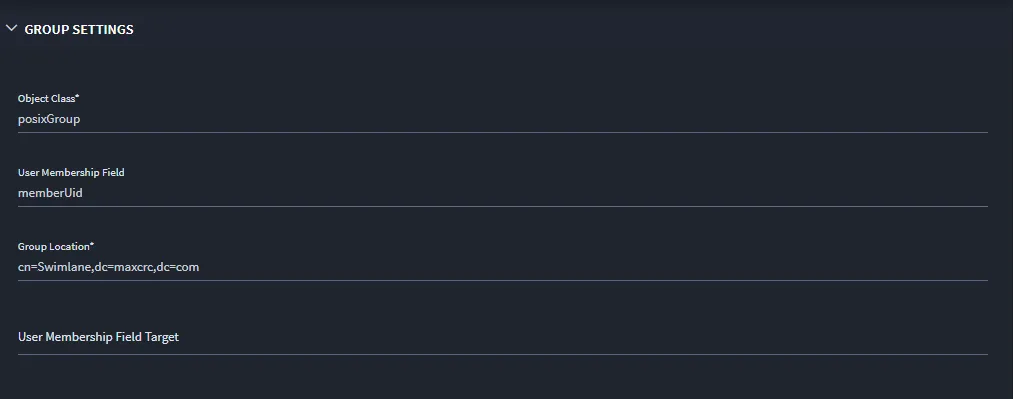
- Click > to expand Group Settings and review or update the values there.
- Delete the default value for Member of Field Target. That field should typically be empty.
- The Group Location field must contain a Distinguished Name that provides the complete path to the container in which the targeted groups are defined.
- Note: Use an appropriate Directory Services client to inspect the targeted group(s) and make note of how belonging users are affiliated to the group(s). Is it done through the groups' property named, member, or the users' property named, memberOf, or through some other means?
- Here's a sample screen of Group Settings in Open LDAP:
-
- Click > to expand Groups and review or update the values there.This is a list of manually entered groups. To add a group, type the name in the field and then click Add Value. Keep in mind that you have to add each group individually, and that the values are case sensitive.
- Under Groups to sync, click Validate Groups.
- If this fails, troubleshoot by checking spelling and/or confirming that the group name is defined in the container specified in the Group Location value (a Distinguished Name) in GROUP SETTINGS.
- If you'd like you can save at this point, scroll up to the top of the Directory Services area of the form, and click Test Connection.
- Click > to expand Membership and review or update the values there.
- From this field you can select from one of two values: By User Field or By Group Field. If the users are affiliated with their groups via the member property in each group, then choose By Group.
- Click Save again and then click Sync Now.
- Ensure that you receive confirmation of a successful sync (a green success message displays). Then, from the left-navigation menu, navigate to the Swimlane Users page and verify that all of the members of the targeted groups have been created as users.
- If the sync is not successful, review the steps above. If your problem persists, contact your Swimlane support representative.
- Swimlane syncs the users who are members of the groups. Swimlane only syncs the top-level users in each group; it does not traverse users in groups within the selected groups. To sync users in these groups, add the groups directly to Groups to Sync.
- A user’s display name is only synchronized when the user is initially created. If the user name is updated in Active Directory, it will not be updated in Swimlane. This allows for user name customization in Swimlane so the display name can appear differently in Swimlane than it does in Active Directory.
- Note: Users are synced upon each login. Automatic synchronization occurs every night at midnight server time.
Setting Up Active Directory
Enable single sign-on for your Swimlane users by setting up and syncing Active Directory in Swimlane Settings. Users created through Active Directory sync count towards the Swimlane user license limit.
Before you begin, verify that your server settings are correct!
To set up Active Directory:
- From the left navigation menu, select Settings, Advanced.
- Click > to expand Directory Services and then select Enable Directory Syncing.
-
- This expands the selections for the settings that you need to set up.
- Click > to expand Server Settings. On Server Type, select Active Directory.
- From this field you can either select Open LDAP or Active Directory. The available categories and fields for additional setup vary according to this selection.
- Important! Fields marked with an asterisk are required fields.
- Input or verify the Server settings.Note: If you want to test the connection to the server at this point in the process, enter placeholder text in all required fields, including those in other sections, and then click Save. Once your initial settings are saved, you can click Test Connection. If your test does not succeed, see Testing Connections in Directory ServicesTesting Connections in Directory Services.
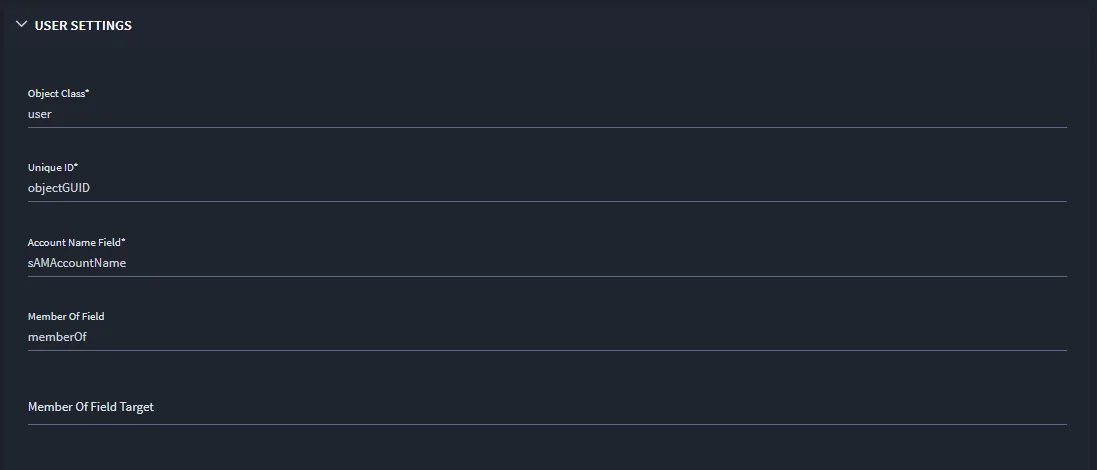
- Click > to expand User Settings and review or update the values there.
- The default values for Active Directory are often the most appropriate, but they may need to be altered to conform to your Directory server’s configuration.
- Delete the default value for Member of Field Target. That field should typically be empty.
- Here is a sample screenshot of Active Directory User Settings with default values:
-
- Click > to expand Field Mapping and review or update the values there.
- These values rarely need to deviate from the defaults provided.
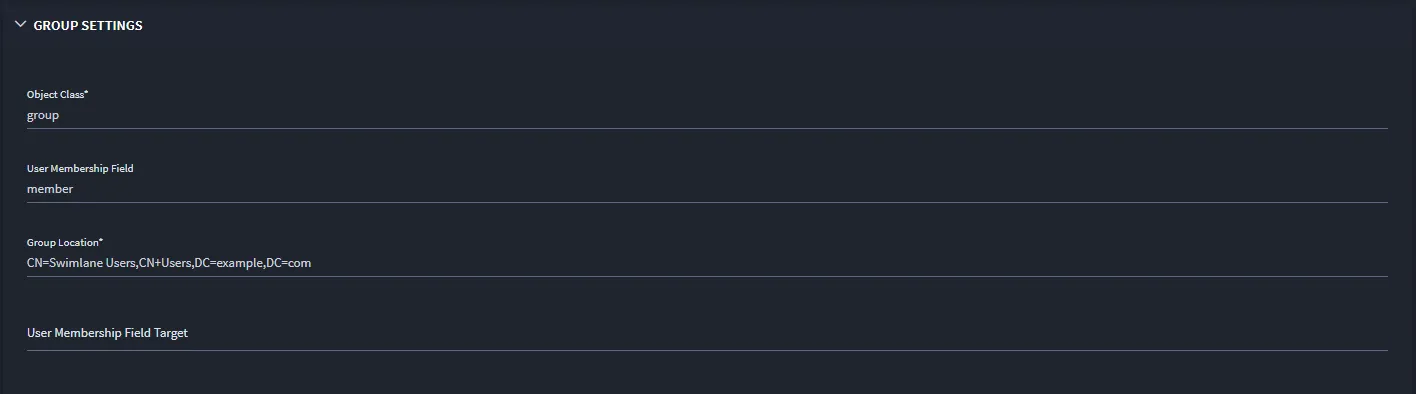
- Click > to expand Group Settings and review or update the values there.
- Delete the default value for Member of Field Target. That field should typically be empty.
- The Group Location field must contain a Distinguished Name that provides the complete path to the container in which the targeted groups are defined.
- Note: Use an appropriate Directory Services client to inspect the targeted group(s) and make note of how belonging users are affiliated to the group(s). Is it done through the groups' property named, member, or the users' property named, memberOf, or through some other means?
- Here's a sample screen of Group Settings in Active Directory:
-
- Click > to expand Groups and review or update the values there.This is a list of manually entered groups. To add a group, type the name in the field and then click Add Value. Keep in mind that you have to add each group individually, and that the values are case sensitive.
- Under Groups to sync, click Validate Groups.
- If this fails, troubleshoot by checking spelling and/or confirming that the group name is defined in the container specified in the Group Location value (a Distinguished Name) in GROUP SETTINGS.
- If you'd like you can save at this point, scroll up to the top of the Directory Services area of the form, and click Test Connection.
- Click > to expand Membership and review or update the values there.
- From this field you can select from one of two values: By User Field or By Group Field. If the users are affiliated with their groups via the member property in each group, then choose By Group.
- Click Save again and then click Sync Now.
- Ensure that you receive confirmation of a successful sync (a green success message displays). Then, navigate to the Swimlane Users page and verify that all of the members of the targeted groups have been created as users.
- If the sync is not successful, review the steps above. If your problem persists, contact your Swimlane support representative.
- Swimlane syncs the users who are members of the groups. Swimlane only syncs the top-level users in each group; it does not traverse users in groups within the selected groups. To sync users in these groups, add the groups directly to Groups to Sync.
- A user’s display name is only synchronized when the user is initially created. If the user name is updated in Active Directory, it will not be updated in Swimlane. This allows for user name customization in Swimlane so the display name can appear differently in Swimlane than it does in Active Directory.
- Note: Users are synced upon each login. Automatic synchronization occurs every night at midnight server time.
Authentication: Basic and LDAP
Swimlane's basic authentication does not rely on host OS support. When you create a normal, non-synced user, their username is stored in plain text. Their password is stored in scrambled form by encryption.
In contrast, when you create a synced user, their password is not stored in Swimlane's MongoDB. They are authenticated to Swimlane by the Swimlane Platform code sending a real-time request to the LDAP server to approve the synced user's Swimlane login attempt.