Email and PDF Settings
Use Swimlane's Email and PDF Settings to specify an outgoing email server and to customize the emails sent from Swimlane.
On Email and PDF Settings, click > to expand OUTGOING EMAIL SERVER. From here you can select your preferred email authentication method, either OAuth 2.0, Basic, or None.
Setting Up OAuth 2.0 Authentication
To set up OAuth 2.0 authentication:
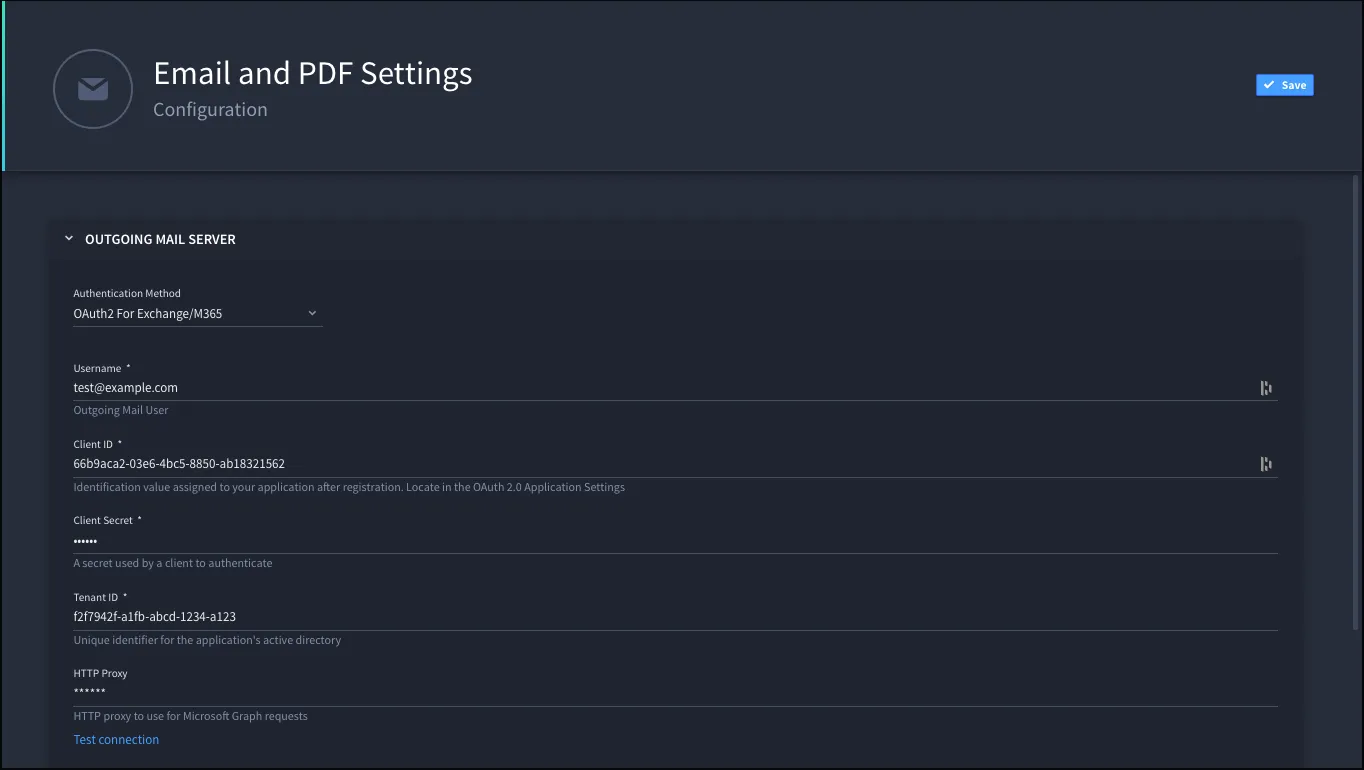
- From the Authentication Method drop-down, select OAuth2 For Exchange/M365.
- On Username, specify the outgoing mail user.
- On Client ID, include the ID value associated to your application.
- You can find this ID in your OAuth 2.0 settings.
- Next, enter the Client Secret and the Tenant ID.
- Enter the proxy to use for Microsoft Graft requests in the HTTP Proxy field.
- Once you have entered the required authentication fields, click Test Connection to ensure a connection exists.
-
- Swimlane email is sent by the Swimlane Tasks service.
Setting Up Basic Authentication
To set up basic authentication:
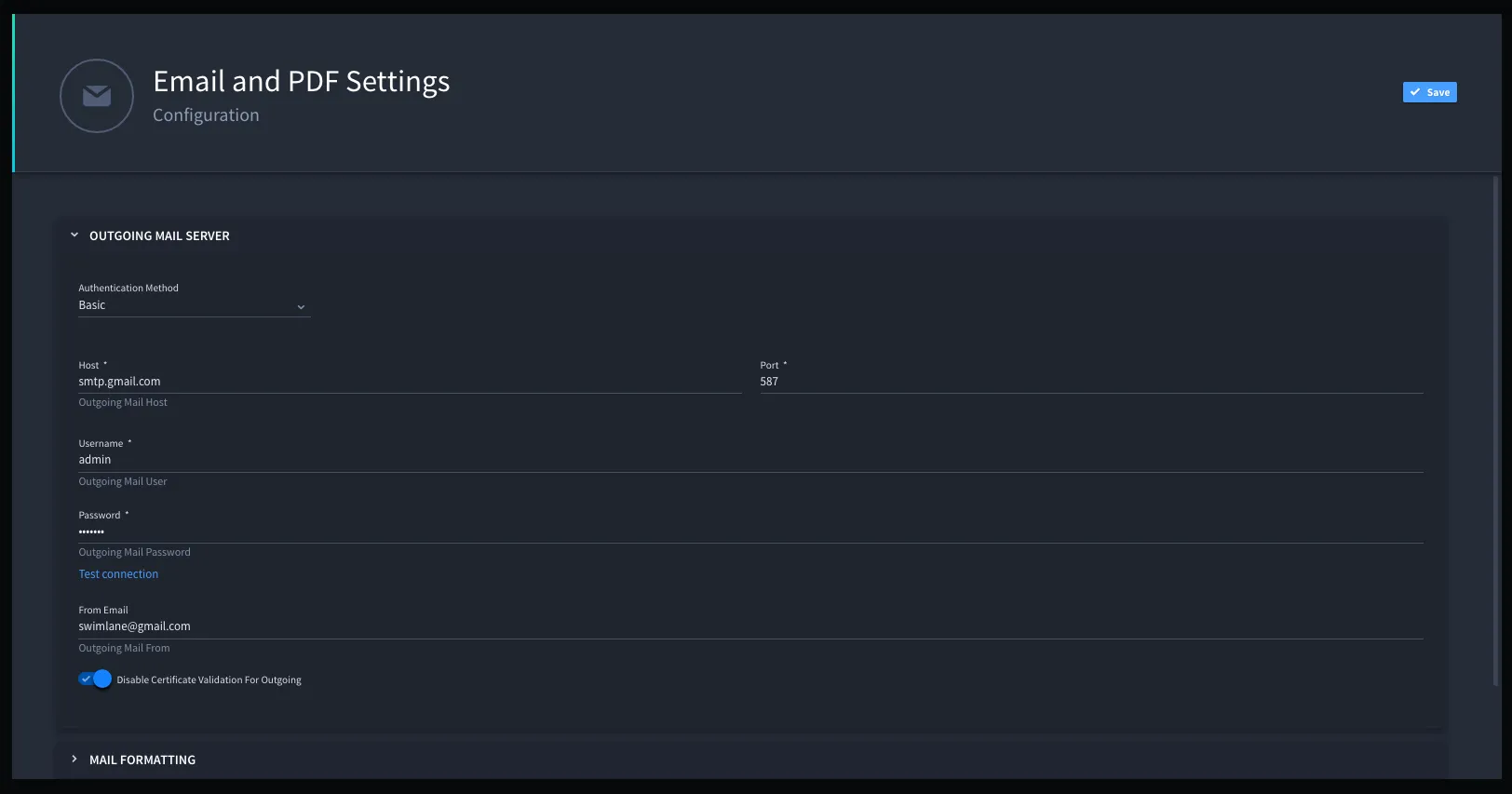
- From the Authentication Method drop-down, select Basic.
- Next, specify the outgoing mail host and port.
- On Username and Password, specify the administrative outgoing mail user and their associated password.
- To specify the outgoing email address, enter it in the From Email field.
- Click Disable Certificate Validation For Outgoing to disable SSL certificate validation for email server testing or untrusted self-signed certificates.
- Note: Swimlane does not recommend disabling the certificate validation in production.
-
Setting Up Without an Authentication Method
To set up without an authentication method:
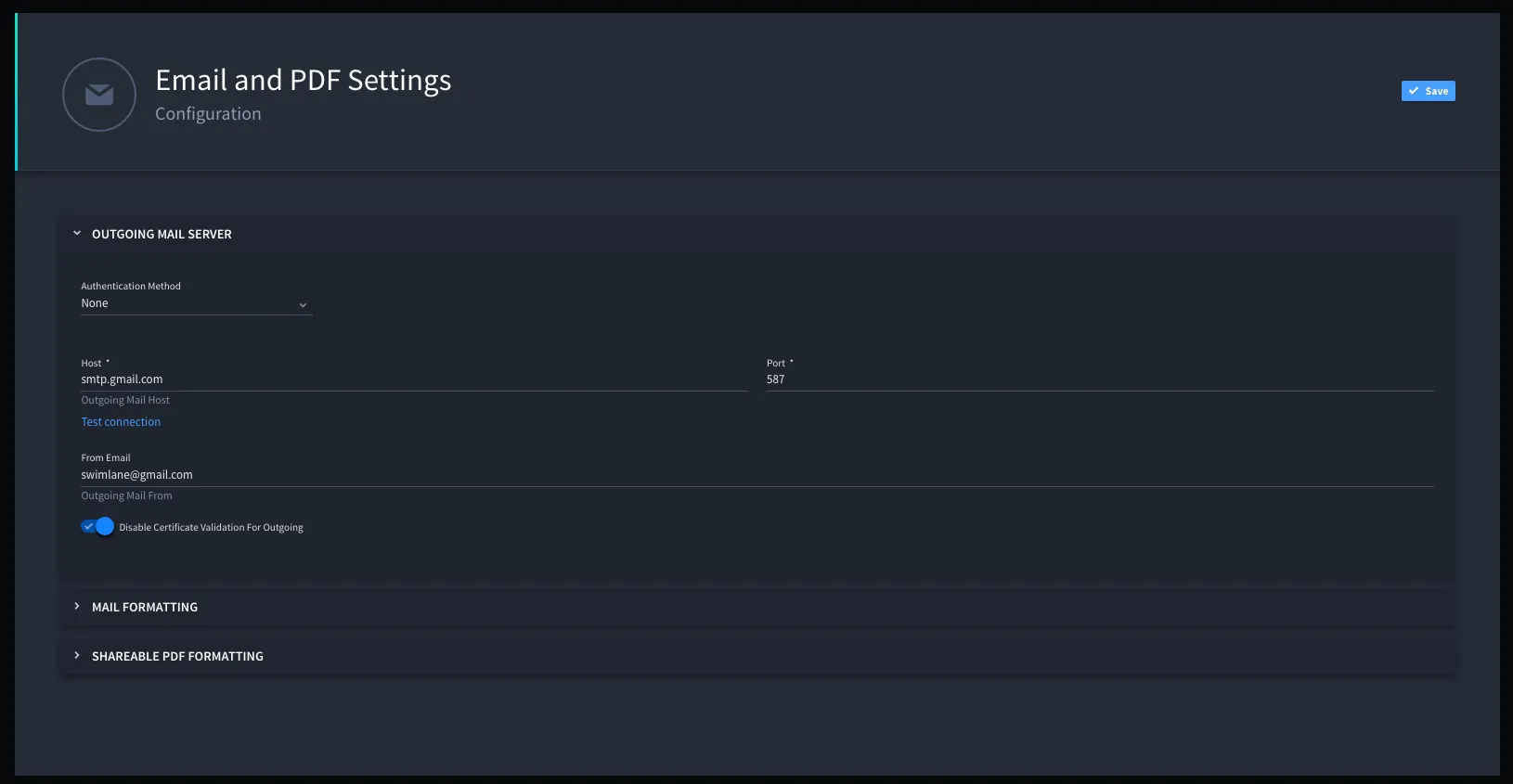
- From the Authentication Method drop-down, select None.
- Next, specify the outgoing mail host and port.
- Click Test Connection to ensure a connection exists.
- To specify the outgoing email address, enter it in the From Email field.
- Click Disable Certificate Validation For Outgoing to disable SSL certificate validation for email server testing or untrusted self-signed certificates.
- Note: Swimlane does not recommend disabling the certificate validation in production.
-
Formatting Outgoing Mail
To format outgoing mail:
Click > to expand Mail Formatting, where you can customize the emails sent from Swimlane.
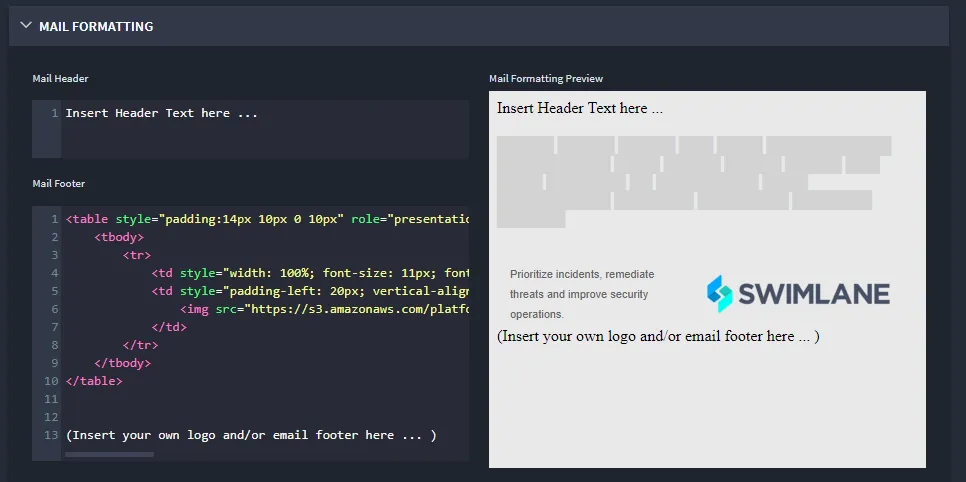
The text editor windows on the Mail Formatting page include tools that you can use for rich text formatting of the email header and footer content. You can delete the sample html text from Swimlane in the Mail Footer window.
Remember to host all source images you include in the headers or footers on a web server that the recipients of the email can access.