Create or Edit Dashboards
A Swimlane dashboard is a visual display of records, reports, and charts associated with the applications in the workspace. A workspace can have multiple dashboards.
Creating a Dashboard
You can create a new dashboard from Dashboards under Workspace Management or from any dashboard. For details on how to create a new dashboard from a current dashboard, go to Create or Edit User DashboardsCreate or Edit User Dashboards.
To create a new dashboard:
Under Workspace Management, from the Dashboards taskbar, select + New Dashboard.
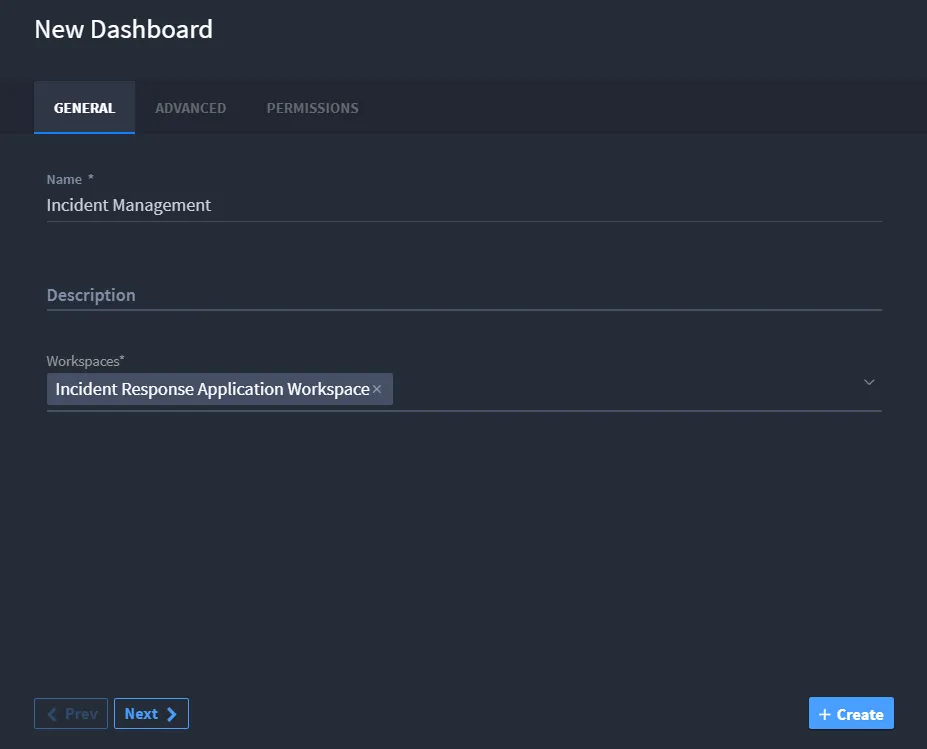
On New Dashboard, enter the name, description, and associated workspaces.
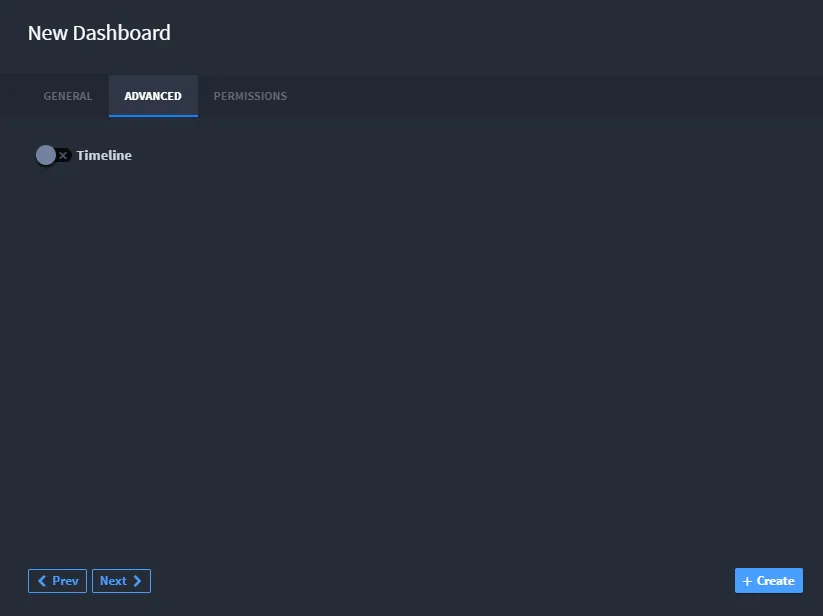
Click the Advanced tab. To indicate whether you want the dashboard to record a timeline, enable or disable the timeline switch.
Click the Permissions tab. Specify whether the dashboard is a personal dashboard or specify other role-based permissions.
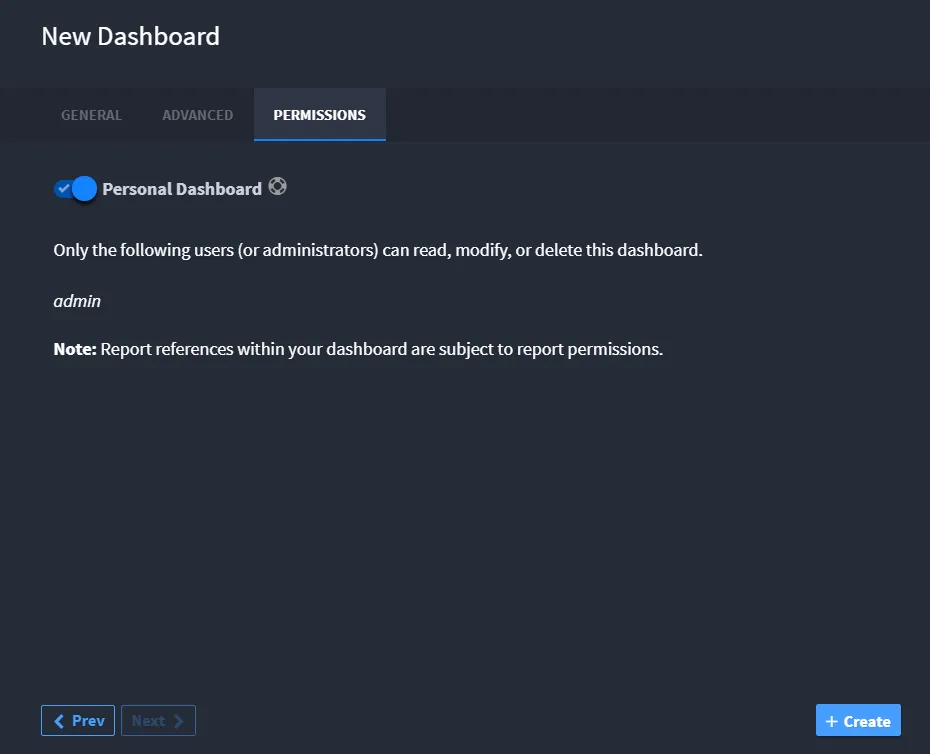
Click + Create to create your dashboard. A dialog box will appear to show you that your dashboard has been successfully created.
Editing a Dashboard
You can edit a dashboard from Dashboards under Workspace Management or from the dashboard you want to edit. For details on how to edit your current dashboard, go to Create or Edit User DashboardsCreate or Edit User Dashboards.
To edit a dashboard:
- From the navigation menu, select Workspace Management and then select the Dashboards page.
- On the Dashboards page, click the pencil icon.
-
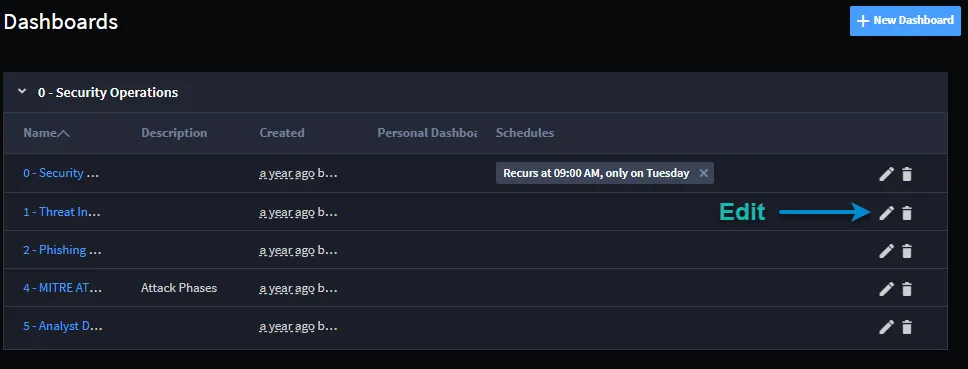
- This opens Dashboard Settings and Schedules. Here you can edit the General, Advanced, and Permissions settings that were set when creating the dashboards. You can also edit the Dashboard Schedules for the selected dashboard by clicking the Schedules tab.
Deleting a Dashboard
You can delete a dashboard from Dashboards under Workspace Management or from the dashboard you want to delete. For details on how to delete your current dashboard, go to Create or Edit User DashboardsCreate or Edit User Dashboards.
- To delete a dashboard, under Workspace Management, on the Dashboards page, click the trash can icon.
-
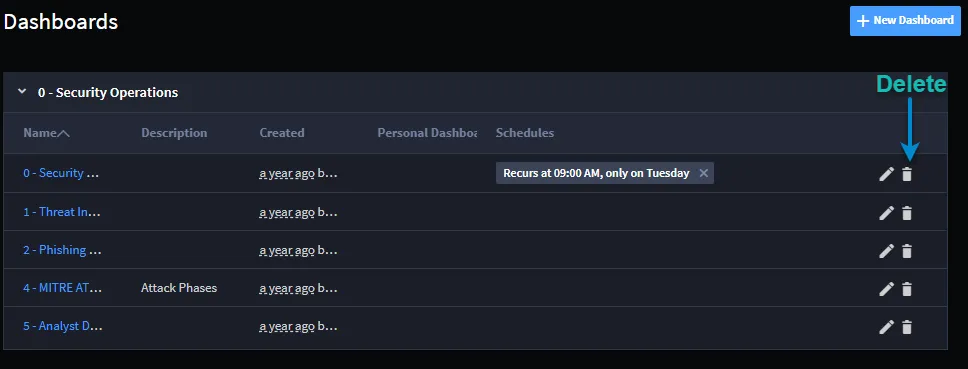
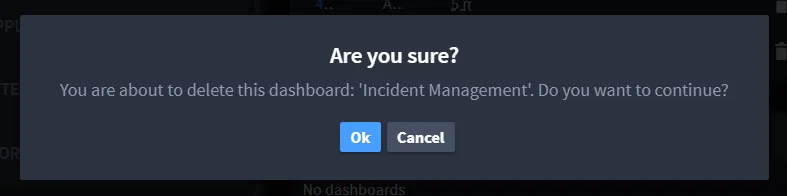
- After you have selected to delete a dashboard, you will see a dialog box asking you to confirm that you want to delete the dashboard.
- Click Ok to delete the dashboard.
-
- A dialog box appears to show you that your dashboard has been successfully deleted.
-