Correlate Records
Record correlation correlates records within a single application within the Swimlane platform. Upon ingestion of new Application records, the platform compares the new record to previous records that have correlation keys.
Record Correlation executes two tasks:
- Compares Correlation Key fields across records in a single application, looking for configurable similarities.
- Creates References in a Reference field among associated records.
The correlation field types in the following table are aligned with their default configurations and will be compared with the matching preferences on the Settings tab:
Correlation Field Type | Value and Default Information |
|---|---|
IPv4 public addresses | Plus or minus 255 values. Example: 10.10.11.0 – 10.10.10.254 = 2 |
IPv4 private addresses | Exact match between addresses |
IPv6 public addresses | Within 65535 values |
Domains, URLs, file names, and email addresses | Has a threshold of 90% similarity, calculated via “lengthwise Levenshtein” of less than 1 character substitution per 10 characters of string length |
File attachments | Fuzzy hash similarity greater than or equal to 90% |
Text list fields | Matches process as entry fields, so 2 items will match with 2. |
Configure Record Correlations
To configure record correlations:
- From the Navigation menu, select Applications and Applets.
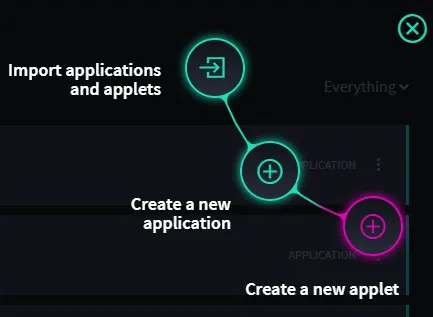
- Click the plus icon, and then click Create a new application.
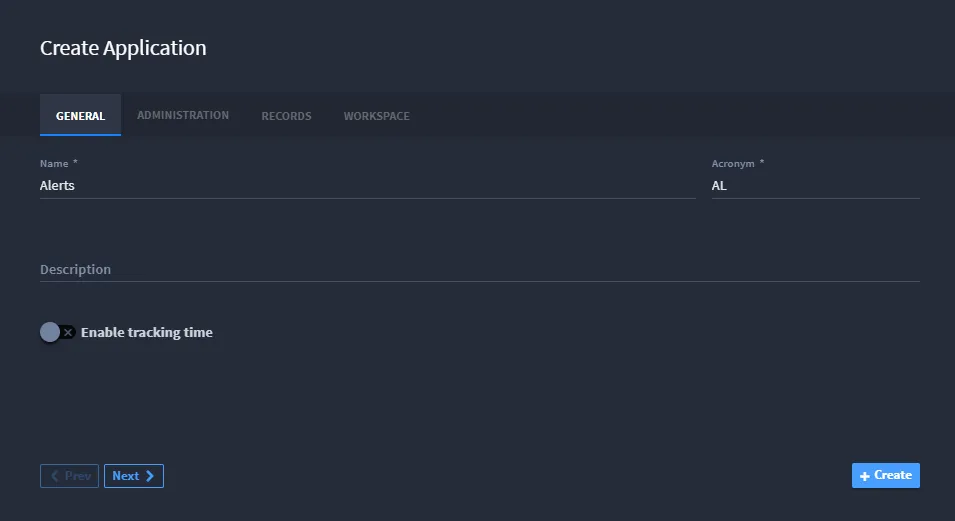
- On Create Application, complete the Name field. You can click the GENERAL, ADMINISTRATION, RECORDS, or WORKSPACE tabs to add information or use the Next and Prev buttons to move through the tabs.
- Click +Create.
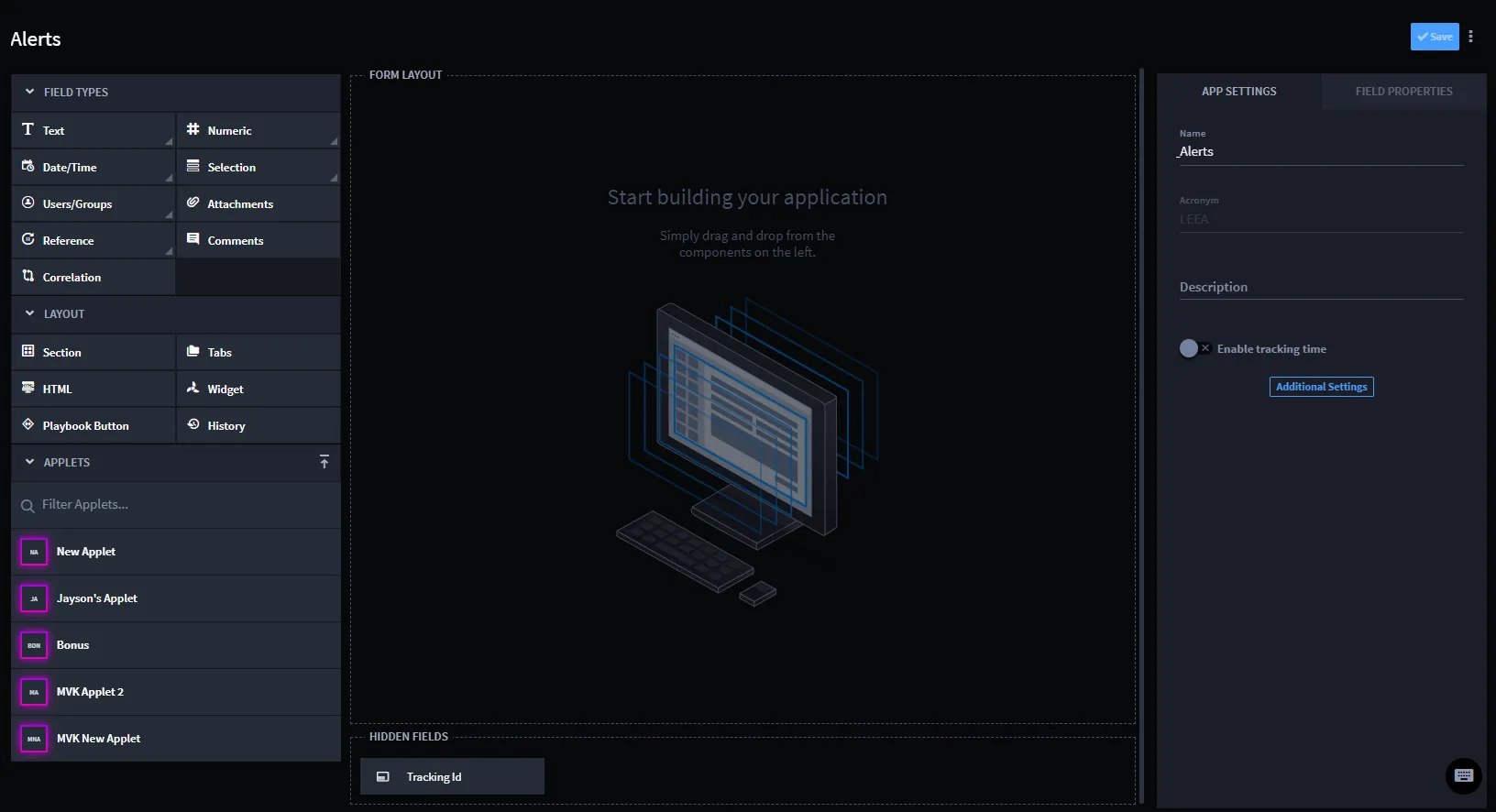
Once you click the +Create button, the new application opens in the application builder.
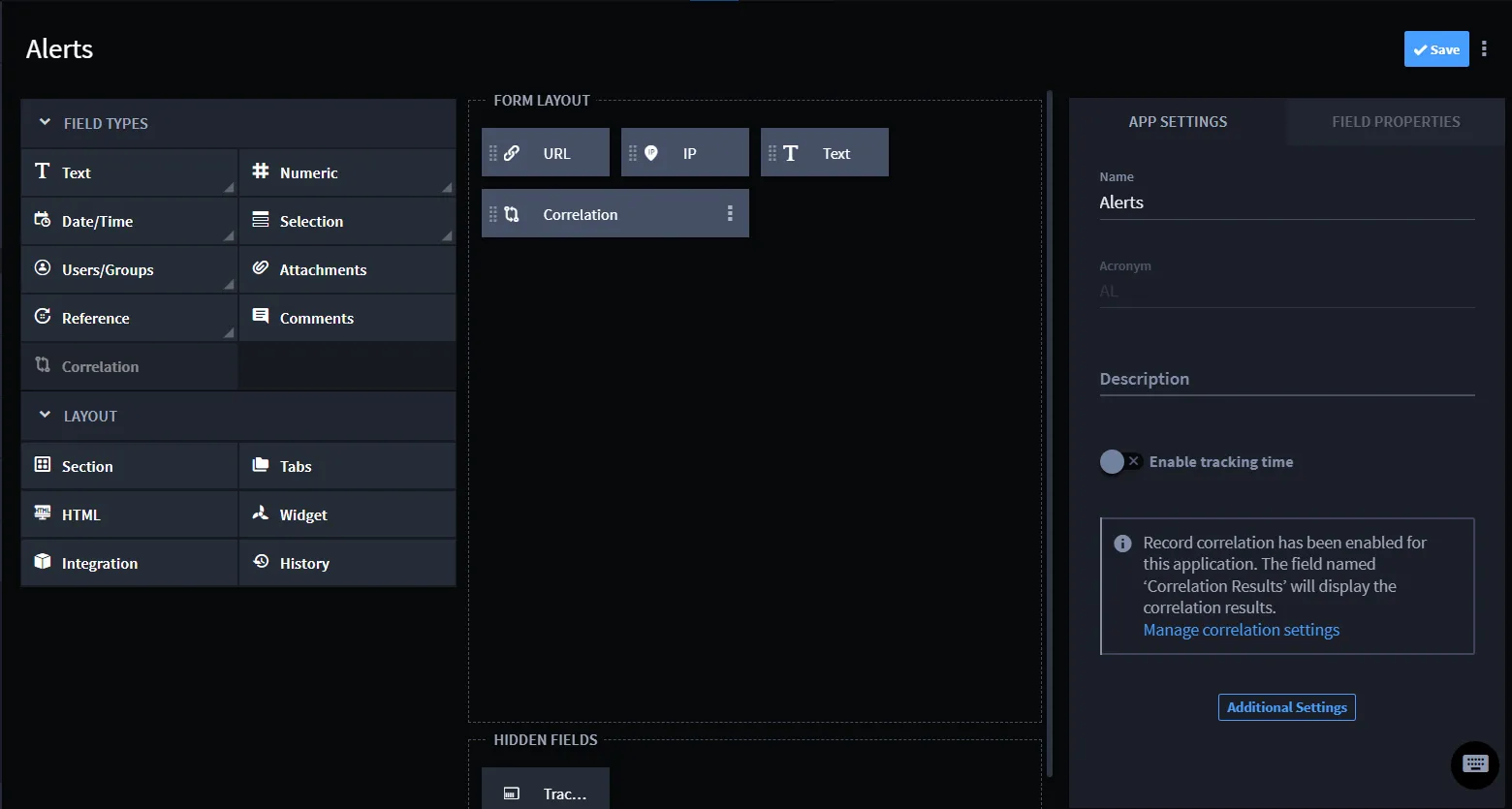
The FORM LAYOUT section will be blank.
- Click and drag the following field types into the FORM LAYOUT section to start building your application: Text, IP, URL, and Correlation.
The FORM LAYOUT section will reflect all of the required field types for record correlation.
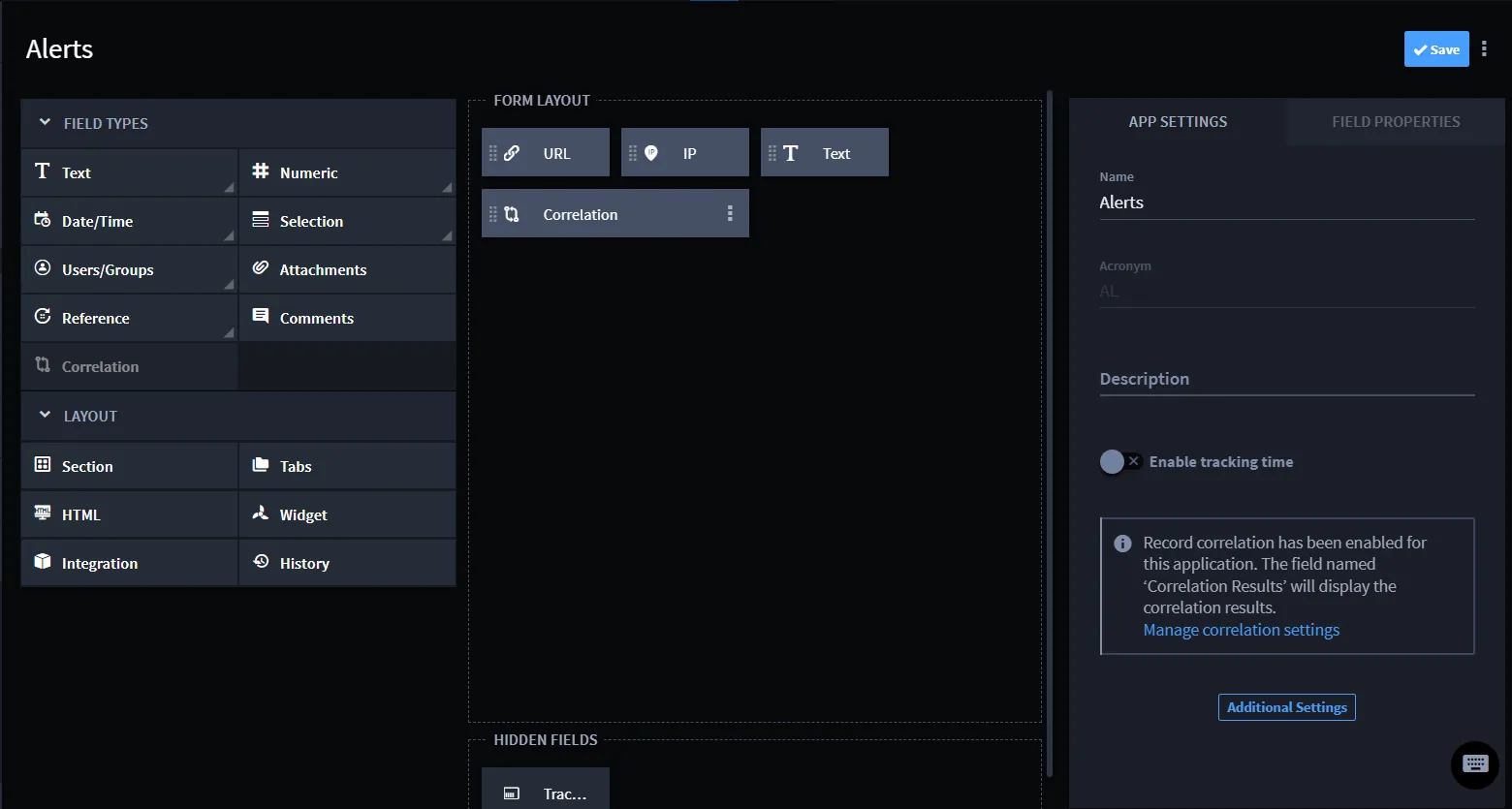
Now, record correlation has been enabled for this application. The field named Correlation Results will display the correlation results.
- To setup correlation settings, click Manage correlation settings hyperlink.
From the Record Correlation window, you will be able to manage data.
- For details about how record correlation executes and default values for specific Correlation field types, click the Documentation tab.
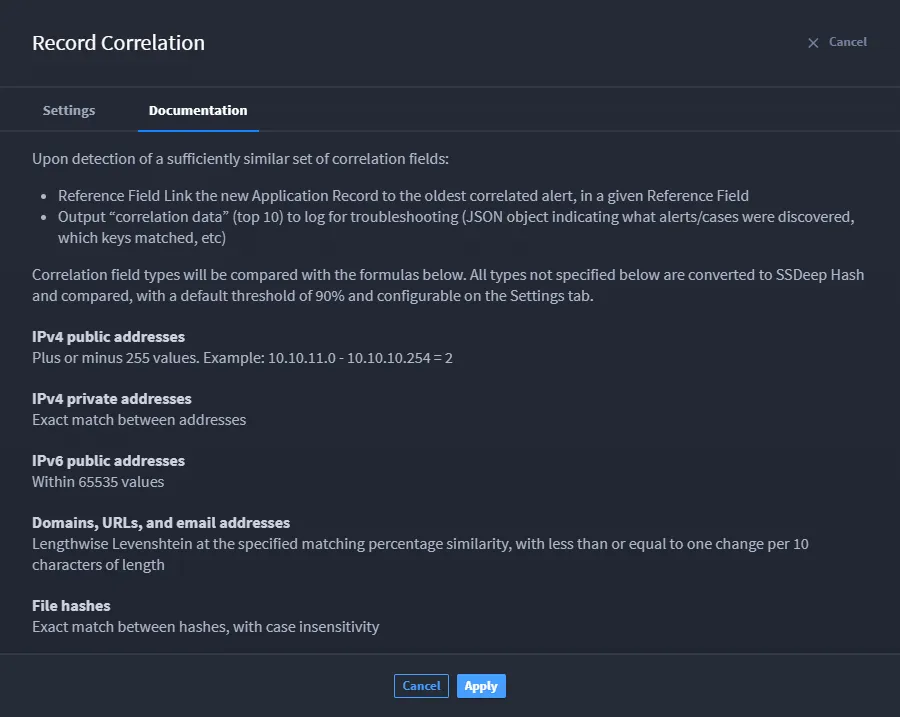
Once you have read details about the correlation process and data, navigate back to the Settings tab.
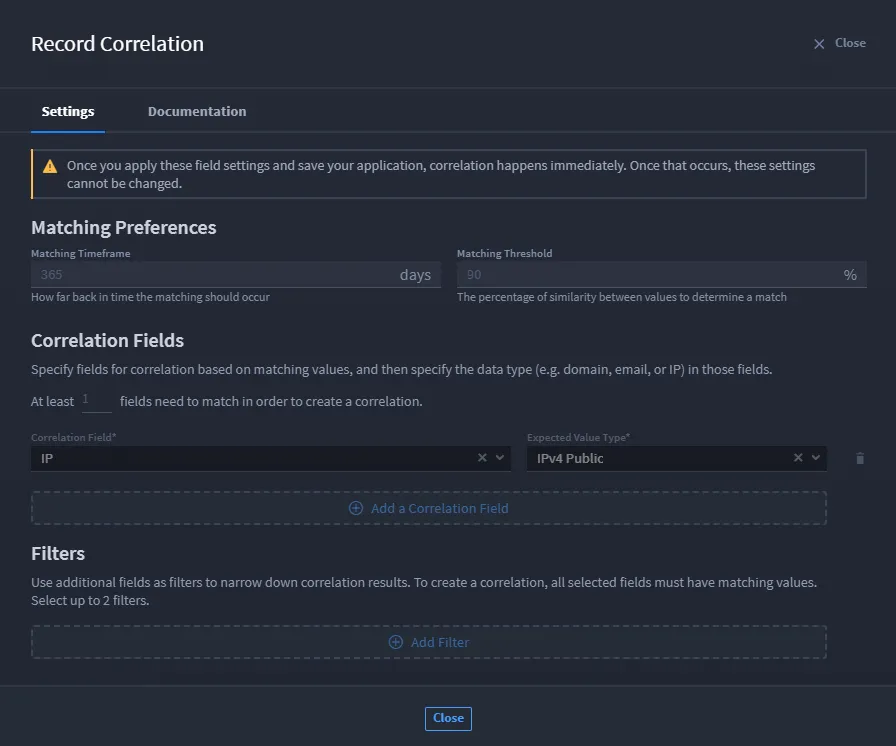
From Settings, there will be three Matching Preferences fields: Matching Timeframe, Matching Threshold, and Minimum number of matching fields. Each field has a default value. Click within the field to modify the default value.
After you set the Matching Preferences, click the Correlation Field drop-down arrow and select a field type.
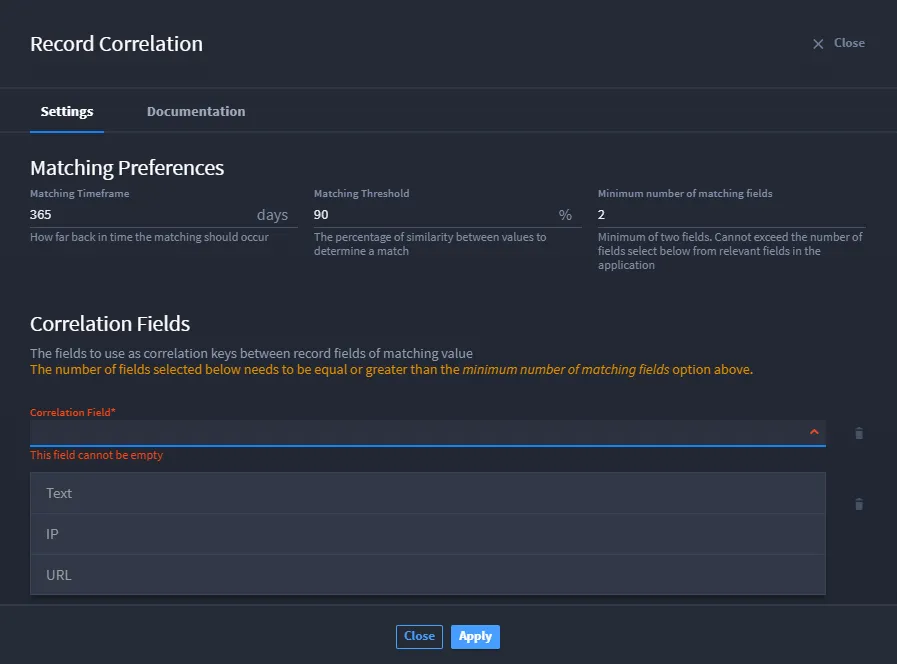
i> Tip: Click Add a Correlation Field to create another drop-down list.
Complete this for each required Correlation Field drop-down.
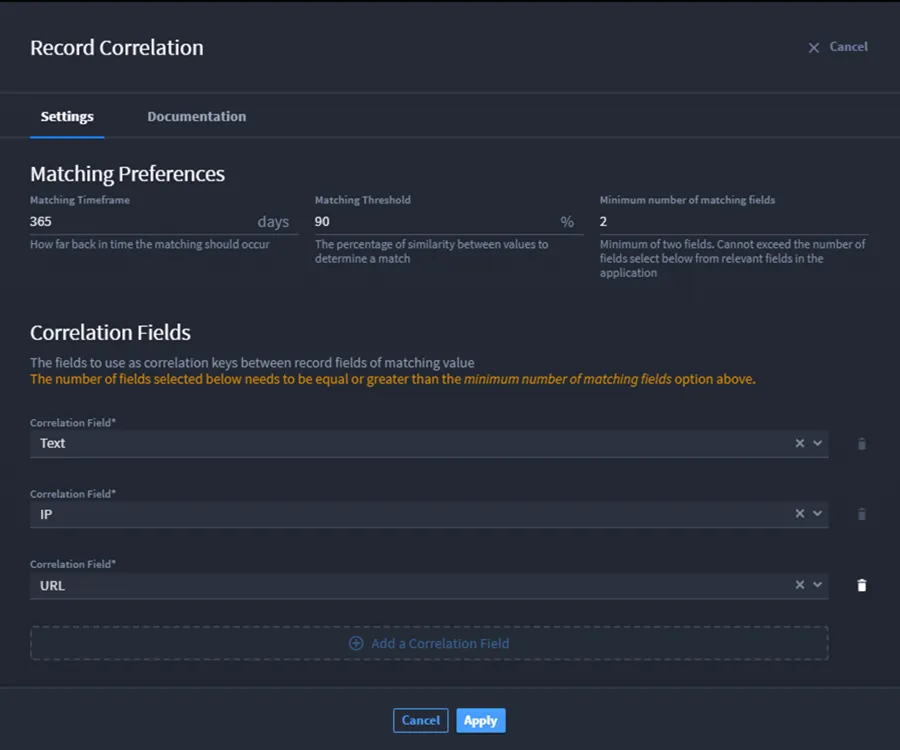
- To save record correlation settings, click Apply.