Update/Create Record
The Update/Create Record (also called Upsert Record) native action updates an existing record or creates a new record based on a unique identifier field. The action searches for a record using a key field and value; if found, it updates the record; if not found, it creates a new one.
Key Benefits
- Native Action: Integrated directly into the playbook builder for streamlined workflow creation.
- Upsert Functionality: Automatically creates or updates records based on a unique identifier.
- Flexible Field Operations: Supports patching (overwrite), appending (add to arrays), and removing (remove from arrays) values.
- Single Action: Eliminates the need for separate create and update actions with conditional logic.
- At Most Once Execution: Ensures the record is created or updated exactly once, even if the playbook is retried.
How Update/Create Record Works
- Search Phase: The action searches for an existing record where the keyFieldKey field matches the keyFieldValue.
- Update Path (Record Found):
- Applies patchValues to overwrite existing field values.
- Applies appendValues to add items to array/multiselect fields.
- Applies removeValues to remove items from array/multiselect fields.
- Updates restrictions if provided.
- Create Path (Record Not Found):
- Creates a new record.
- Combines patchValues and appendValues for initial field values.
- Sets restrictions if provided.
Inputs
The Update/Create Record action requires the following inputs:
Required Inputs
- Application: Select an application by either:
- Application ID: The unique identifier of the application
- Application Name: The name of the application
- Note: You must provide either applicationId or applicationName, but not necessarily both.
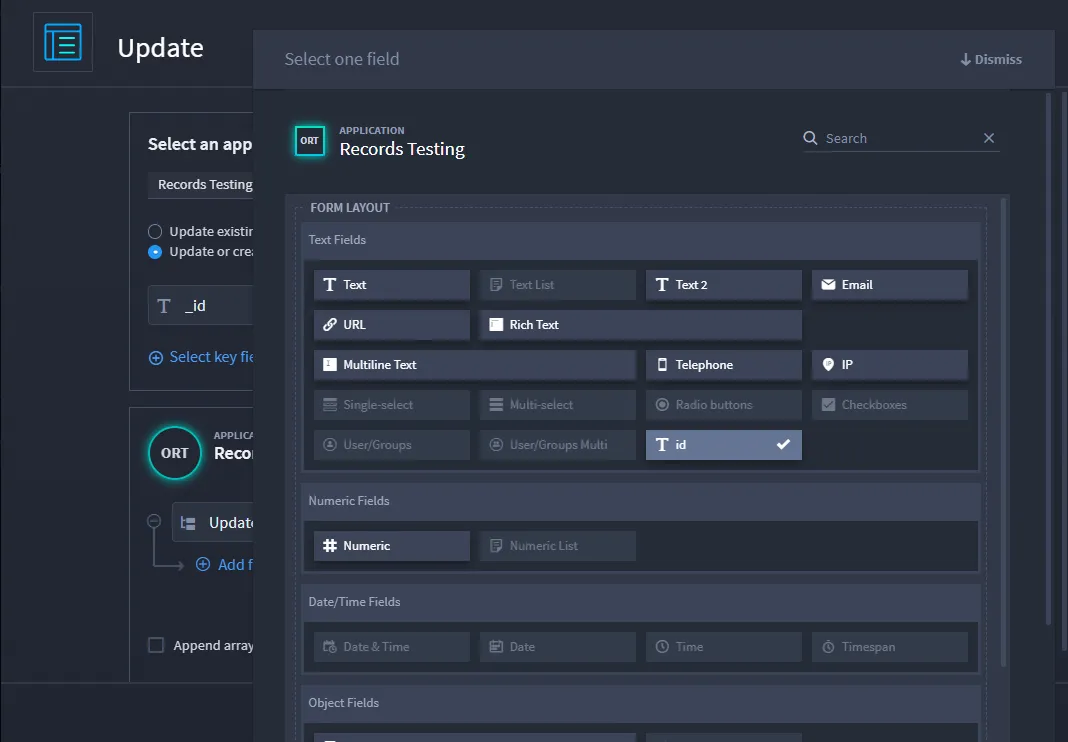
- Key Field Key: The field key to use as a unique identifier for finding or creating records. This must be a single field (not multiple fields). Note: Only one field can be selected as the key field.
- Key Field Value: The value of the key field to search for. This can be:
- A static value (string or number)
- A reference to a playbook property from upstream actions
- A reference to playbook inputs
- An expression that evaluates to a string or number
Optional Inputs
- Patch Values: Fields to update/overwrite on the record. These values replace existing field values.
- Works for all field types except comments (comments only work with append).
- If updating an array field with patch, it replaces the entire array.
- Append Values: Array/multiselect fields to append items to. These values are added to existing arrays without removing existing items.
- Only works for array/multiselect field types.
- If you pass an empty array or null value, nothing changes.
- Comments fields only work with append, not patch.
- Remove Values: Array/multiselect fields to remove items from. These values are removed from existing arrays if they match.
- Only works for array/multiselect field types.
- Only removes values that match existing array items.
- If you pass items that do not match, nothing changes.
- If you remove all items, the field is removed from the record (no empty array/null).
- Restrictions: Users and/or groups to restrict the record to:
- Users: Array of user IDs or usernames
- Groups: Array of group IDs or group names
Configuring the Update/Create Record Action
Step 1: Select Application
- From the Inputs tab, select an application:
- Choose from the dropdown list of available applications, or
- Use an expression to reference an application ID or name dynamically
Step 2: Select Key Field
- Click Select key field to open the application form.
- Select one field to use as the unique identifier.
- This field will be used to search for existing records.
Step 3: Configure Key Field Value
- Set the Key Field Value:
- Enter a static value (string or number), or
- Click the + icon to select a playbook property from upstream actions or playbook inputs, or
- Write an expression to calculate the value dynamically
Example: To use a value from an upstream HTTP Request action:
- Click the + icon next to Key Field Value
- Select Playbook Property
- Navigate to $actions.httpRequestName.result.body.id
Step 4: Configure Field Values
Configure how fields should be updated or created:
Patch Values (Update/Overwrite)
- Add fields to the Patch Values section.
- Map values to each field:
- Click the + icon next to each field
- Select a playbook property, enter a static value, or write an expression
- Behavior: These values overwrite existing field values.
Important Notes:
- Array Fields: If you patch an array field, it replaces the entire array. For example, if an array has [A, B, C] and you patch with [D], the result is [D] (not [A, B, C, D]).
- Comments: Comments fields cannot be patched; use append instead.
- Null Values: You can clear fields by sending null for string, numeric, and list types.
Append Values (Add to Arrays)
- Add array/multiselect fields to the Append Values section.
- Map values to append:
- Click the + icon next to each field
- Select a playbook property, enter a static value, or write an expression
- Behavior: These values are added to existing arrays without removing existing items.
Important Notes:
- Only Array/Multiselect Fields: Append only works for array/multiselect field types.
- Empty Arrays/Null: If you pass an empty array or null value, nothing changes.
- Comments: Comments fields work with append operations.
- Preserves Existing Data: Existing array items are preserved; new items are added.
Remove Values (Remove from Arrays)
- Add array/multiselect fields to the Remove Values section.
- Map values to remove:
- Click the + icon next to each field
- Select a playbook property, enter a static value, or write an expression
- Behavior: These values are removed from existing arrays if they match.
Important Notes:
- Only Array/Multiselect Fields: Remove only works for array/multiselect field types.
- Matching Required: Only removes values that match existing array items exactly.
- No Match: If you pass items that do not match existing items, nothing changes.
- Remove All: If you remove all items from an array, the field is removed from the record (no empty array/null is stored).
Step 5: Configure Restrictions (Optional)
If you need to restrict record access:
- Expand the Restrictions section.
- Add Users: Enter user IDs or usernames (can be static or from expressions).
- Add Groups: Enter group IDs or group names (can be static or from expressions).
Note: Restrictions determine who can view and access the record. If not specified, the record follows the application's default access rules.
Step 6: Apply Changes
Click Apply to save your configuration.
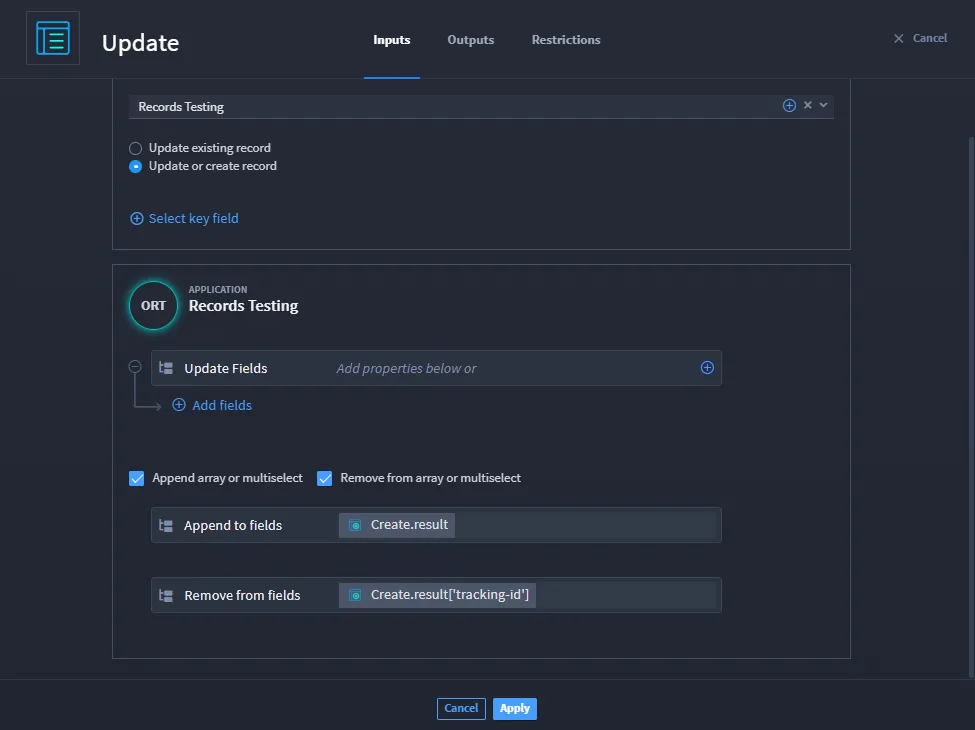
Understanding Field Operations
Patch (Update/Overwrite)
Use Case: Replace existing field values with new values.
Behavior:
- String/Number Fields: Replaces the existing value with the new value.
- Array Fields: Replaces the entire array with the new array.
- Comments Fields: Cannot be patched; use append instead.
Example:
- Existing array: ["item1", "item2", "item3"]
- Patch with: ["item4"]
- Result: ["item4"] (original items are lost)
Append (Add to Arrays)
Use Case: Add items to existing arrays without removing existing items.
Behavior:
- Array/Multiselect Fields: Adds new items to the existing array.
- Comments Fields: Works with append operations.
- Empty/Null Values: If you pass an empty array or null, nothing changes.
Example:
- Existing array: ["item1", "item2"]
- Append with: ["item3"]
- Result: ["item1", "item2", "item3"] (original items are preserved)
Remove (Remove from Arrays)
Use Case: Remove specific items from existing arrays.
Behavior:
- Array/Multiselect Fields: Removes matching items from the existing array.
- Exact Match Required: Only removes items that exactly match existing array items.
- No Match: If items do not match, nothing changes.
- Remove All: If all items are removed, the field is removed from the record.
Example:
- Existing array: ["item1", "item2", "item3"]
- Remove: ["item2"]
- Result: ["item1", "item3"] (only matching item is removed)
Outputs
The Update/Create Record action provides the following outputs:
Success Output
When the record is created or updated successfully, the action returns:
- result.tracking-id: The tracking ID (trackingFull) of the created or updated record. This can be used in downstream actions to reference the record.
Example: Access the tracking ID in downstream actions:
Error Output
If the record creation or update fails, the action returns:
- error: Error information containing details about why the operation failed.
Common Error Scenarios:
- Application not found
- Key field not found in application
- Invalid key field value type
- Invalid field values
- Permission errors
- Validation errors
Use Cases
Example 1: Upsert Record by Email Address
Scenario: Create or update a user record based on email address.
Configuration:
- Select the application (for example, "User Management").
- Select Key Field: email-address
- Set Key Field Value: $inputs.userEmail (or from upstream action)
- Configure Patch Values:
- first-name: $inputs.firstName
- last-name: $inputs.lastName
- status: "Active"
- Configure Append Values (if updating):
- roles: ["User", "Viewer"] (adds roles without removing existing ones)
Result:
- If a record with the email exists, it updates the name and status, and adds roles.
- If no record exists, it creates a new record with the provided values.
Example 2: Update Array Field with Append
Scenario: Add log entries to a record without overwriting existing logs.
Configuration:
- Select the application.
- Select Key Field: case-id
- Set Key Field Value: $actions.createCase.result['tracking-id']
- Configure Append Values:
- log-entries: [$inputs.newLogEntry] (adds to existing log entries)
Result: New log entries are added to the existing array without removing previous entries.
Note: If you used Patch instead of Append, it would replace all existing log entries with only the new entry.
Example 3: Remove Items from Array Field
Scenario: Remove specific tags from a record.
Configuration:
- Select the application.
- Select Key Field: record-id
- Set Key Field Value: $inputs.recordId
- Configure Remove Values:
- tags: ["deprecated", "old"] (removes these tags if they exist)
Result: Only matching tags are removed from the array. Non-matching tags remain unchanged.
Example 4: Combined Patch, Append, and Remove
Scenario: Update a record with multiple field operations.
Configuration:
- Select the application.
- Select Key Field: incident-id
- Set Key Field Value: $event.data.incidentId
- Configure Patch Values:
- status: "Resolved"
- priority: "Low"
- Configure Append Values:
- notes: [$event.data.resolutionNote] (adds note without removing existing notes)
- Configure Remove Values:
- assigned-teams: ["Team-A"] (removes Team-A if present)
Result: The action updates status and priority, adds a resolution note, and removes Team-A from assigned teams.
Example 5: Create Record with Restrictions
Scenario: Create or update a sensitive record restricted to specific users.
Configuration:
- Select the application.
- Select Key Field: confidential-id
- Set Key Field Value: $inputs.confidentialId
- Configure Patch Values as needed.
- Configure Restrictions:
- Users: ["[email protected]", "[email protected]"]
- Groups: ["Security Team"]
Result: The record is created or updated with restrictions, making it accessible only to the specified users and groups.
Best Practices
- Choose Appropriate Key Field: Select a field that uniquely identifies records (for example, email, ID, tracking number). Avoid fields with duplicate values.
- Use Append for Arrays: When working with array/multiselect fields, use append to preserve existing data rather than patch, which replaces the entire array.
- Use Patch for Single Values: Use patch for string, number, and single-select fields where you want to replace the existing value.
- Handle Comments Correctly: Comments fields only work with append operations, not patch. Use append to add comments.
- Validate Key Field Value: Ensure the key field value is correctly formatted and matches the field type (string or number).
- Test Both Paths: Test scenarios where records exist (update) and where they do not exist (create) to ensure both paths work correctly.
- Use Restrictions Wisely: Apply restrictions when creating sensitive records that should only be accessible to specific users or groups.
- Clear Fields with Null: Use patch with null values to clear string, numeric, and list fields.
Troubleshooting
- Record Not Found (Expected Create):
- Verify the key field key is correct.
- Ensure the key field value matches the expected format.
- Check that the application contains the key field.
- Record Found (Expected Create):
- The action updates existing records if a match is found.
- If you want to always create new records, use the Create Record action instead.
- Array Field Not Updating:
- Verify you are using append for array fields, not patch (unless you want to replace the entire array).
- Check that the field type is array/multiselect.
- Ensure values are in array format: ["value1", "value2"]
- Append Not Working:
- Verify the field is an array/multiselect type.
- Check that you are not passing empty arrays or null values (these do not change anything).
- Ensure values are properly formatted as arrays.
- Remove Not Working:
- Verify the field is an array/multiselect type.
- Check that the values you are removing exactly match existing array items.
- Ensure values are properly formatted as arrays.
- Patch Overwriting Arrays:
- Remember that patch replaces entire arrays. Use append to add items without removing existing ones.
- If you need to both add and remove items, use append and remove together.
- Comments Not Updating:
- Comments fields only work with append operations, not patch.
- Use append to add comments to existing comment arrays.
- Key Field Value Type Error:
- Ensure the key field value matches the field type (string or number).
- Verify the value is not null or undefined.
- Application Not Found:
- Verify the application ID or name is correct.
- Ensure the application exists and is accessible.
- Check that application references are properly formatted.
The Canvas title is Update/Create Record.
When to Use Bulk Mode
Use Bulk mode when you must update or upsert many records in a Performance Application from one action. Use the published single-record steps for one record. Use Create Record when you only create. Use Using the Big Data Native Action when you transform files, not when you write records.
Bulk mode is behind a feature flag and must be enabled; to enable this feature, contact Swimlane Support. Bulk mode is not supported on Turbine On-Prem.
Choose Your Path
Goal | Where to go |
|---|---|
Update or create one record | Use the published configure steps on the live topic. |
Update or create many records | |
Create only (no update) |
Update or Create Records in Bulk
Use Bulk mode when the target is a Performance Application.
- Open the Update/Create Record action.
- On Inputs, turn on Bulk mode.
- Map Bulk Input Source (array of objects or file).
- In Select an application, choose a Performance Application.
- Choose Update existing record or Update or create record.
- Map the key and other fields.
- Select Apply.
Until an application is selected, the notice reads Select an application to map fields.
Write Once and Read-only apply to the record UI. Update/Create Record (including Bulk mode) can still update those fields.
Restrictions is present and is not available while Bulk mode is on. The tooltip is Restrictions are not supported in bulk mode.