Delete Record
Overview
The Delete Record action enables you to programmatically delete records from Swimlane applications within playbooks. The action identifies records by their unique tracking ID (trackingFull) and removes them from the specified application.
Key Benefits
- Native Action: Integrated directly into the playbook builder for streamlined workflow creation.
- Simple Identification: Uses tracking ID to uniquely identify records for deletion.
- Flexible Inputs: Application and tracking ID can be static values or dynamic references from upstream actions.
- At Most Once Execution: Ensures the record is deleted exactly once, even if the playbook is retried.
- Error Handling: Provides clear error messages when records or applications are not found.
Inputs
The Delete Record action requires the following inputs:
Required Inputs
- Tracking ID: The tracking ID (trackingFull) of the record to delete. This is a unique identifier for each record in the application.
- Can be a static value (for example, "INC-2024-001")
- Can reference a playbook property from upstream actions (for example, $actions.createRecord.result['tracking-id'])
- Can reference playbook inputs (for example, $inputs.recordTrackingId)
- Can be an expression that evaluates to a tracking ID
Application Selection
You must provide either:
- Application ID: The unique identifier of the application containing the record, or
- Application Name: The name of the application containing the record
Note: You must provide either applicationId or applicationName, but not necessarily both. If both are provided, applicationId takes precedence.
Configuring the Delete Record Action
Step 1: Select Application
- From the Inputs tab, select an application:
- Choose from the dropdown list of available applications, or
- Use an expression to reference an application ID or name dynamically
Step 2: Configure Tracking ID
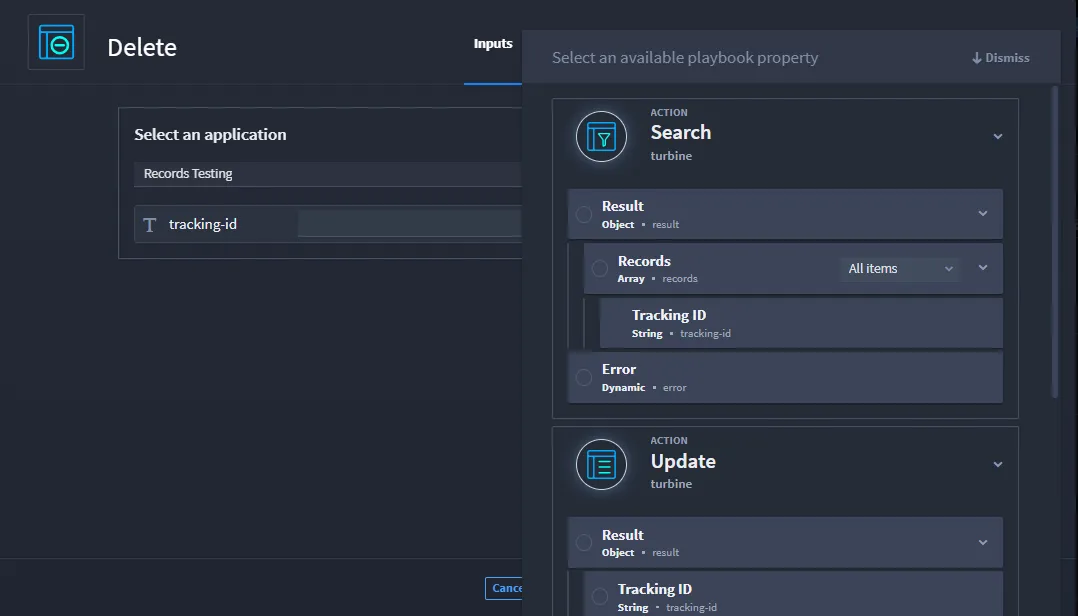
- The Tracking ID field automatically displays in the Inputs tab.
- Set the tracking ID value by clicking the + icon next to the Tracking ID field.
- Choose from:
- Playbook Property: Select a property from upstream actions or playbook inputs
- Expression: Write an expression to calculate the tracking ID dynamically
- Static Value: Enter a tracking ID directly

Example: To delete a record that was created earlier in the playbook:
- Click the + icon next to Tracking ID
- Select Playbook Property
- Navigate to $actions.createRecordName.result['tracking-id']
Step 3: Apply Changes
Click Apply to save your configuration.
Outputs
The Delete Record action provides the following outputs:
Success Output
When the record is deleted successfully, the action returns:
- result: A boolean value (true) indicating the deletion was successful.
Example: Access the result in downstream actions:
Error Output
If the record deletion fails, the action returns:
- error: Error information containing details about why the deletion failed.
Common Error Scenarios:
- Application not found: The specified application ID or name does not exist
- Record not found: The record with the specified tracking ID does not exist in the application
- Permission errors: The playbook or user does not have permission to delete records in the application
- Invalid tracking ID: The tracking ID format is invalid or empty
Use Cases
Example 1: Delete Record After Processing
Scenario: Delete a temporary record after it has been processed and archived.
- Add a Create Record action to create a temporary record.
- Process the record (for example, extract data, send notifications).
- Add a Delete Record action:
- Application: Same application as the Create Record action
- Tracking ID: $actions.createRecordName.result['tracking-id']
- The temporary record is deleted after processing completes.
Example 2: Conditional Record Deletion
Scenario: Delete records that meet certain criteria.
- Add a Search Records action to find records matching criteria.
- Add a Loop action to iterate over search results.
- Inside the loop, add a Delete Record action:
- Application: Reference from search results
- Tracking ID: $loop.value['tracking-id']
- Only records matching the criteria are deleted.
Example 3: Delete Record from Event Data
Scenario: Delete a record when a specific event is received.
- Configure an event trigger to receive events.
- Add a Delete Record action.
- Map inputs:
- Application: $event.data.applicationName
- Tracking ID: $event.data.recordTrackingId
- The record is deleted when the event is received.
Best Practices
- Verify Before Deleting: Consider adding a conditional check or confirmation step before deleting important records.
- Handle Errors Gracefully: Use On Failure paths to handle deletion errors, especially when records might not exist.
- Use Tracking IDs from Upstream Actions: Reference tracking IDs from Create Record or Search Records actions to ensure accuracy.
- Test with Sample Data: Test your delete operations with sample records before deploying to production.
- Consider Record Dependencies: Be aware that deleting a record may affect related records or workflows that reference it.
- Log Deletions: Consider logging deleted record tracking IDs for audit purposes.
- Use Conditions: Add conditional logic to only delete records under specific circumstances.
Troubleshooting
- Record Not Found Error:
- Verify the tracking ID is correct and matches an existing record.
- Ensure the tracking ID is from the correct application.
- Check that the record has not already been deleted.
- Application Not Found Error:
- Verify the application ID or name is correct.
- Ensure the application exists and is accessible.
- Check that application references are properly formatted.
- Permission Errors:
- Verify the playbook has permission to delete records in the selected application.
- Check that the user running the playbook has appropriate access.
- Ensure the application allows record deletion operations.
- Tracking ID Not Available:
- If referencing from upstream actions, ensure the action completed successfully.
- Verify the upstream action returns a tracking ID in the expected format.
- Check that the property path is correct (for example, $actions.actionName.result['tracking-id']).
- Deletion Fails Silently:
- Check the error output for specific error messages.
- Verify the record exists before attempting deletion.
- Review playbook execution logs for detailed error information.
The Delete Record action identifies records by tracking ID (trackingFull) and removes them from the specified application.
When to Use Bulk Mode
Use Bulk mode when you must delete many records in a Performance Application from one action. Use the published single-record steps for one tracking ID. Use the published Search plus Loop pattern when you are not on a Performance Application. Use Using the Big Data Native Action when you transform files, not when you delete records.
Bulk mode is behind a feature flag and must be enabled; to enable this feature, contact Swimlane Support. Bulk mode is not supported on Turbine On-Prem.
Choose Your Path
Goal | Where to go |
|---|---|
Delete one record | Use the published Configuring the Delete Record Action steps on the live topic. |
Delete many records | |
Loop Search results instead of Bulk mode | Keep the published Search Records plus Loop pattern on the live topic. |
Delete Records in Bulk
Use Bulk mode when the target is a Performance Application.
- Open the Delete Record action.
- On Inputs, turn on Bulk mode.
- Map Bulk Input Source (file or array of objects). The source must show a mapped property before you map tracking-id.
- In Select an application, choose a Performance Application.
- Map tracking-id from the bulk source (for example, $input.tracking-id).
- Select Apply.
Delete Record in bulk shows Inputs and Outputs only. There is no Restrictions tab.
Until you map a source, Bulk Input Source shows Select a property.