Palo Alto Networks Prisma Cloud
Introduction
This guide tells you how to authenticate the Palo Alto Networks Prisma Cloud connector in Swimlane using an Access Key ID and Secret Key.
The connector uses the Prisma Cloud API to perform operations such as retrieving alerts, managing account groups, accessing asset inventory, querying IAM information, and retrieving vulnerability data. The existing Swimlane connector authenticates using the Prisma Cloud Asset configuration, which requires a URL, Access Key ID, and Secret Key.
Prerequisites
Palo Alto Networks Prisma Cloud Requirements
You must have:
- Access to your Prisma Cloud tenant.
- Permission to generate or use Prisma Cloud API access keys.
- The API URL associated with your Prisma Cloud tenant.
- A valid Access Key ID.
- A valid Secret Key.
Prisma Cloud API access keys consist of an Access Key ID and Secret Key. The permissions available through an access key are based on the permission group of the account that created the key.
Required Credentials
During setup, you will collect:
Credential | Description |
|---|---|
URL | Prisma Cloud API URL for your tenant. |
Access Key ID | Identifier associated with your Prisma Cloud API access key. |
Secret Key | Secret associated with the Access Key ID. |
The Swimlane connector also supports optional Customer Name and Prisma ID values.
Palo Alto Networks Prisma Cloud Setup
Generate an Access Key
Take the following steps to generate the credentials required by Swimlane:
- Log in to your Prisma Cloud console.
- Navigate to the access key management area for your account.
- Create a new access key.
- Provide a name for the access key, if prompted.
- Generate the access key.
- Copy and securely save the Access Key ID and Secret Key.
Prisma Cloud allows users with API access to create access keys. Palo Alto Networks currently documents a limit of up to two access keys for the current user.
Store the Secret Key securely. Treat the Access Key ID and Secret Key as credentials and do not expose them in playbooks, logs, or other unsecured locations.
Identify the Prisma Cloud API URL
Prisma Cloud uses different API URLs depending on the tenant and deployment region. Use the API URL associated with your Prisma Cloud tenant when configuring the Swimlane asset.
The existing Swimlane connector documentation specifically notes that regional URLs should be used for Prisma Cloud API access.
Refer to the Palo Alto Networks Prisma Cloud documentation to determine the appropriate API URL for your environment.
Connector Configuration in Swimlane
The Palo Alto Networks Prisma Cloud connector uses the Prisma Cloud Asset authentication configuration. It authenticates using the Access Key ID and Secret Key.
Take the following steps to configure the asset:
- Log in to Turbine.
- From the left-hand navigation pane, click ORCHESTRATION and click Assets.
- The Asset homepage opens.
- Click the plus icon to open the Configure your Connector Asset window.
- Select Palo Alto Networks Prisma Cloud from the Asset type list.
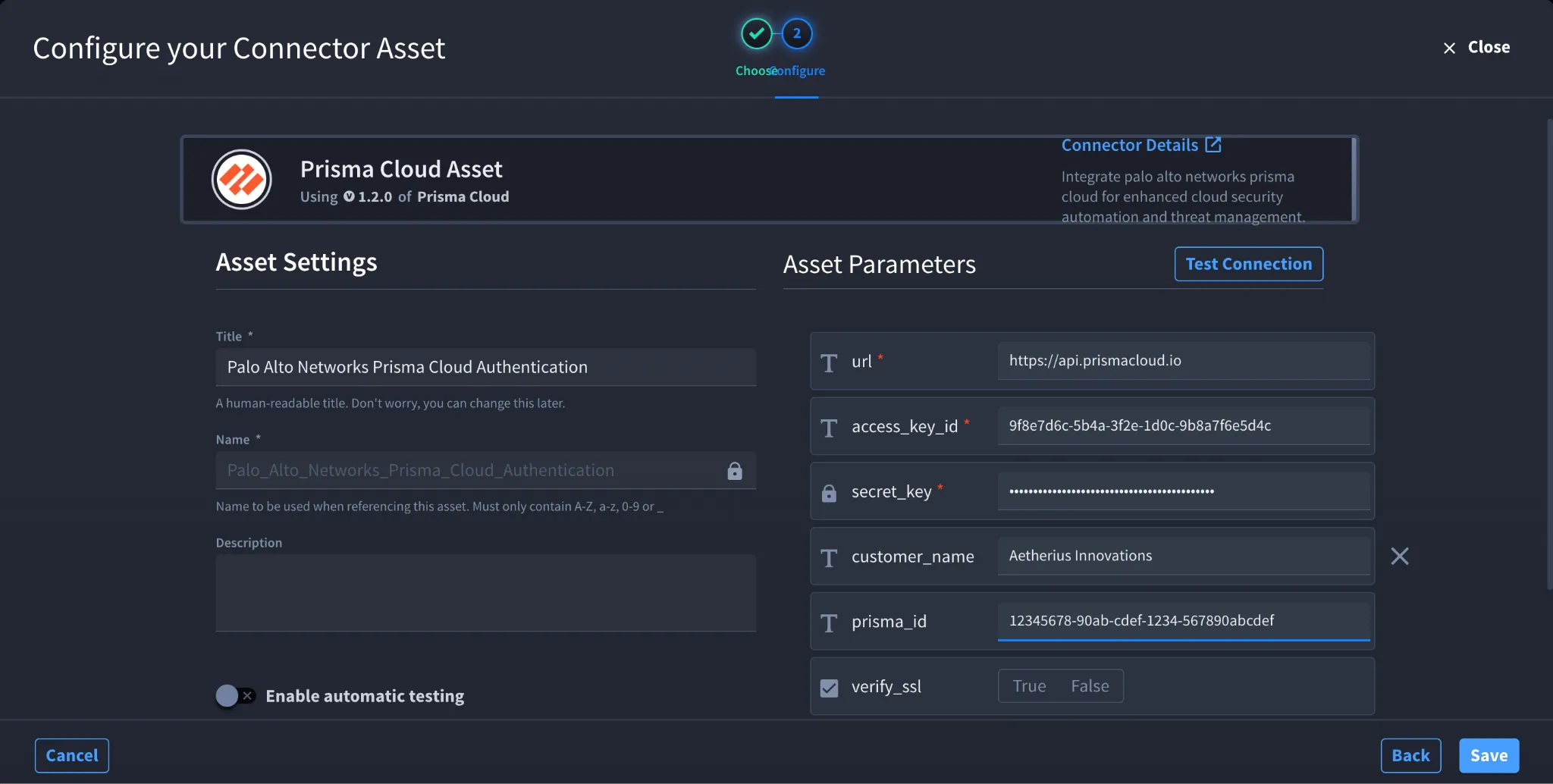
- Fill in the Asset Settings and Asset Input as shown:
Field | Description | Required/Optional |
|---|---|---|
url | URL of the target Prisma Cloud API host. | Required |
access_key_id | Access Key ID generated in Prisma Cloud. | Required |
secret_key | Secret Key associated with the Access Key ID. | Required |
customer_name | Customer or tenant name, when applicable. | Optional |
prisma_id | Unique Prisma identifier, when applicable. | Optional |
verify_ssl | Specifies whether to verify the SSL certificate. | Optional |
http_proxy | Proxy through which requests are routed, if required. | Optional |
These fields correspond directly to the connector's existing Prisma Cloud Asset configuration.
Fields with * marks are required.
- Click Create.
How Authentication Works
When the connector authenticates with Prisma Cloud, the Access Key ID is used as the API username and the Secret Key as the password. Prisma Cloud's login API uses these credentials to generate a JSON Web Token (JWT), which is then used to authorize subsequent API requests.
You do not need to manually generate or enter this JWT in the Swimlane asset. Configure the credentials required by the Prisma Cloud Asset instead.
Troubleshooting
If authentication fails:
- Verify that the Access Key ID and Secret Key are correct and active.
- Verify that the URL matches the API URL for your Prisma Cloud tenant and region.
- Ensure the account associated with the access key has the permissions required for the connector actions you want to use.
- If applicable, verify the SSL verification and HTTP proxy settings.
Sources
- Palo Alto Networks Prisma Cloud API Documentation: https://pan.dev/prisma-cloud/api/cspm/
- Prisma Cloud API URLs: https://pan.dev/prisma-cloud/api/cspm/api-urls/
- Prisma Cloud API Authentication: https://pan.dev/prisma-cloud/api/cspm/app-login/
- Manage Prisma Cloud Access Keys: https://pan.dev/prisma-cloud/api/cspm/add-access-keys/