IBM X-Force
Introduction
This guide explains how to configure authentication for the IBM X-Force connector in Swimlane.
IBM X-Force Exchange is a threat intelligence platform that provides information about IP addresses, URLs, malware, and other security threats. The Swimlane connector can use this intelligence for actions such as IP reputation checks, URL reports, malware lookups, and malware family searches.
The connector uses HTTP Basic Authentication with an IBM X-Force API Key and API Password.
Prerequisites
Before configuring the connector, ensure that you have:
- An IBM X-Force Exchange account.
- An X-Force subscription that provides API access.
- An API Key.
- An API Password.
- Network access from Swimlane to the IBM X-Force API endpoint.
Important: IBM has removed X-Force API access from Freemium subscriptions. An API key associated only with the Freemium tier can return a 403 Forbidden response even when the key and password are correct. API access requires an eligible X-Force subscription.
Obtain Your IBM X-Force API Credentials
You need an API Key and API Password for authentication.
- Sign in to IBM X-Force Exchange.
- Open your account or profile settings.
- Locate the API access or API credentials section.
- Generate or retrieve your X-Force API credentials.
- Copy the API Key and API Password.
- Store both values securely. You will use them when configuring the asset in Swimlane.
The IBM X-Force API itself exposes authentication fields for an API key and password.
Required Authentication Parameters
The Swimlane connector uses HTTP Basic Authentication. The existing connector configuration maps the credentials to the username and password fields.
Parameter | Value | Required |
|---|---|---|
URL | IBM X-Force API URL, typically https://api.xforce.ibmcloud.com | Yes |
Username | IBM X-Force API Key | Yes |
Password | IBM X-Force API Password | Yes |
Verify SSL | Verifies the SSL certificate | No |
HTTP Proxy | Proxy through which requests are routed, if required | No |
The Swimlane connector requires the URL, username, and password fields, with SSL verification and HTTP proxy available as optional settings.
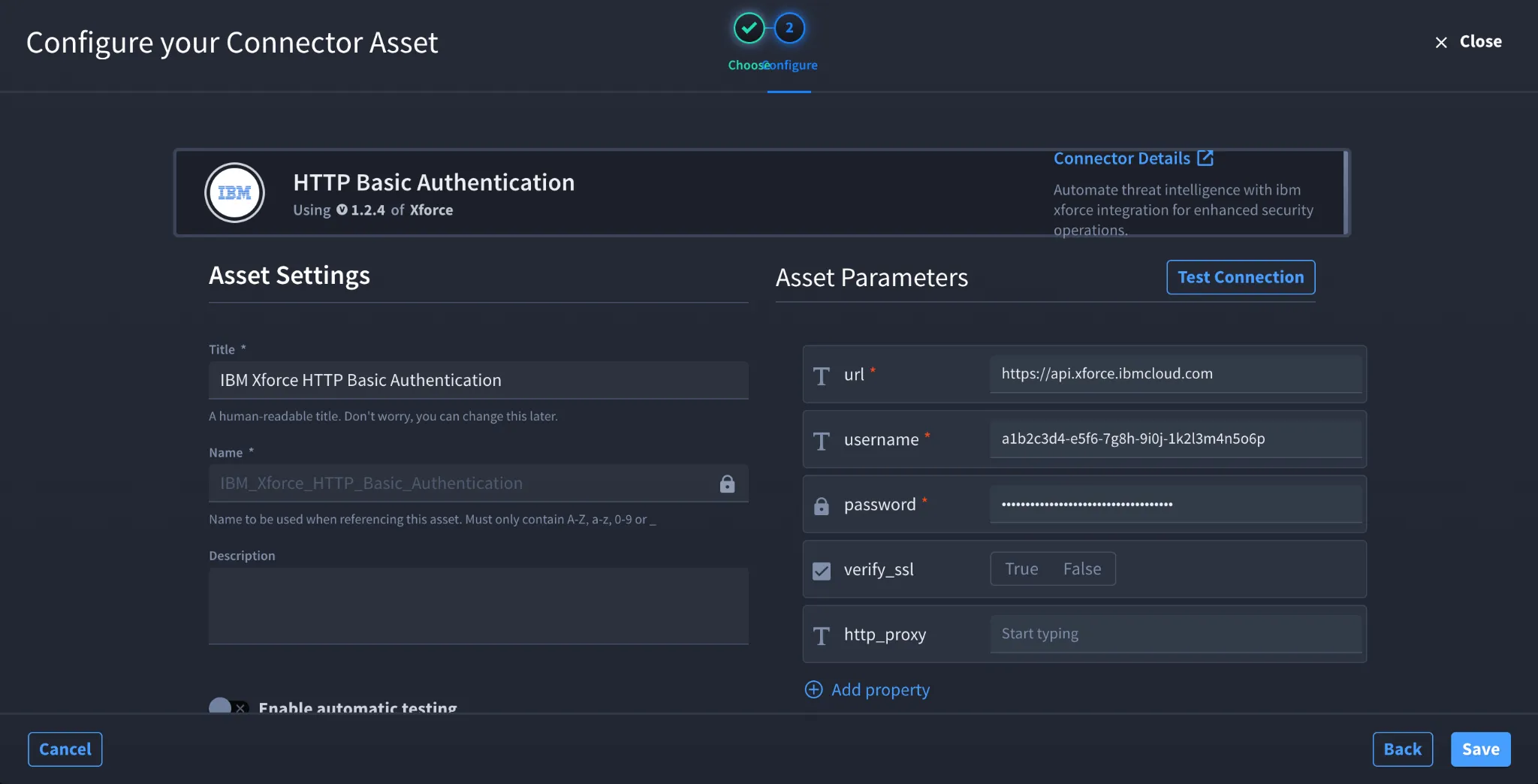
Configure IBM X-Force in Swimlane
Take the following steps to configure the connector:
- Log in to Turbine.
- From the left-hand navigation pane, click ORCHESTRATION and click Assets.
- The Asset homepage opens.
- Click the plus icon to open the Configure your Connector Asset window.
- Select IBM X-Force from the Asset type list.
- Enter the IBM X-Force API endpoint in URL. For example: https://api.xforce.ibmcloud.com.
- Enter your IBM X-Force API Key in Username.
- Enter your IBM X-Force API Password in Password.
- Configure Verify SSL and HTTP Proxy, if required for your environment.
- Click Create.
After configuration, the connector can perform supported operations such as retrieving IP reports and reputation information, malware reports, URL reports and history, and URL category information.
Troubleshooting
- 403 Forbidden: Confirm that your X-Force subscription includes API access. Freemium API keys no longer provide access to the X-Force API.
- Authentication failed: Verify that the API Key is entered in Username and the corresponding API Password is entered in Password.
- Connection error: Verify that api.xforce.ibmcloud.com is reachable from your environment.
- SSL error: Verify your certificate configuration before changing the Verify SSL setting.
- API requests fail despite valid credentials: Confirm that the API key is associated with a subscription that permits the requested X-Force API operation.
Result: You have successfully configured the IBM X-Force connector in Swimlane.
Sources
- Swimlane IBM X-Force Connector Documentation: Swimlane IBM X-Force Connector Documentation
- IBM X-Force API: IBM X-Force API Documentation
- IBM Support - X-Force API Access and Freemium Subscription Changes: IBM X-Force API authentication troubleshooting