Rapid7 Insight
Introduction
This guide tells you how to authenticate the Rapid7 Insight connector in Swimlane using HTTP Basic Authentication.
You will obtain your Account ID and API Key from the IntSights platform and configure the connector in Swimlane.
The Rapid7 Insight connector uses these credentials to authenticate requests and retrieve indicator of compromise (IOC) information.
Prerequisites
Rapid7 Insight Access Requirements
You must have:
- Access to the IntSights platform.
- Access to the Subscription page.
- An Account ID.
- A valid API Key.
- Appropriate permissions to access the API.
Required Credentials
During setup, you will collect:
- URL
- Account ID
- API Key
For the Swimlane connector, the Account ID is entered in the username field and the API Key is entered in the password field.
Rapid7 Insight Setup
Take the following steps to obtain the required credentials:
- Log in to your IntSights cloud platform.
- Navigate to the Subscription page.
- Locate your Account ID.
- Copy and securely save the Account ID.
- Locate your API Key.
- Copy and securely save the API Key.
- Identify the API URL for your environment.
The API Key is the same key used for connectivity between the IntSights virtual appliance and the cloud platform. If an API Key was generated previously, you can reuse it for REST API connectivity.
Connector Configuration in Swimlane
- Log in to Turbine.
- From the left-hand navigation pane, click ORCHESTRATION and click Assets.
- Asset homepage opens.
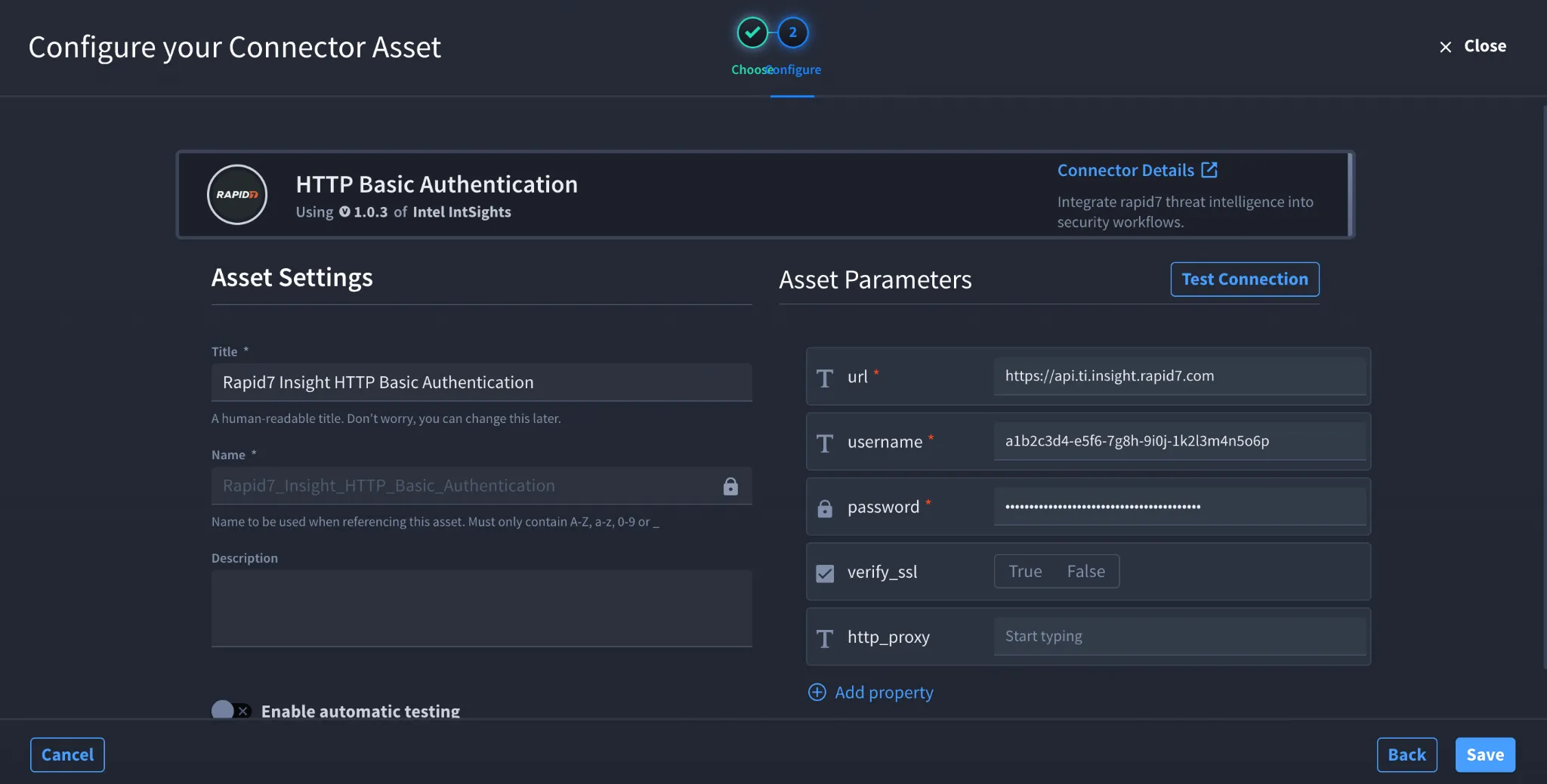
- Click the plus icon to open the Configure your Connector Asset window.
- Select Rapid7 Insight from the Asset type list.
- Fill in the Asset Settings and Asset Input as shown:
Field | Description | Required/Optional |
|---|---|---|
url | URL of the target Rapid7 Insight API host. | Required |
username | IntSights Account ID. | Required |
password | IntSights API Key. | Required |
verify_ssl | Enable or disable SSL certificate verification. | Optional |
http_proxy | Proxy configuration used to route requests, if required. | Optional |
Fields with * marks are required.
- Click Create.
Troubleshooting
- If authentication fails, verify that the Account ID entered in the username field is correct.
- Verify that the API Key entered in the password field is valid.
- If you previously generated an API Key for IntSights virtual appliance connectivity, verify that the existing key is still active.
- If you receive an authorization error, verify that your account has the appropriate API permissions.
- If the connector cannot reach Rapid7 Insight, verify the url value and network connectivity.
- If you receive an SSL certificate error, verify the verify_ssl configuration.
- If your environment uses a proxy, verify that the http_proxy value is correct.
Result: You have successfully authenticated the Rapid7 Insight connector in Swimlane.
Sources
- Rapid7 Threat Command Documentation https://docs.rapid7.com/threat-command/
- Rapid7 Insight Platform https://insight.rapid7.com/
- AirMDR Rapid7 Integration Documentation https://docs.airmdr.com/Integrations/Rapid7