Microsoft Defender
Introduction
This guide explains how to authenticate the Microsoft Defender connector in Swimlane using OAuth 2.0 Client Credentials.
You will create an Azure application, assign required API permissions, collect necessary identifiers, and configure the connector in Swimlane.
Azure Access Requirements
You must have Azure permissions to:
- Register applications in Azure AD
- Assign API permissions
- Grant admin consent
- Generate client secrets
Required Credentials
During setup, you will collect:
- Client ID
- Client Secret
- Token URL
- Base Defender API URL
- Defender permissions scope
Azure Setup
Take the following steps to register the application:
- Navigate to Azure Portal > Azure Active Directory > App Registrations.
- Click New Registration.
- Enter an application name.
- Choose Accounts in this organizational directory only.
- Click Register.
Take the following steps to assign API permissions:
- Open API Permissions tab.
- Click Add a permission.
- Select APIs my organization uses.
- Search for WindowsDefenderATP.
- Add the required Application permissions, such as:
- Alert.Read.All
- Alert.ReadWrite.All
- Machine.Read.All
- Machine.ReadWrite.All
- AdvancedQuery.Read.All
- Click Add permissions.
- Click grant admin consent.
Take the following steps to generate a Client Secret:
- Navigate to Certificates & Secrets.
- Click New client secret.
- Add description and expiration.
- Copy and save the value. This saved value is Client Secret.
Take the following step to collect required Identifiers:
- From App Registration>Overview, copy:
- Client ID
- Tenant ID
Connector configuration in Swimlane
- Log in to Turbine.
- From the left-hand navigation pane, click ORCHESTRATION and click Assets. Asset homepage opens.
- Click the plus icon to open the Configure your Connector Asset window.
- Select Microsoft Defender from the Asset type list.
- Fill in the Asset Settings and Asset Input as shown:
Field | Description | Required |
|---|---|---|
url | Base Defender API URL | Required |
token_url | Required | |
client_id | Client ID from Azure | Required |
client_secret | Client Secret from Azure | Required |
scope | Defender permission scopes | Required |
verify_ssl | Enable/Disable SSL verification | Optional |
http_proxy | Proxy configuration | Optional |
Fields with * marks are required.
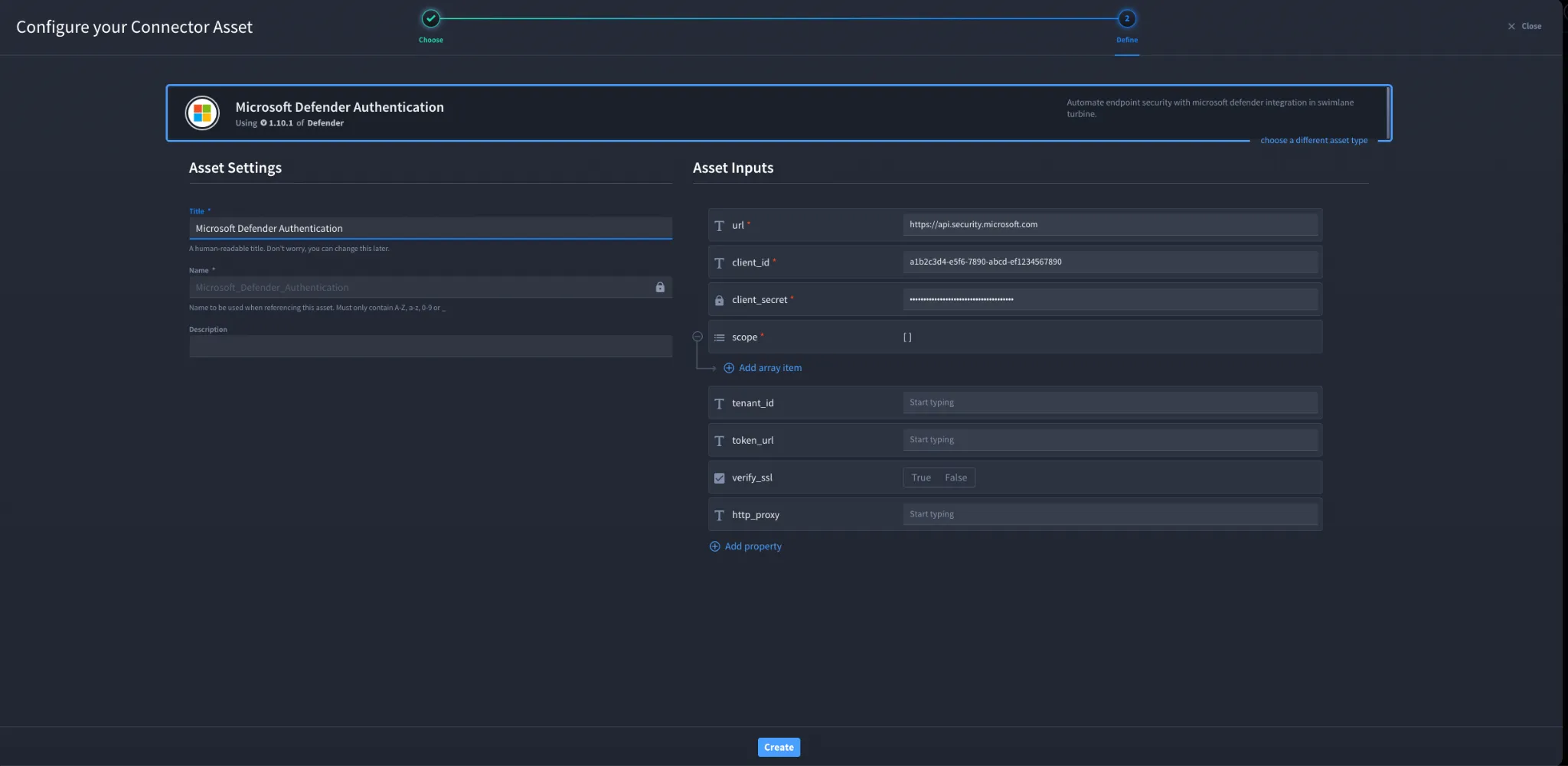
- Click Create.
Troubleshooting
If you encounter 403 Forbidden error,
- Ensure that admin consent is granted.
- Check for all the missing required API permissions.
- Check for incorrect permission type (Application vs Delegated).
If you encounter 401 Unauthorized error,
- Check whether you have entered the correct Client Secret.
- Double check Tenant ID.
- Ensure the Token URL is formatted correctly.
If you encounter API errors during action execution,
- Check if permission for that specific Defender API was added.
- Ensure the Token includes required scopes.
You have successfully authenticated the Microsoft Azure Sentinel Connector in Swimlane.