Joe Security Sandbox
Introduction
This guide tells you how to authenticate the Joe Security Sandbox connector in Swimlane using API Key Authentication.
You will obtain an API key from Joe Security Sandbox and configure the connector in Swimlane.
Prerequisites
Joe Security Access Requirements
You must have access to an active Joe Security Sandbox account with permission to generate and use API keys.
Required Credentials
During setup, you will collect:
- API Key
- Host URL (optional, required only for on-prem deployments)
Joe Security Sandbox Setup
Take the following steps to obtain the API key from Joe Security Sandbox:
- Log in to the Joe Security Sandbox console.
- Navigate to your user profile or account settings.
- Locate the API key section.
- Generate a new API key if one does not already exist.
- Copy and securely store the API key. This value will be used when configuring the Swimlane asset.
Connector Configuration in Swimlane
Take the following steps to configure the Joe Security Sandbox connector asset in Swimlane:
- Log in to Turbine.
- From the left-hand navigation pane, click ORCHESTRATION and click Assets.
- Click the plus icon to create a new asset.
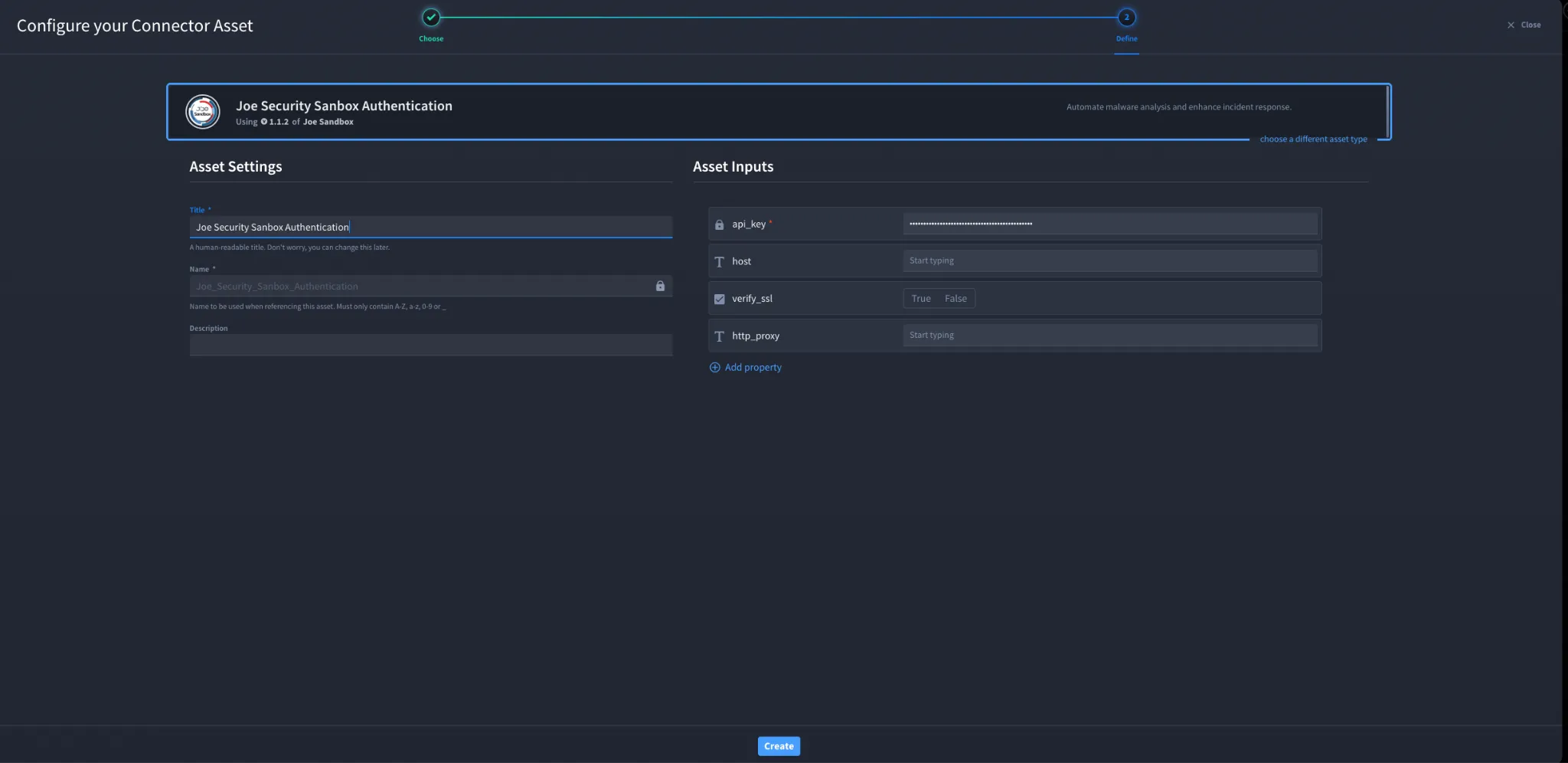
- Select Joe Security Sandbox from the Asset Type list.Fill in the Asset Settings and Asset Input fields as described below.
Configuration Parameters
Parameter | Description | Requirement |
|---|---|---|
api_key | Joe Security Joe Sandbox API Key | Required |
host | Hostname of the Joe Sandbox instance if deployed on-premises. Defaults to the cloud endpoint. | Optional |
verify_ssl | Enable or disable SSL certificate verification | Optional |
http_proxy | Optional proxy configuration | Optional |
Troubleshooting
If authentication fails:
- Ensure the API key is valid and copied correctly.
- Verify the host value if using an on-prem Joe Sandbox deployment.
- Confirm SSL verification settings match your environment.
- Check proxy configuration if requests are routed through a proxy.
You have successfully authenticated the Joe Security Sandbox connector in Swimlane.