Google Chronicle SIEM
Introduction
This guide tells you how to authenticate the Google Chronicle SIEM connector in Swimlane using OAuth 2.0 Service Account Authentication.
You will create a Google Cloud project, configure a service account, assign required permissions, collect required identifiers, and configure the connector in Swimlane.
Prerequisites
Google Chronicle Access Requirements
You must have permissions to:
- Access Google Cloud Console
- Create and manage GCP projects
- Enable APIs and services
- Create and manage service accounts
- Assign IAM roles and permissions
- Configure domain-wide delegation (if required)
Required Credentials
During setup, you will collect:
- Service Account JSON Key (Base64 encoded)
- API Base URL (Chronicle endpoint)
- Scope
- GCP Project ID
Scopes
The following scope is required for Chronicle API access:
Google Chronicle Setup
Take the following steps to create a GCP Project:
- Navigate to: https://console.cloud.google.com/
- Click the project selector dropdown.
- Click New Project.
- Enter a project name.
- Click Create.
Take the following steps to enable Chronicle API:
- Navigate to APIs & Services → Library.
- Search for Chronicle API.
- Click Enable.
Take the following steps to create a Service Account:
- Navigate to IAM & Admin → Service Accounts.
- Click Create Service Account.
- Enter:
- Name
- ID
- Description
- Click Create and Continue.
Take the following steps to assign roles:
- In the Grant this service account access step:
- Assign one of the following roles:
- Chronicle API Admin
- Chronicle API Reader
- Click Continue, then Done.
Take the following steps to generate JSON Key:
- Open the created service account.
- Navigate to the Keys tab.
- Click Add Key → Create New Key.
- Select JSON format.
- Click Create.
- Download and securely store the JSON file.
Take the following steps to configure API Scopes:
- Navigate to: https://admin.google.com
- Go to Security → API Controls.
- Click Manage Domain Wide Delegation.
- Click Add new.
- Enter:
- Client ID (from service account)
- Scope: https://www.googleapis.com/auth/chronicle-backstory
- Click Authorize.
API Endpoint URLs
Region | Endpoint |
|---|---|
US Multi-Region | |
Europe | |
Asia | |
Australia |
Connector configuration in Swimlane
- Log in to Turbine.
- From the left-hand navigation pane, click ORCHESTRATION and click Assets.
- Asset homepage opens.
- Click the plus icon to open the Configure your Connector Asset window.
- Select Google Chronicle SIEM from the Asset type list.
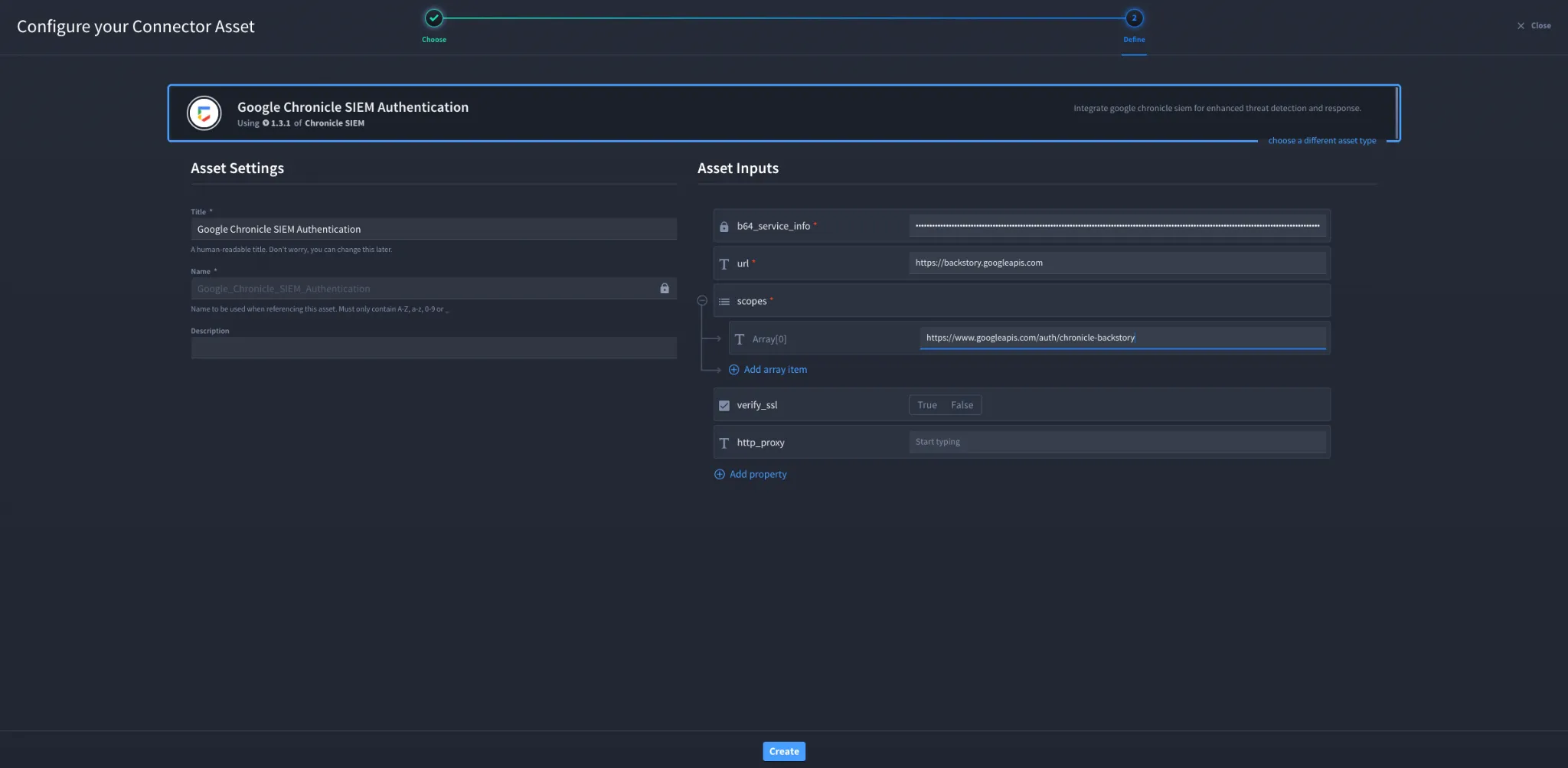
- Fill in the Asset Settings and Asset Input as shown:
Configuration – OAuth 2.0 Service Account
Field | Description | Required/Optional |
|---|---|---|
b64_service_info | Base64-encoded JSON service account key | Required |
url | Chronicle API base URL | Required |
scopes | API scope (chronicle-backstory) | Required |
verify_ssl | Enable/Disable SSL Verification | Optional |
http_proxy | Optional proxy configuration | Optional |
Fields with * marks are required.
Troubleshooting
If authentication fails:
- Ensure the JSON key file is valid and correctly encoded
- Verify the Chronicle API is enabled
- Confirm the service account has correct roles
- Check the scope is correctly configured
- Ensure domain-wide delegation is authorised
- Verify the correct regional endpoint is used
You have successfully authenticated the Google Chronicle SIEM Connector in Swimlane.
Sources
- Google Chronicle API Documentation : https://cloud.google.com/chronicle/docs
- Google Cloud Service Account Documentation: https://cloud.google.com/iam/docs/service-accounts