Box
Introduction
This guide tells you how to authenticate the Box connector in Swimlane using OAuth 2.0.
The Box connector enables Swimlane Turbine to interact with Box for file and content management operations, including files, folders, users, collaborations, events, shared links, search, workflows, groups, and uploads.
The existing Box connector provides two authentication configurations:
- Box Authentication using OAuth2.0, which uses an access token.
- Box Authentication, which supports OAuth parameters such as Client ID, Client Secret, Grant Type, authorization code, and refresh token.
Prerequisites
Before configuring the Box connector, ensure you have:
- A Box account with access to the content and resources you want to use with Swimlane.
- A Box application configured to use OAuth 2.0.
- The required permissions for the Box APIs that your playbooks will use.
- The authentication credentials required for your selected Swimlane authentication method.
The existing connector specifically identifies the Box API URL and OAuth 2.0 access token for access-token authentication. For the other authentication configuration, it requires a Client ID, Client Secret, and Grant Type.
Authenticate Using an OAuth 2.0 Access Token
Use Box Authentication using Oauth2.0 when you already have a valid Box OAuth 2.0 access token.
Obtain an Access Token in Box
The Swimlane connector documentation currently states that a valid OAuth 2.0 access token is required for this authentication method.
Generate the access token using your Box OAuth 2.0 application and the authentication flow appropriate for your environment.
For information about configuring OAuth 2.0 and obtaining tokens, refer to the Box OAuth 2.0 authentication documentation.
Note: The existing Swimlane connector documentation states that the Swimlane team can provide a Python script and instructions for generating an OAuth 2.0 access token.
Once generated, copy the access token. You will use it to configure the Box asset in Swimlane.
Configure the Box Asset in Swimlane
Take the following steps:
- Log in to Turbine.
- From the left-hand navigation pane, click ORCHESTRATION and click Assets.
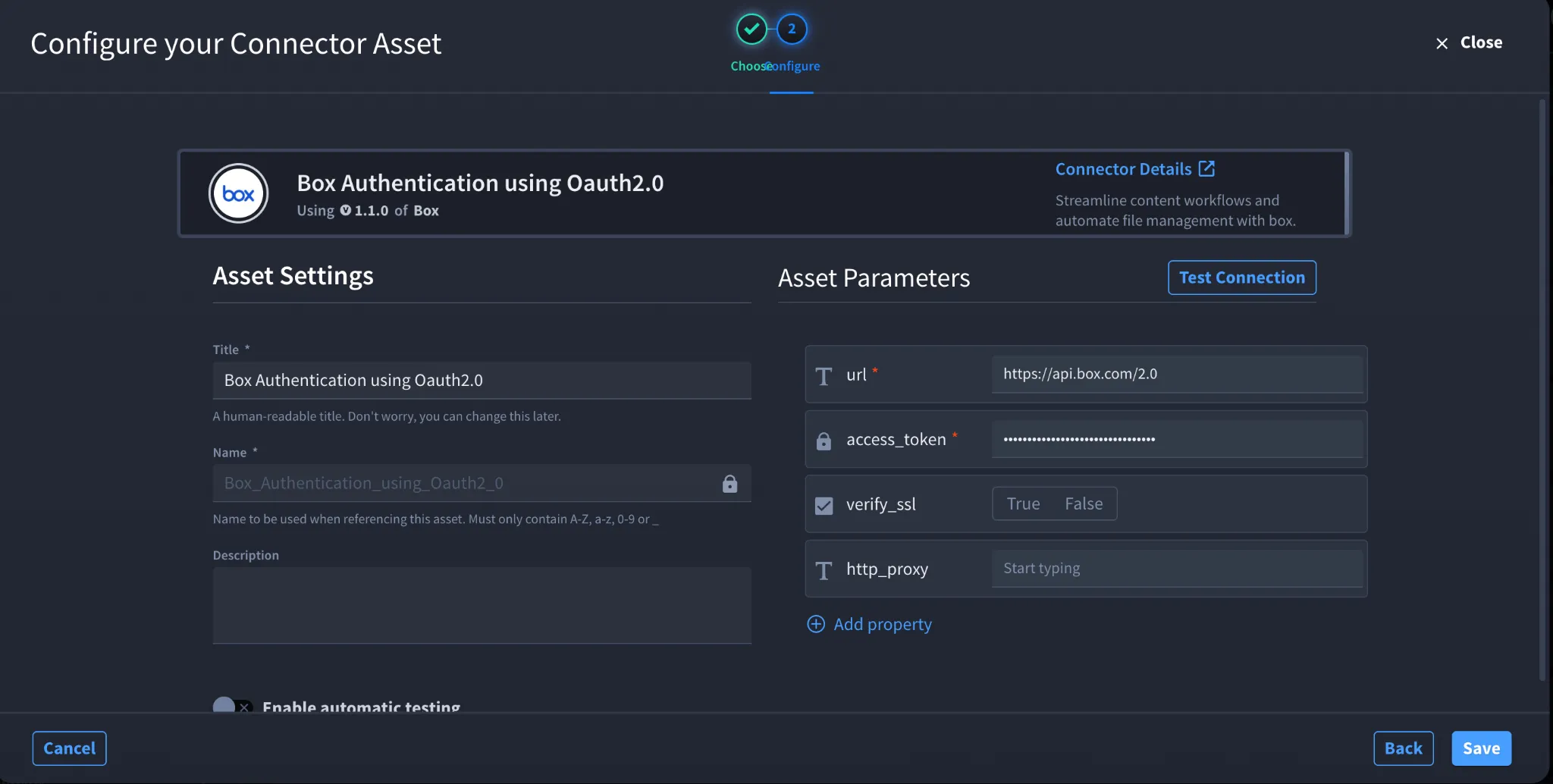
- Click the plus icon to open the Configure your Connector Asset window.
- Select Box from the Asset type list.
- Select Box Authentication using Oauth2.0.
- Configure the following fields:
Field | Description | Required/Optional |
|---|---|---|
url | URL of the target Box API host. | Required |
access_token | OAuth 2.0 access token used to authenticate requests to Box. | Required |
verify_ssl | Specifies whether to verify the SSL certificate. | Optional |
http_proxy | Proxy through which requests are routed, if required. | Optional |
These are the configuration parameters defined by the current connector.
- Click Create.
Authenticate Using Box Authentication
The connector also provides Box Authentication for configuring authentication with Box OAuth parameters rather than supplying only an access token.
Obtain Your Box Application Credentials
Configure an OAuth 2.0 application in Box and obtain the credentials required for your authentication flow.
At minimum, the Swimlane configuration requires:
- Client ID
- Client Secret
- Grant Type
Additional OAuth parameters can be supplied depending on the authentication flow being used. The connector supports values including authorization code and refresh token.
Keep your Client Secret secure. Do not expose it in playbooks, documentation, or other locations accessible to unauthorized users.
Configure the Box Asset in Swimlane
- Log in to Turbine.
- From the left-hand navigation pane, click ORCHESTRATION and click Assets.
- Click the plus icon.
- Select Box from the Asset type list.
- Select Box Authentication.
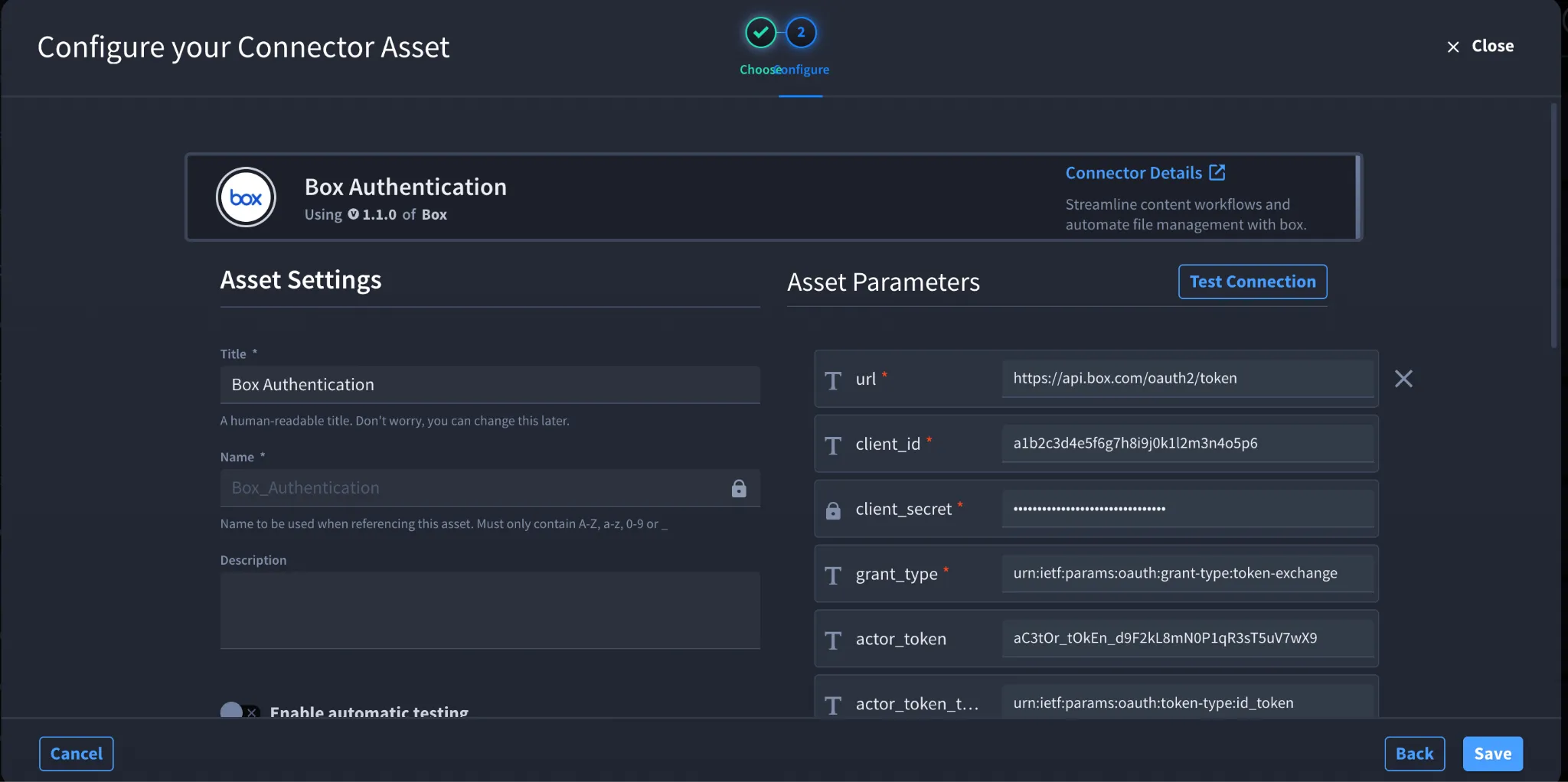
- Configure the authentication fields required for your Box OAuth flow.
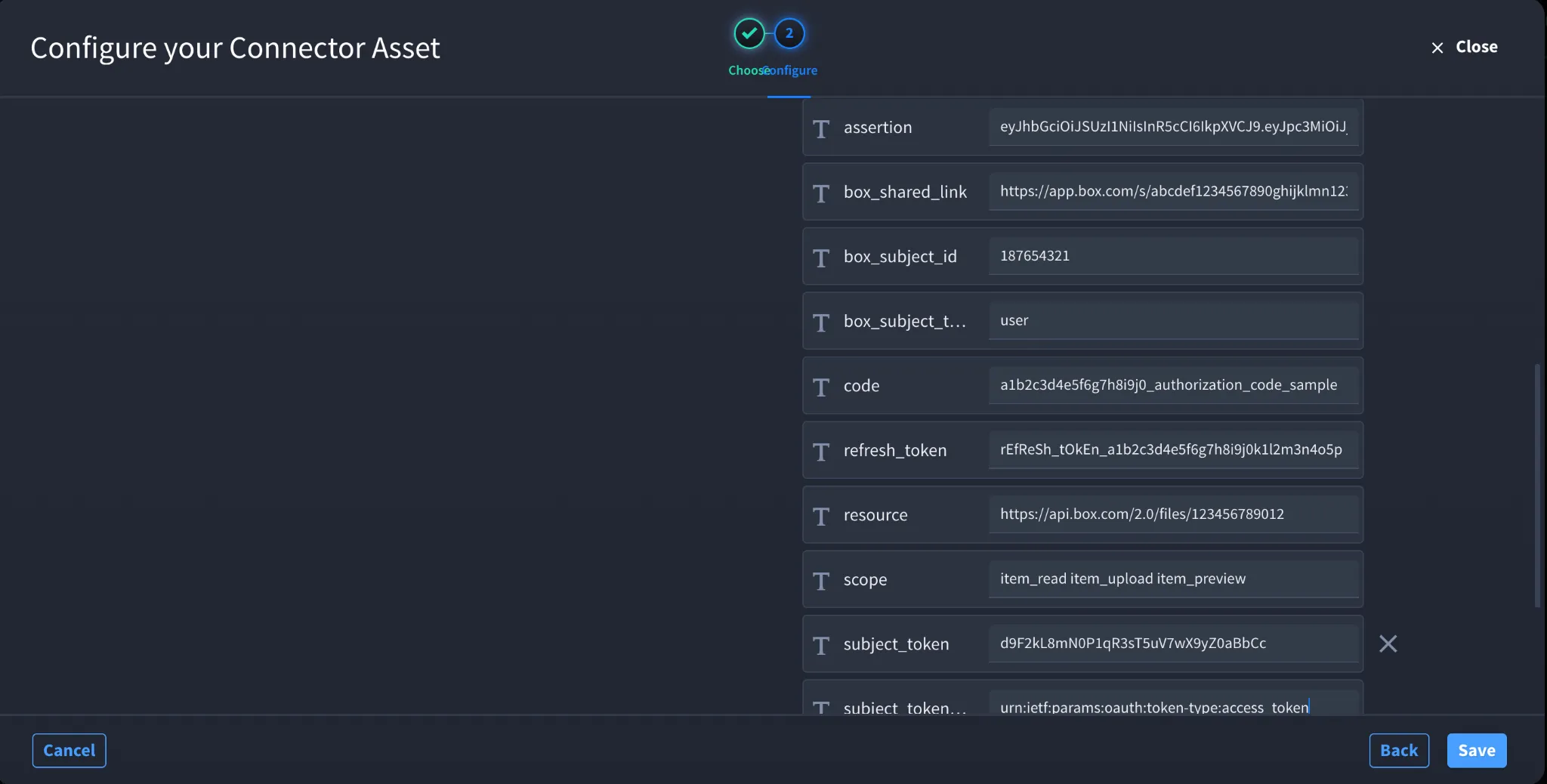
The available fields are:
Field | Description | Required/Optional |
|---|---|---|
url | URL of the target Box API host. | Required |
client_id | Client ID of your Box application. | Required |
client_secret | Client Secret associated with your Box application. | Required |
grant_type | OAuth grant type used to obtain authorization. | Required |
code | Authorization code, when required by the selected OAuth flow. | Optional |
refresh_token | Refresh token, when required by the selected OAuth flow. | Optional |
actor_token | Actor token. | Optional |
actor_token_type | Actor token type. | Optional |
assertion | Assertion used by the authentication request. | Optional |
box_shared_link | Box shared link. | Optional |
box_subject_id | Box subject ID. | Optional |
box_subject_type | Box subject type. | Optional |
resource | Resource associated with the authentication request. | Optional |
scope | OAuth scope. | Optional |
subject_token | Subject token. | Optional |
subject_token_type | Subject token type. | Optional |
verify_ssl | Specifies whether to verify the SSL certificate. | Optional |
http_proxy | Proxy through which requests are routed, if required. | Optional |
Only url, client_id, client_secret, and grant_type are marked as required in the existing connector configuration. The remaining authentication parameters are optional and depend on the OAuth flow being used.
- Click Create.
Troubleshooting
If authentication fails:
- Verify that the Client ID and Client Secret belong to the correct Box application.
- Verify that the selected grant_type and any accompanying OAuth parameters match the authentication flow configured for the Box application.
- If using Box Authentication using Oauth2.0, verify that the access_token is valid.
- If an individual connector action returns an authorization error, verify that the Box application has access to the corresponding Box resource and API.
- Verify the configured Box API url.
- If you are using a proxy, verify the http_proxy configuration.
- If SSL validation fails, verify the verify_ssl setting and the certificates available in your environment.
Result: The Box connector is authenticated and can be used by Swimlane playbooks to interact with the Box resources permitted by the configured credentials.