Enhanced Role-Based Access Control (RBAC)
What Is RBAC?
Role-Based Access Control (RBAC) is a security model used to control access to systems and resources based on a user's role within an organization.
Instead of assigning permissions directly to individual users, permissions are grouped into roles. Users are then assigned one or more roles, which determine what actions they can perform and which resources they can access.
RBAC simplifies access management by allowing administrators to define permissions once and apply them to many users through roles. This approach improves security, reduces administrative overhead, and helps organizations enforce consistent access policies.
Choose Your Path
Goal | Where to go |
|---|---|
Create, edit, copy, or delete roles | |
Understand account and tenant permission matrices | |
Look up what each permission grants and how permissions combine | |
Move an account from legacy RBAC | |
Enable Enhanced RBAC on Turbine Platform on-premises | |
Copy global permissions between tenants or remove a tenant from a role |
RBAC in Swimlane Turbine
Swimlane Turbine uses RBAC to manage user access across the platform.
Administrators configure roles and permissions to control what users can view and manage within the system. Each role contains a set of permissions that define which actions can be performed on specific resources.
Only users with Admin Panel access can configure roles and permissions. Users without this access cannot manage RBAC settings.
Roles can then be assigned to users or groups, allowing administrators to manage access consistently across teams and environments.
RBAC in Turbine helps organisations:
- control access to platform features and resources
- manage permissions across accounts and tenants
- align user access with operational responsibilities
- maintain consistent security policies across teams
Administrators manage RBAC from the Admin Panel, primarily through the Roles page.
After changing a role or permission, allow up to two minutes for the changes to take effect. If a user still cannot access the expected resources, ask them to log out and log back in.
How RBAC Works in Swimlane Turbine
Turbine's access model is built on four interconnected layers.
Layer | Description |
|---|---|
Users | Individual accounts that log in and perform actions in Turbine. |
Groups | Collections of users that share roles and record restrictions. |
Roles | Named sets of permissions assigned to users or groups. |
Permissions | Access rules that define which actions a role can perform. |
Access to a resource is granted when the following conditions are met:
- A user belongs to a group or has a role assigned directly.
- The group or user is linked to a role.
- The role contains the required permission.
This layered model allows administrators to manage access efficiently while ensuring users only interact with resources they are authorized to use.
Users
Users represent individual accounts that log in and perform actions in Swimlane Turbine.
Users are managed under:
Admin Panel → Users
Certain user properties affect access within the RBAC system as per the following:
Property | Description |
|---|---|
Account Admin | On Enhanced RBAC, full administrative access is granted through the Account Admin role (not a separate user flag). |
Tenant Association | A user must be associated with at least one tenant and role to access tenant resources. |
External Users | External Swimlane users follow the same RBAC rules as internal users. |
Groups
Groups allow administrators to manage access for multiple users at once by assigning roles to a group instead of individual users.
Groups are managed under:
Admin Panel → Groups
Group Concepts
Concept | Description |
|---|---|
Primary Group | A user can belong to multiple groups, but one group is designated as the primary group. |
Nested Groups | Groups can be organized in a parent-child hierarchy to reflect organisational structure. |
Roles
The Roles page is the central location for defining roles, assigning permissions, and managing role assignments.
Navigate to: Admin Panel → Roles
The page lists all roles configured for the account and provides options to create, edit, duplicate, and delete roles.
Roles List
The Roles list displays all roles available in the account.
Roles Page Fields
Field | Description |
|---|---|
Name | The role name. Selecting the name opens the role editor. |
Description | A short description of the role. |
Tenants | A summary of the tenants this role can access. |
Available Role Actions
Administrators can perform the following actions from the Roles page.
Action | Description |
|---|---|
Create Role | Create a new role and define permissions. |
Edit Role | Modify an existing role’s details or permissions. |
Copy Role | Duplicate an existing role to reuse its configuration. To copy global permissions from one tenant to another inside the same role, see Apply, Copy, or Remove Tenant Permissions. |
Delete Role | Remove a role from the account. |
Role Details
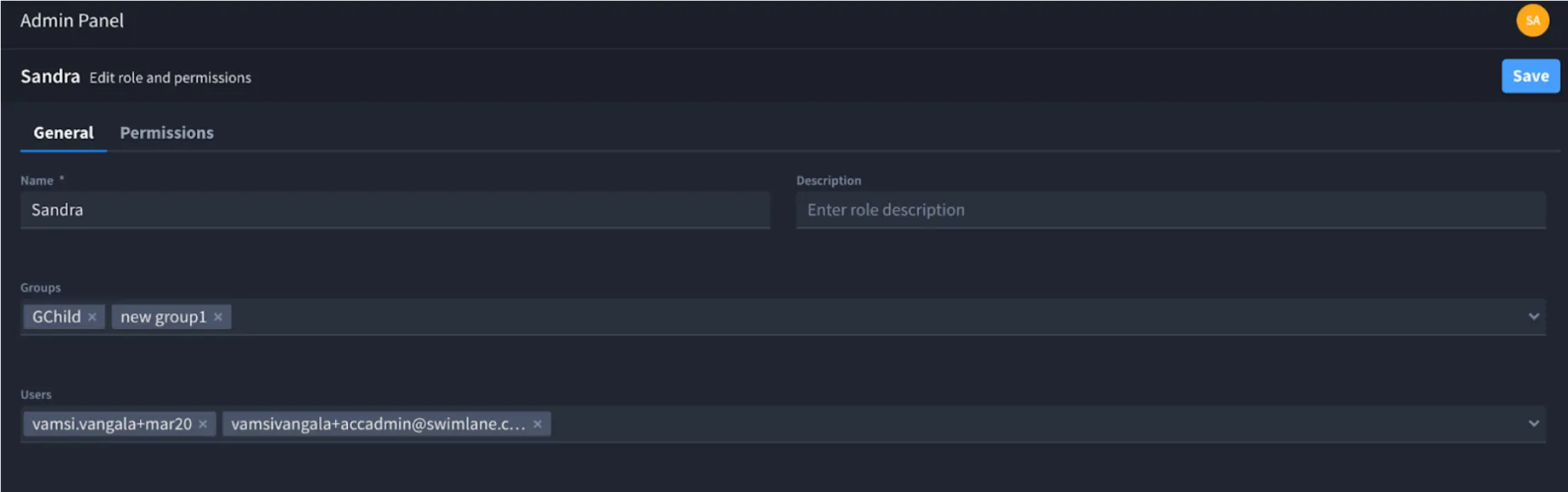
Selecting a role opens the Role Editor, where administrators configure the role definition and permissions.
The editor includes two tabs:
- General
- Permissions
General Tab
The General tab contains basic information about the role and allows administrators to assign users or groups.
Field | Description |
|---|---|
Name | The name of the role. |
Description | Optional description explaining the purpose of the role. |
Users | Users assigned directly to the role. |
Groups | Groups assigned to the role. Members of these groups inherit the role automatically. |
Permissions Tab
The Permissions tab defines the access granted by the role.
Permissions are organised into two sections:
- Account-Level Permissions
- Tenant-Level Permissions
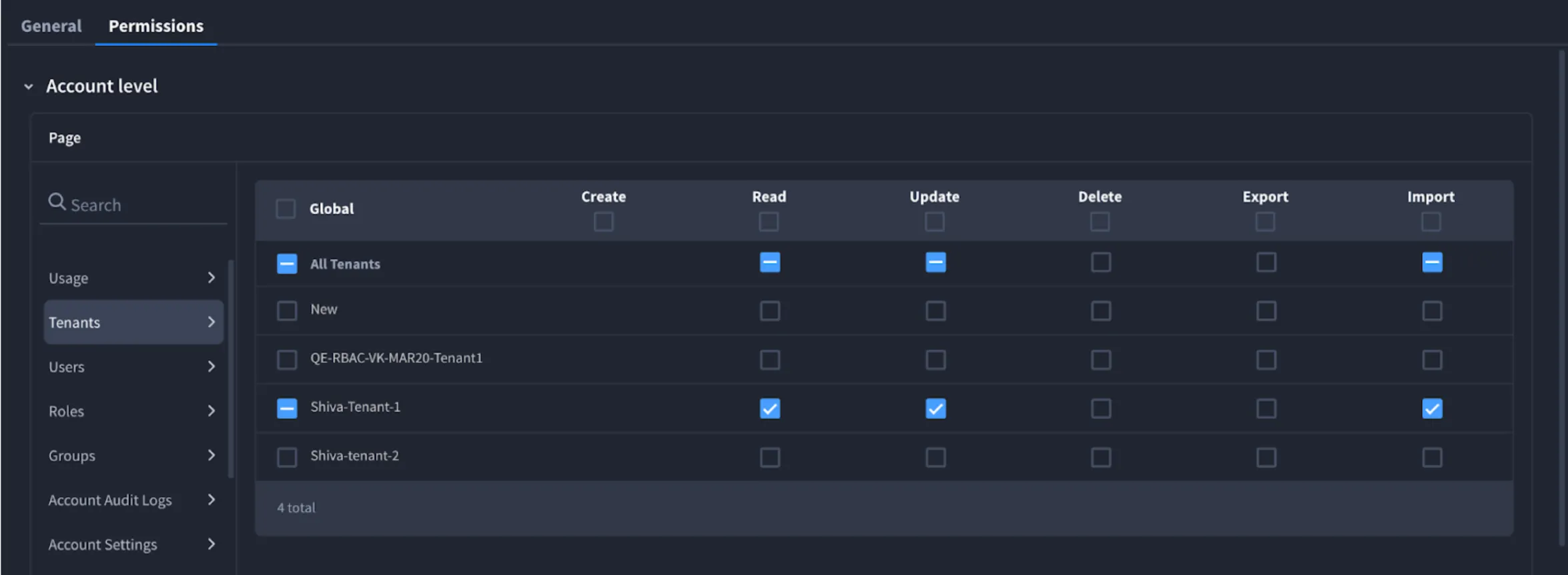
Account-Level Permissions
Account-level permissions control access to administrative resources across the entire account.
Permission Group | Description |
|---|---|
Usage Dashboards | Access usage dashboards such as Actions, Hero AI, and Playbook Runs. |
Tenants | Manage tenants within the account. |
Users | Manage user accounts. |
Roles | Create and manage RBAC roles. |
Groups | Manage user groups. |
Account Audit Logs | View account audit logs. |
Account-Level Permission Matrix
These permissions control administrative capabilities across the entire Turbine account.
Resource | Create | Read | Update | Delete | Export | Import |
|---|---|---|---|---|---|---|
Usage | — | ✓ | — | — | — | — |
Tenants | ✓ | ✓ | ✓ | ✓ | ✓ | ✓ |
Users | ✓ | ✓ | ✓ | ✓ | — | — |
Roles | ✓ | ✓ | ✓ | ✓ | — | — |
Groups | ✓ | ✓ | ✓ | ✓ | — | — |
Account Audit Logs | — | ✓ | — | — | — | — |
Account Settings | — | ✓ | ✓ | — | — | — |
Admin Panel | — | ✓ | — | — | — | — |
Configuration Manager | — | ✓ | — | — | — | — |
Content | ✓ | ✓ | ✓ | ✓ | — | — |
Access to the Library menu is controlled by the Content permission at the account level. The Library menu is not governed by tenant-level permissions. Although content may be associated with specific tenants, all published content is available across the account and cannot be restricted per tenant. To grant access to the Library, ensure the role includes Content permissions under Account-Level Permissions.
Additional Account-Level Permission Actions
Some account resources expose permission actions beyond Create, Read, Update, Delete, Export, and Import.
Resource | Bulk Update Assets | Bulk Delete Assets |
|---|---|---|
Configuration Manager | ✓ | ✓ |
Tenant-Level Permissions
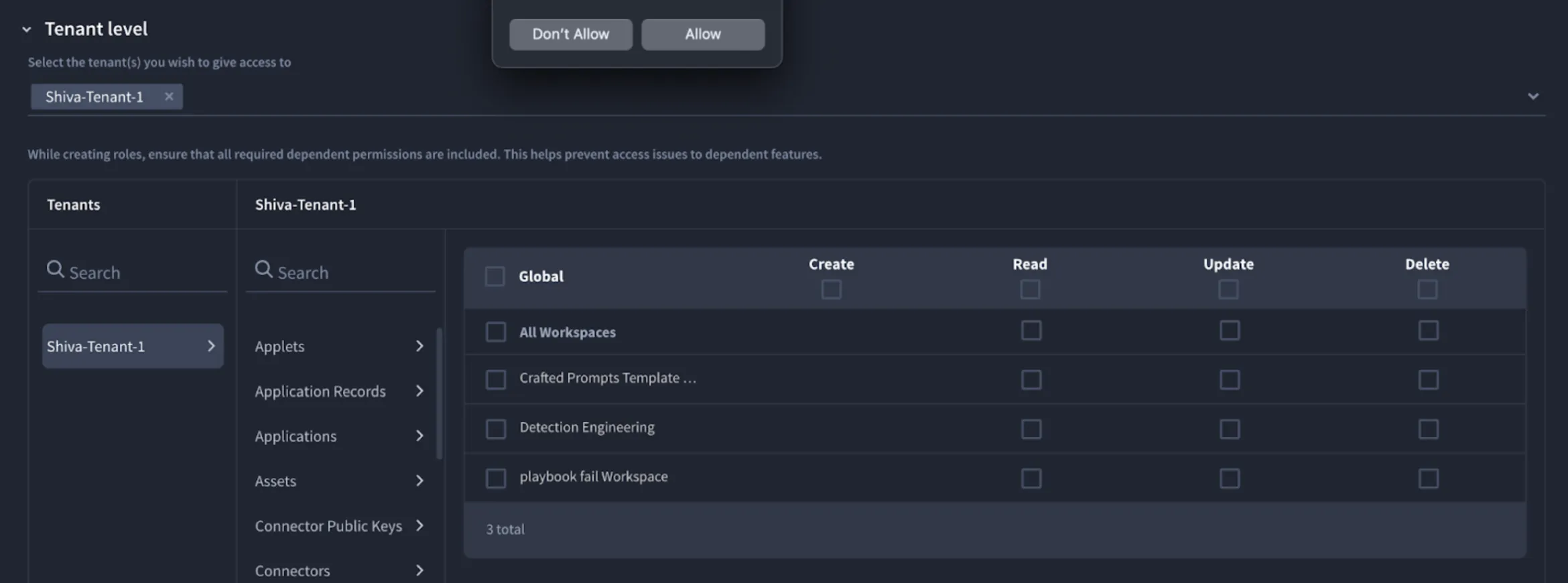
The Tenant-Level Permissions section defines permissions within selected tenants.
Administrators can select one or more tenants and configure access for resources within those tenants.
Tenant Resource Permissions
Tenant-level permissions control access to operational resources.
Resource | Description |
|---|---|
Applets | Manage applets within the tenant. |
Application Records | Manage records stored in tenant applications. |
Applications | Create and manage applications in the tenant. |
Assets | Manage assets used in playbooks and applications. Starting in Turbine 26.2.0, includes Test permission for asset connection testing. |
Connector Public Keys | Manage public keys used by connectors. |
Connectors | Install and manage integrations with external systems. |
Dashboards | Manage dashboards within the tenant. |
Playbooks & Components | Manage playbooks and reusable components within the tenant. |
Reports | Manage reports within the tenant. |
Workspaces | Manage workspaces within the tenant. |
Tenant-Level Permission Matrix
Tenant access permissions control resources within a specific tenant environment. Permissions are configured per tenant, meaning a single role can have different permissions across multiple tenants. Administrators must define permissions individually for each tenant assigned to the role.
To simplify configuration, global permissions can be copied from one tenant to others within the same role. However, resource-level permissions are not shared across tenants, as resources (such as applications and assets) may differ between tenants. For the steps, see Apply, Copy, or Remove Tenant Permissions.
Not every resource supports every action. A dash (—) indicates that the action is not available for that resource.
Export and import of tenant content such as applications, applets, and playbooks are controlled by Tenants → Export and Tenants → Import at the account level, not by individual tenant resource permissions.
Resource | Create | Read | Update | Delete | Execute |
|---|---|---|---|---|---|
Applets | ✓ | ✓ | ✓ | ✓ | — |
Application Records | ✓ | ✓ | ✓ | ✓ | — |
Applications | ✓ | ✓ | ✓ | ✓ | — |
Assets | ✓ | ✓ | ✓ | ✓ | ✓ |
Connector Public Keys | ✓ | ✓ | — | ✓ | — |
Connectors | — | ✓ | — | ✓ | — |
Dashboards | ✓ | ✓ | ✓ | ✓ | — |
Events | — | ✓ | — | — | — |
Home Page | — | ✓ | ✓ | — | — |
Playbook Alerts | — | ✓ | — | — | — |
Playbooks & Components | ✓ | ✓ | ✓ | ✓ | ✓ |
Pools | ✓ | ✓ | ✓ | ✓ | — |
Remote Agents | ✓ | ✓ | ✓ | ✓ | — |
Reports | ✓ | ✓ | ✓ | ✓ | — |
Tenant Audit Logs | — | ✓ | — | — | — |
Tenant Feature Flags | — | ✓ | ✓ | — | — |
Tenant Settings | — | ✓ | ✓ | — | — |
Webhooks | ✓ | ✓ | ✓ | ✓ | — |
Workspaces | ✓ | ✓ | ✓ | ✓ | — |
For Assets, the Execute column maps to Test in the role editor starting in Turbine 26.2.0. Test allows connection tests from Assets and Configuration Manager. Granting Test also requires Read and Update on the asset (implied access). Account Admin, Tenant Admin, and Super Admin roles receive Test by default on upgrade; custom roles must be updated manually.
Additional Tenant-Level Permission Actions
Some resources expose permission actions beyond Create, Read, Update, Delete, and Execute.
Resource | Install | Restrict | Lock | Override Locks | Workflow History | Bypass Restrictions | Moderate Comments | Run Details | Create Personal |
|---|---|---|---|---|---|---|---|---|---|
Application Records | — | ✓ | ✓ | ✓ | ✓ | ✓ | ✓ | — | — |
Connectors | ✓ | — | — | — | — | — | — | — | — |
Dashboards | — | — | — | — | — | ✓ | — | — | ✓ |
Playbooks & Components | — | — | — | — | — | — | — | ✓ | — |
Reports | — | — | — | — | — | ✓ | — | — | ✓ |
Apply, Copy, or Remove Tenant Permissions
These actions appear on an expanded tenant column header.
- Open the role in the Role Editor.
- Select the Permissions tab.
- Under Tenant level, select the tenants for the role.
- Expand a tenant column.
Apply Global Permissions to all entities
Select Apply Global Permissions to all entities to turn every global permission for that tenant on or off. Permissions set on a specific resource stay unchanged.
The Account level column header includes the same checkbox.
Copy permissions...
- Open the menu on the tenant column header.
- Select Copy permissions....
- In Copy global permissions, select the tenants that should receive this tenant's global permissions.
- Select Apply.
Apply updates the selected tenants in the editor. Global permissions on those tenants are replaced with the source tenant's global permissions. Resource-level permissions stay on each tenant.
Copy permissions... is available when the role includes more than one tenant. On the All Tenants column, Copy permissions... stays unavailable. The dialog lists the other tenants on the role.
Remove tenant access
- Open the menu on the tenant column header.
- Select Remove tenant access.
That tenant is removed from the role in the editor. The tenant remains in the account.
These actions update the role in the editor. Select Save to store the role.
Copy Role on the Roles page duplicates the entire role. Use Copy permissions... to copy global permissions from one tenant to another inside the same role.
Permission Actions
Actions | Description |
|---|---|
Global | Applies the permission to all instances of the resource. |
Create | Allows creating new resources. |
Read | Allows viewing resources. |
Update | Allows modifying existing resources. |
Delete | Allows removing resources. |
Export | Allows exporting resource data or definitions. |
Import | Allows importing resources or configurations. |
Execute | Allows running or testing a resource, such as executing a playbook. For Assets, this action appears as Test in the role editor. |
Test | Allows testing asset connections (manual tests, bulk tests, and automatic connection validation). Applies to the Assets permission only. Requires Read and Update on the same asset. |
Install | Allows installing connectors from the marketplace or other sources. |
Restrict | Allows restricting access to records for selected users or groups. |
Lock | Allows locking records to prevent concurrent edits. |
Override Locks | Allows overriding record locks held by other users. |
Workflow History | Allows viewing workflow run history for records. |
Bulk Delete Assets | Allows deleting multiple configuration assets in bulk. |
Bulk Update Assets | Allows updating multiple configuration assets in bulk. |
Bypass Restrictions | Allows modifying resources owned or restricted by other users. |
Moderate Comments | Allows moderating record comments created by other users. |
Run Details | Allows viewing playbook or component run details. |
Create Personal | Allows creating personal dashboards or reports visible only to the creator. |
Permission Scope and Evaluation
Permissions in Turbine are evaluated based on scope and dependency, not a strict hierarchical model.
Permission Scope
Permissions can be configured at two levels:
Scope | Description |
|---|---|
Global | Grants access to all current and future resources of that type. |
Resource-Level | Grants access only to specific resources selected at the time of configuration. |
Behavior
- Global permissions allow access to all resources, including newly created ones.
- Resource-level permissions apply only to explicitly selected resources.
- When both are configured, Global permissions take precedence.
- Resource-level permissions are retained but not applied when Global access is enabled.
Permission Dependencies
Some features require access to multiple related resources. Users must have permissions for all required resources to fully access a feature.
Applications and Records
Access to resources in Turbine follows dependency relationships between components.
- Applications are foundational resources for Application Records
- Dashboards and Workspaces also depend on Applications and Applets
Examples:
Access to Records requires:
- The associated Application
Access to a Dashboard may require:
- Underlying Applications
- Reports or Records used in the dashboard
- Related Applets
Access to a Workspace may require:
- Applications
- Dashboards
- Records
- Applets
- Access is not granted by a single permission alone.
- Users must have permissions for both the target resource and any underlying dependent resources.
- When multiple users access the same record at the same time, users without Users → Read permission may be unable to open the record and encounter an error. To avoid this, ensure the role includes Users → Read permission at the account level.
Playbooks and Automation
Automation features depend on multiple components:
- Playbooks & Components
- Events
- Webhooks
- Connectors
Users must have access to these resources to create, run, or manage automation workflows.
Administration
Administrative functionality requires access to system-level resources:
- Admin Panel
- Roles
- Groups
- Users
Users must have appropriate permissions across these resources to manage administrative settings.
Access to a higher-level or parent resource does not automatically grant access to its dependent resources.
For example, access to a Dashboard does not grant access to the underlying Reports or Records.All required resources must have permissions explicitly assigned.
Group-Based Role Assignment
A role assigned to a group applies only to direct members of that group. Roles are not propagated through the group hierarchy.
For per-permission detail and cross-resource dependencies, see Enhanced RBAC Permission Reference.
Key principle
RBAC in Turbine follows the principle of least privilege.
Users can only access resources when all required permissions are granted. If required permissions are missing at any level or dependency, access to the feature or resource is restricted.
RBAC Best Practices
Follow these best practices when configuring roles and permissions in Swimlane Turbine:
- Apply the principle of least privilege by granting users only the permissions they need to perform their tasks.
- Assign roles to groups when possible to simplify access management and onboarding.
- Reuse existing roles by duplicating them when creating new roles to maintain consistency.
- Test roles before assigning them broadly to ensure permissions behave as expected.
- Use clear and descriptive role names that reflect the responsibilities associated with the role.
- If a user cannot access a feature or resource:
- Verify the user has the correct role assigned
- Confirm permissions are granted for the target resource
- Check for missing permissions on dependent resources
Next Steps
- Enhanced RBAC Permission Reference — what each permission grants and how permissions combine
- Move from Legacy RBAC to Enhanced RBAC — migration mapping and support request
- Enable Enhanced RBAC on the Turbine Platform (On-Prem) — self-serve enablement for Turbine Platform on-premises, version 26.4 or later
- Test Connector Assets — Assets → Test permission
- Configuration Manager — bulk asset actions