Map Output for Creating or Updating Records
Select Create/Update Records when you have a number of fields and parameters that you need to map for task output.
To map output for Create/Update Records or Update Current Record:
From the Outputs tab, click Create/Update Records then, on the next page, specify the application for the task or select Update/Create Records in the Current Application.
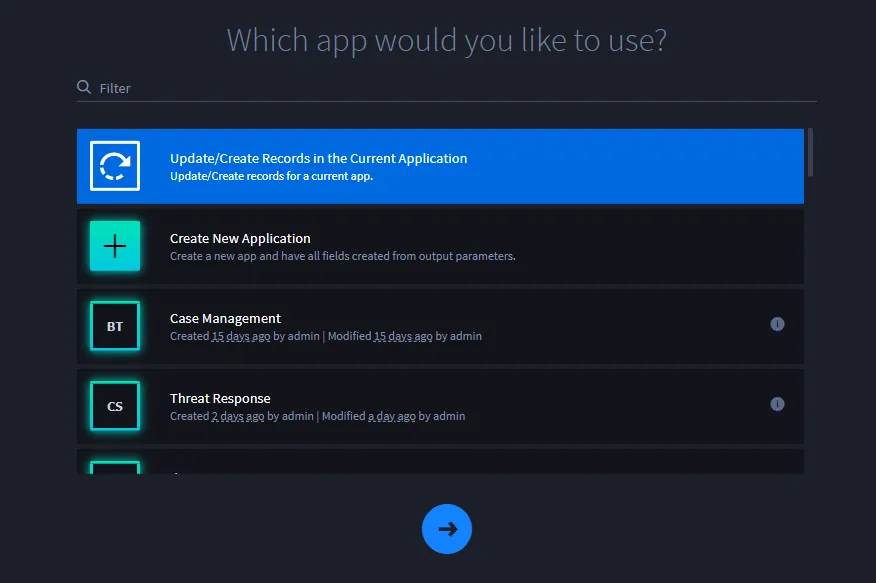
- When selecting Update/Create Records in the Current Application for an application task, it selects the application the task is triggered by. When selecting this for an applet task, any parameters mapped to the current application will be updated when the applet is placed in an application.
- Note: You can also create an application from the app you would like to use. For more information see Create an Application for Output Mapping.
The first time you create a task this way, you will see this mapping decision dialog asking you, How would you like to proceed?
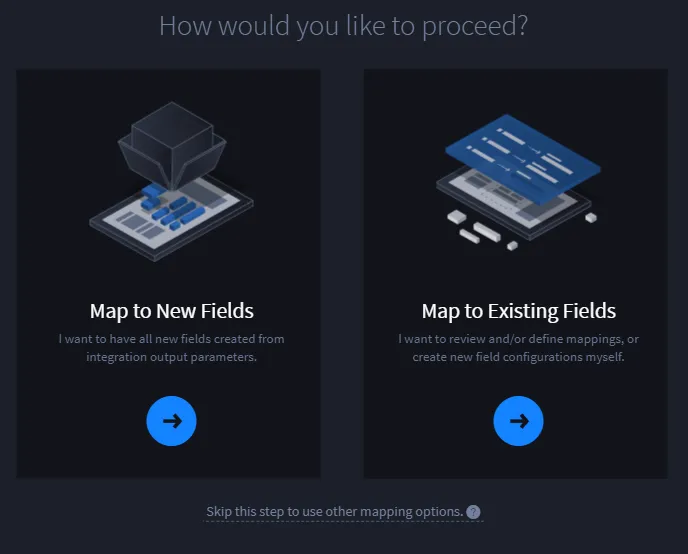
Follow the guidance on the dialog to continue.
Swimlane's automapping feature works to create a list of matching parameters and fields that you can review, configure, and approve on the next screen.
- On Create/Update Records, review the suggested mappings.
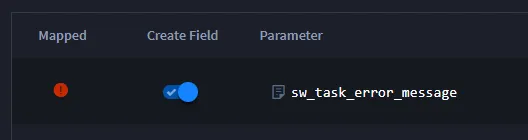
- If you want Swimlane to create a field with the output parameter and mapped field, enable the Create Field switch.
-
- Select the Application Field or Field Type.
- The field types available for your specific parameter are automatically mapped for you. You can view the types from the App Field/Field Type drop-down menu, for example:
-
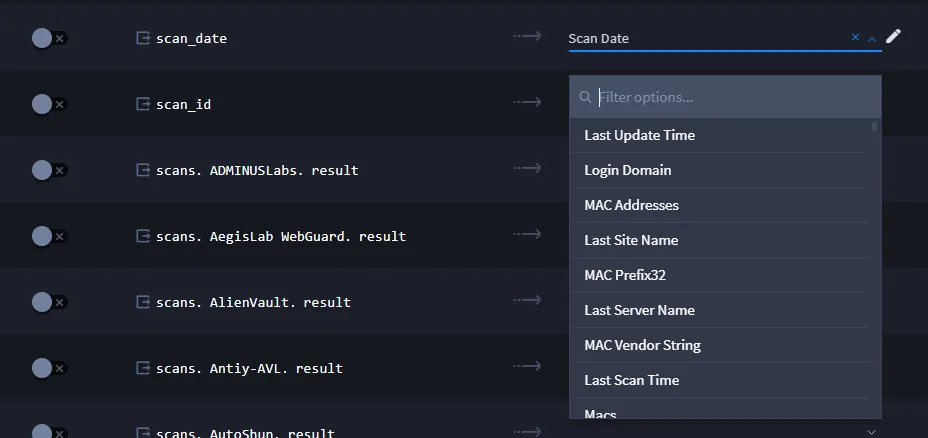
- For more detail on output mapping and field types, see Appendix: Output Mapping TypesAppendix: Output Mapping Types.
- If applicable, indicate what you will use to parse the output data.
- The parser takes input in one of the available formats and breaks that input into parts that are mapped. Available parsers include Regex, URL, Email, Host, IPv4, IPv6, MD5, SHA1, and SHA256. If your parameter is a list, you can select a delimiter as a parser.
- To configure and map additional parameters, fields, or field types, click the ellipsis that follows the Parse With field and select Add Configuration.
While you're working on your mappings, you can keep track with the mapping status bar at the bottom of the window.
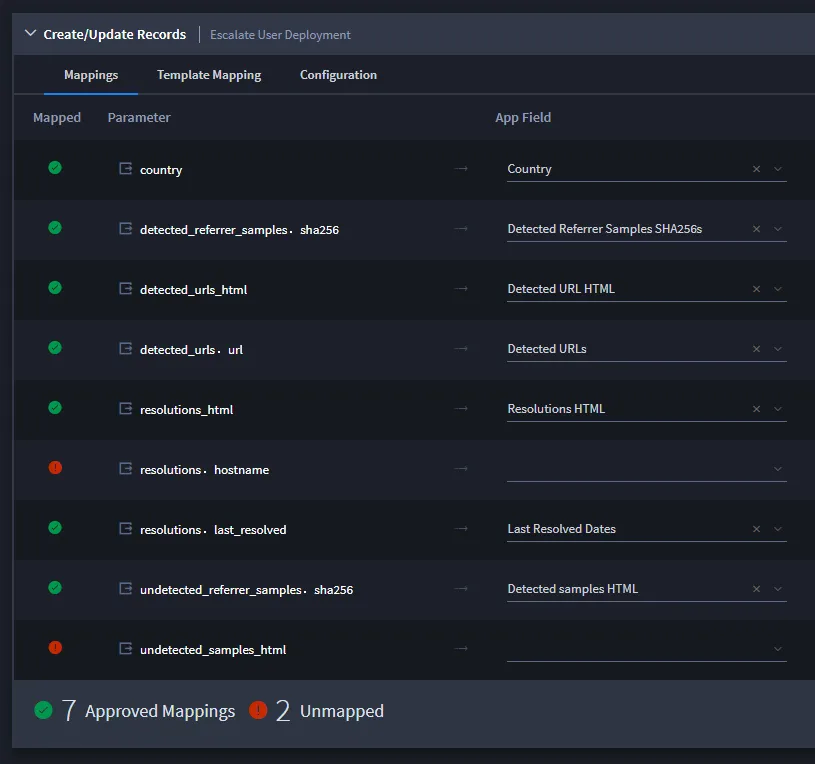
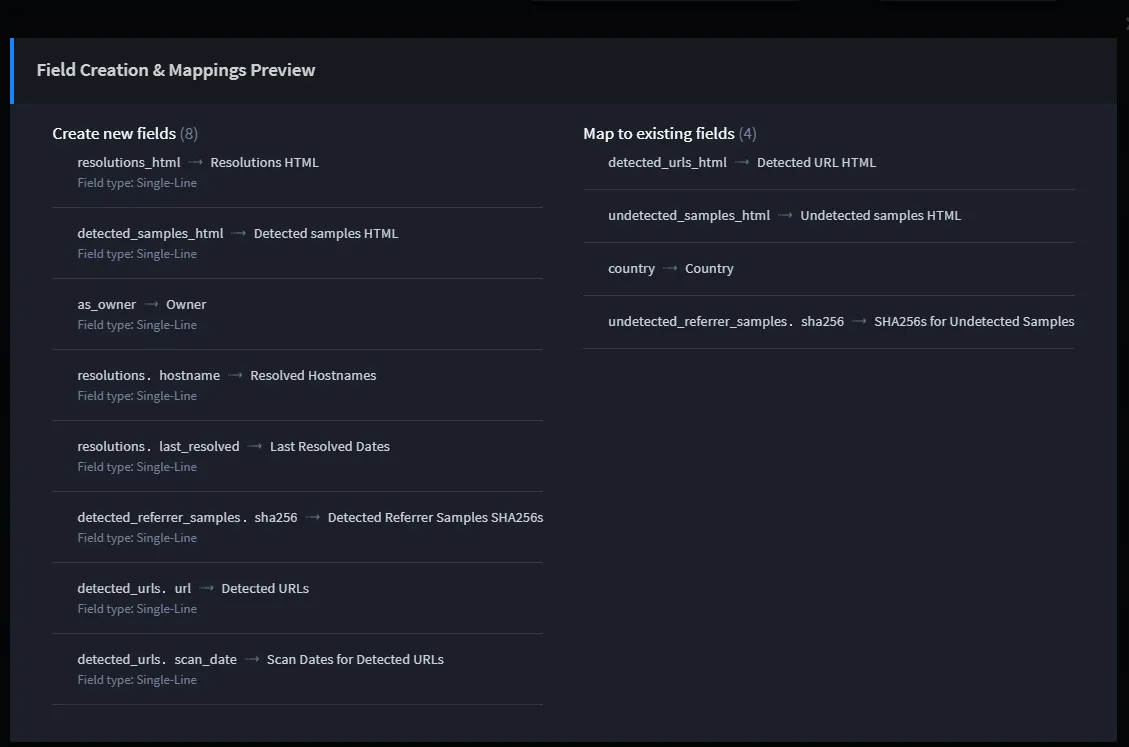
Review and save your work as you continue to create approved mappings. Click Preview to get an at-a-glance view of the currently updated mappings.
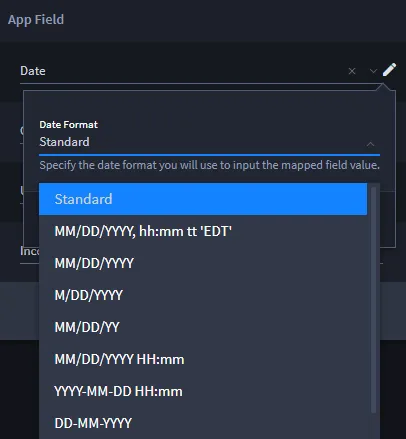
Note: As you set parameters for date or user/group fields, you can specify the format you'd prefer that the date or name be mapped in the record.
For example, you have the following options for dates/times:
- Click Add Mappings to App to go to Approve Field Creation & Mappings. Review, and then click Approve.
-

- Once you've approved your mappings, you return to the task view. Click Save to save the task.
Create an Application for Output Mapping
When mapping to create or update records, you can also create an application on the fly and create fields to map to.
To create an application for output mapping:
- From the Outputs tab, click Create/Update Records then, on the next page, click Create New Application.
-
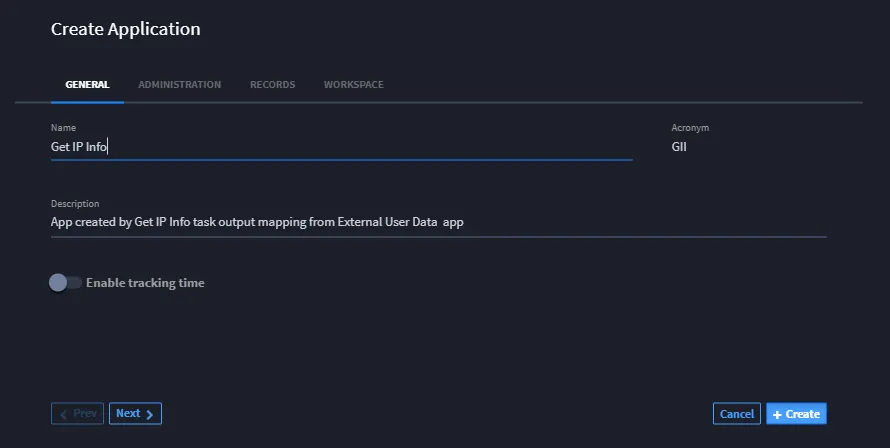
- Assign your application a name and other details as necessary, and then click +Create.
- On Create/Update Records, select the Create Field switch to create fields for your application. When done, click Add Mappings to App.
-
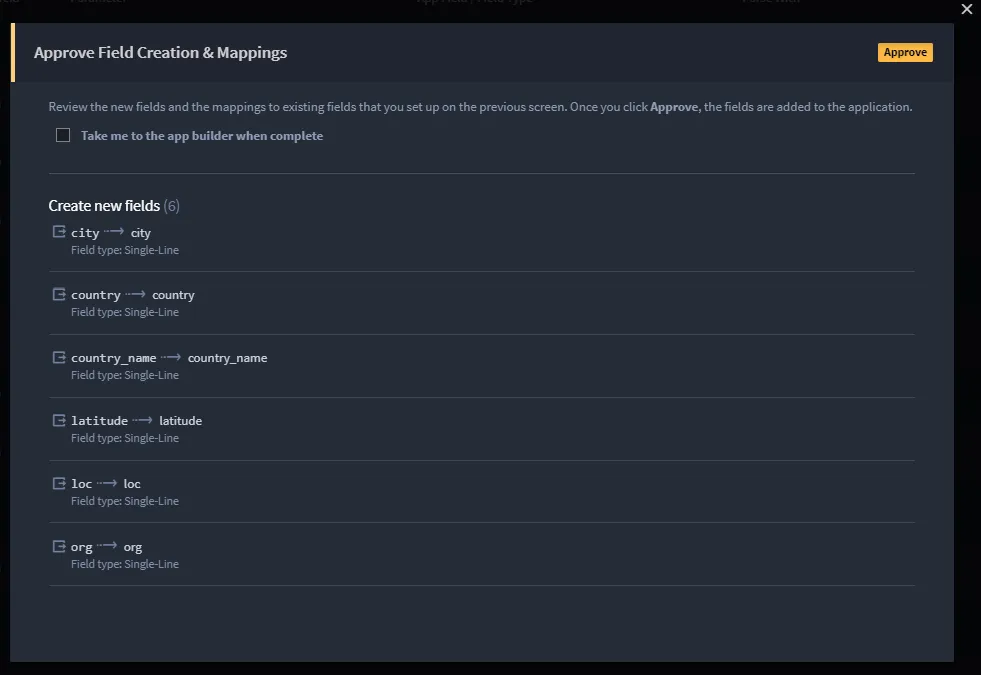
- Save the task.
Template Mapping Sub-Tab
On the Template Mapping sub-tab, you can also specify a template at this time, depending upon what you want the task to do. Template Mapping uses Mustache templating language syntax that can combine multiple output values into one composite-string of text.
Here is a template example:
Malicious Scores: static analysis result: {{static_score}}, dynamic analysis result: {{dynamic_score}}
Use {{#newline}} to add extra lines and/or line breaks into your template.
Configuration Sub-Tab
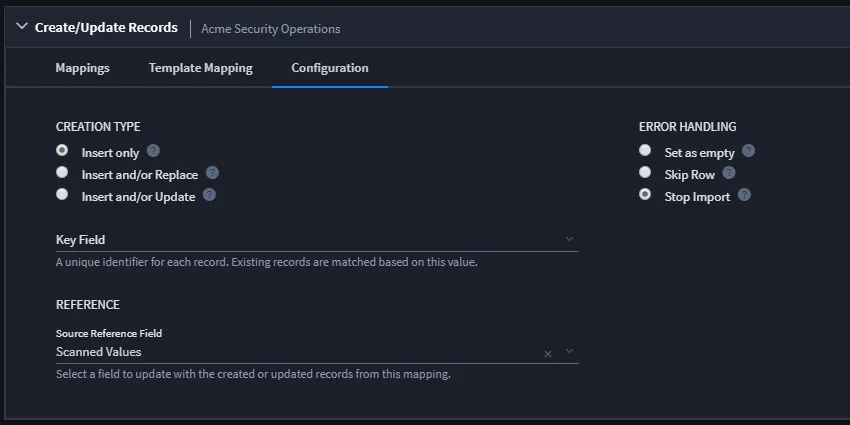
Go to the Configuration sub-tab to make further decisions about how to update records with output from tasks. You control how the records coming out of the task relate to the records within Swimlane by setting the Creation Type, Error Handling, Key Field, and Reference. Hover over the help icons on this subtab for more information, or consult this table:
Task Outputs Configuration Options
Configuration Setting | Option | Definition |
|---|---|---|
Creation Type | Insert Only | Only inserts new records. Does not update existing records. |
| Insert and/or Replace | Creates a new record, or replaces an existing record. |
| Insert and/or Update | Creates a new record, or updates an existing record. |
Error Handling | Set as empty | If an error occurs during updating this field, set the field to an empty value. |
| Skip Row | If an error occurs during updating this field, skip the entire record. |
| Stop Import | If an error occurs during updating this field, stop the import process. |
Key Field | | The field which uniquely identifies each record. Existing records will be matched based on the value of this field. |
Reference | | If your task uses references, you make additional specifications here. |
| Add reference on source record | Click to update the source reference field with the created or updated records from this mapping. |
| Source Reference Field | The source record's reference field. This field contains any eligible reference fields from the source application that you can select. |
Here's an example of the Output Mapping Configuration tab: