Enable SAML for SSO
SAML is an open standard for web browser single sign-on. Using SAML, a service provider (Swimlane) asks an identity provider (a third party) to authenticate and provide information about a user.
This is initiated in two different ways. In one, Swimlane initiates login. In the other, the identity provider initiates the login. Set up SAML in Swimlane Settings, Sessions & Security.
Swimlane Service Provider SAML Metadata
The following table contains the metadata you need to know when configuring Swimlane with an identity provider.
Metadata | Usage |
|---|---|
Entity ID: | Configurable in Swimlane SAML settings |
Assertion Consumer Service (ACS) url: | https://{swimlane-hostname-here}/api/saml/consume |
ACS binding: | ☑ HTTP-POST ☐ HTTP-REDIRECT |
Single Logout Service (SLS) url: | Single Logout is not currently supported by Swimlane |
SLS binding: | N/A |
NameID format: | "emailAddress" if email address is selected as NameID format in Swimlane settings, otherwise "unspecified" |
AuthN request binding: | ☐ HTTP-POST ☑ HTTP-REDIRECT |
AuthN requests signed: | Configurable in Swimlane SAML settings |
AuthN requests encrypted: | No |
Signing certificate: | Configurable in Swimlane SAML Settings |
Assertions encrypted: | Encrypted assertions are not currently supported by Swimlane |
A successful log in with SAML requires a user that matches the NameID username or email address that already exists in Swimlane. Swimlane does not support Just-in-Time (JIT) provisioning. SAML is available to users added by Directory Services sync as well as those added manually.
To enable SAML for SSO:
- From the Sessions and Security dashboard, click > to expand Authentication.
Under SAML Authentication, toggle the switch to enable SAML Authentication.
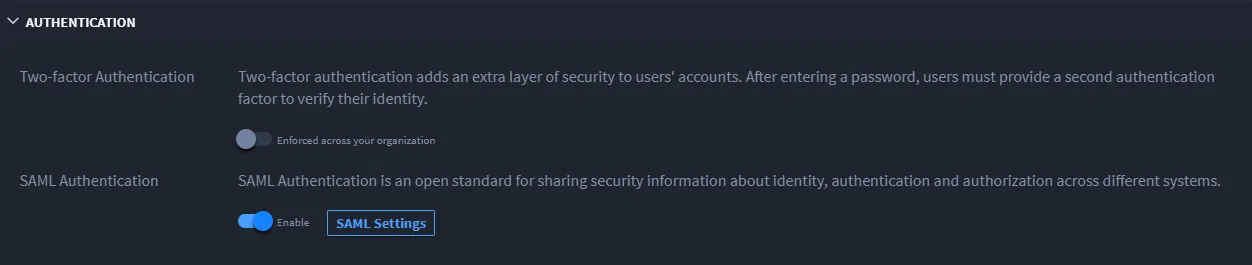
- Next, click SAML Settings.
-
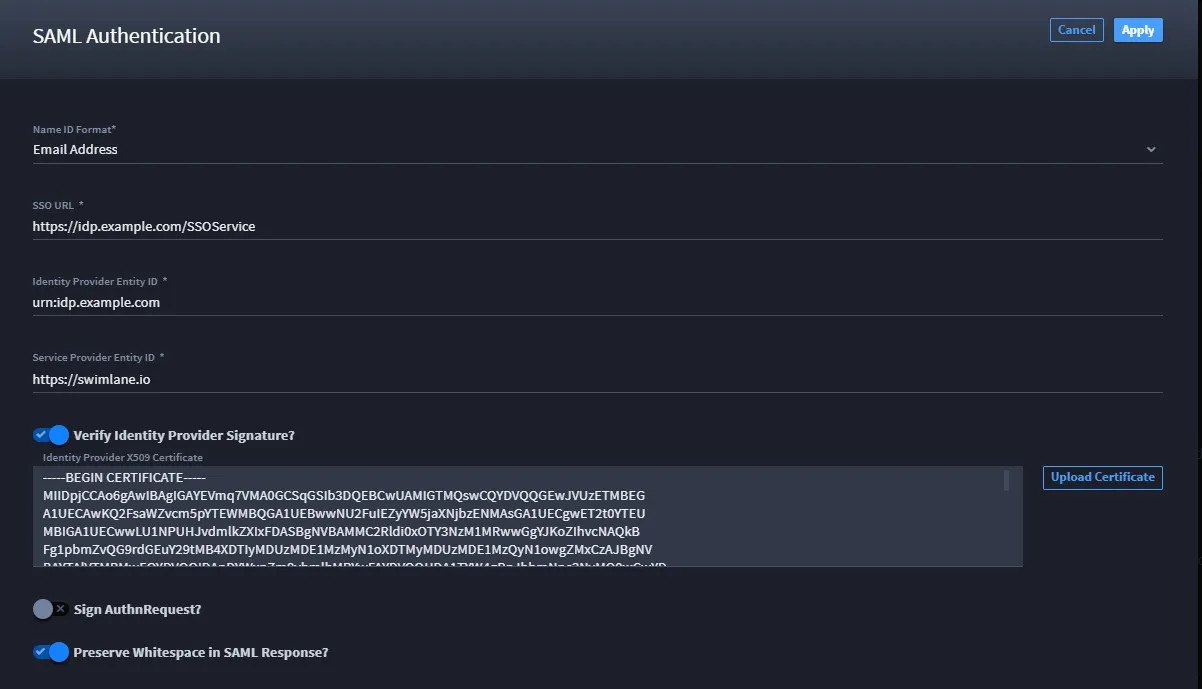
- On SAML Authentication, identify the Name ID Format. Select from the dropdown. You have two options for users logging in to Swimlane, the Swimlane username, or email address.
- This setting determines how Swimlane interprets the Name ID sent in the SAML response and matches it to a Swimlane user.
- Important! Swimlane's SAML processes match case for email addresses. Ensure the email address for the Swimlane user matches the email address in the SAML Response! It's important to note however, that username matching is case insensitive.
- Next, complete the following required fields:
- SSO URL
- Identity Provider Entity ID
- Service Provider Entity ID
- Specify whether to verify the identity provider signature or whether to allow invalid signatures with the Verify Identity Provider Signature toggle and then upload the certificate.
- Important! Swimlane strongly recommends that you enable this SAML option and upload your identity provider's certificate in order to ensure that Swimlane is communicating with the expected identity provider.
- Also Important! The certificate you upload at this step must be a PEM (Privacy Enhanced Mail) certificate.
- Select whether the SAML request should be signed by Swimlane with the Sign AuthnRequest? toggle and then upload the private key (format PKCS #12) and public certificate.
- Note: You can convert a PEM-formatted public certificate and key to PKCS #12 using openssl. Here is an example of how to convert: openssl pkcs12 -export -out cert.pfx -in pem-public-certificate.crt -inkey pem-private-key.key
- Do not enter a password when prompted. Swimlane does not support password-protected PKCS #12 certificates.
- If your SSO provider calculates the SAML response signature with non-significant whitespace, select the Preserve whitespace in SAML response? toggle.