Date / Time
Use a Date / Time field when you need to store date and time data in a record.
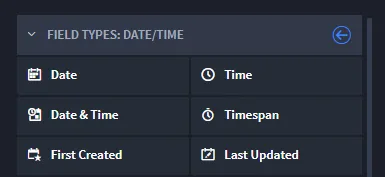
When creating a Date / Time field, you can choose from these types:
Field Type | Description |
|---|---|
Date | Use to store a specific date in a record. |
Time | Use to store a specific time in a record. |
Date & Time | Use to store a specific date and time together within a record. |
Timespan | Use to record the difference between two dates in your record. Enter the timespan manually, or from within this field type, select the Automatic Time Difference field and then select the date and time fields that will track the timespan. |
First Created | Select to have Swimlane collect the date and time the record was initiated. |
Last Updated | Select to have Swimlane collect the most recent date and time the record was edited. |
To create date/time fields:
From Application Builder's Field Types, select a Date / Time field and then drag and drop it to the Form Layout. Drop the field in the layout area, or within a Tab or Section layout object.
Access the field's Field Properties and complete the following fields as needed:
Field | Step | Example |
|---|---|---|
Display Name | Enter the name of the field. | January 3, 2018 |
Help Text | Enter contextual help text. You will first need to specify whether the help text will appear above or below the field in the record form, and then you can enter the text. | Enter the date that the issue needs to be resolved by. |
Required | Click to indicate whether entering data in the field is required to process the record. | checkmark |
Read-only | Click to indicate that the field is read-only for the record. The field will not be editable. | checkmark |
Calculated | Click to indicate that the field contains a mathematical calculation. Calculated fields are read-only and the value is the result of a calculation defined with a custom formula. Once you select this checkmark, the Calculation Expression Help opens, and you can define your formula or function. See Calculation BuilderCalculation Builder for more information. | TOTALMINUTES([Date/Time Opened], [Date/Time Closed]) |
Next, consider the following advanced options in the Field Properties tab:
Field | Step | Example |
|---|---|---|
Min Mode | Use to specify the smallest date unit that can be stored in the field. | Day, Month, Year |
Default Value | Select the value that will be the default date. You can select none, current, specific, future, or past. | none |
Add specific field-level permissions by role, if needed, and then click Apply.