Add Automation to the Suspicious Emails Application
Next you will add two forms of automation to your Suspicious Emails application: a manual push button, and a workflow action.
To add automation to the Suspicious Emails application:
- From the global navigation menu, select Applications and Applets, and then locate and open your Suspicious Emails application.
In Application Builder, select Integration from within the Layout Objects. Drag and Drop it to the Email Import section of the Application Form Layout.
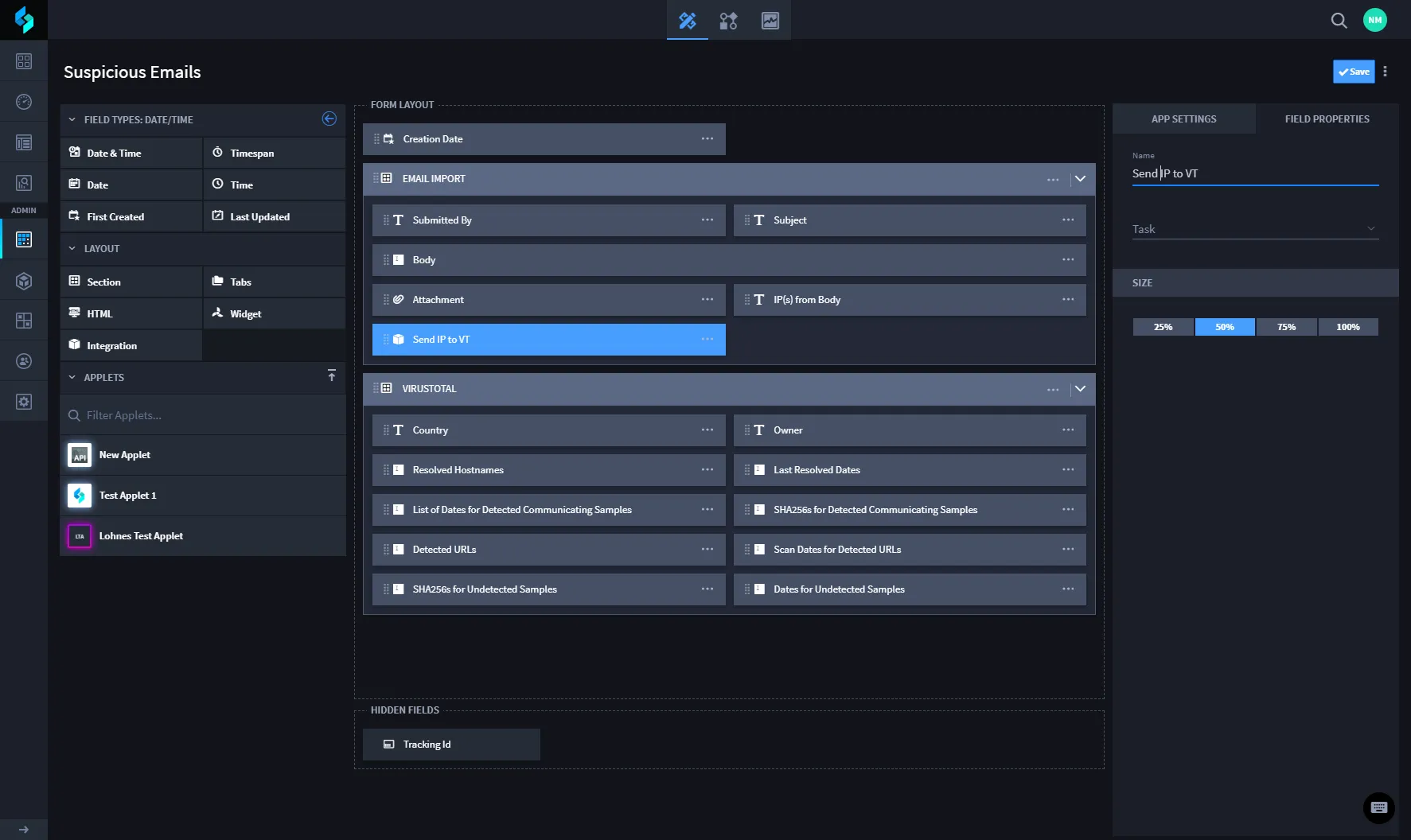
- Adding this creates a button in the record view that, at a click, sends an IP address to VirusTotal for analysis.
Select the Integration field. In Field Settings name the button, and then associate it with the VirusTotal automation task you set up previously, VT IP Report.
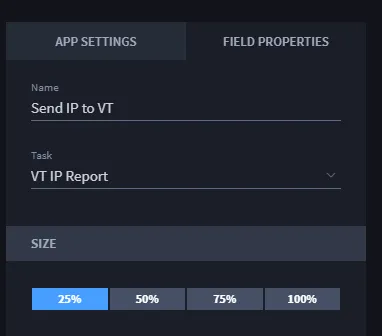
- Click Save.
Next, let's create another automated way to send the IP address to VirusTotal, this time using Swimlane's workflow.
From the Application Builder taskbar, click the Workflow icon.

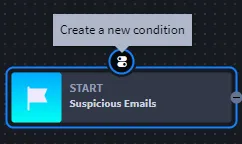
Select the start of the workflow, and then click the icon for Create a new condition. Set it up with the following details:
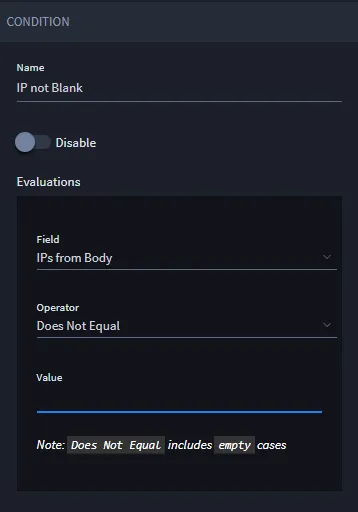
Set up the new condition with the following details:
- Select the new condition, and then click the icon for Create a new action and then set it up with the following details:
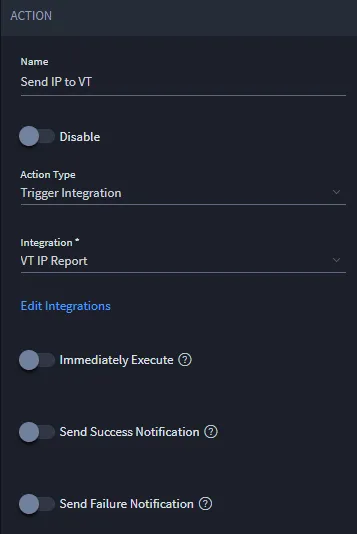
- Click Save.
You're ready to test the automations you've created!
Related Links
Applications and AppletsApplications and Applets
IntegrationsIntegrations
WorkflowWorkflow