Enable and Disable Classic Playbooks
Want more control over your playbooks? Good news! You can enable and disable playbooks.
Now when you create a playbook, you can choose to disable an incomplete playbook and return to complete the playbook configuration later.
Enable and Disable
To learn more about how to enable or disable a playbook, follow the instructions below:
- Ensure you create a playbook.
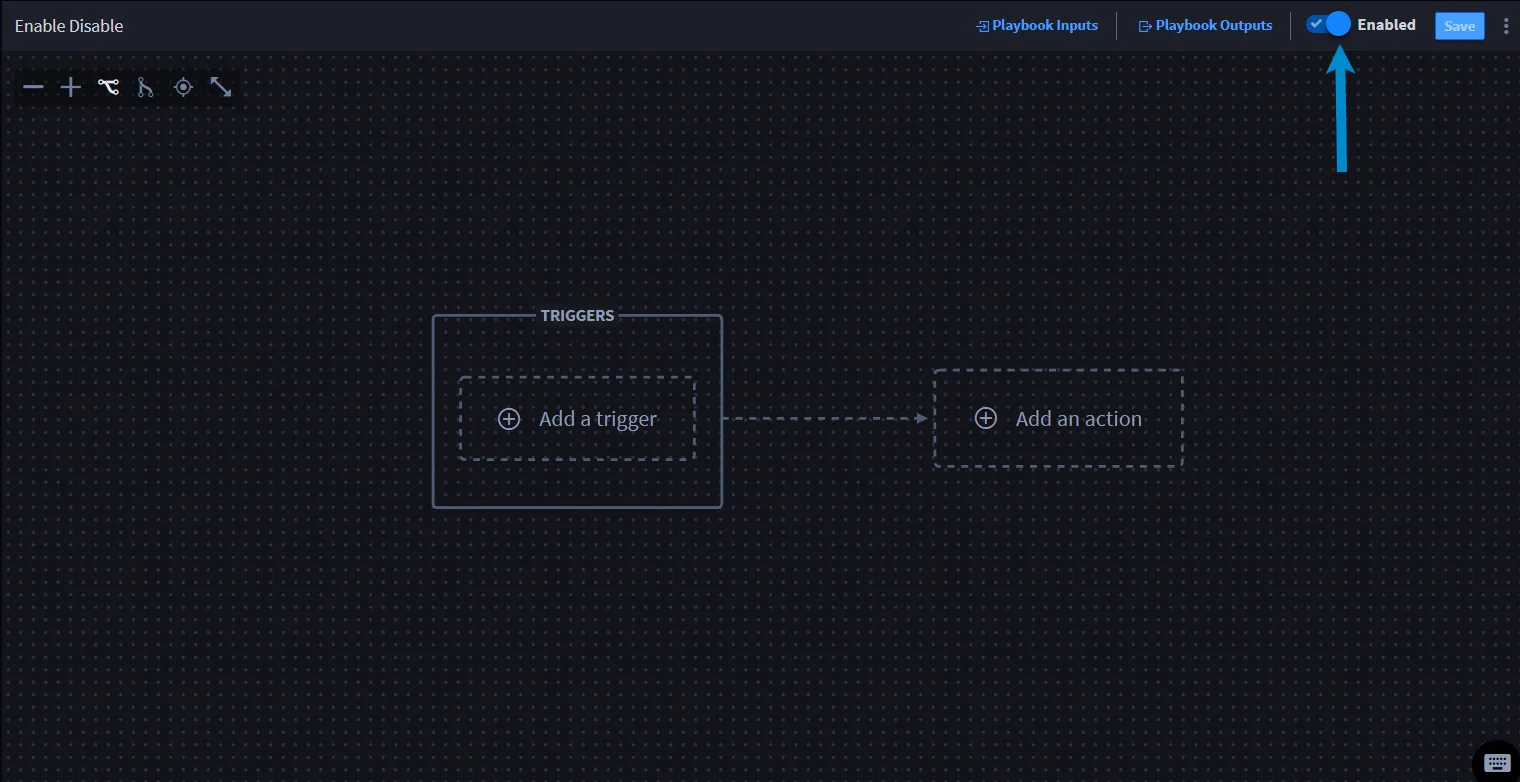
- Add an action to the playbook. Notice that the Save button is disabled.
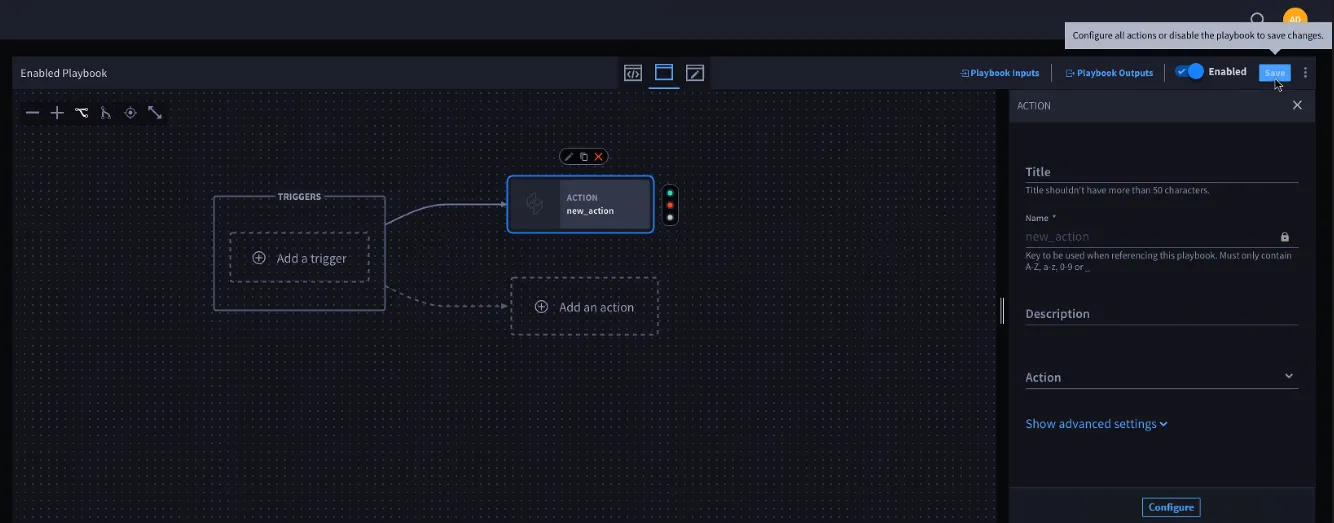
- For details on how to configure an action to save a playbook or save an incomplete playbook, review the sections below.
Configure Actions and Save
Scenario: You’ve already added an action, and you want to save your playbook.
- In the Title field, enter an action title.
- In the Action drop-down, select an action.
- The Save button is now enabled.
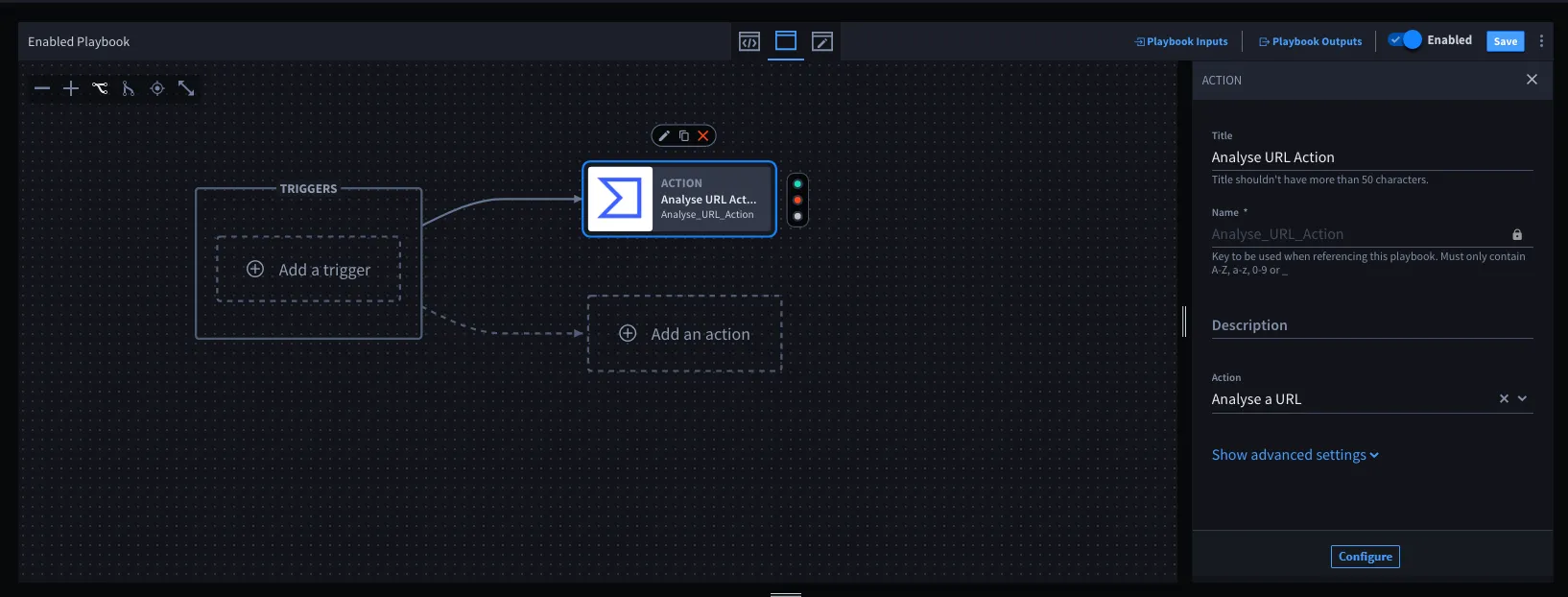
- You can add Configures (e.g., inputs and outputs) later. It is not required at this time.
- Click Save.
- The playbook has successfully saved!
Save Incomplete Playbooks
Scenario: You have some configured actions and just added another action you want to configure later.
- Click the Enabled toggle to disable the playbook.
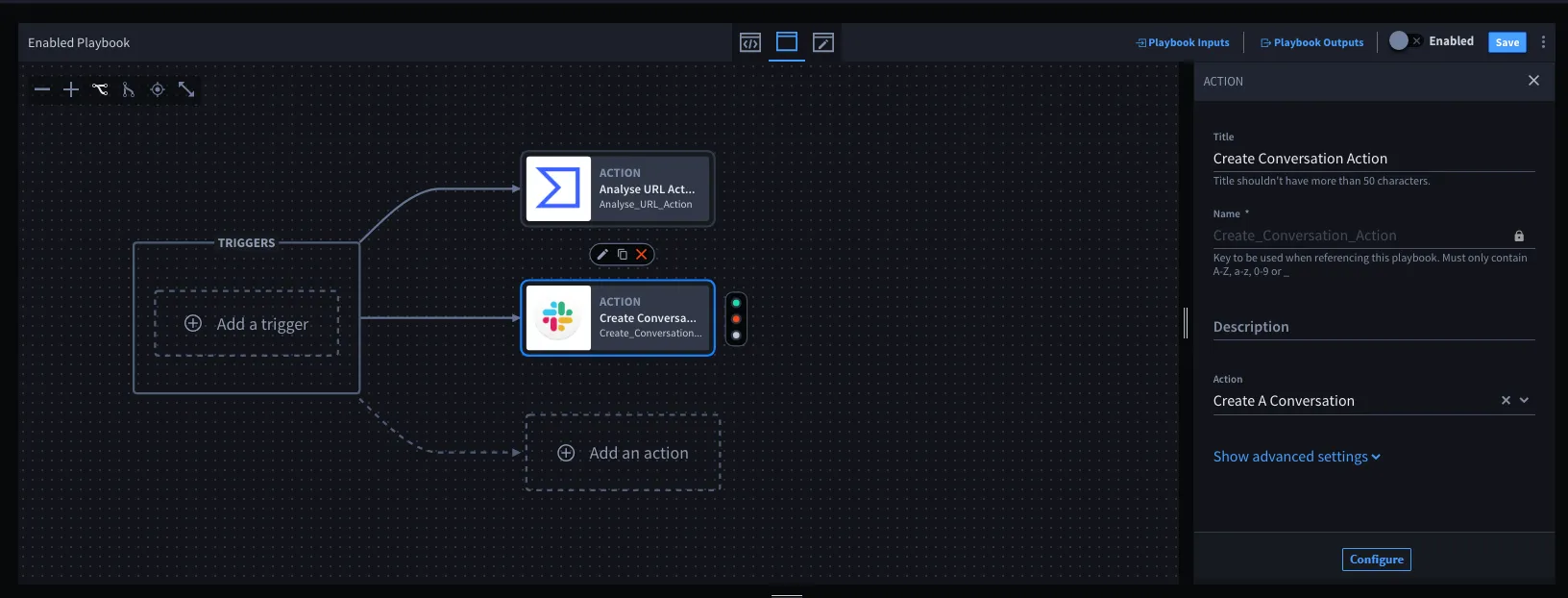
- Add an action without entering a title, selecting an action from the drop-down, or adding Configure — you can still save the playbook.
- The playbook has successfully saved!
Copy Incomplete Playbooks
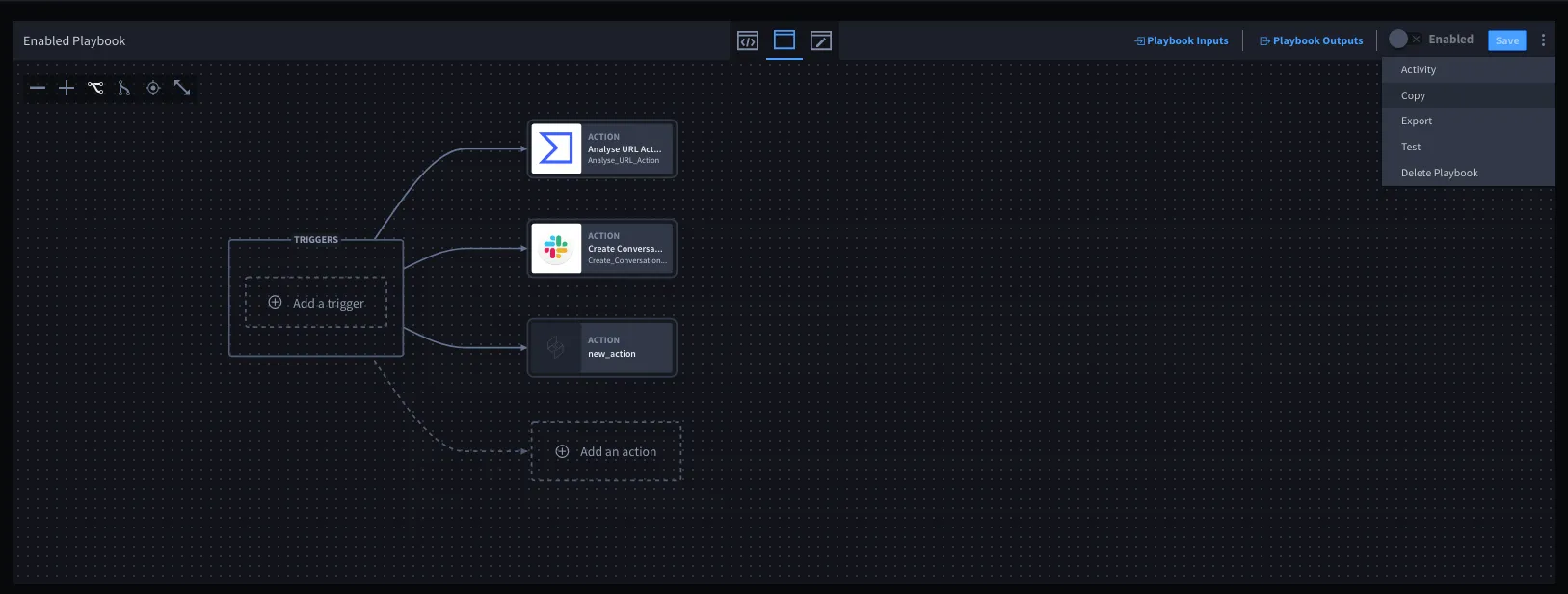
- In the playbook, click the vertical ellipsis and click Copy.
- On Duplicate Playbook, in the Title field, enter a title.
- In the Name field, click the lock icon to enable the field.
- Enter a different name. You cannot duplicate the exact name of a playbook.
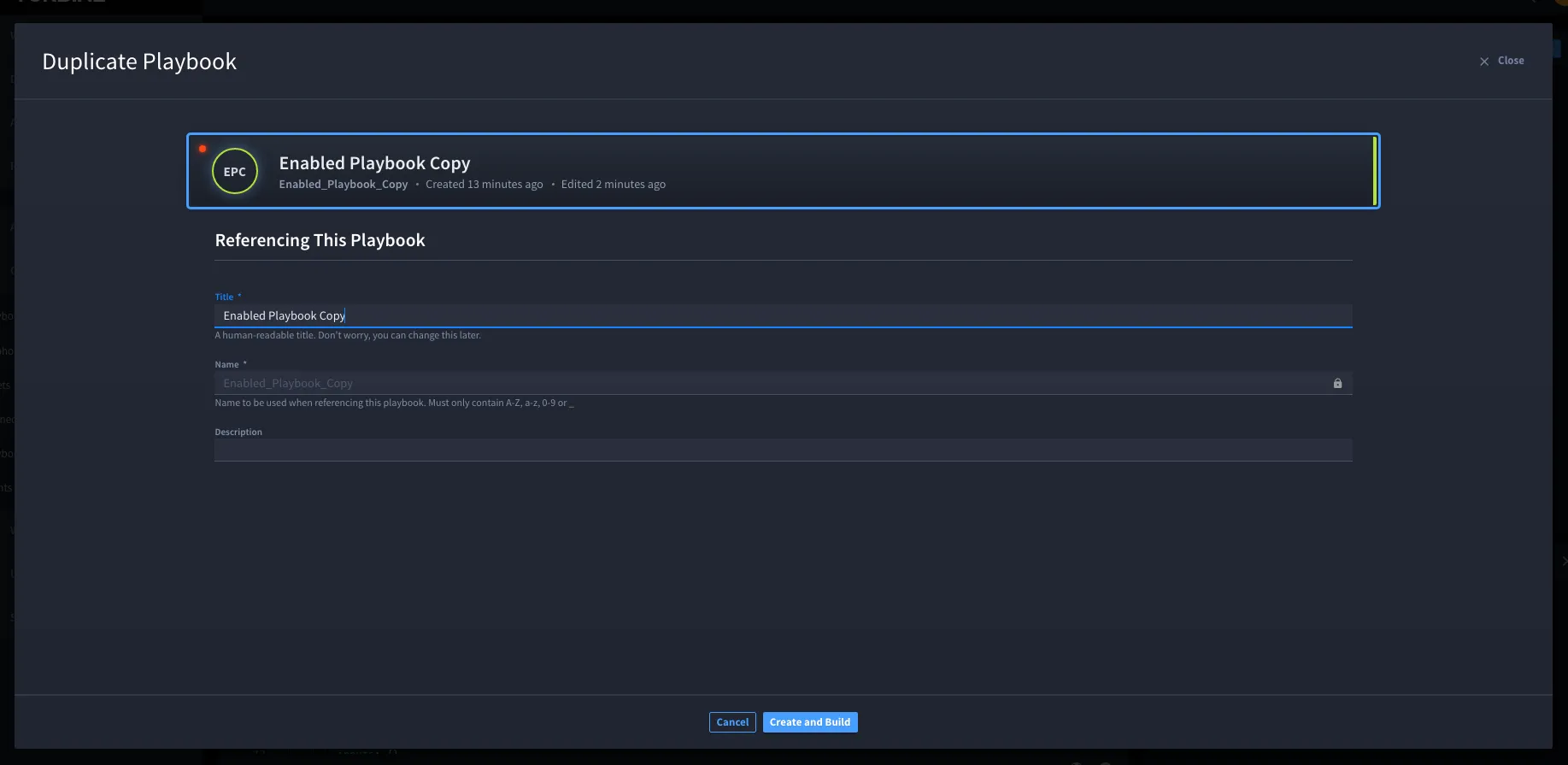
- Click Create and Build.
- The playbook has successfully copied.
Export Playbooks
In the playbook, click the vertical ellipsis and click Export. Any unconfigured actions, descriptions, and action names are present when exporting a playbook and importing it into Turbine.
Upload Incomplete Playbooks
Scenario: You created and exported an incomplete playbook, and now you want to upload it.
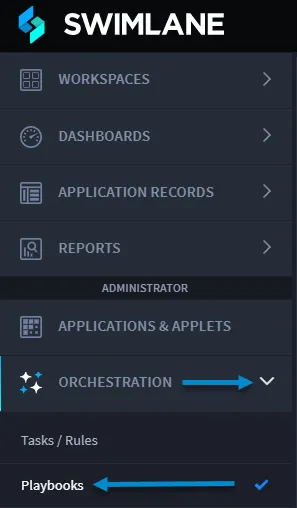
- From the navigation menu, select ORCHESTRATION > Playbooks.
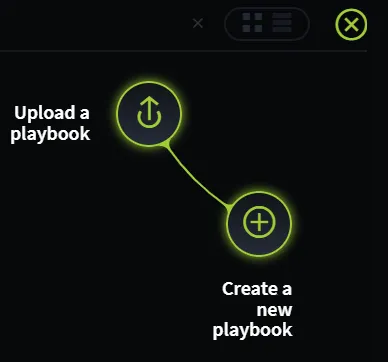
- From the Playbooks home page task bar, click the plus menu icon, and then select Upload a playbook.
- Click DRAG + DROP or Browse to upload the playbook (.yml file).
- On Upload a Playbook, in the Title field, enter a title.
- In the Name field, click the lock icon to enable the field.
- Enter a different name. You cannot duplicate the exact name of a playbook.
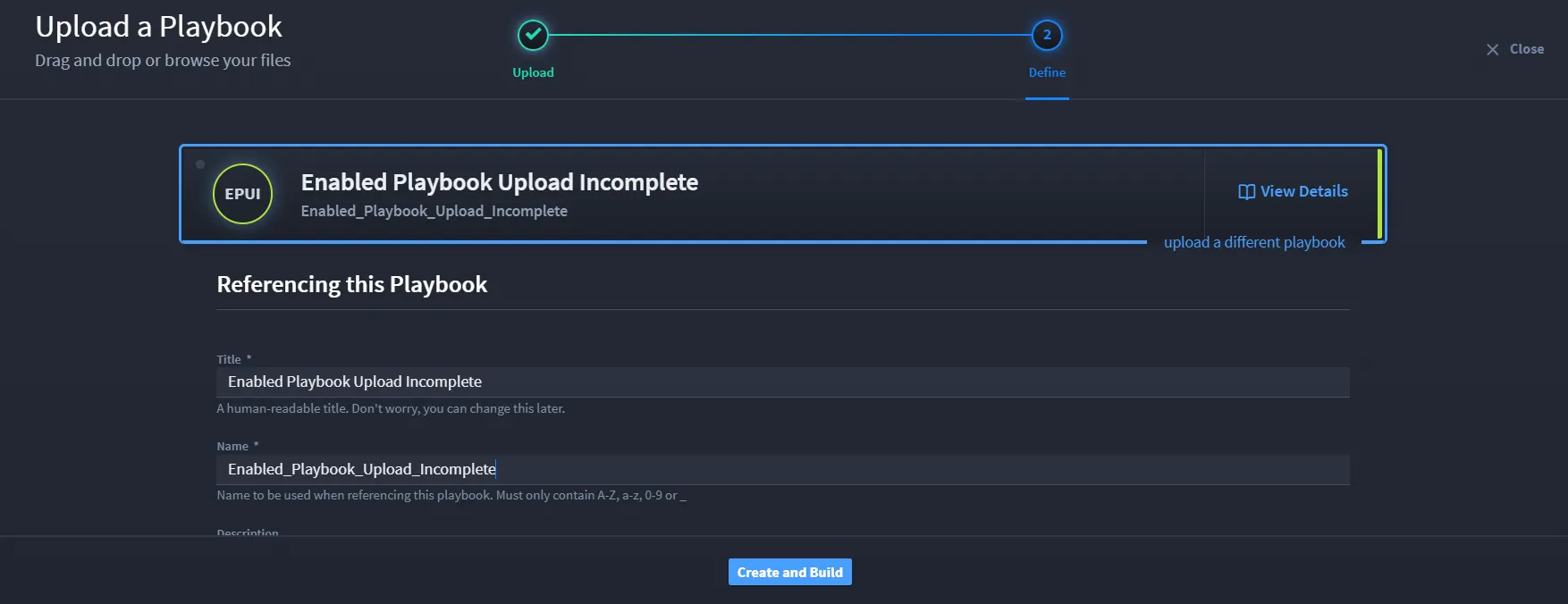
- Click Create and Build.
- The playbook opens.
Turbine defaults incomplete playbooks in a disabled status.