ThreatConnect Intelligence
This guide tells you how to authenticate the ThreatConnect Intelligence connector in Swimlane using HMAC authentication.
You will create a ThreatConnect API user, collect the Access ID and Secret Key, identify the appropriate API URL, and configure the connector in Swimlane.
Prerequisites
ThreatConnect Access Requirements
You must have ThreatConnect permissions to:
- Access Organization Settings.
- Create an API user for your organization.
- Assign the appropriate Organization role to the API user.
ThreatConnect requires an API user account for API access. The Swimlane connector authenticates using the API user's Access ID and Secret Key through HMAC authentication.
Required Credentials
During setup, you will collect:
- URL
- Access Key
- Secret Key
These correspond to the required url, access_key, and secret_key fields in the Swimlane connector.
ThreatConnect Setup
Take the following steps to create an API user:
- Log in to ThreatConnect using an account with permission to create API users.
- From the top navigation bar, open Settings and select Organization Settings.
- If applicable, select the organization for which you want to create the API user.
- Click Create API User.
- Enter the required user information.
- Select the appropriate Organization Role based on the ThreatConnect data and operations the connector needs to access.
- If System Role is available, select Api User.
- Locate and copy the Access ID and Secret Key for the API user.
- Securely save the Secret Key before closing the window.
- Click SAVE.
ThreatConnect states that the Secret Key is not accessible after the API User Administration window is closed. Make sure you save it securely during API user creation.
Take the following steps to identify the API URL:
Use the API URL appropriate for your ThreatConnect deployment:
Deployment | API URL |
|---|---|
ThreatConnect Public Cloud | https://app.threatconnect.com/api |
Dedicated Cloud or On-Premises | https://<your-threatconnect-instance>/api |
For example:
https://companyabc.threatconnect.com/api
The Swimlane connector documentation specifies the /api URL for Public Cloud and Dedicated Cloud or On-Premises deployments.
Connector configuration in Swimlane
- Log in to Turbine.
- From the left-hand navigation pane, click ORCHESTRATION and click Assets.
- Asset homepage opens.
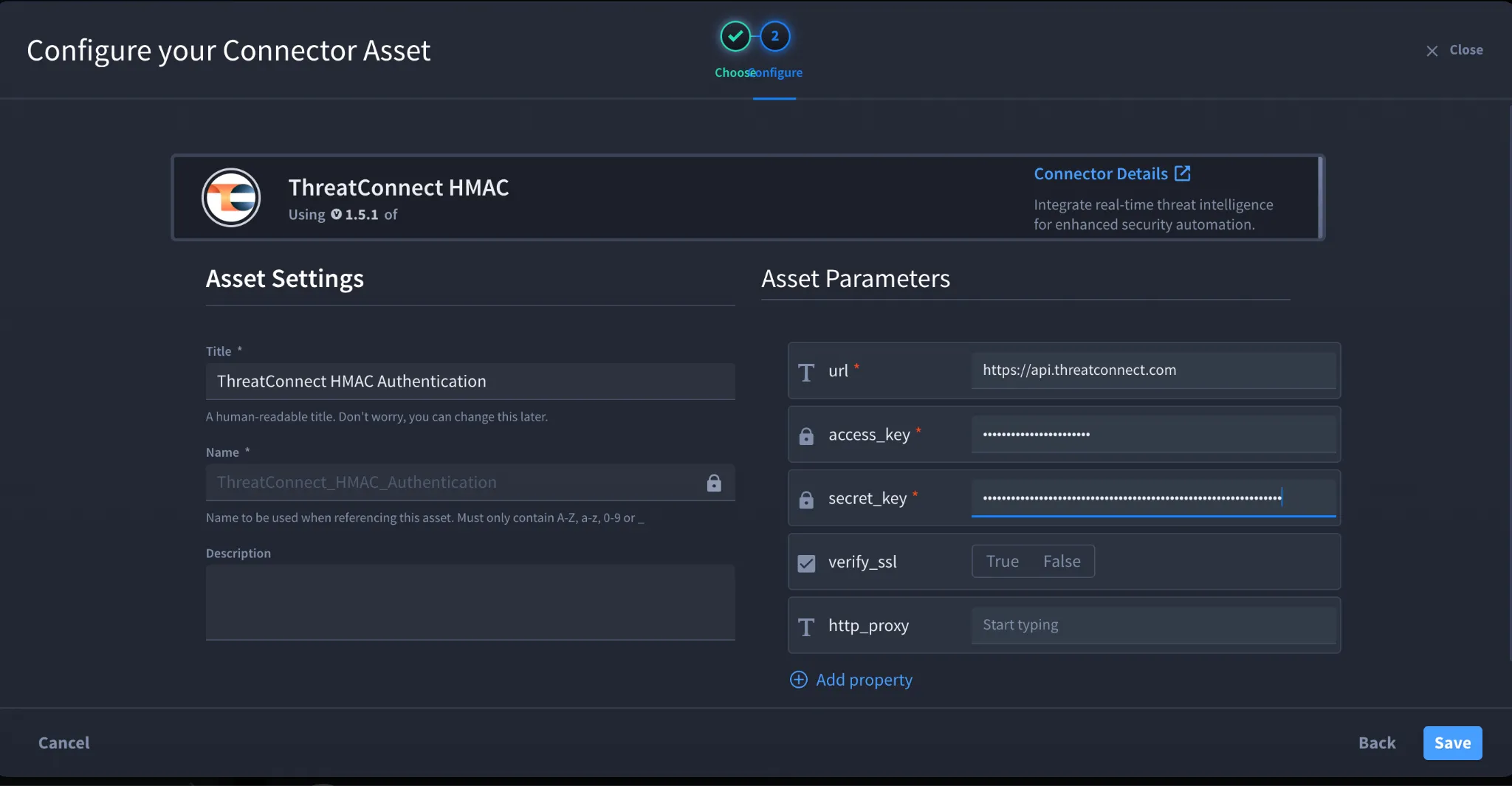
- Click the plus icon to open the Configure your Connector Asset window.
- Select ThreatConnect Intelligence from the Asset type list.
- Fill in the Asset Settings and Asset Input as shown:
Field | Description | Required/Optional |
|---|---|---|
url | ThreatConnect API URL | Required |
access_key | Access ID for the ThreatConnect API user | Required |
secret_key | Secret Key for the ThreatConnect API user | Required |
verify_ssl | Enable/Disable SSL Verification | Optional |
http_proxy | Optional proxy configuration | Optional |
The connector uses ThreatConnect HMAC authentication, and the URL, Access Key, and Secret Key are required. Fields with * marks are required.
- Click Create.
Troubleshooting
If authentication fails:
- Verify that the Access Key and Secret Key belong to the same ThreatConnect API user.
- Verify that the API user has sufficient permissions for the actions you want to perform.
- Ensure that you entered the correct API URL for your ThreatConnect deployment.
- Verify that the API user has not been disabled.
- If you receive an authentication or unauthorized error, verify the Access ID and Secret Key. ThreatConnect identifies incorrect authentication credentials as a common cause of unauthorised API requests.
- If you receive a resource-not-found error, verify the ThreatConnect URL and API path.
You have successfully authenticated the ThreatConnect Intelligence connector in Swimlane.
Sources
- ThreatConnect - Managing User Accounts: Managing User Accounts
- ThreatConnect API Documentation: API Documentation
- ThreatConnect - System Roles and Permissions: System Roles and Permissions