MXTOOLBOX
Introduction
This guide tells you how to authenticate the MxToolbox connector in Swimlane using API Key Authentication.
You will obtain an API key from your MxToolbox account and configure the connector in Swimlane. The MxToolbox connector uses this API key to perform DNS and email-related lookups, including A, DNS, MX, PTR, SOA, SPF, and TXT record lookups.
Prerequisites
MxToolbox Access Requirements
You must have:
- An active MxToolbox account.
- Access to the API settings for the MxToolbox account.
- An MxToolbox API key.
The MxToolbox REST API authenticates requests using an API key. The API key is associated with your MxToolbox account.
Required Credentials
During setup, you will collect:
- URL
- API Key
The Swimlane connector requires both url and apikey.
MxToolbox Setup
Obtain an API Key
Take the following steps to obtain the API key:
- Log in to your MxToolbox account.
- Click your username in the upper-right corner.
- Click Settings.
- Open the API tab.
- Locate your API key. If an API key has not been generated for your account, follow the available option to obtain one.
- Copy and securely save the API key. You will use this value as the apikey when configuring the connector in Swimlane.
MxToolbox states that API keys can also be revoked from the API page if a key is compromised or needs to be rotated. Once revoked, you must use a new API key for subsequent API requests.
API URL
Use the MxToolbox API endpoint as the URL for the connector.
The current MxToolbox REST API documentation identifies the base URL as:
https://api.mxtoolbox.com/api/v1/
MxToolbox requires authenticated API requests to include the API key in the Authorization header. The API key is passed directly and does not use a Bearer prefix. Swimlane handles this authentication when the API key is supplied in the connector asset.
Connector configuration in Swimlane
- Log in to Turbine.
- From the left-hand navigation pane, click ORCHESTRATION and click Assets.
- Asset homepage opens.
- Click the plus icon to open the Configure your Connector Asset window.
- Select MxToolbox from the Asset type list.
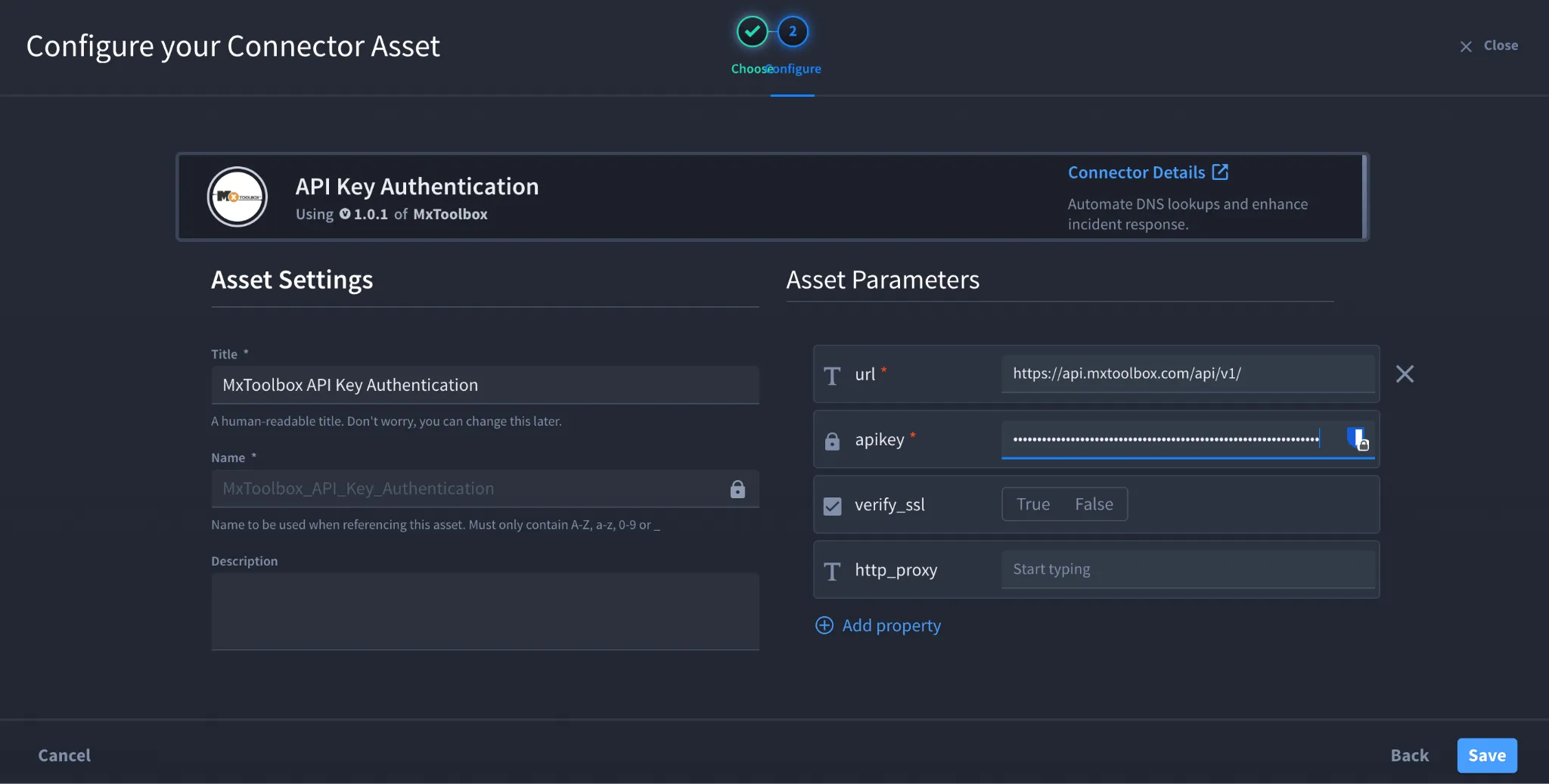
- Fill in the Asset Settings and Asset Input as shown:
Field | Description | Required/Optional |
|---|---|---|
url | URL to the MxToolbox API host | Required |
apikey | API key obtained from MxToolbox | Required |
verify_ssl | Enable/Disable SSL Verification | Optional |
http_proxy | Optional proxy configuration | Optional |
The Swimlane connector defines url and apikey as required fields, while verify_ssl and http_proxy are optional.
Fields with * marks are required.
- Click Create.
Troubleshooting
If authentication fails:
- Verify that the API key entered in the apikey field is correct and has not been revoked.
- Verify that the MxToolbox API URL is correct.
- If you receive a 401 Unauthorized response, verify that a valid API key is configured. MxToolbox documents HTTP 401 as the response for a missing or invalid API key.
- If requests fail because of usage limits, check the API usage associated with your MxToolbox plan. MxToolbox applies request quotas and rate limits to API usage.
- If you suspect that the API key has been compromised, revoke it from the MxToolbox API settings and use a new key in the Swimlane asset.
Result: You have successfully authenticated the MxToolbox Connector in Swimlane.
Sources
The authentication procedure in this guide is based on the official MxToolbox API documentation and knowledge base, together with the connector configuration supplied for Swimlane.
- MxToolbox RESTful API Reference MxToolbox RESTful API Reference
- MxToolbox - About API MxToolbox About API
- MxToolbox - API Methods MxToolbox API Methods