SolarWinds Service Desk
This guide explains how to authenticate the SolarWinds Service Desk connector in Swimlane using HTTP Bearer Authentication.
The connector enables Swimlane to integrate with SolarWinds Service Desk for IT service management workflows, including retrieving, creating, updating, and deleting incidents, problems, and comments. The current Swimlane connector supports SolarWinds Service Desk API version 1.0.
Prerequisites
Before configuring the connector, ensure that you have:
- An active SolarWinds Service Desk account.
- A Service Desk administrator account. SolarWinds requires administrator permissions to generate an API token.
- The required permissions to access and manage the SolarWinds Service Desk resources that you want to use through Swimlane. The token inherits the permissions of the user who generates it.
- Access to Swimlane with permissions to configure connector assets.
The Swimlane connector requires the SolarWinds Service Desk API URL and a bearer token.
Generate a Token in SolarWinds Service Desk
SolarWinds Service Desk uses token-based authentication for API integrations. Only users with a Service Desk administrator license can generate an API token.
Take the following steps to generate a token:
- Log in to SolarWinds Service Desk using an administrator account.
- Navigate to Setup > Users & Groups > Users.
- Locate your administrator user account and open the User Details page.
- Click Actions.
- Select Generate JSON Web Token.
- Locate the generated token in the JSON Web Token section.
- Click Copy.
- Store the token securely. You will use this value in the token field when configuring the connector in Swimlane.
SolarWinds notes that users can create and view only their own tokens. If you reset or delete the token, integrations using the existing token will stop working and must be updated with the new token. If the user who generated the token is disabled, the token is also disabled.
Obtain the SolarWinds Service Desk URL
You also need the SolarWinds Service Desk API URL to configure the Swimlane asset.
For API requests, SolarWinds identifies the Service Desk API endpoint as:
https://api.samanage.com
For Enterprise Service Management (ESM) environments, SolarWinds specifically instructs customers using token authentication to direct API calls to api.samanage.com.
Connector Configuration in Swimlane
The SolarWinds Service Desk connector uses HTTP Bearer Authentication. The url and token fields are required; SSL verification and HTTP proxy settings are optional.
Take the following steps to configure the connector:
- Log in to Turbine.
- From the left-hand navigation pane, click ORCHESTRATION, and then click Assets.
- The Assets page opens.
- Click the plus icon to open the Configure your Connector Asset window.
- Select SolarWinds Service Desk from the Asset type list.
- Configure the asset using the following values:
Field | Description | Required/Optional |
|---|---|---|
url | URL of the SolarWinds Service Desk API host, for example, https://api.samanage.com | Required |
token | JSON Web Token generated from your SolarWinds Service Desk administrator account | Required |
verify_ssl | Determines whether the SSL certificate is verified | Optional |
http_proxy | Proxy through which requests are routed, if required | Optional |
Fields marked with * are required.
- Click Create.
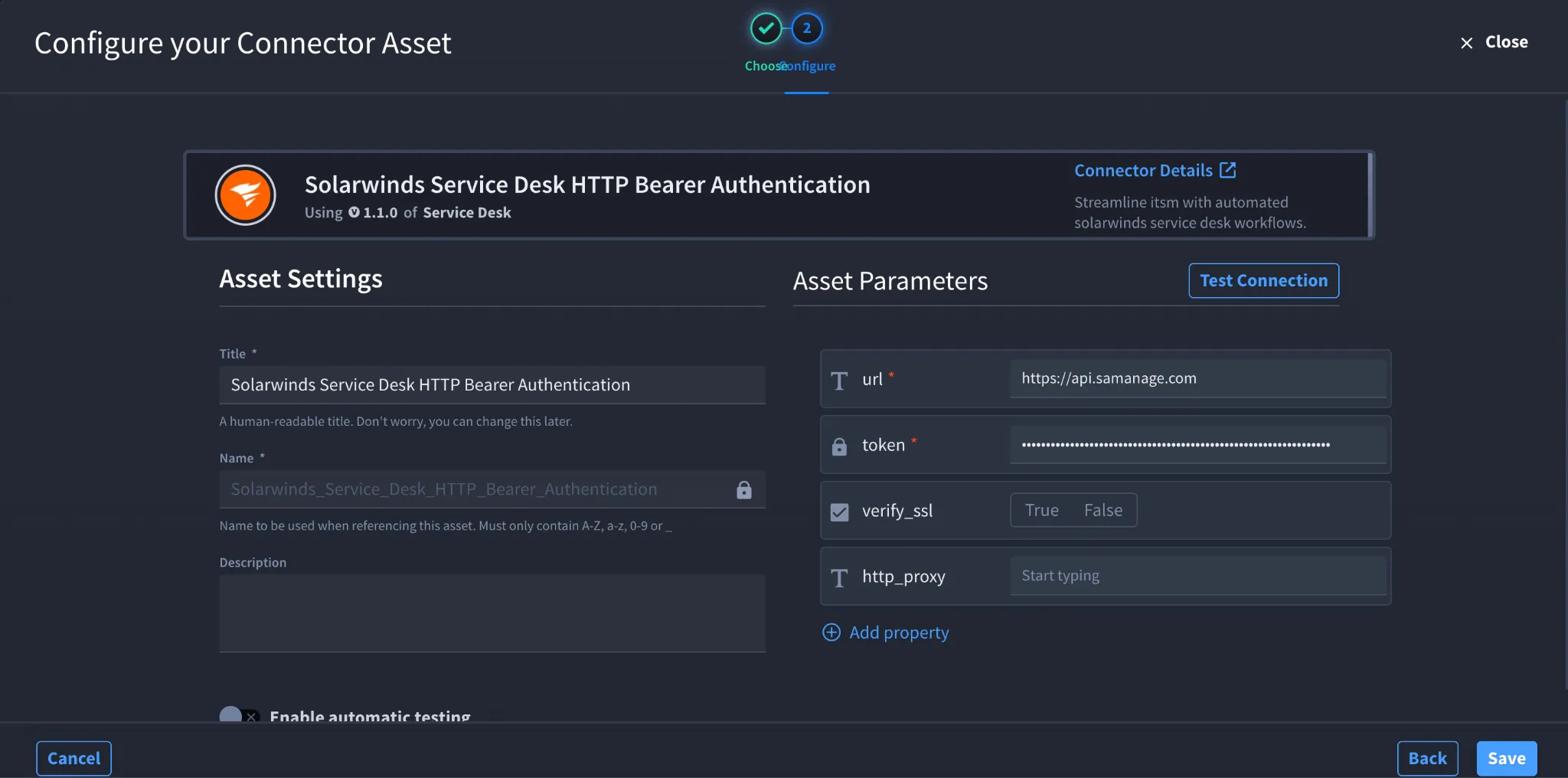
The connector uses the configured bearer token to authenticate requests to SolarWinds Service Desk.
Troubleshooting
- If authentication fails, verify that the token was copied correctly and entered correctly in the Swimlane asset.
- Ensure the user who generated the token is active and has the necessary permissions to access and manage the required SolarWinds Service Desk resources.
- If a previously working connection stops authenticating, verify that the token has not been reset or deleted. If a new token was generated, update the token field in the Swimlane asset.
- If the user who generated the token has been disabled, generate a new token using an active administrator account and update the Swimlane asset.
- Verify that the url field contains the correct SolarWinds Service Desk API URL.
- If requests fail because of certificate validation, verify the verify_ssl configuration and the SSL certificate used by the target environment.
- If your environment requires a proxy, verify that the http_proxy field contains the correct proxy configuration.
Result: You have successfully authenticated the SolarWinds Service Desk connector in Swimlane.
Sources
- SolarWinds - Token Authentication for API Integration Token Authentication for API Integration
- SolarWinds Service Desk API Documentation SolarWinds Service Desk API Documentation
- SolarWinds Service Desk - API Authentication Documentation Service Desk API Authentication