Salesforce
Introduction
This guide tells you how to authenticate the Salesforce connector in Swimlane using OAuth 2.0 or Security Token authentication. You will create a Salesforce connected app, generate required credentials, collect identifiers, and configure the connector in Swimlane.
Prerequisites
Salesforce Access Requirements
You must have Salesforce permissions to:
- Access Salesforce Setup
- Create Connected Apps
- Generate security tokens
- Access API-enabled features
Required Credentials
During setup, you will collect:
- Username
- Password
- Security Token or Refresh Token
- Client ID (Consumer Key)
- Client Secret (Consumer Secret)
- Instance URL
- Token URL
Authentication Methods
- OAuth 2.0 Authentication (recommended)
- Username + Password + Security Token authentication
Salesforce Setup
Take the following steps to create a Connected App (OAuth 2.0):
- Log in to Salesforce.
- Navigate to Setup.
- Search for App Manager.
- Click New Connected App.
- Enter App Name and Contact Email.
- Enable OAuth Settings.
- Set Callback URL (e.g., https://login.salesforce.com/services/oauth2/callback).
- Add OAuth Scopes such as Full Access (full) and Perform requests on your behalf.
- Click Save.
- Wait for the app to be available.
Take the following steps to collect Client Credentials:
- Open the Connected App you created.
- Copy the Consumer Key (Client ID).
- Copy the Consumer Secret (Client Secret).
Take the following steps to generate Security Token (if not using OAuth):
- Click your profile icon.
- Navigate to Settings.
- Go to Reset My Security Token.
- Click Reset Security Token.
- Check your email for the token.
Token and Auth URLs
Environment | Auth URL | Token URL |
|---|---|---|
Production | ||
Sandbox |
Connector configuration in Swimlane
- Log in to Turbine.
- Click ORCHESTRATION → Assets.
- Click the plus icon.
- Select Salesforce from Asset type.
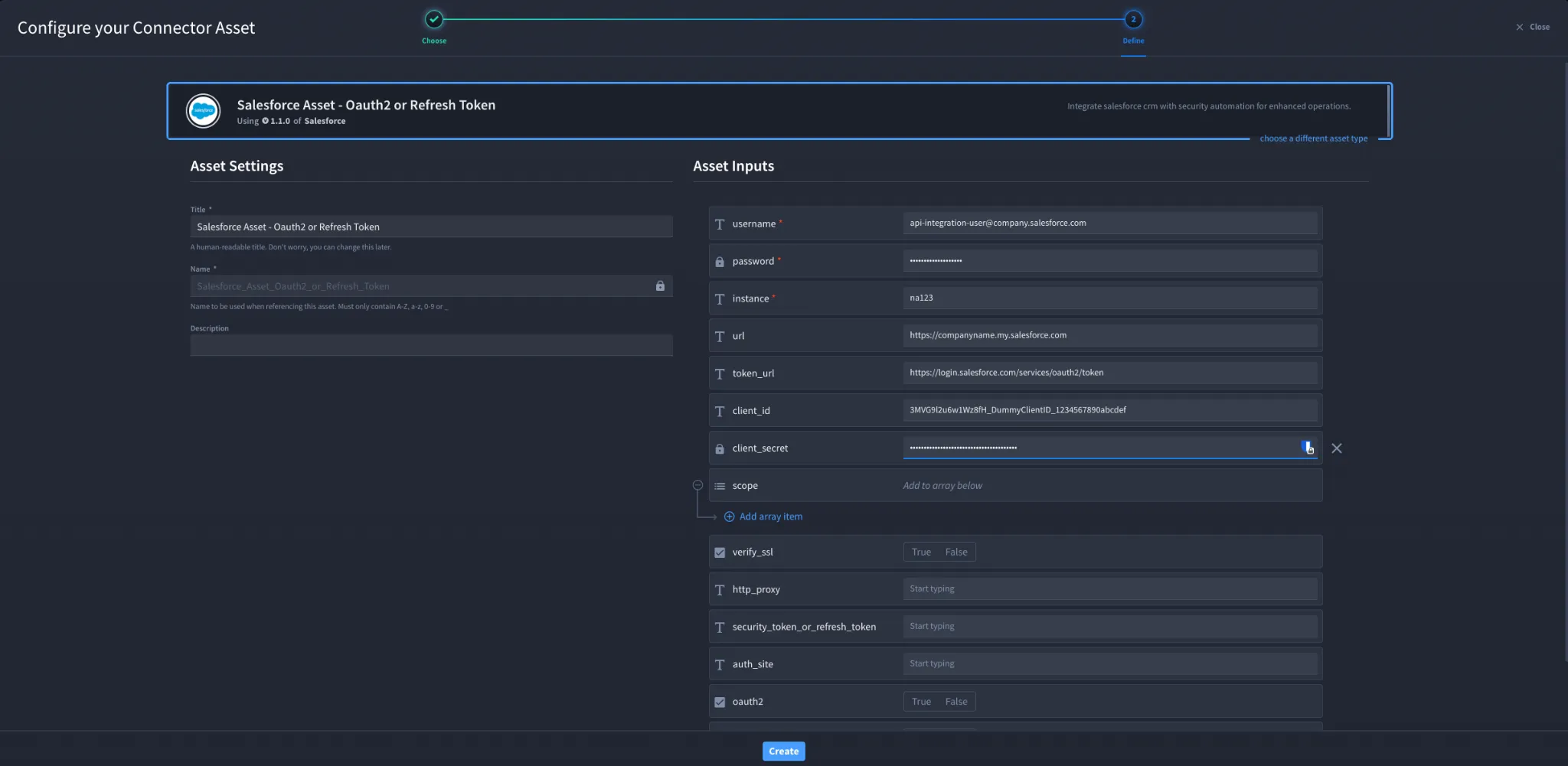
- Fill in the configuration fields below.
Configuration Parameters
Field | Description | Required/Optional |
|---|---|---|
url | Salesforce instance URL | Optional |
token_url | OAuth token endpoint | Optional |
username | Salesforce username | Required |
password | Salesforce password | Required |
client_id | Client ID from Connected App | Optional |
client_secret | Client Secret from Connected App | Optional |
security_token_or_refresh_token | Security token or refresh token | Optional |
instance | Salesforce instance URL | Required |
auth_site | Auth site URL | Optional |
oauth2 | Set True for OAuth2 | Optional |
sandbox | Set True for sandbox | Optional |
verify_ssl | Enable SSL verification | Optional |
http_proxy | Proxy configuration | Optional |
Troubleshooting
- Ensure credentials are correct.
- Ensure API access is enabled in Salesforce.
- Verify security token is appended to password if required.
- Check OAuth scopes are properly assigned.
- Ensure correct auth URL (production vs sandbox).
You have successfully authenticated the Salesforce connector in Swimlane.
Sources
- Salesforce OAuth Documentation: https://developer.salesforce.com/docs/atlas.en-us.api_rest.meta/api_rest/intro_understanding_oauth_endpoints.htm
- Salesforce Connected Apps: https://help.salesforce.com/s/articleView?id=sf.connected_app_create.htm