Netskope Security V1 and V2 SE
Introduction
This guide tells you how to authenticate the Netskope Security V1 and Netskope Security V2 connectors in Swimlane using API token authentication. You will generate the required API token in Netskope, collect the required identifiers, and configure the connector in Swimlane.
Prerequisites
Netskope Access Requirements
You must have Netskope administrative permissions to:
- Access the Netskope tenant
- Generate REST API tokens
- View REST API v1 and REST API v2 settings
- Assign or inherit the permissions required for the API endpoints you intend to use
Required Credentials
During setup, you will collect:
- Netskope Tenant URL
- Netskope V1 API Token
- Netskope V2 API Token
Authentication Methods Overview
The Netskope connectors support the following authentication methods:
- Netskope Security V1 – Token authentication using the token field
- Netskope Security V2 – API Key authentication using the Netskope-Api-Token header
Netskope Setup
Take the following steps to generate a Netskope V1 API Token:
- Log in to your Netskope tenant.
- Navigate to Settings > Tools > REST API v1.
- Ensure REST API v1 access is enabled if required by your tenant configuration.
- Generate or copy the existing REST API v1 token.
- Store the V1 token securely for use in Swimlane.
Take the following steps to generate a Netskope V2 API Token:
- Log in to your Netskope tenant.
- If your tenant uses RBAC v3, navigate to Settings > Administration > Administrators & Roles.
- Create or select a Role with the permissions required for the REST API v2 endpoints you plan to use.
- Go to Administrators and click Service Account.
- Create a Service Account and assign the role.
- Create the token and copy it when prompted.
- If your tenant uses the REST API v2 token page instead, navigate to Settings > Tools > REST API v2.
- Click New Token, select the required endpoints or permissions, then click Save.
- Copy the generated V2 token and store it securely.
Take the following steps to identify the Netskope Tenant URL:
- Log in to your Netskope tenant.
- Copy the tenant hostname from the browser address bar.
- Use that tenant hostname as the base URL in Swimlane.
Connector configuration in Swimlane
- Log in to Turbine.
- From the left-hand navigation pane, click ORCHESTRATION and click Assets.
- Click the plus icon to open the Configure your Connector Asset window.
- Select the Netskope connector version you want to configure.
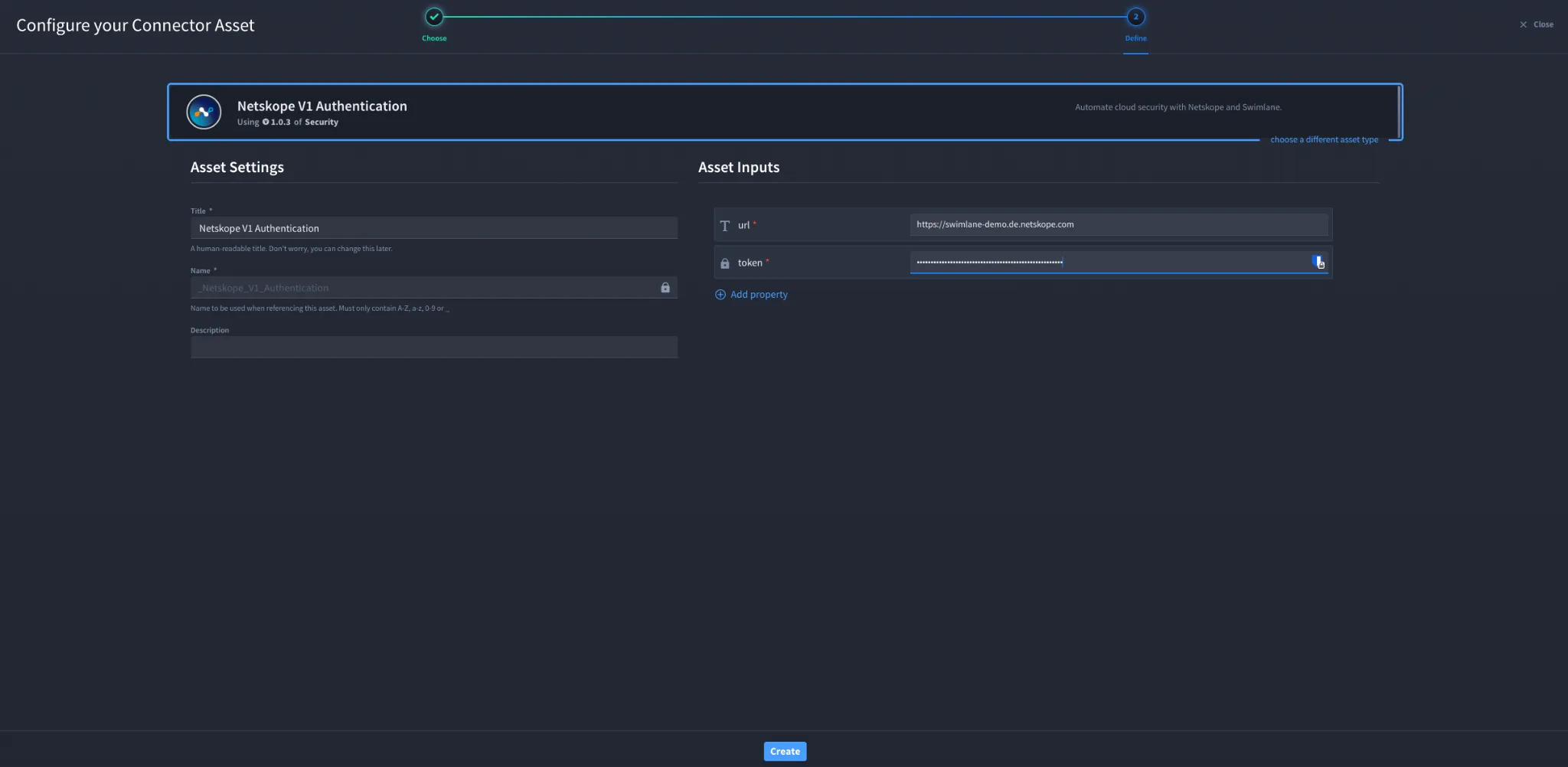
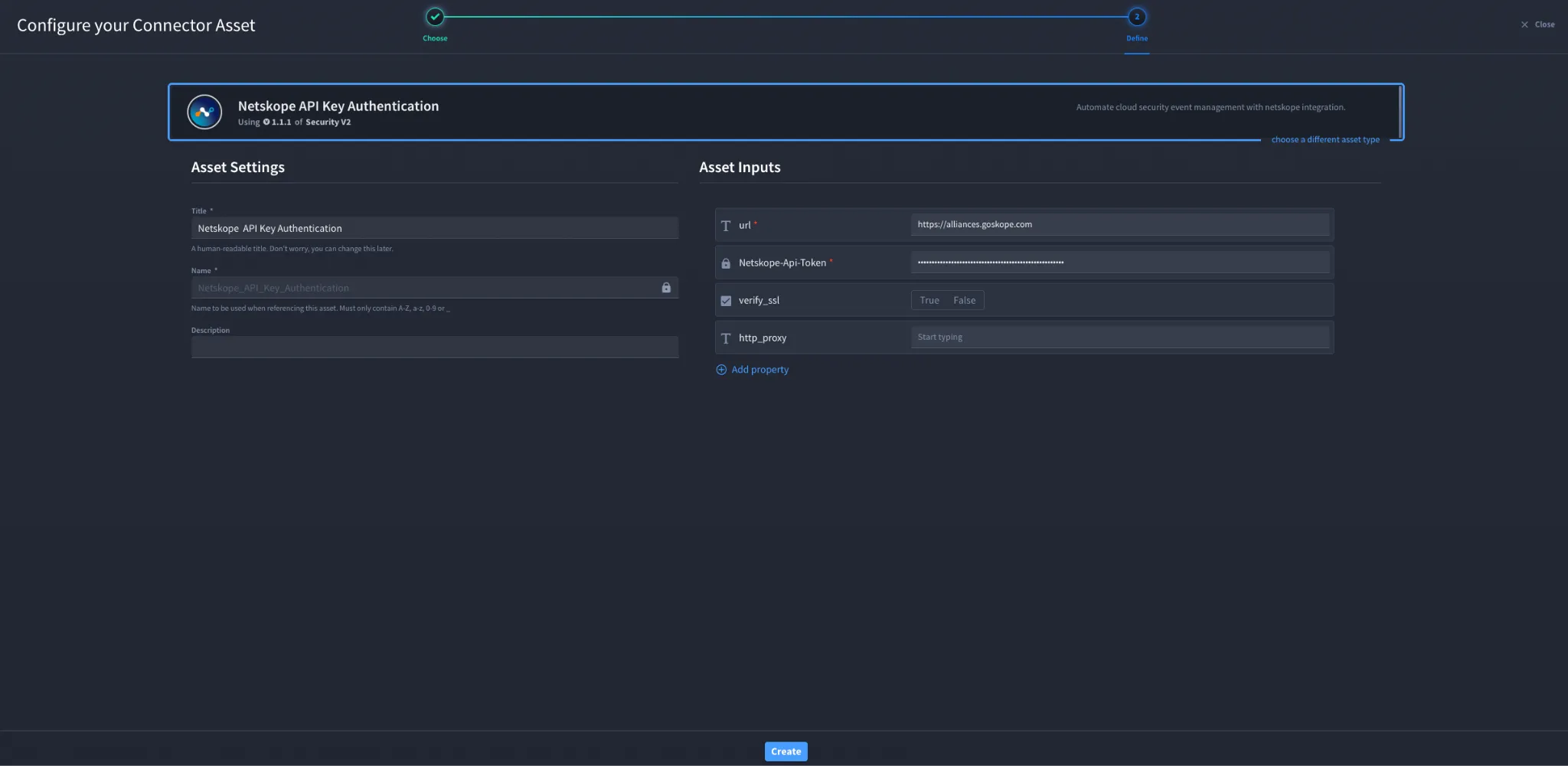
- Fill in the Asset Settings and Asset Input as shown below.
Configuration – Netskope Security V1
Field | Description | Required/Optional |
|---|---|---|
url | Netskope tenant URL | Required |
token | Netskope REST API v1 token | Required |
Configuration – Netskope Security V2
Field | Description | Required/Optional |
|---|---|---|
url | Netskope tenant URL | Required |
Netskope-Api-Token | Netskope REST API v2 token | Required |
verify_ssl | Enable or disable SSL verification | Optional |
http_proxy | Optional proxy configuration | Optional |
Troubleshooting
If authentication fails:
- Ensure you are using the correct token for the correct connector version.
- Verify the tenant URL is correct and reachable from Swimlane.
- Confirm the token has not expired or been revoked.
- For V2, ensure the token includes permissions for the endpoints you intend to use.
- If your tenant uses RBAC v3, verify the assigned role includes the necessary API permissions.
- Check proxy and SSL settings if requests are blocked or fail to connect.
You have successfully authenticated the Netskope Security V1 and Netskope Security V2 connectors in Swimlane.
Sources
- Netskope API Tokens Documentation: https://docs.netskope.com/en/api-tokens-2/
- Netskope REST API v1 Overview: https://docs.netskope.com/en/rest-api-v1-overview/
- Netskope REST API v2 Overview: https://docs.netskope.com/en/rest-api-v2-overview-312207/