Crowdstrike Falcon
Introduction
This guide explains how to authenticate the CrowdStrike Falcon connector in Swimlane using OAuth 2.0 Client Credentials.
You will identify your cloud base URL, gather CrowdStrike OAuth credentials, and configure the connector inside Swimlane Turbine.
Crowdstrike Access Requirements
You must have Crowdstrike Console permissions to:
- Create / View API Clients and Keys
- Assign required OAuth scopes
- Identify your Falcon cloud region
- (If applicable) access your member CID for MSSP environments
Required Credentials
During setup, you will collect:
- Client ID
- Client Secret
- Base URL (depends on your Falcon cloud)
- Member CID (optional; only for MSSP)
CrowdStrike Cloud Base URLs
Use the base URL specific to your Falcon region:
Cloud | Base URL |
|---|---|
US-1 | |
US-2 | |
EU-1 | |
US-GOV-1 | |
US-GOV-2 |
Ask your admin or check your CrowdStrike portal URL to confirm your region.
CrowdStrike Setup
Take the following steps to Create API Client :
- Log into CrowdStrike Falcon console.
- Navigate to Support > API Clients and Keys.
- Click Create API Client.
- Enter a name and description.
- Assign required OAuth scopes as per the following list: Core Falcon Permissions -
- Detections: Read
- Detections: Write
- Hosts: Read
- Incidents: Read
- Incidents: Write
- Real Time Response: Read
- Real Time Response: Write
- IOCs: Read
- IOCs: Write
- Sensor Download: Read
- Spotlight Vulnerabilities: Read
Optional (based on actions) -
- RTR Admin commands
- Quarantine / Scan management
- Sandbox file submission
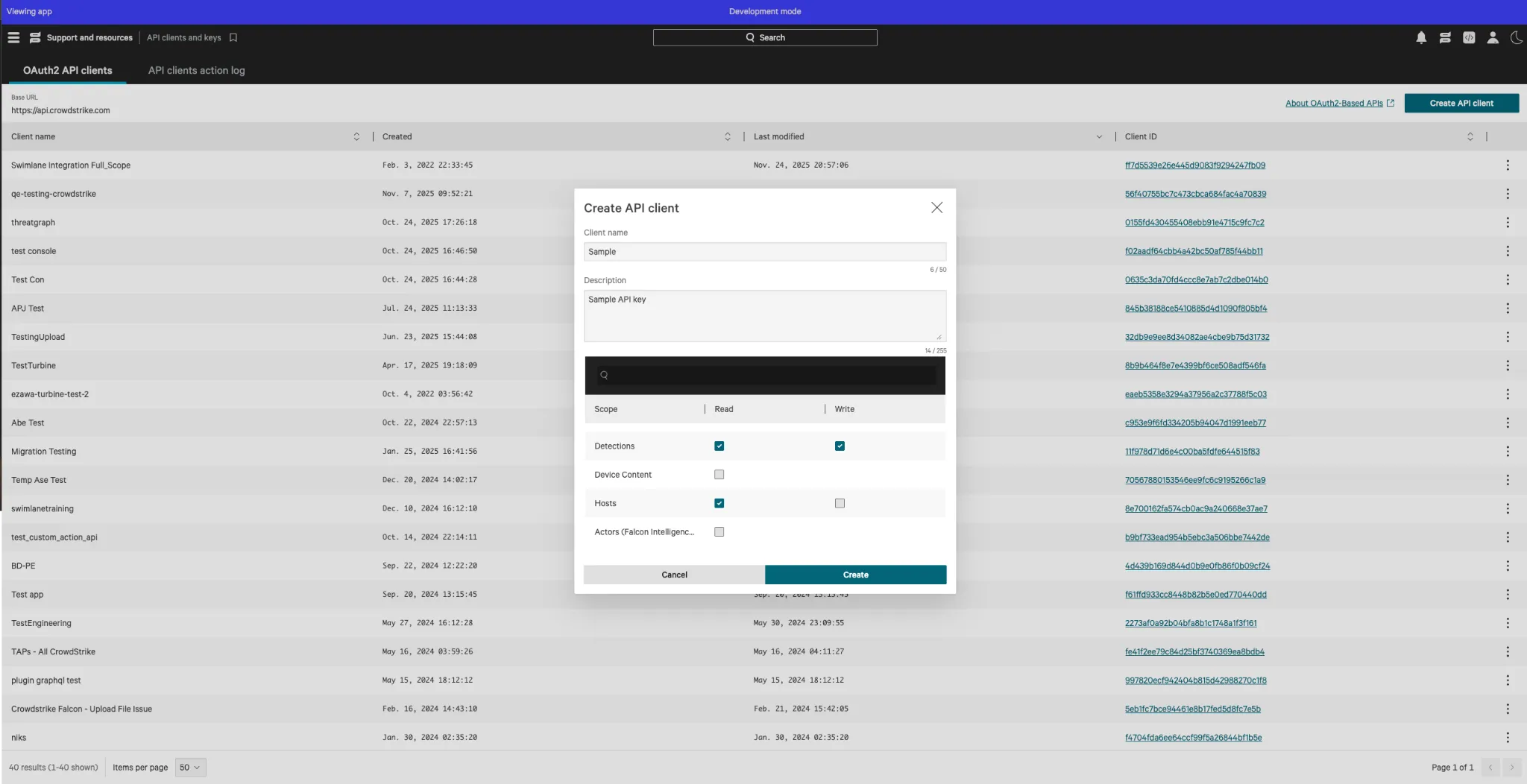
- Click Create and copy:
- Client ID
- Client Secret
These values will not be shown again. Store them securely.
Take the following steps to collect Member CID:
This is an optional step and is only required if your environment is MSSP (Managed Security Service Provider).
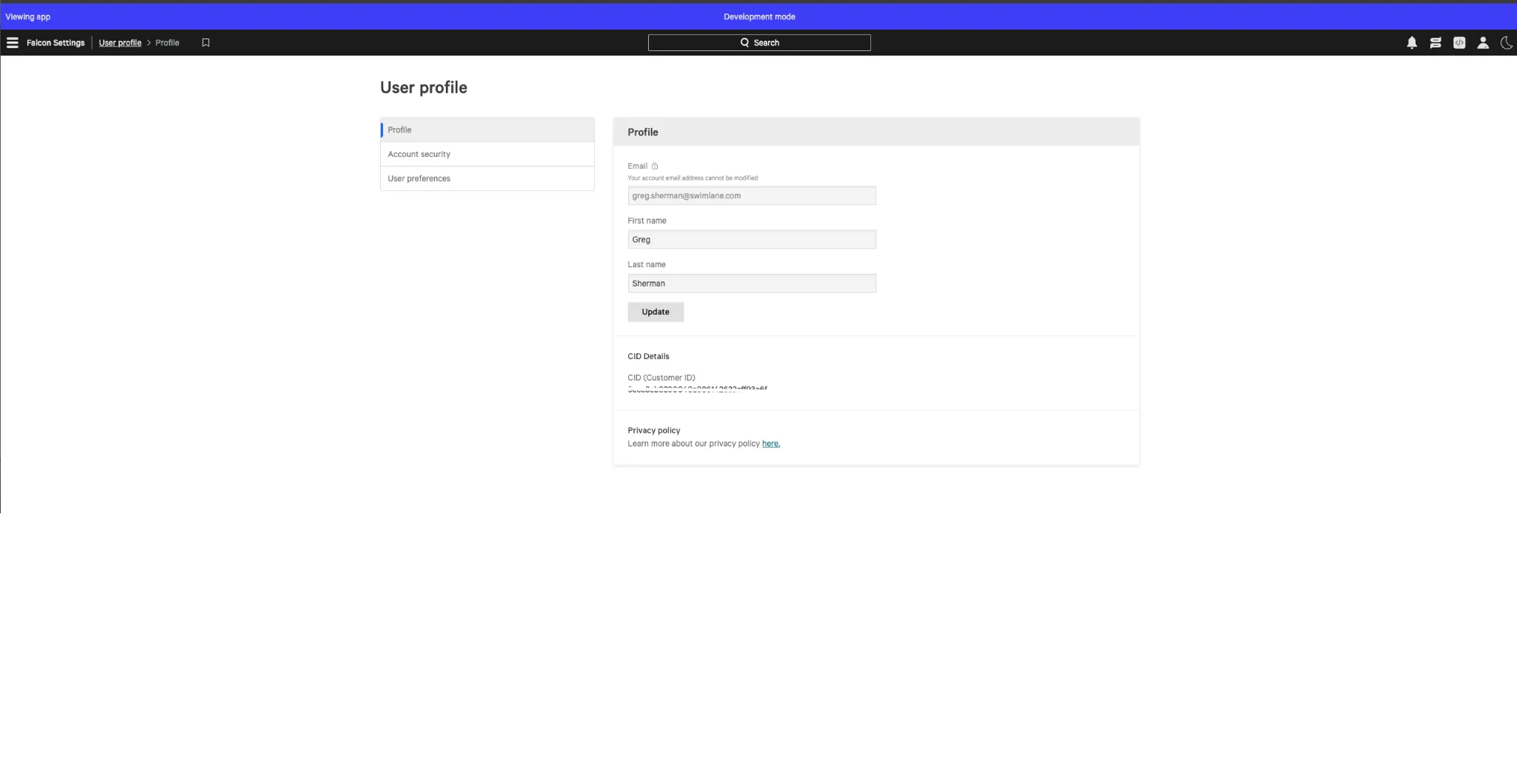
- Go to User > My Profile in CrowdStrike.
- Locate Customer ID (CID).
- If multiple tenants exist, use the member CID assigned to your sub-org.
Connector configuration in Swimlane
- Log in to Turbine.
- From the left-hand navigation pane, click ORCHESTRATION and click Assets. Asset homepage opens.
- Click the plus icon to open the Configure your Connector Asset window.
- Select CrowdStrike Falcon from the Asset type list.
- Fill in the Asset Settings and Asset Input as shown:
Field | Description | Required |
|---|---|---|
url | Base URL for your Falcon cloud | Required |
client_id | Client ID from CrowdStrike | Required |
client_secret | Client Secret from CrowdStrike | Required |
member_cid | Required only for MSSP | Optional |
verify_ssl | Enable/Disable SSL validation | Optional |
http_proxy | Proxy settings, if applicable | Optional |
Fields with * marks are required.
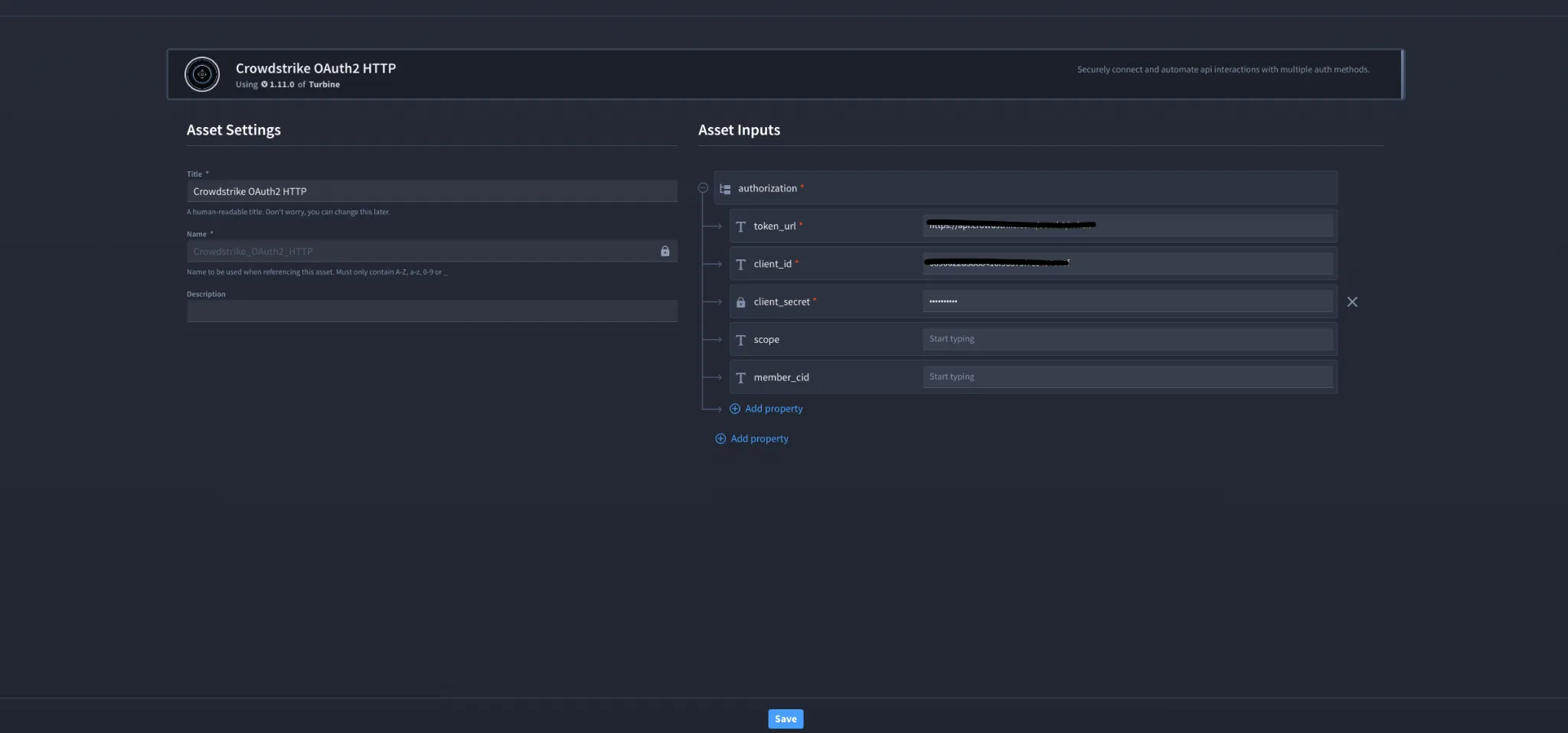
- Click Create.
Troubleshooting
Invalid Credentials Error
- Ensure Client ID / Client Secret were copied correctly.
- Confirm the API client still exists and wasn't regenerated.
403 Forbidden
- Missing OAuth scopes.
- Add required permissions and re-authenticate.
Wrong Region
- Make sure your base URL matches your CrowdStrike cloud.
You have successfully authenticated the Crowdstrike Falcon Connector in Swimlane.