ConnectWise Manage
Introduction
This guide explains how to authenticate the ConnectWise Manage connector in Swimlane using custom API authentication.
The ConnectWise Manage connector enables Swimlane Turbine to integrate with ConnectWise Manage for automating company management, contacts, tickets, SLAs, service boards, and invoice operations.
Prerequisites
Before configuring the connector, ensure you have:
- Access to ConnectWise Manage
- Administrator permissions in ConnectWise Manage
- Permission to create API integrations
- Permission to create API Members and Security Roles
This connector requires ConnectWise API version 2020.2 or newer.
Required Credentials
You will need the following authentication details:
Credential | Description |
|---|---|
API Version | ConnectWise API version |
Client ID | Integration Client ID |
Company Identifier | Company identifier used for authentication |
Host URL | ConnectWise server URL |
Public Key | API public key |
Private Key | API private key |
Generate a Client ID
To obtain a Client ID:
- Open the ConnectWise Developer Portal.
- Sign in using your ConnectWise credentials.
- Scroll to the bottom of the page and click Create New Integration.
- Enter:
- Integration Name
- Description
- Set the integration type to Private.
- Select a Technical Contact Email.
- Set the Product to Manage.
- Click Submit.
- Copy and securely store the generated Client ID.
Create a Security Role
You must create a Security Role to allow API access.
Create the Role
- Log in to ConnectWise Manage.
- Navigate to: System → Security Roles
- Click the + icon.
- Enter a name for the role.
- Click Save.
Configure Required Permissions
Expand the following sections and configure permissions exactly as shown.
Companies Permissions
Permission | Add | Edit | Delete | Inquire |
|---|---|---|---|---|
Company Maintenance | All | All | None | All |
Configuration - Display Passwords | None | None | None | All |
Configurations | All | All | None | All |
Contacts | All | All | None | All |
Service Desk Permissions
Permission | Add | Edit | Delete | Inquire |
|---|---|---|---|---|
Service Tickets | None | None | None | All |
System Permissions
Permission | Add | Edit | Delete | Inquire |
|---|---|---|---|---|
API Reports | All | All | None | All |
Member Maintenance | None | None | None | All |
After configuring permissions:
- Click Save and Close.
Create an API Member
- Navigate to: System → Members → API Members
- Click + New Member.
Configure Member Details
Profile Section
Fill in:
Field | Description |
|---|---|
Member ID | Username for API member |
Time Zone | Select company timezone |
Member Name | Enter member first and last name |
System Section
Configure:
Field | Description |
|---|---|
Role ID | Select the security role created earlier |
Location | Default company location |
Level | Access level |
Business Unit | Business unit assignment |
Name | Name associated with selected level |
Default Territory | Default territory |
- Click Save.
Generate Public and Private Keys
- Open the API Member you created.
- Navigate to the API Keys tab.
- Click the + icon.
- Enter a description for the key.
- Click Save.
ConnectWise generates:
- Public Key
- Private Key
Copy and securely store both keys.
Identify the Company Identifier
The Company Identifier is the unique company identifier used for ConnectWise authentication.
Record this value for Swimlane configuration.
Connector Configuration in Swimlane
- Log in to Turbine.
- From the left navigation pane, click ORCHESTRATION.
- Select Assets.
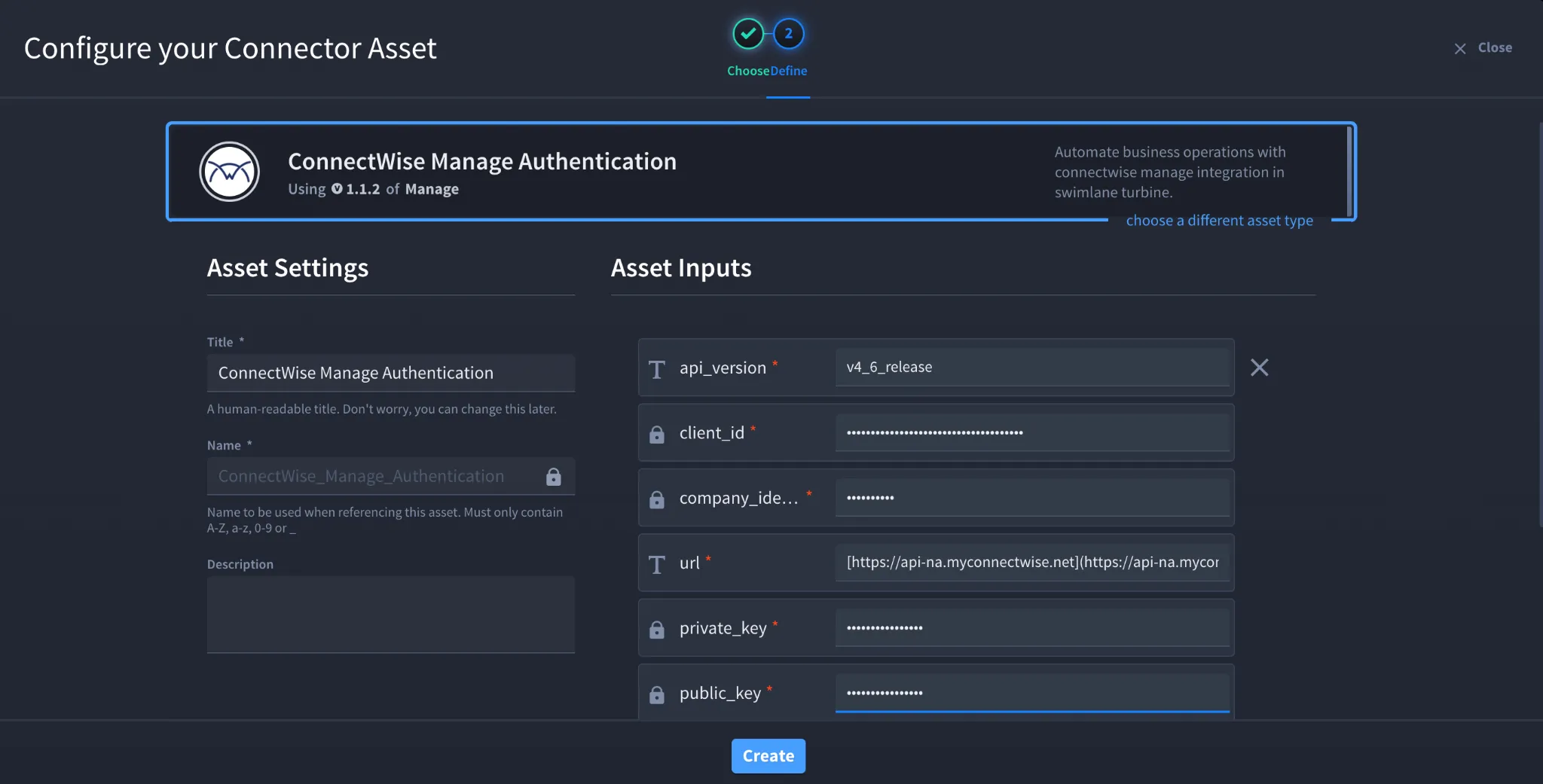
- Click the + icon to open the Configure your Connector Asset window.
- Select ConnectWise Manage as the Asset Type.
Asset Configuration
Configure the following fields:
Field | Description | Required |
|---|---|---|
api_version | ConnectWise API Version | Required |
client_id | Client ID | Required |
company_identifier | Company Identifier | Required |
url | ConnectWise Host URL | Required |
private_key | Private Key | Required |
public_key | Public Key | Required |
verbose_errors | Enable detailed debugging errors | Optional |
verify_ssl | Verify SSL certificates | Optional |
http_proxy | Proxy configuration | Optional |
Fields marked with * are required.
- Click Create.
Troubleshooting
API Authentication Fails
Verify:
- API version is correct
- Host URL is correct
- Public and Private Keys are valid
- Client ID is active
- Company Identifier is correct
SSL Verification Issues
If SSL validation fails:
- Verify the ConnectWise certificate chain
- Temporarily disable verify_ssl for testing if permitted by your organization
You have successfully authenticated the ConnectWise Manage connector in Swimlane.
Sources
- ConnectWise Developer Portal: https://developer.connectwise.com/
- ConnectWise Manage API Documentation: https://developer.connectwise.com/Products/Manage/Developer_Guide