Text
Use a text field when you need to store textual data in a record.
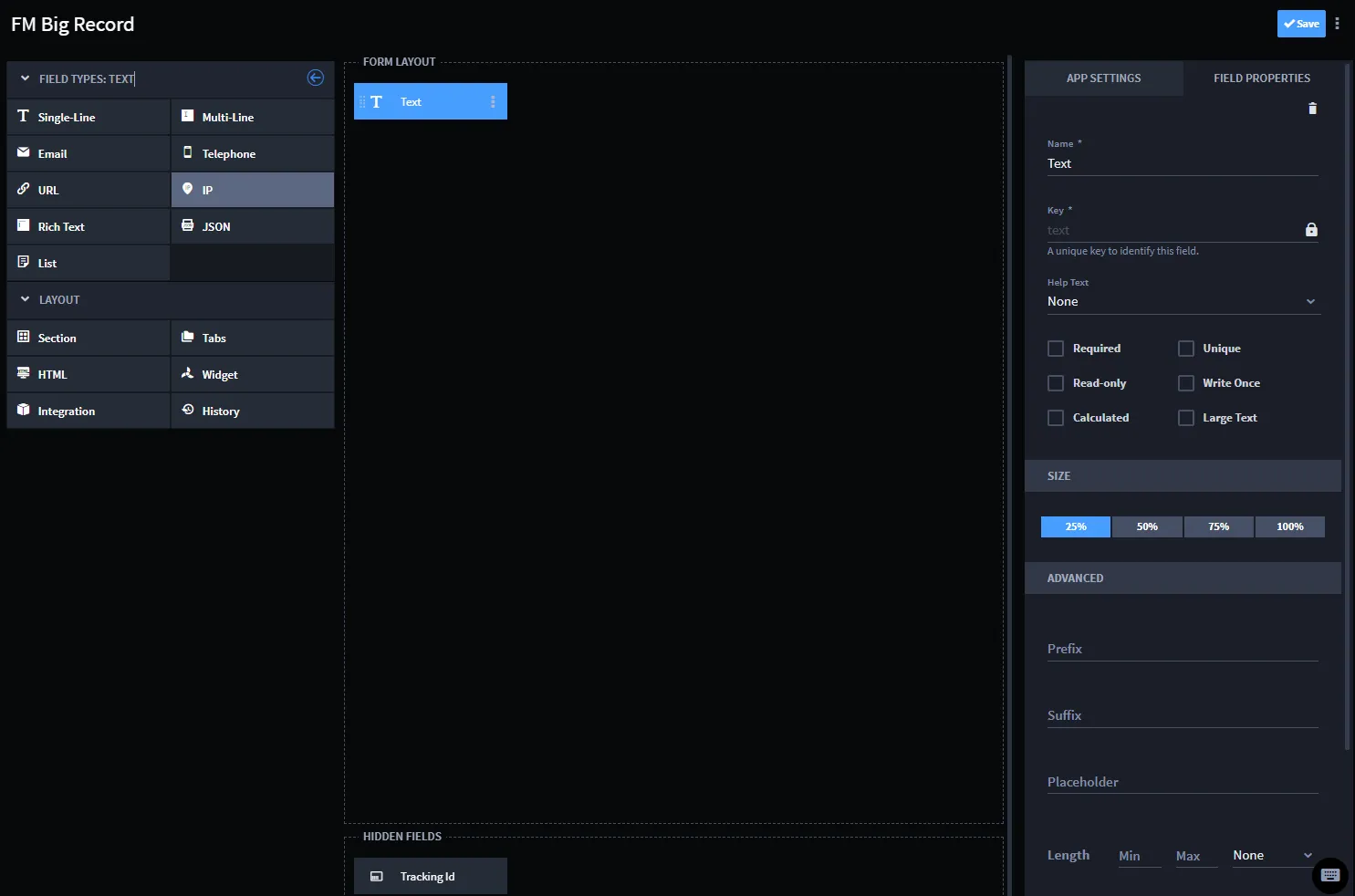
When creating a text field, you can choose from these text types:
Field Type | Description |
|---|---|
Single-line | Use to store a single line of text. |
Multi-line | Use to allow more than one line of text in a record. |
Use to allow email address format validation. | |
Telephone | Use to allow telephone number format validation. |
URL | Use to allow URL format validation. |
IP | Use to allow IP address format validation. |
Rich Text | Use to allow a rich text field editor field in records. |
JSON | Use to allow JSON data to display in records from the results of an integration task or workflow action. This is not an editable field. |
List | Use to allow a list of text or text strings in records. |
To create text fields:
From Application Builder's Field Types, select Text and then drag and drop it to the Form Layout. Drop the field in the layout area, or within a Tab or Section layout object.
Access the field's Field Properties and complete the following fields as needed:
Field | Step | Example |
|---|---|---|
Name | Enter the name of the field. | Email Address |
Required | Click to indicate whether entering data in the field is required to process the record. | checkmark |
Read-only | Click to indicate that the field is read-only for the record. The field will not be editable. For more information on read-only fields, see Read-Only Field BehaviorRead-Only Field Behavior. | checkmark |
Unique | Click to indicate that the field's value must be unique for this record. | checkmark |
Write Once | Click to indicate that the field value can be written only once. | checkmark |
Calculated | Click to indicate that the field contains a calculation. Calculated fields are read-only and the value is the result of a calculation defined with a custom formula. Once you select this checkmark, the Calculation Expression Help opens, and you can define your formula or function. See Calculation BuilderCalculation Builder for more information. This is not available for list fields. | TOTALMINUTES([Date/Time Opened], [Date/Time Closed]) |
Large Text | | checkmark |
Swimlane integrates with external storage solutions to store larger fields efficiently. Records have a limit of up to 100 MB, and fields have a limit of up to 30 MB. This means that data exceeding MongoDB's document size limitation will no longer be an issue. You can select which fields will need extra storage. This is available on new fields only.
Large text fields are externally stored, which prevents them from being used in correlations, reports, or charts.
Click Large Text to store data that exceeds 16 MB.
Next, consider the following advanced options in the Field Properties tab:
Field | Step |
|---|---|
Prefix | Enter text that will be prepended to the field's input. |
Suffix | Enter text that will be appended to the field's input. |
Min Items | Indicate the minimum number of items to allow in a list field. |
Max Items | Indicate the maximum number of items to allow in list field. |
Length Limit | Indicate a number that will limit the number of characters or words that can be inserted into the field. This field is available only to single-line, multi-line, and rich text fields. |
Length | Indicate a minimum and maximum numeric value that will limit the number of characters or words that can be inserted into the field. This field is available only to list fields. |
Add specific field-level permissions by role, and when ready click Apply.