Modify a Record
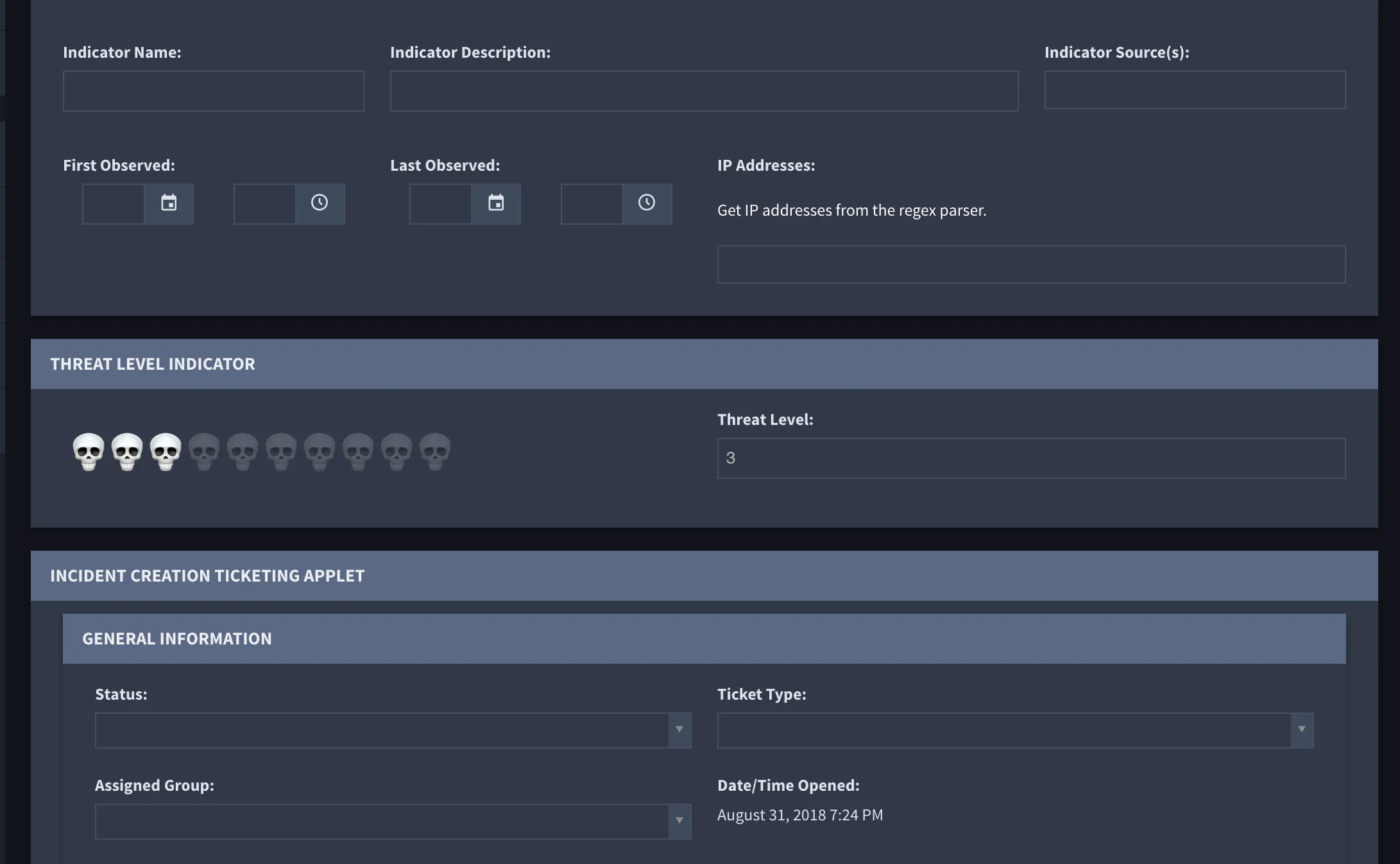
Click a record to open the record's detail. The detail page of a record contains fields configured in Application Builder.
Records can have a few fields, or multiple fields, tabs, sections, and layout areas. It all depends upon how the records are configured.
You can save your record as you modify it. When you're ready to move on to another record, click the Save button pull-down menu and select Save & Close.
To modify a record, you interact with the fields within the record. Your interaction is dependent upon the type of field you are working with.
If time tracking is enabled on the application, a dialog that reports the time spent on a record will display once you save the record. The time tracking begins 30 seconds after the record is opened, so as to allow for review of the record prior to tracking work within the record.
Field Types
Fields can be grouped into sections, which may be expanded or collapsed by clicking on the header. Some fields may refer to other applications or other records within an application. These reference fields may be displayed as drop-down select boxes or search grids within the record.
Text Field Type
Enter text, numbers, or symbols.

When manually creating Text List field values, you will need to enter the value and press Enter for each value you create in the list.
Numeric Field Type
Type numbers or select them with the up and down arrows.

When manually creating Numeric List field values, you will need to enter the value and press Enter for each value you create in the list.
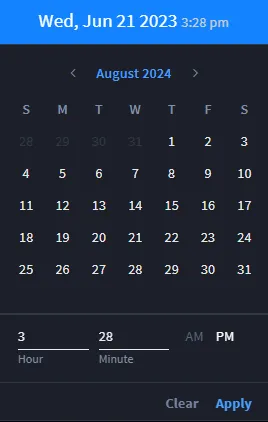
Date Field Type
Click the calendar icon to view a selection window.
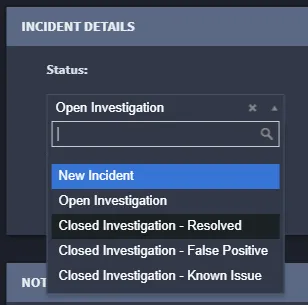
Multi-Select Field Type
Select from a list of values.
Attachment Field Type
Select files to upload as attachments.
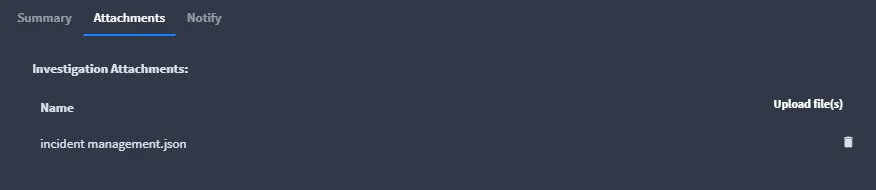
The allowable file types are: .csv, .doc, .docx, .gif, .jpeg, .jpg, .pdf, .png, .ppt, .pptx, .tsv, .txt, .xls, and .xlsx.
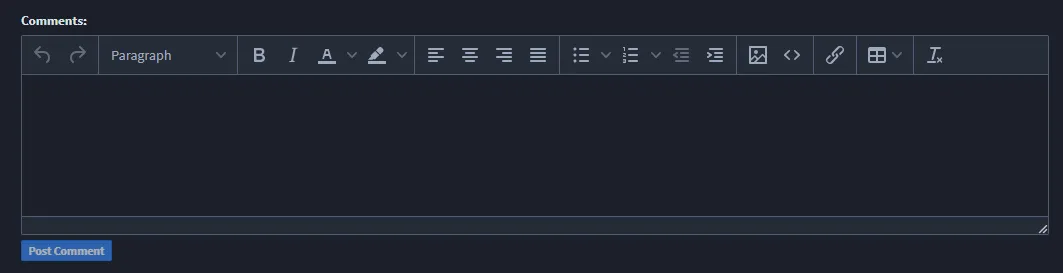
Comments Field Type
Track changes or post additional information.
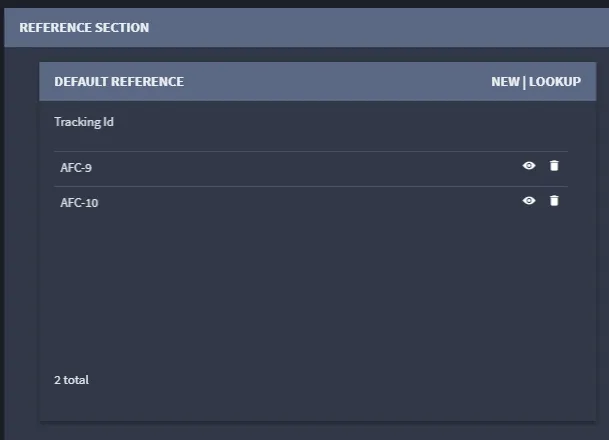
Reference Field Type
Link target records to a source record.
Widget Field Type
Enhance the record with a customizable UI component.