Define the Foundation
You create a new application from the Applications and Applets home page. During the process of creating an application, you are prompted to define its foundational details.
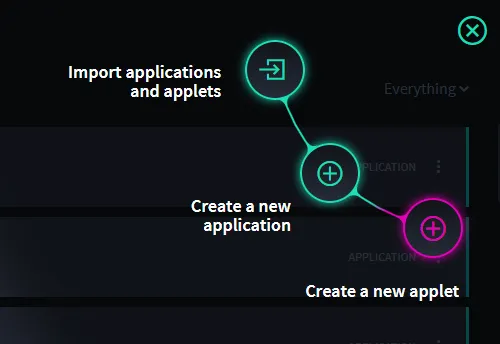
From the Applications and Applets home page task bar, click the plus menu icon, and then select Create an application.
The Create Application dialog opens, to the General tab. Name your application, and optionally provide a description.
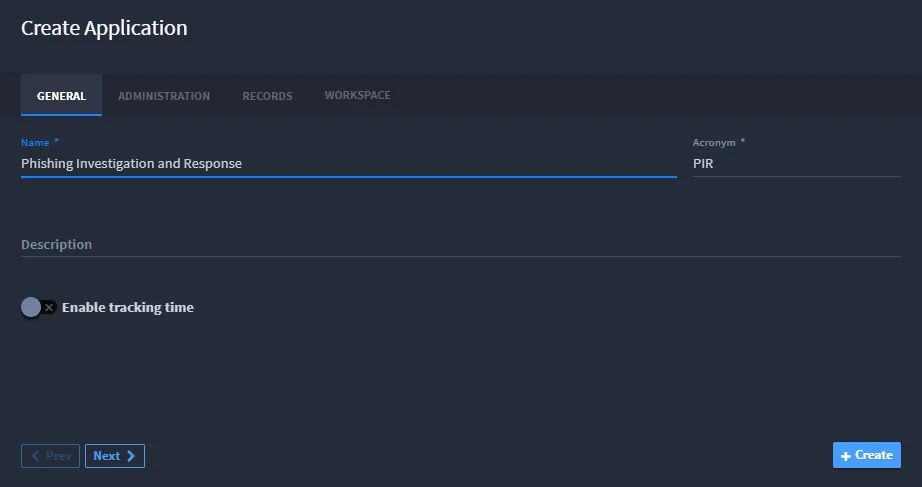
Swimlane automatically assigns an acronym to your application, according to the name that you provided. During this step you can override the automatic assignment by typing in the field instead. Acronym is a four-character field.
Note: Once you create an application you cannot change the acronym.
- Select Enable tracking time to allow time tracking on records.
- When you track time on records, action on records will generate a hidden field, Total Time Spent, which can be used to generate reports and charts. You can enable and disable time tracking at any time for any application. Enabled time tracking also enables a dialog that displays the amount of time you've worked on a record upon saving a record.
- Time tracking starts 30 seconds after a record is opened when the feature is enabled. This delay prevents immediate time logging upon simply viewing a record. During this initial 30-second window, no time is tracked. Tracking begins automatically if the record remains open beyond this period.
- Click Next, or click the Administration tab.Note: Once you click the Create button, the application is created and saved. You can edit many of the application settings again, but others are set once the application is created.
On Administration Permissions, add the roles you want to be able to access your application and then assign the role their specific actions.
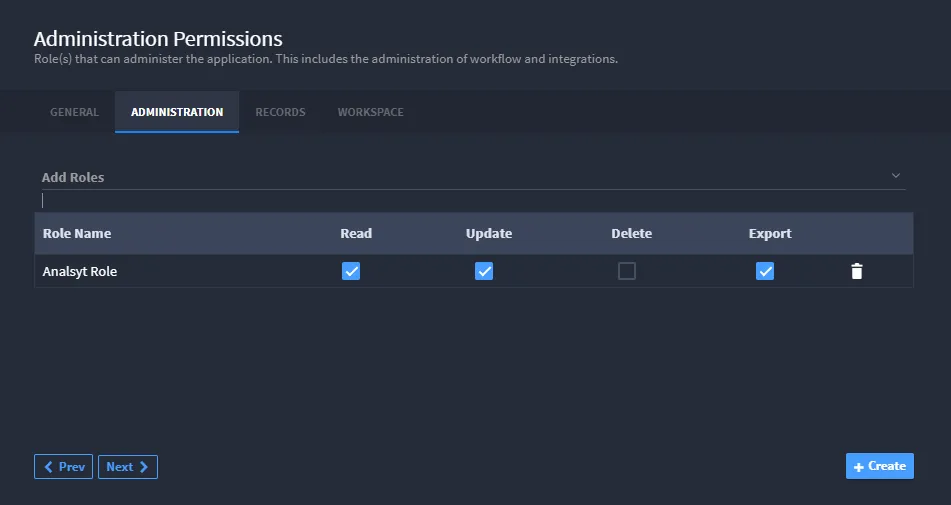
Note: If you don't assign a role here, the default permissions are set to a general administrator role.
- Select the editing action you want to enable for the role for your application, then click Next. (Alternatively, click the Records tab.)
On Record Permissions, the role that you've previously specified is displayed. Select the editing and access you want to create for this role for this application.
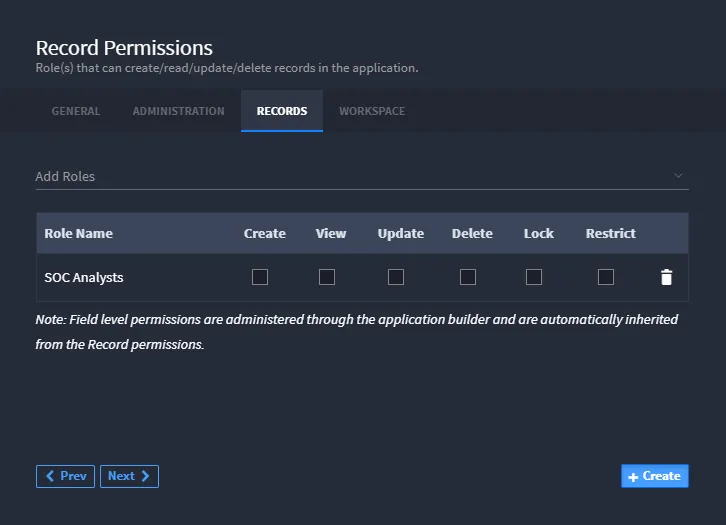
- Note: Users access records from the navigation menu, Application Records. You must allow users' access to an application's records in order for them to be viewed or modified.
- Click Next, or click the Workspace tab.
On Workspace Associations, select Automatically create workspace if you want a new workspace added upon creation of this app.
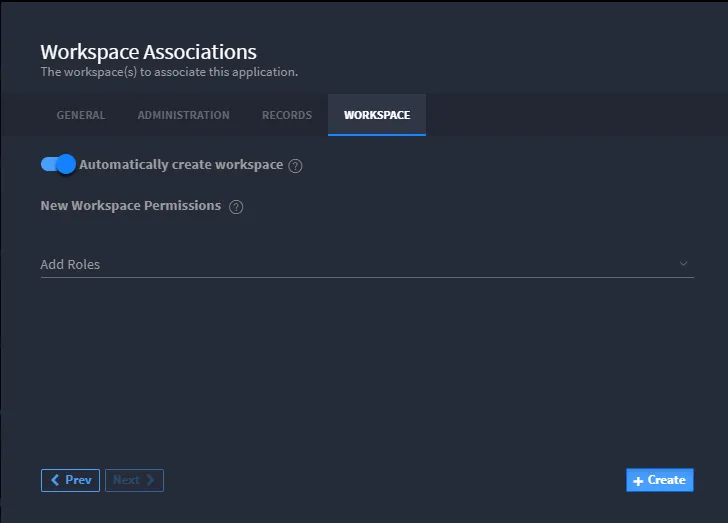
Note: You can only create a workspace upon creation of an application if you have permission to do so.
- Next, add the roles you want to have read, edit, and delete access to this application's workspace.
- Once you have the Workspace foundation defined, click Create. Application Builder opens.You are now ready to create the layout of your application.