Customize the List of Records
Applications can have a large number of records. You can customize and filter your view of records according to the tasks that you need to complete.
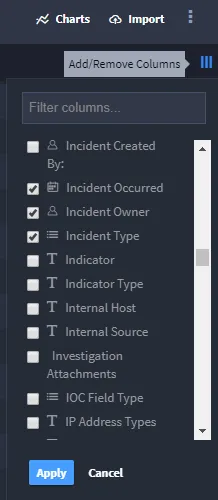
When you first open the Default Report view of records, you'll see a Keywords and Filter taskbar and a list of records below. The records are initially listed only by Tracking ID. To adjust the columns visible, click or Add/Remove Columns. (You'll find it on the far-right of the Default Report page, above the list of records.)

Note: For more information on using keywords searches and filtering see, Keyword Search and FilterKeyword Search and Filter.
The columns available for you to select vary depending on how the application is built. Select the columns you want to view and click Apply. You must have at least one column selected.
Within the list of records, you can:
Action | How? |
|---|---|
Resize Columns | Drag the column border to the preferred size. |
Reorder Columns | Drag the column header and drop it to the desired location. |
Sort Records by Column | Click the column header. Each column has three sort types, ascending, descending, and none. |
Load Additional Pages of Records | Scroll to the bottom of the page and click an additional page number. |
View or Edit an Individual Record | Click the record row. The record edit window opens. |
Exit the Record Edit Window | Click outside of the edit window. |
View or Edit Multiple Records | Click the checkbox just to the left of the record Tracking ID. Select as many records as you want to view or edit. For more information see Bulk Modify RecordsBulk Modify Records. |
You can save your customized view of records for further use. To save a customized view, from the Default Report taskbar, select Save Report and then, from the Create new report pull-down, select Default. This saves your customized view as the default view of records you will see when you access the records page. You could also save your customized view as a new report, which you could then access as needed from Reports on Swimlane's global navigation menu.