Create or Edit Cards
Cards display reports, usage statistics, or HTML. Cards are completely customizable and can be resized and rearranged on dashboards by administrators and users with proper access.
Click within a card to view a report that lists the records associated with that card, or click on a data point within a chart to view a filtered list of records corresponding to that data. A variety of chart types is available to display record information in meaningful ways, making dashboards powerful tools to find records quickly.
Create New Cards
To create or edit new cards:
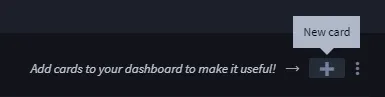
From the Dashboard taskbar menu, select New Card.
On New Card, provide a name and description for the card.
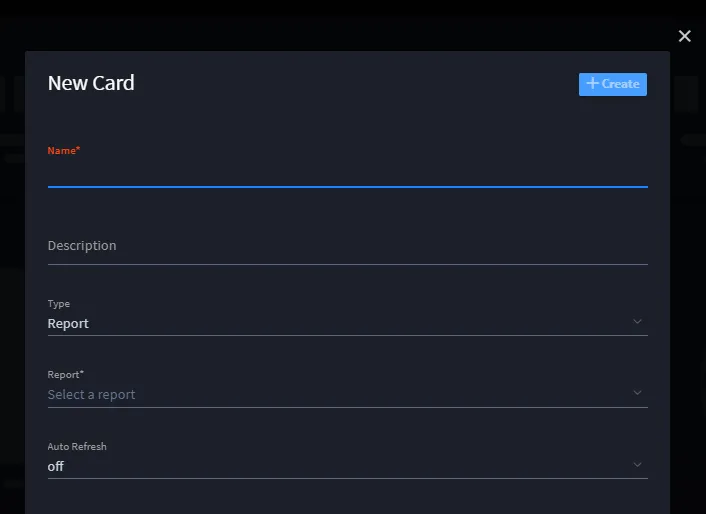
- Select Type and specify whether the card will display a report, HTML, or a usage statistic.
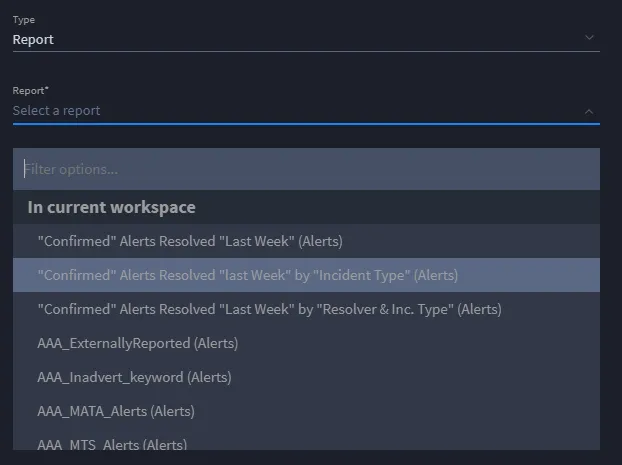
- For reports, access the Reports drop-down menu, and then select the report that you want to display. The reports listed first are those associated with this workspace. Scroll past those to see reports you can access outside of the current workspace.
-
- For HTML, enter valid HTML code in the Code window.
- Note: Any JavaScript inserted into the HTML code will be executed in the user's browser when they open a dashboard containing that card.
- For Usage Statistics, enter the measure, the time period, and then select the applications you want statistics from.
-
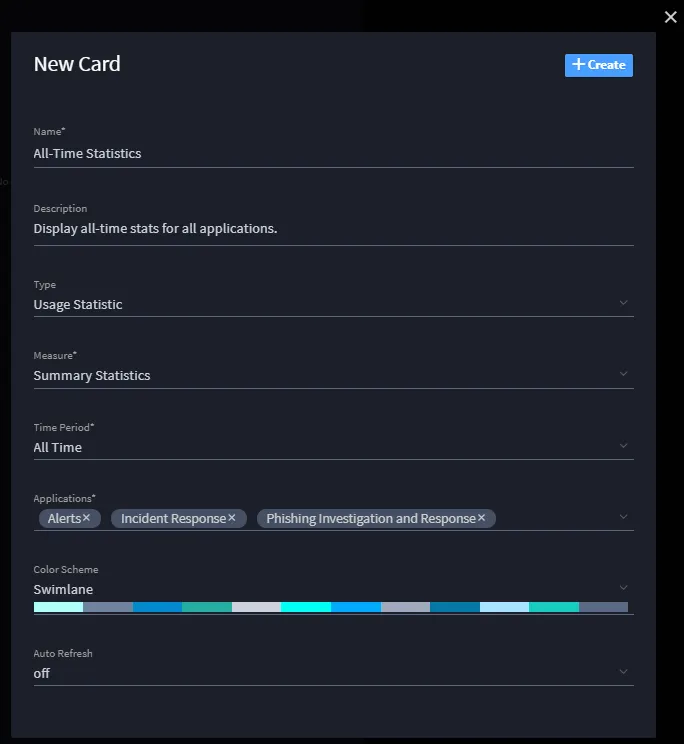
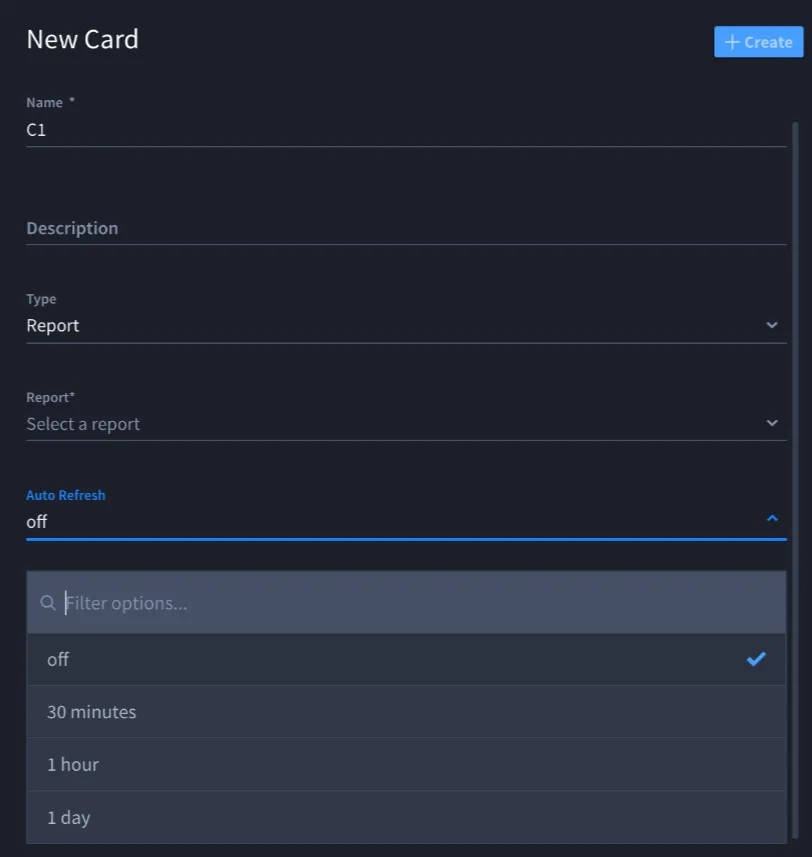
- If you want the data displayed in the card to refresh consistently at a specific time increment, specify the time increment on Auto Refresh.
- Once you've completed all the necessary fields for your card, click Save.
Modify Cards on a Dashboard
Once a card is created, it is inserted into the dashboard. Every new card added to a dashboard will be inserted as the first card in the top left corner of the dashboard.
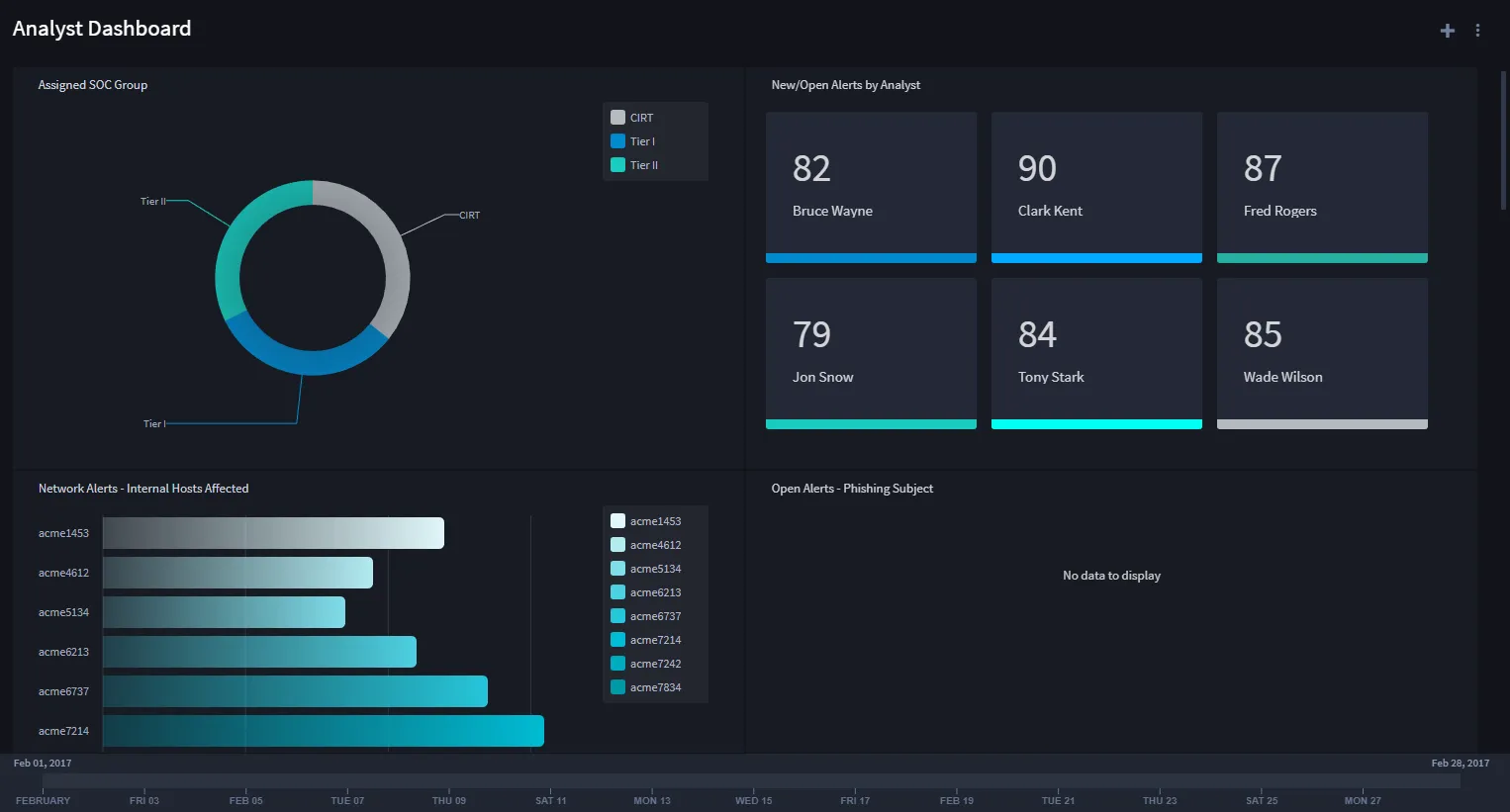
Cards can be resized and repositioned on the dashboard. To reposition a card, click and drag the heading area of the card, and drop it in the desired location.
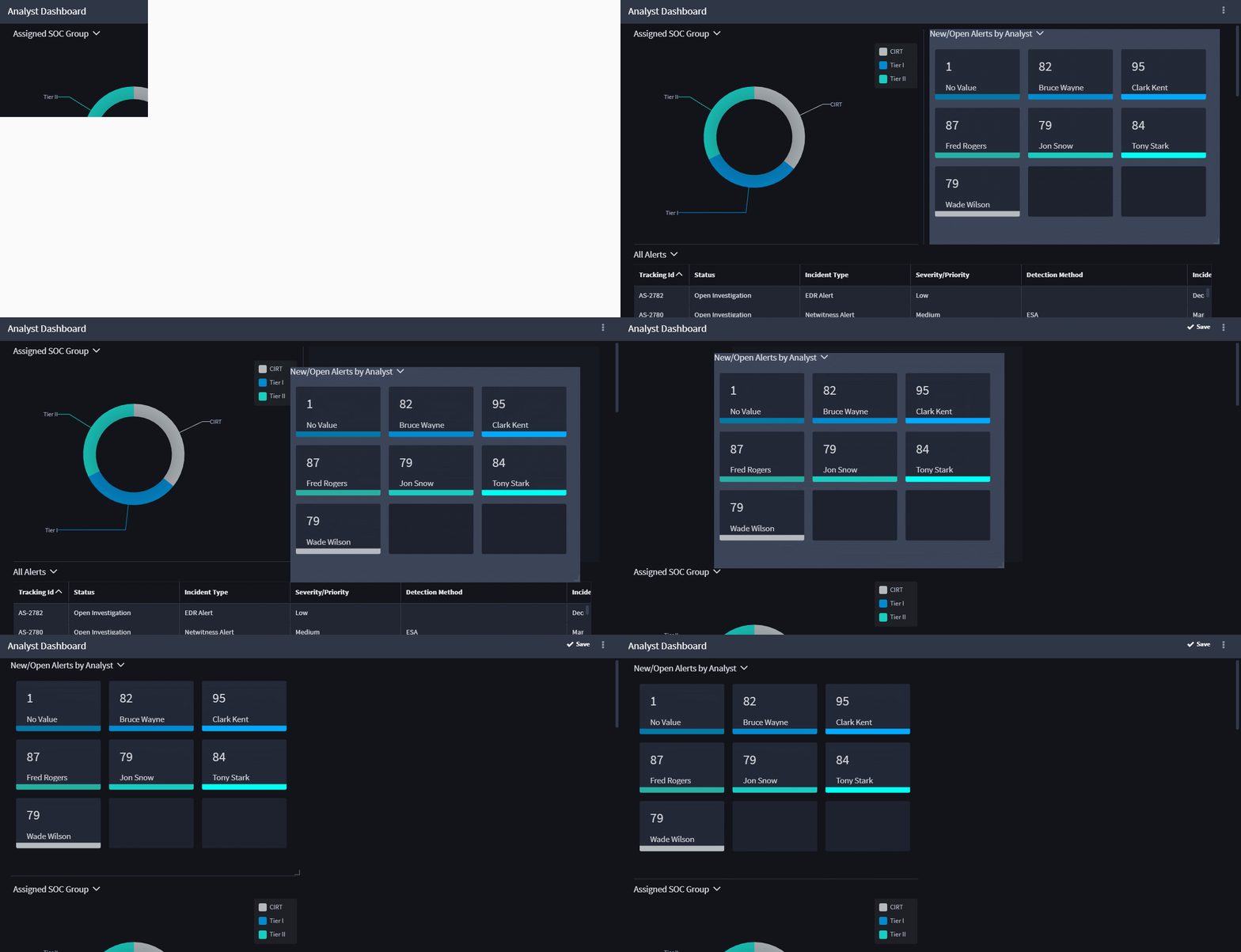
To resize a card, hover over the card and click and drag the resize element that will appear in the bottom right corner of the card.
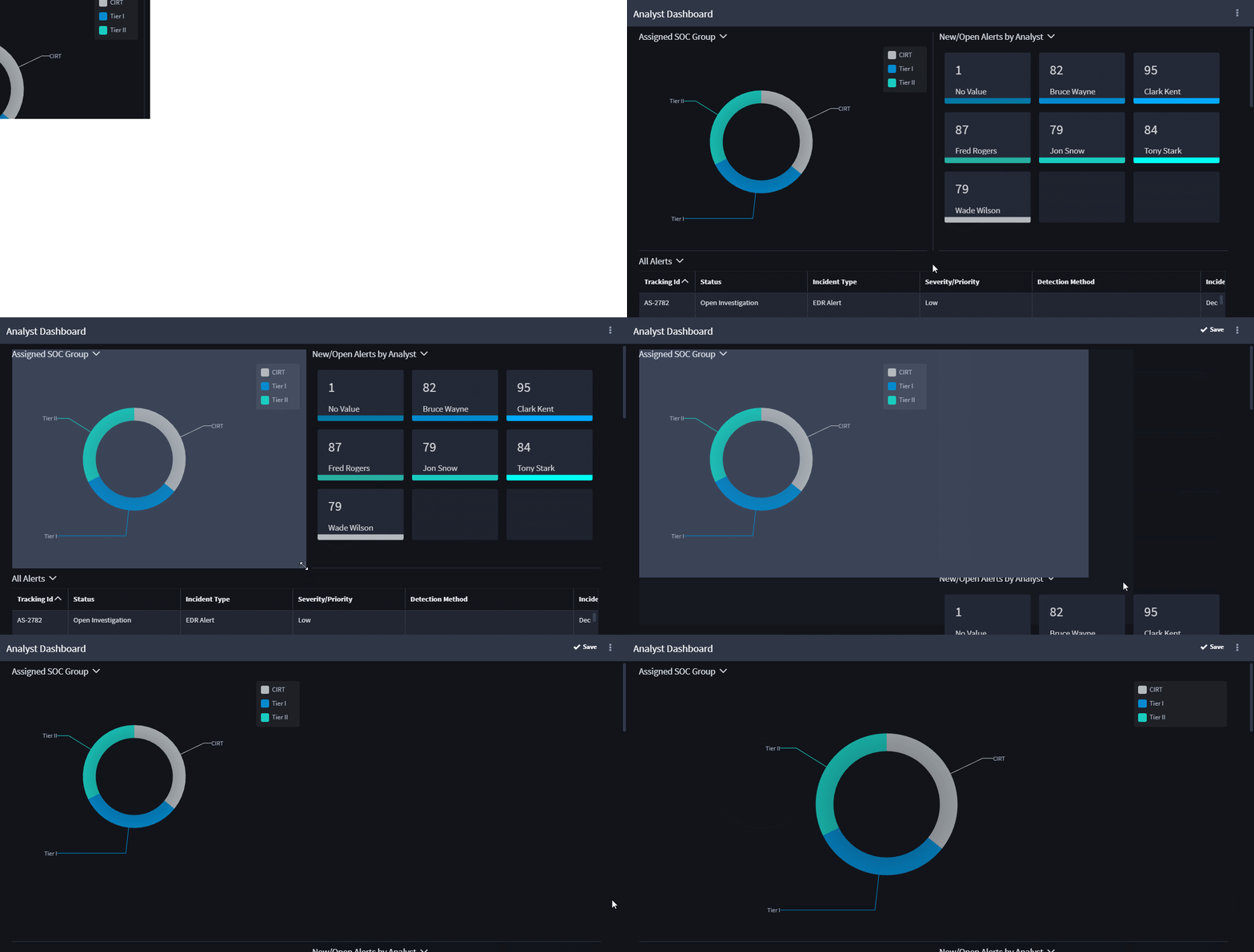
From the Card you can click the ellipsis submenu to open the card-specific dropdown menu. From this menu you can select from the following:
- Display in Search: open the report shown on the card in the search page
- Edit Card: edit the card details
- Remove card: remove the card from the dashboard
Refresh Card Display
You can refresh reports and usage statistics in cards. To refresh the data, click the Refresh icon.
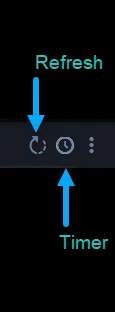
If you want the data displayed in the card to automatically refresh at a specific time increment, specify the time increment on the Timer icon. The Auto-refresh timer on dashboards can now be set to intervals >=30 minutes.
This setting is also available within the card editor.