Record Event Triggers (Classic)
A record event trigger initiates a playbook whenever a record is created and/or updated within a specific application.
You do not need to select a trigger before adding and configuring actions and conditions.
Record Event Triggers
Create a new playbook or upload an existing playbook, then follow the steps below:
- On the playbook, click Add a trigger.
- Click Record Event.
- On TRIGGER, click the Application drop-down menu and select the desired application.
- Select one or both of the Record Created or Record Updated check boxes. Record Created — triggers the playbook whenever a record is created in the specified application. Record Updated — triggers the playbook whenever a record is updated in the specified application. Both — triggers the playbook whenever a record is created and/or updated in the specified application.
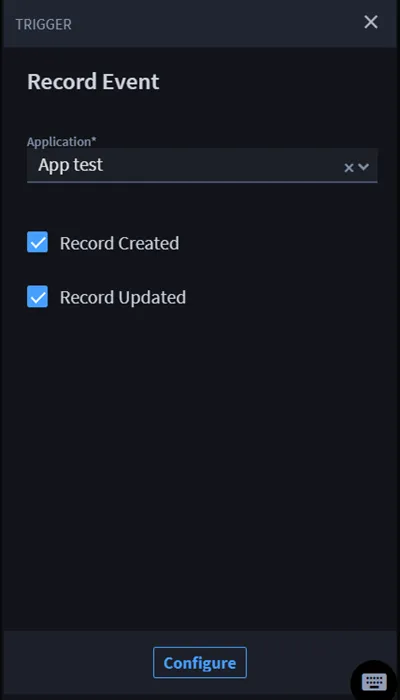
- If needed, click Configure to map available playbook inputs to the created and/or updated record.
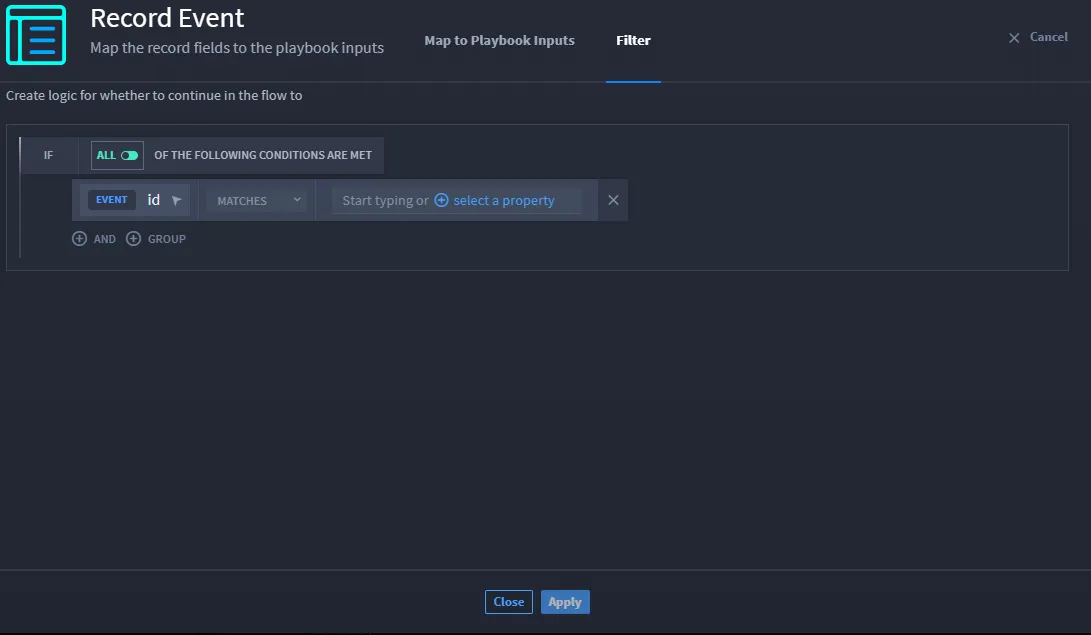
- Open the Filter tab to set conditions for your trigger.
- Click CREATE YOUR FIRST CONDITION and select the property type from the Record Event Trigger.
- Select the type of condition from the drop-down next to MATCHES.
- Enter the property type or select a property.
- Click Apply.
Note: In Record Updated event triggers, the user.userName field currently returns the user’s email address instead of the configured Username value. This is a known issue and is currently expected behavior.