Classic Inputs
Available in the playbooks, actions are individual capabilities of connectors and interact with external technologies by passing in data via action inputs and then results are available from action outputs. You create actions by installing Turbine connectors.
Actions can:
- Call another playbook
- Interact with external technologies
- Contain inputs and promote outputs
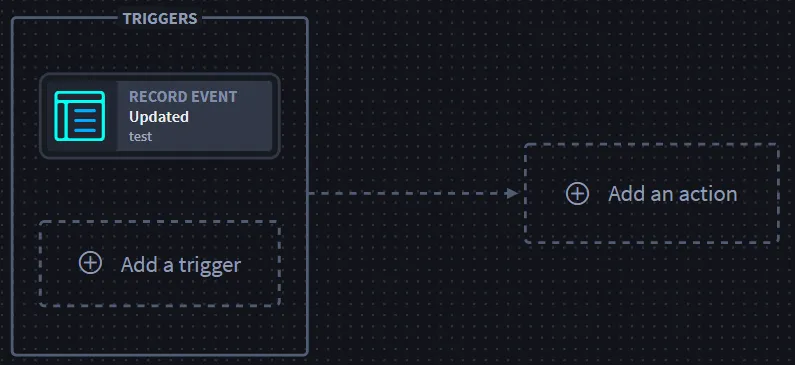
You do not need a trigger to add an action to your playbook.
Create Actions
- From your current playbook, click Add an action. The ACTION window displays to the right of the playbook.
- From ACTION, enter the required Title field.
- Note: The Name field auto-populates as the same text from the Title field.
- Click the Action drop-down list.
- Select the desired action.
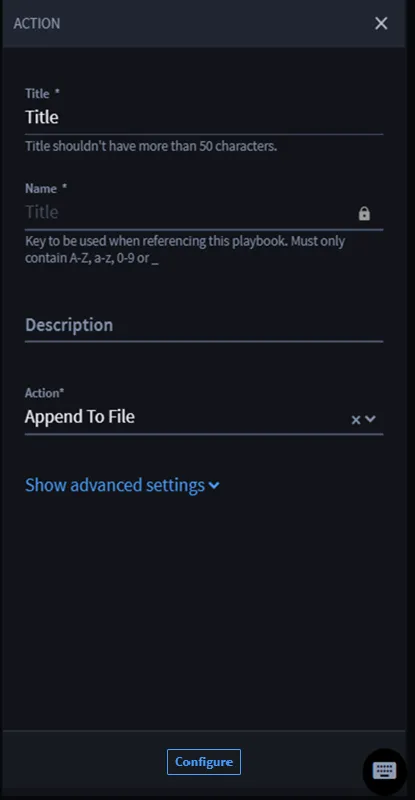
- Click Show advanced settings to see the pool drop-down menu. The $default pool is automatically assigned, but you can select a different pool. Note: You can select a connector as an action, or you can select an existing playbook as an action to nest in your current playbook.
- Click Configure.
Note: Actions selections come from the existing connectors.
Tip: Once you have selected an action, click Save at any time after selecting an action from the drop-down.
Important! You cannot save without selecting an action. You will receive an error notification.
Configure Action Inputs
Action inputs are information necessary for the execution of the task.
Action Icon Meanings
Icon | Meaning |
|---|---|
 | Edit icon: This icon is disabled until you create a condition for the action. |
 | Duplicate icon: This only duplicates the action. |
 | Delete icon: This deletes the entire action. |
Add Action Inputs
Once you add an action, you can configure action inputs.
To configure action inputs:
- From ACTION, in the Action drop-down, select the desired connector.
- Click Configure.
- On Action Inputs, the Inputs and Outputs tabs display.
Based on the selected connector, Action Inputs auto-populates properties under CONNECTOR ACTION.
Also, the Additional Options section displays available assets, which are based on the connector. The section also includes repeat property options. See RepeatsAction Repeats for details.
Assets allow users to create a reusable set of values that can be applied to actions as inputs in playbooks. Assets can be for a specific connector, or created as a custom asset which can be applied to any action inputs. Assets are most useful for standardizing and securing configurations.
Tip: Assets = action configuration templates
Configure Connector Properties
When configuring an action, the available property types display under CONNECTOR ACTION. Depending on the property type, there are different values you can apply. The value options are different for string property types and all other types.
- The default value for string property type is Dynamic value.
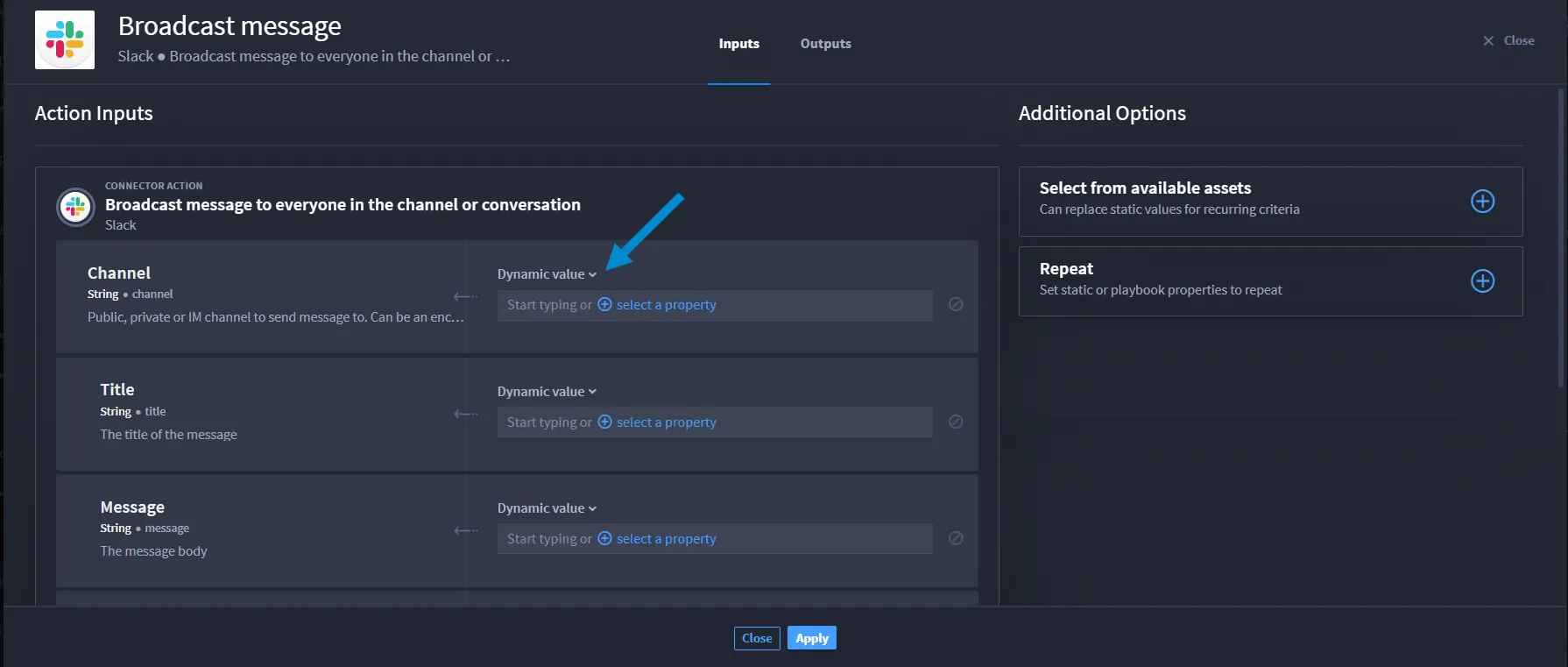
- The default value for other property types is Static value.
What's a dynamic value?
A dynamic value for string property types allows you to add context and/or repeats to a playbook property or expression.
For details, see the Configure Concatenation for Strings Without Formats sub-section and/or RepeatsAction Repeats.
Configure Other Values for Property Types
The default value for other property types is Static value.
For property types other than string, the drop-down menu options are: Static value, Playbook property, or Expression, which allow you to enter a static value, apply a playbook property, or create a dot notation expression.
To configure the connector properties:
- Click the property type drop-down, then select from Static value, Playbook property, or Expression.
- Complete for all required properties.
- Click Apply.
Select Assets
Connectors have assets. Assets are pre-defined configurations for some input fields required in actions, or you can customize assets.
To select pre-defined assets:
- Navigate to the action inputs.
- If you want to apply an existing asset, click the Select from available assets menu and select an asset The available asset property fields are auto-filled.
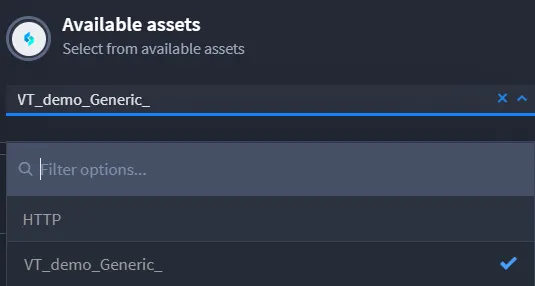
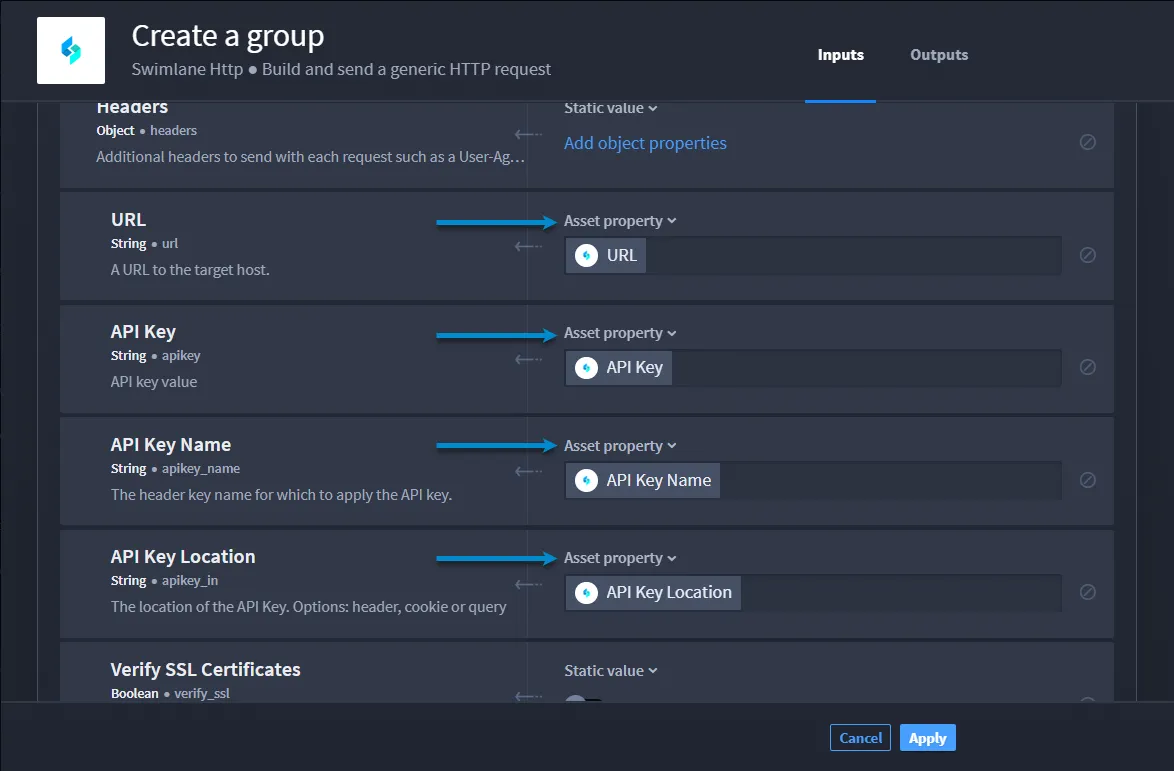
- Complete any fields that are not auto-populated.
- Click Apply.
Customize Assets
See Create Custom Assets for instructions on how to create and configure a custom asset and apply it to a playbook.
Action Property Types
Actions have the following input property types:
Property Types | Description |
|---|---|
String | Sequence of alphanumeric characters |
Number | Floating point and integers |
Integer | Real numbers that do not have a floating point |
Boolean | Either of the values true or false |
Object | Structure that contains more properties |
Array | Ordered list of zero or more elements, each of which may be of any type. Arrays use square bracket notation with comma-separated elements. Array Types: arrayNumber, arrayString, and arrayObject |
Null | Empty value, using the word null |
Date | ISO 8601 date string without time information |
Date & Time | ISO 8601 string with date and time |
Password | Obfuscated string, the text will not be human readable within the platform |
Code | Formatted code string |
Configure Concatenation for Strings without Formats
Concatenation is the ability to add context to a playbook input property. Turbine currently only has the String property type without formatting:
Concatenation only works with string properties that do not have a format, i.e., API keys would not be used with string concatenation.
The property types: Date, Date & Time, and Password are string inputs; however, they are formatted. Therefore, you cannot create a string concatenation using those properties.
Before configuring concatenation for strings without formats, ensure you complete (as needed):
- Configure action inputs
- Configure connector properties
- Select assets
Now, create a concatenation for strings without formats. You need playbook inputs and/or expressions to configure an action input for string concatenation. Let's begin by creating a playbook input from the Action Inputs window.
- From Action Inputs, in the desired property field, click + select a property.
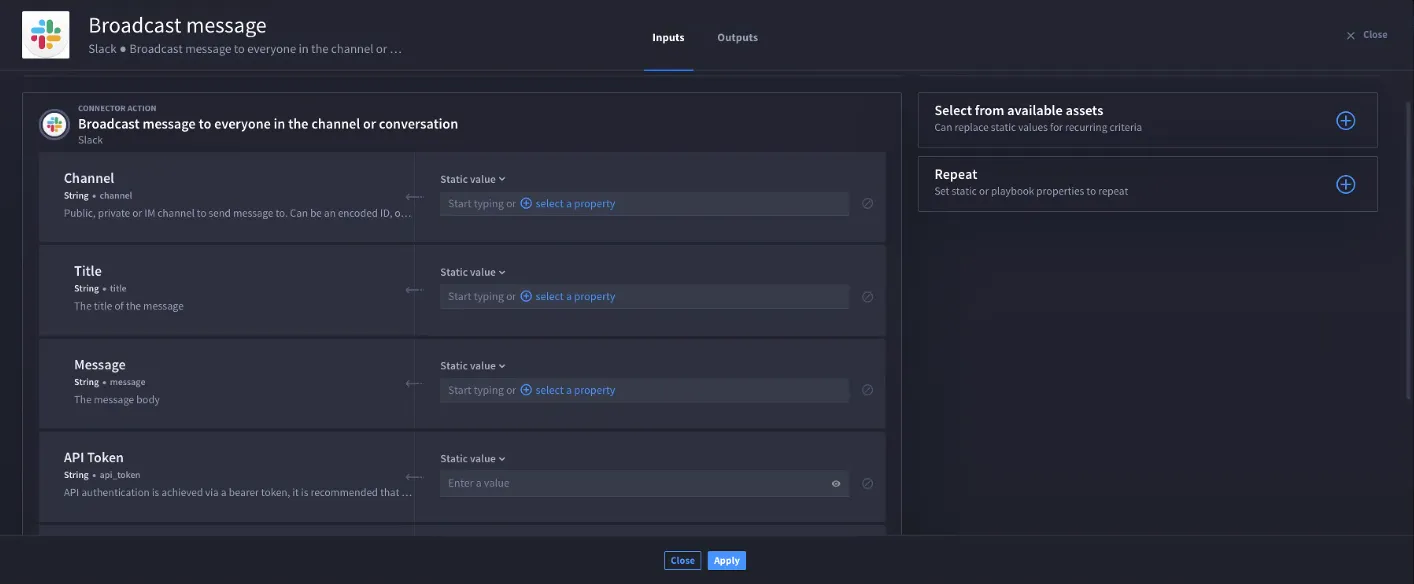
- Click Playbook Inputs.
- Warning: If you have not added any playbook inputs yet, you will need to click Add a playbook input.
- From here, configure a playbook input for the string.
- Click Done, then select the playbook input you configured.
- The input displays as a token in the appropriate field.
- Next to the token, enter text, i.e., world!
- The token and static value text display as string concatenation.
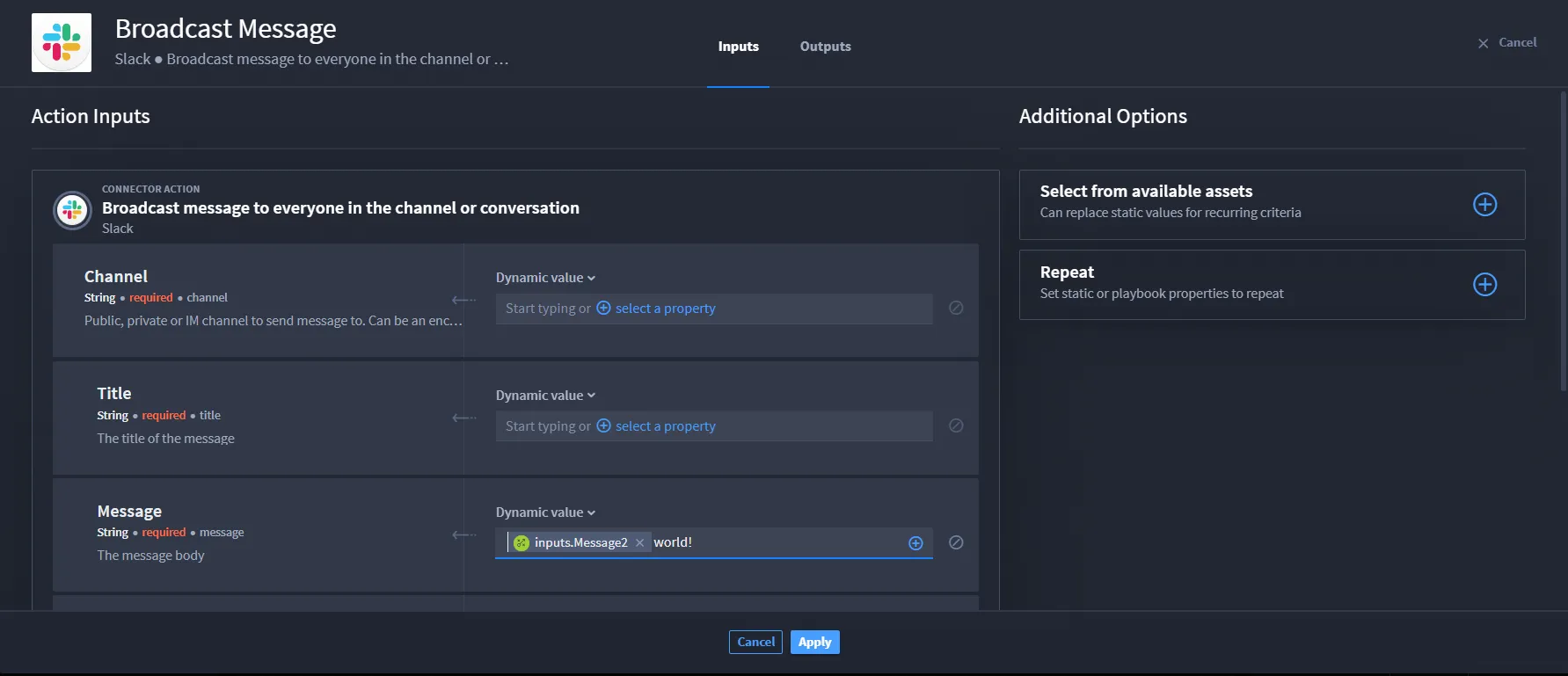
- You have successfully created a string concatenation!
- See String Concatenation use case for an example of executing string concatenation.
Add Object Sub-properties
The property types Object and Array have sub-properties. You can map the sub-properties as a static value, playbook property, or dot notation expression.
To add an object sub-property:
- Navigate to the action inputs.
- Navigate to the Object property type.
- Now, click Add object properties.
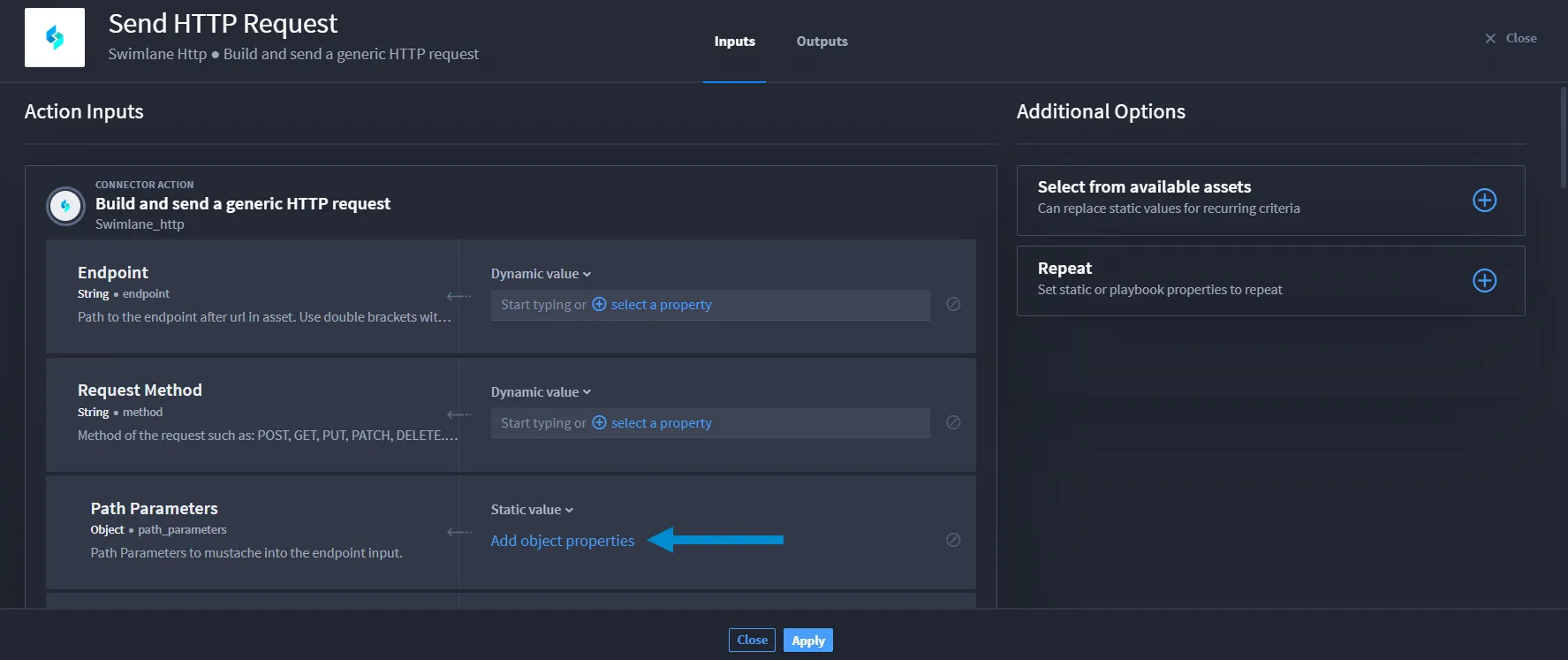
- Select a sub-property from the drop-down.
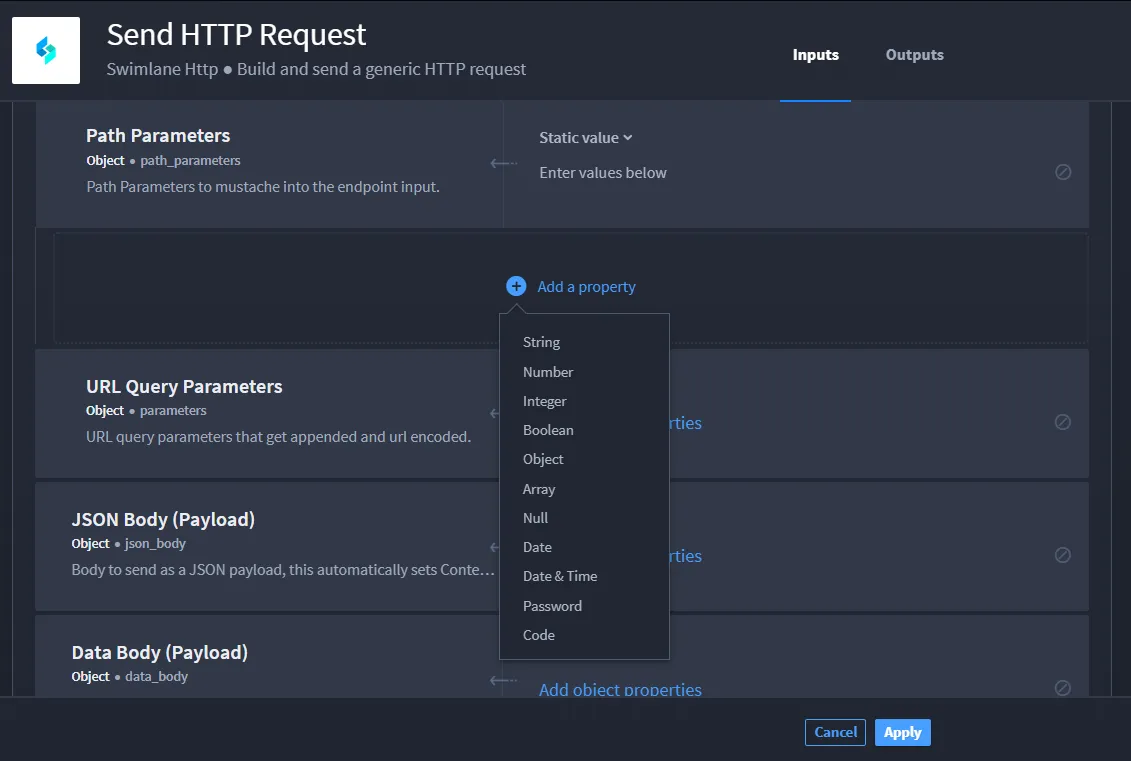
Repeat steps 3 and 4, if desired to add more than one sub-property.
Map the property type by selecting from Static value, Playbook property, or Expression.
The Dynamic value option defaults for string property types.
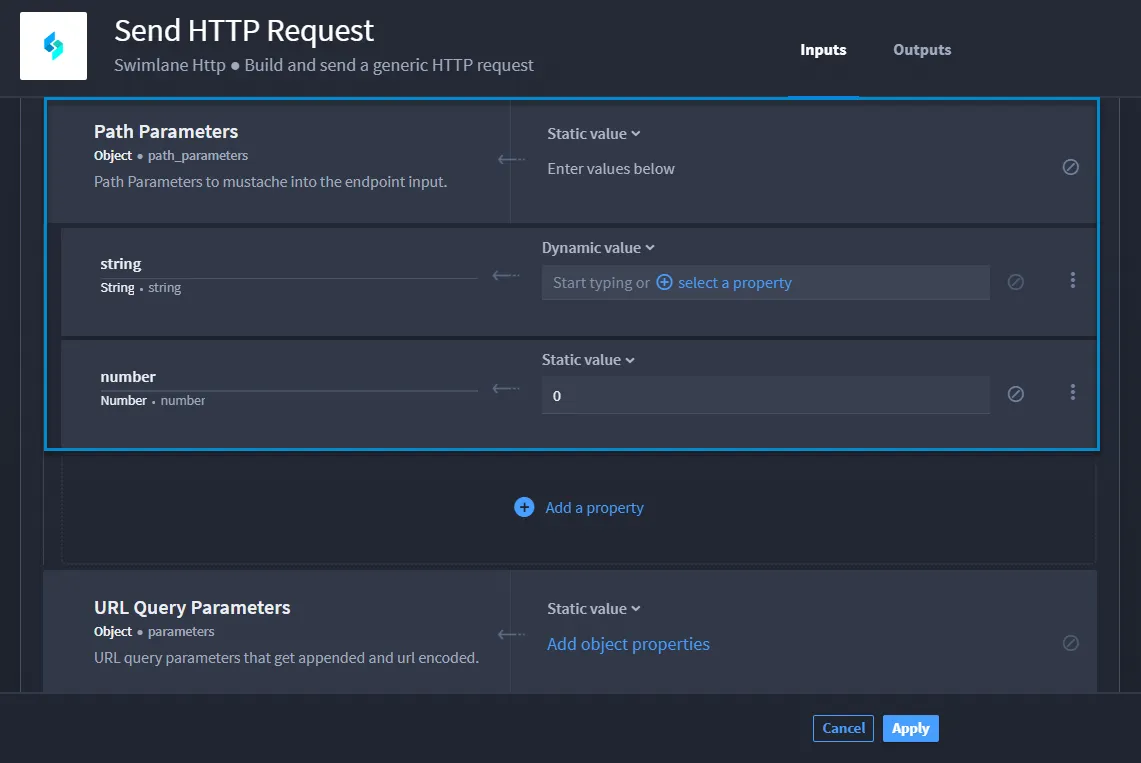
If desired, you can also change the name of the sub-property.
To enable editing, click in the sub-property field and enter a new name.
Now, the new name and selected mapped option display.
Add Array Sub-properties
To add an array sub-property:
- Navigate to the action inputs. Depending on the connector, array types might be available.
- Navigate to the array property type.
- Click Add array items.
- Click Add an item.
- Click Add.
- A Dynamic value field displays that allows you to add context and/or select a property.
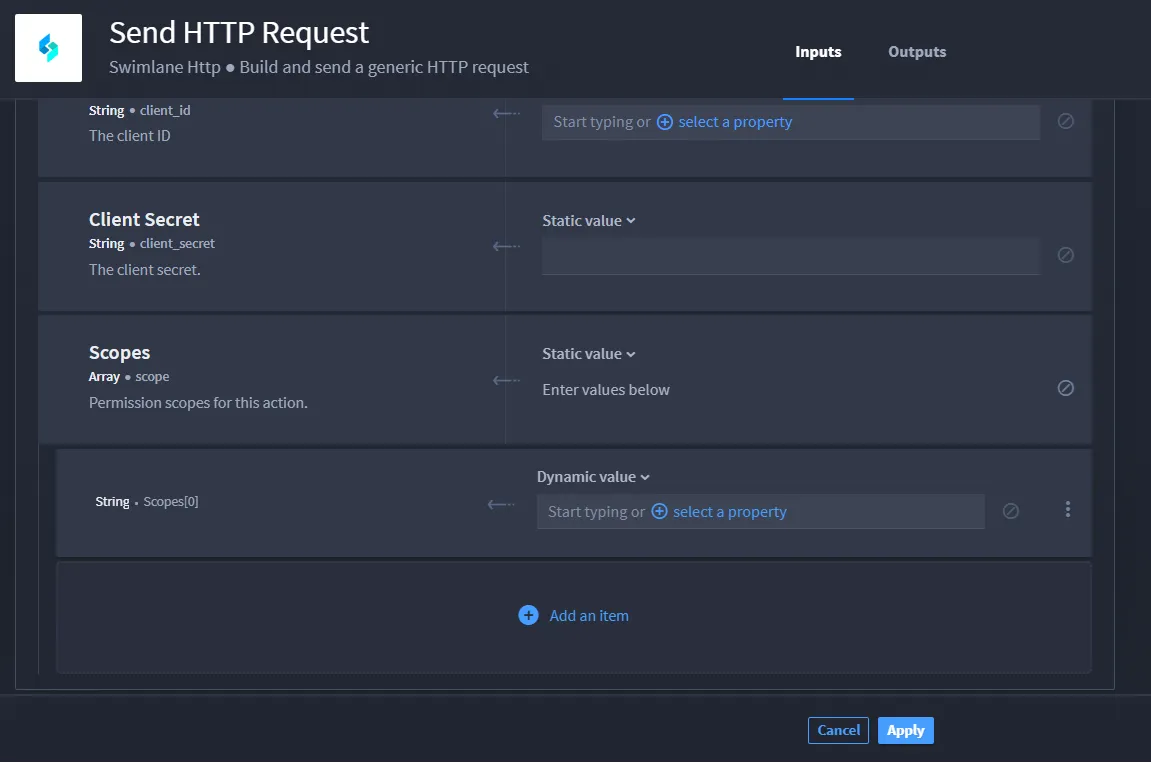
- Repeat steps 4–6, if desired, to add more than one sub-property.
- Configure the array sub-property.
- Click Apply.
Clear a Sub-Property Entry
To clear the information for the sub-property:
- Click the Clear value icon.
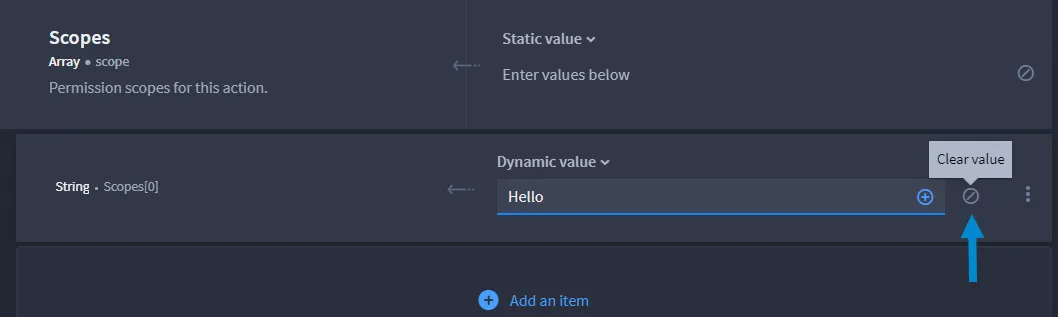
- To save the changes, click Apply.
Delete a Sub-Property Entry
To delete the information for the sub-property:
- Click the Delete vertical ellipsis.
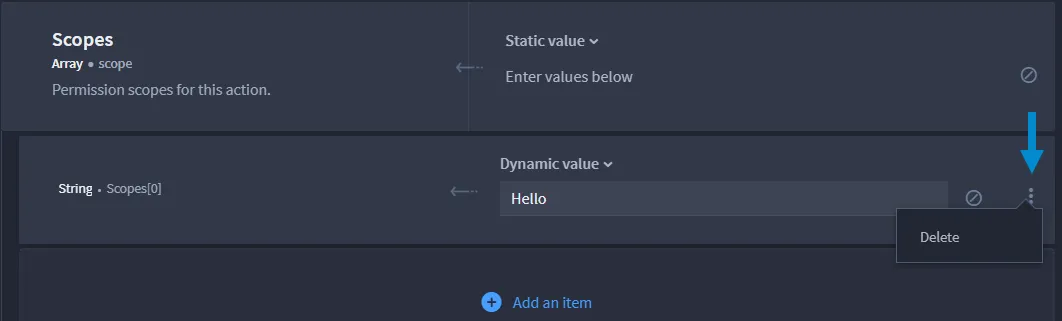
- To save the changes, click Apply.