Bulk Modify and Delete Records
Click a record to open the record. You make updates to the record and save, and then you interact with another record.
When you have changes that you want to apply to multiple records, you can bulk modify data for 2 or more records.
You can use the filters and keywords in the Default Report taskbar when searching for and selecting records for bulk modification.
You can both modify and delete records in bulk.
Bulk Modifying Records
To apply field changes to multiple records, your account must have the following permissions:
- Records: Modify and lock
- Fields: Role-based read and update
You must be in a report view of records to use the bulk modify and delete features.
To bulk modify records:
- From the report view of records, just to the left of the Tracking ID column header, select the records that you want to be bulk modified or deleted.
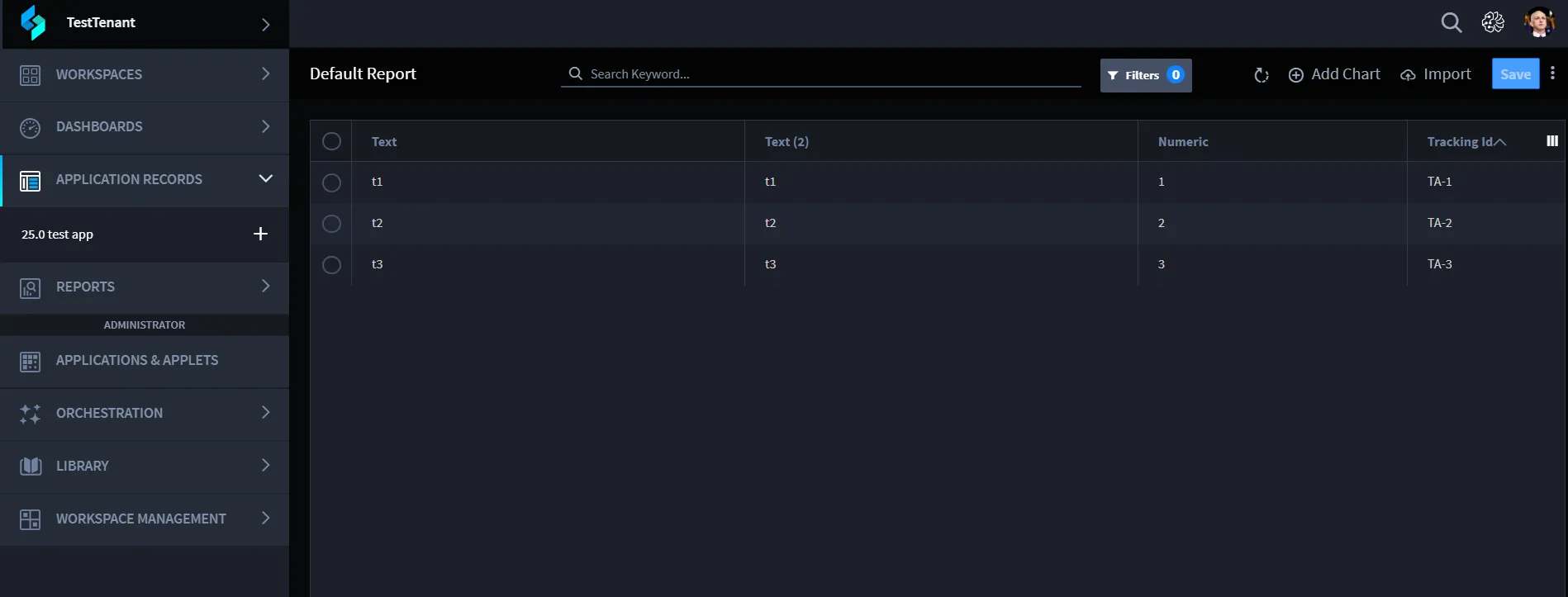
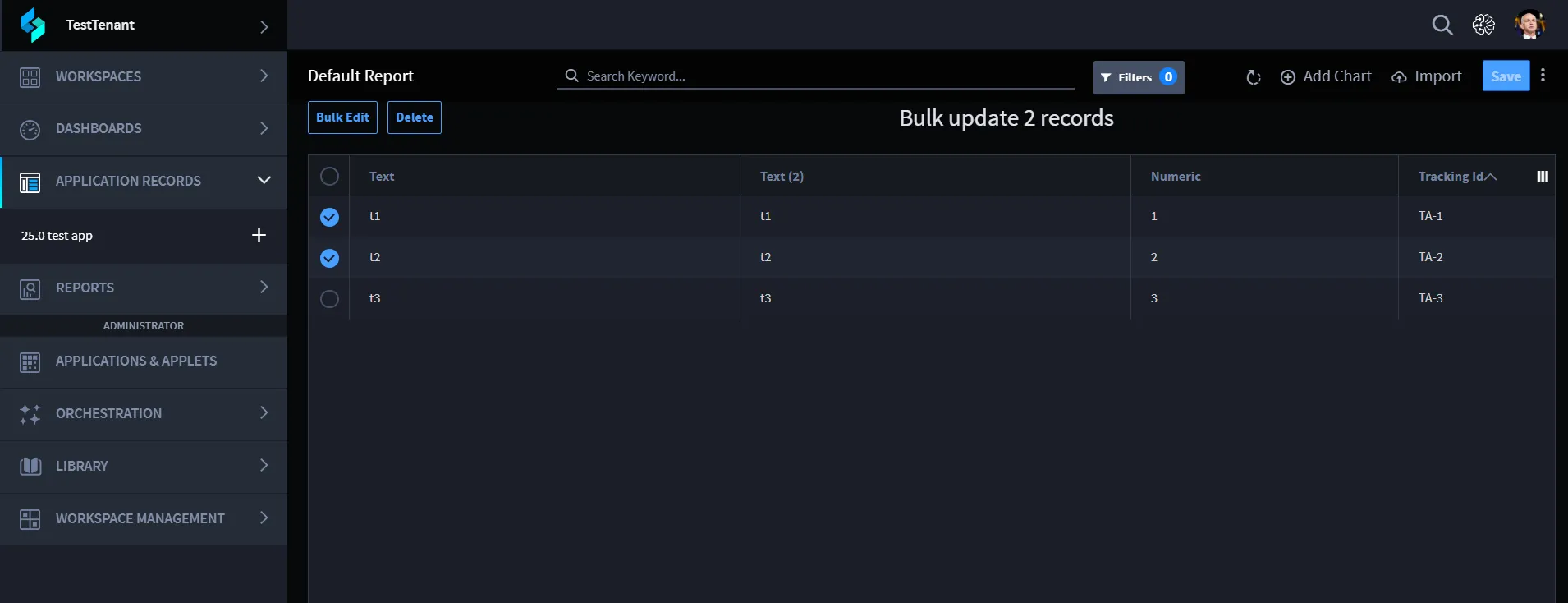
The Bulk Edit task bar appears once you select a record.
- Select additional records, as needed. You must select at least 2 records to utilize Bulk Edit tasks. You can select all records with the Select All button, or deselect the current selections with the Clear button.
- Select Bulk Edit.
The Bulk Edit window opens, listing fields you currently have viewable in the current report view of records. To open additional fields, click the search filter at the top of the window and select the fields.
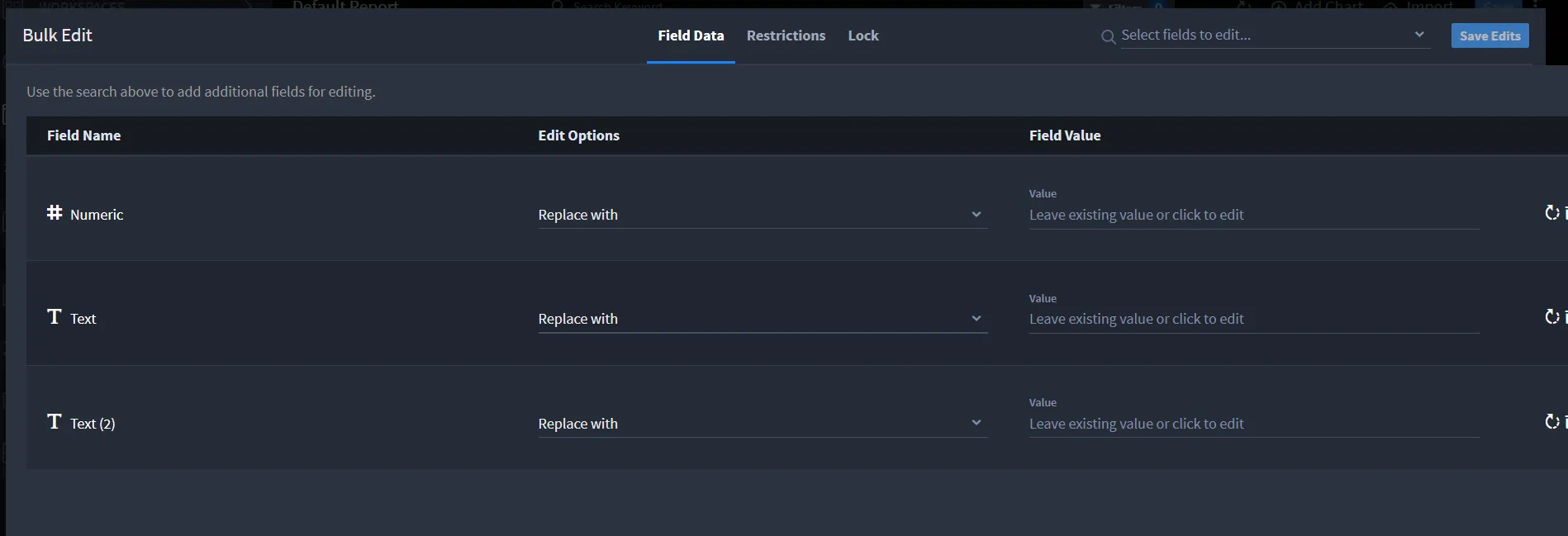
- Review the Field Name then, under Edit Options, specify whether you want the value to replace the existing value, or whether you want to modify the existing value by clearing it.
- On Field Value, specify the value that you are replacing. Continue to modify the Edit Options and Field Value fields as needed for the record and then click Save Edits.
- When you click Save Edits, a pop-up dialog opens where you can confirm the bulk action.
- Click and hold the Bulk Update button. Hold the button until you see the Updating Records notification.
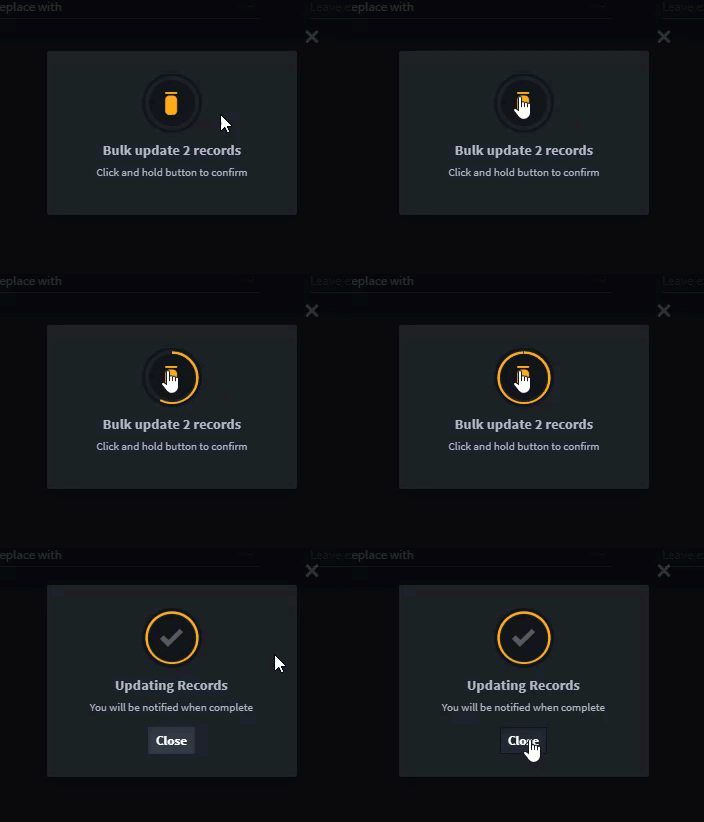
- Click Close. The bulk update process has initiated. You will receive notification once all records have been updated.

Bulk Deleting Records
Users must have Delete and Lock permissions set in order to bulk delete records.
To bulk delete records:
- Access records like described above in the Bulk Modify process.
- Select more than one record that you want to delete. The Bulk Options taskbar appears.
- Select Delete.
- Clicking Delete opens a pop-up window where you will confirm the bulk action.
- Click and hold the Bulk Update button. Hold the button until you see the Updating Records notification.
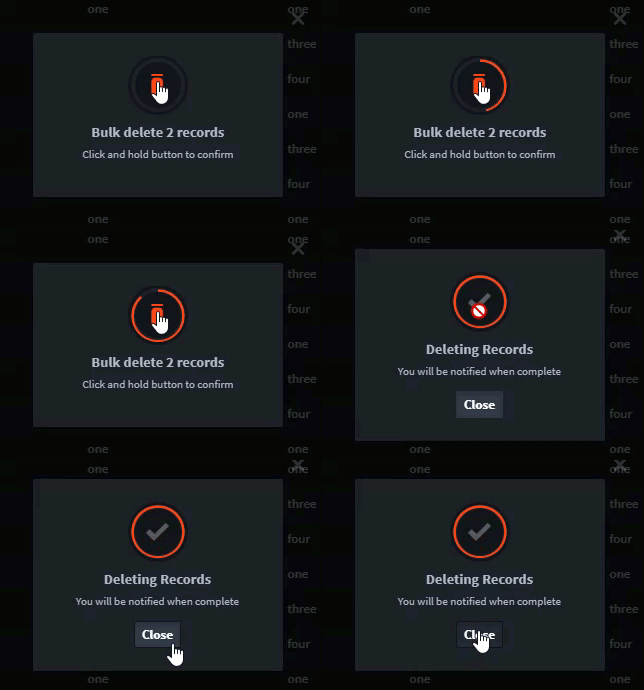
- Click Close. The bulk update process has initiated. You will receive notification once all records have been deleted.