VMRay
Introduction
This guide tells you how to authenticate the VMRay connector in Swimlane using API Key authentication. You will generate an API key in VMRay, collect the required identifiers, and configure the connector in Swimlane.
Prerequisites
VMRay Access Requirements
You must have VMRay access permissions to:
- Access the VMRay platform
- Generate API keys
- View API settings
- Access analysis and submission features
Required Credentials
During setup, you will collect:
- VMRay API Base URL
- VMRay API Key
Authentication Method Overview
The VMRay connector supports the following authentication method:
- API Key Authentication
VMRay Setup
Take the following steps to generate an API Key:
- Log in to your VMRay portal.
- Navigate to Settings or User Profile section.
- Locate the API Keys or Integrations section.
- Click Create API Key or Generate API Key.
- Provide a name and assign appropriate permissions if prompted.
- Copy the generated API key and store it securely.
Take the following steps to identify the API URL:
- Log in to your VMRay portal.
- Copy the base URL from the browser address bar.
- Ensure the URL corresponds to your VMRay instance.
Connector configuration in Swimlane
- Log in to Turbine.
- From the left-hand navigation pane, click ORCHESTRATION and click Assets.
- Click the plus icon to open the Configure your Connector Asset window.
- Select VMRay from the Asset type list.
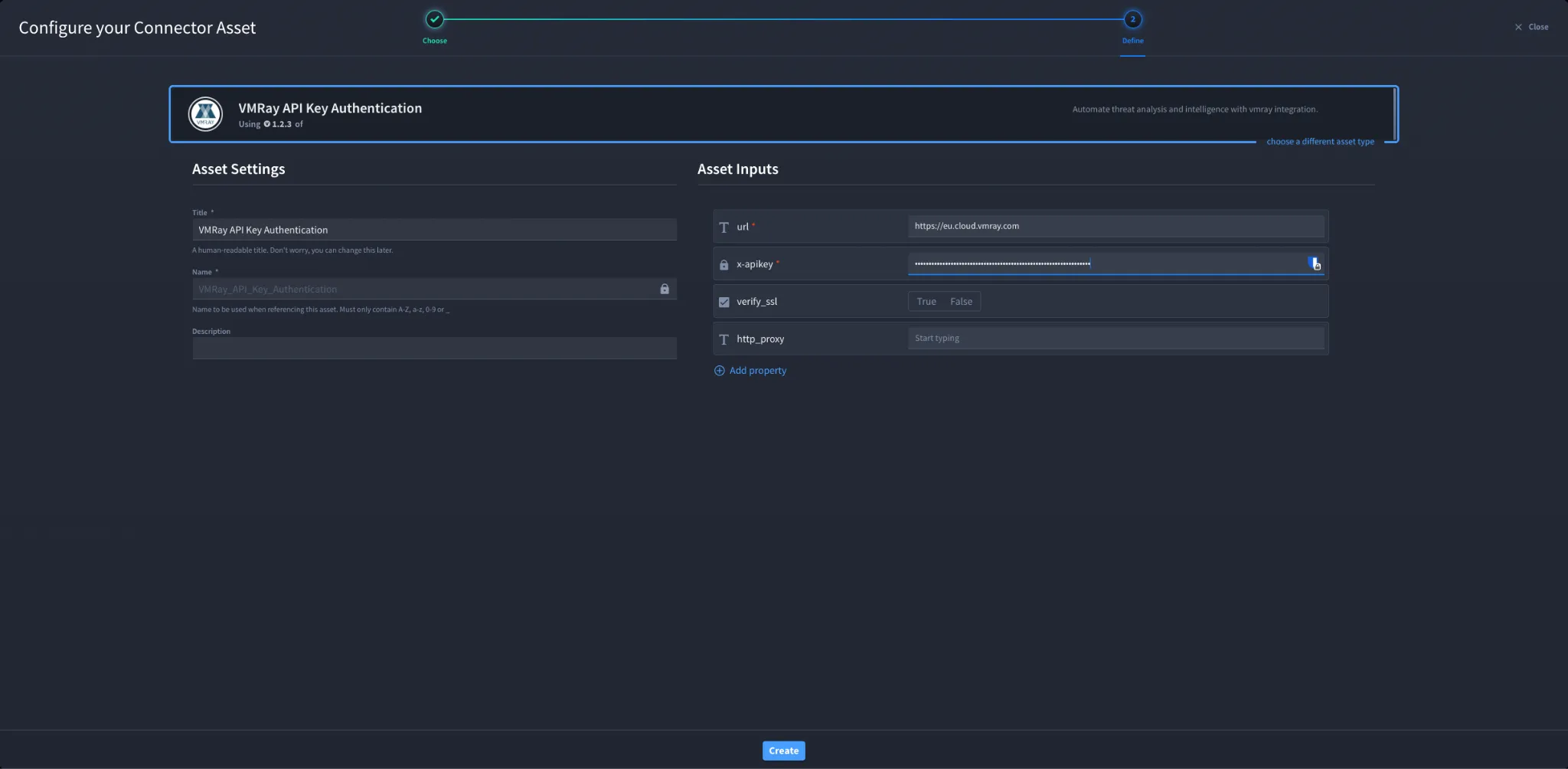
- Fill in the Asset Settings and Asset Input as shown below.
Configuration – API Key Authentication
Field | Description | Required/Optional |
|---|---|---|
url | VMRay API base URL | Required |
x-apikey | VMRay API Key | Required |
verify_ssl | Enable or disable SSL verification | Optional |
http_proxy | Optional proxy configuration | Optional |
Troubleshooting
If authentication fails:
- Verify that the API key is correct and active.
- Ensure the URL is correct and accessible.
- Check if the API key has sufficient permissions.
- Confirm there are no proxy or SSL issues blocking the request.
You have successfully authenticated the VMRay connector in Swimlane.
Sources
- VMRay API Documentation: https://www.vmray.com/resources/documentation/