Palo Alto Networks Cortex XSOAR
Introduction
This guide tells you how to authenticate the Palo Alto Networks Cortex XSOAR connector in Swimlane using API Key authentication. You will generate an API key in Cortex XSOAR, collect required identifiers, and configure the connector in Swimlane.
Prerequisites
Cortex XSOAR Access Requirements
You must have Cortex XSOAR permissions to:
- Access the Cortex XSOAR platform
- Create API keys
- Assign roles and permissions
- View integration settings
Required Credentials
During setup, you will collect:
- FQDN (Fully Qualified Domain Name)
- API Key
- API Key ID
Authentication Method Overview
The Cortex XSOAR connector supports API Key Authentication (API Key + API Key ID).
Cortex XSOAR Setup
Take the following steps to generate an API Key:
- Log in to Cortex XSOAR.
- Navigate to Settings & Info > Settings > Integrations > API Keys.
- Click + New Key.
- Select the API Key type (Standard or Advanced).
- Optionally enable expiration and set a date.
- Assign a Role or select Custom permissions.
- Click Save.
- Copy the API Key and store it securely.
Take the following steps to obtain API Key ID:
- Navigate to Settings & Info > Settings > Integrations > API Keys.
- Locate your created API key.
- Copy the ID value associated with the API key.
Take the following steps to obtain FQDN:
- Navigate to the API Keys section.
- Select your API key.
- Click Copy URL.
- Extract the FQDN from the copied URL.
Connector configuration in Swimlane
- Log in to Turbine.
- From the left-hand navigation pane, click ORCHESTRATION and click Assets.
- Click the plus icon to open the Configure your Connector Asset window.
- Select Palo Alto Networks Cortex XSOAR from the Asset type list.
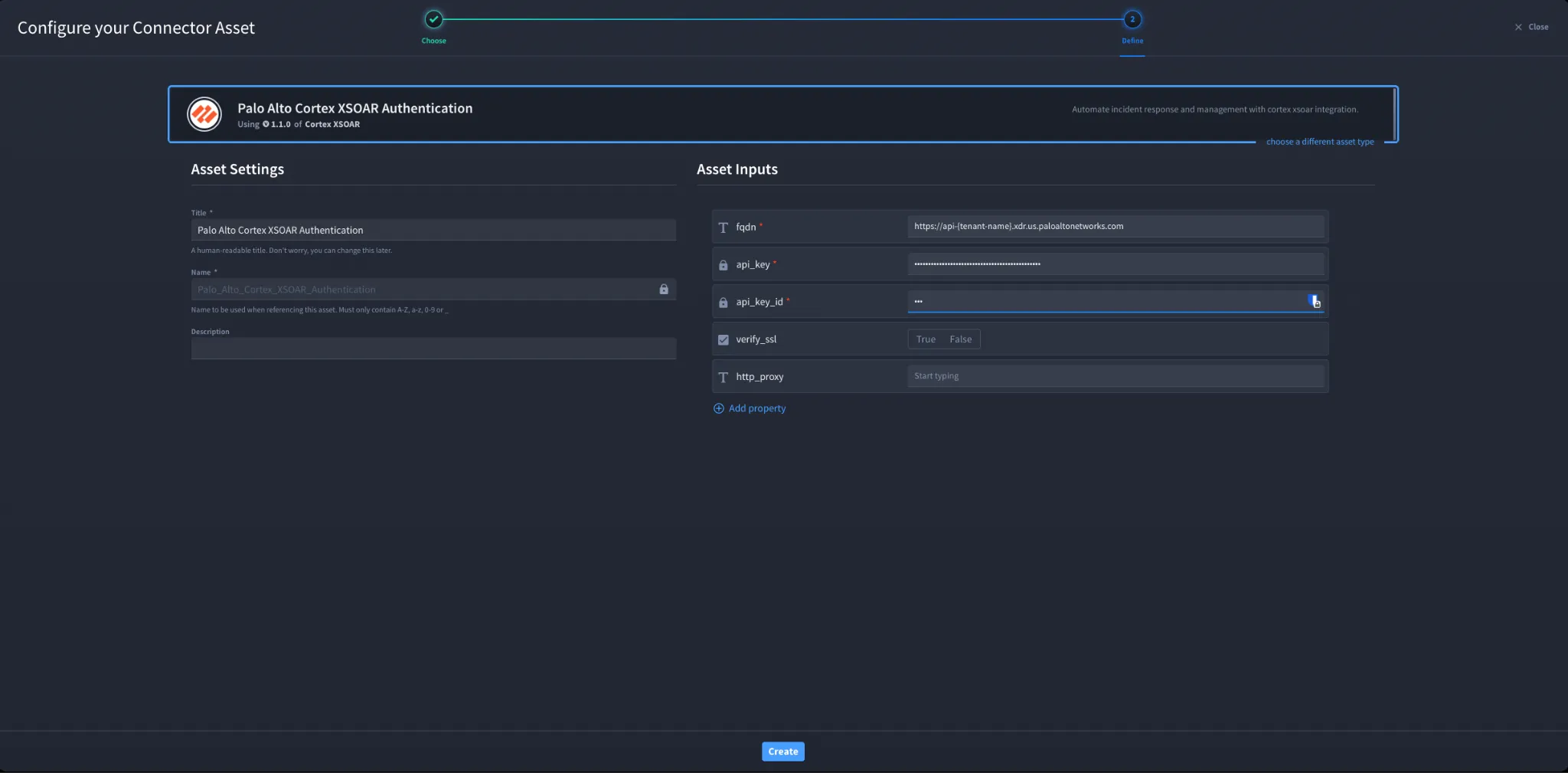
- Fill in the Asset Settings and Asset Input as shown below.
Configuration – API Key Authentication
Field | Description | Required/Optional |
|---|---|---|
fqdn | Cortex XSOAR instance FQDN | Required |
api_key | Cortex XSOAR API Key | Required |
api_key_id | Cortex XSOAR API Key ID | Required |
verify_ssl | Enable or disable SSL verification | Optional |
http_proxy | Optional proxy configuration | Optional |
Troubleshooting
If authentication fails:
- Verify API key and API key ID are correct
- Ensure API key has required permissions
- Check if API key has expired
- Validate FQDN format and accessibility
- Check SSL or proxy configurations
You have successfully authenticated the Palo Alto Networks Cortex XSOAR connector in Swimlane.
Sources
- Cortex XSOAR API Documentation: https://xsoar.pan.dev/