Atlassian Jira Service Desk
Introduction
This guide tells you how to authenticate the Atlassian Jira Service Desk connector in Swimlane.
The connector supports two authentication methods:
- HTTP Basic Authentication (Username and API Token) – Recommended for Atlassian Cloud.
- HTTP Bearer Authentication (Bearer Token) – For environments using OAuth 2.0 bearer access tokens.
You will generate an API token (or obtain a bearer access token), collect the required credentials, and configure the connector in Swimlane.
Prerequisites
Atlassian Access Requirements
You must have permissions to:
- Access your Jira Service Management (Jira Service Desk) instance.
- Generate Atlassian API tokens (for Basic Authentication), or
- Create and use OAuth 2.0 applications (for Bearer Authentication).
- Access the Jira Service Desk REST APIs.
Required Credentials
For HTTP Basic Authentication
During setup, you will collect:
- Jira Service Desk URL
- Username (Atlassian account email)
- API Token
For HTTP Bearer Authentication
During setup, you will collect:
- Jira Service Desk URL
- Bearer Access Token
Atlassian Setup
HTTP Basic Authentication
Take the following steps to generate an API Token:
- Sign in to your Atlassian Account.
- Navigate to Account Settings.
- Select Security.
- Under API Tokens, click Create API Token.
- Enter a label for the token.
- Click Create.
- Copy and securely save the generated API token.
This token is displayed only once.
Take the following steps to collect the Jira Service Desk URL:
- Log in to Jira Service Management.
- Copy your Jira instance URL from the browser.
Example:
https://company.atlassian.net
Use this value as the url during connector configuration.
Connector Configuration in Swimlane
HTTP Basic Authentication
- Log in to Turbine.
- From the left-hand navigation pane, click ORCHESTRATION and click Assets.
- Asset homepage opens.
- Click the plus icon to open the Configure your Connector Asset window.
- Select Atlassian Jira Service Desk from the Asset type list.
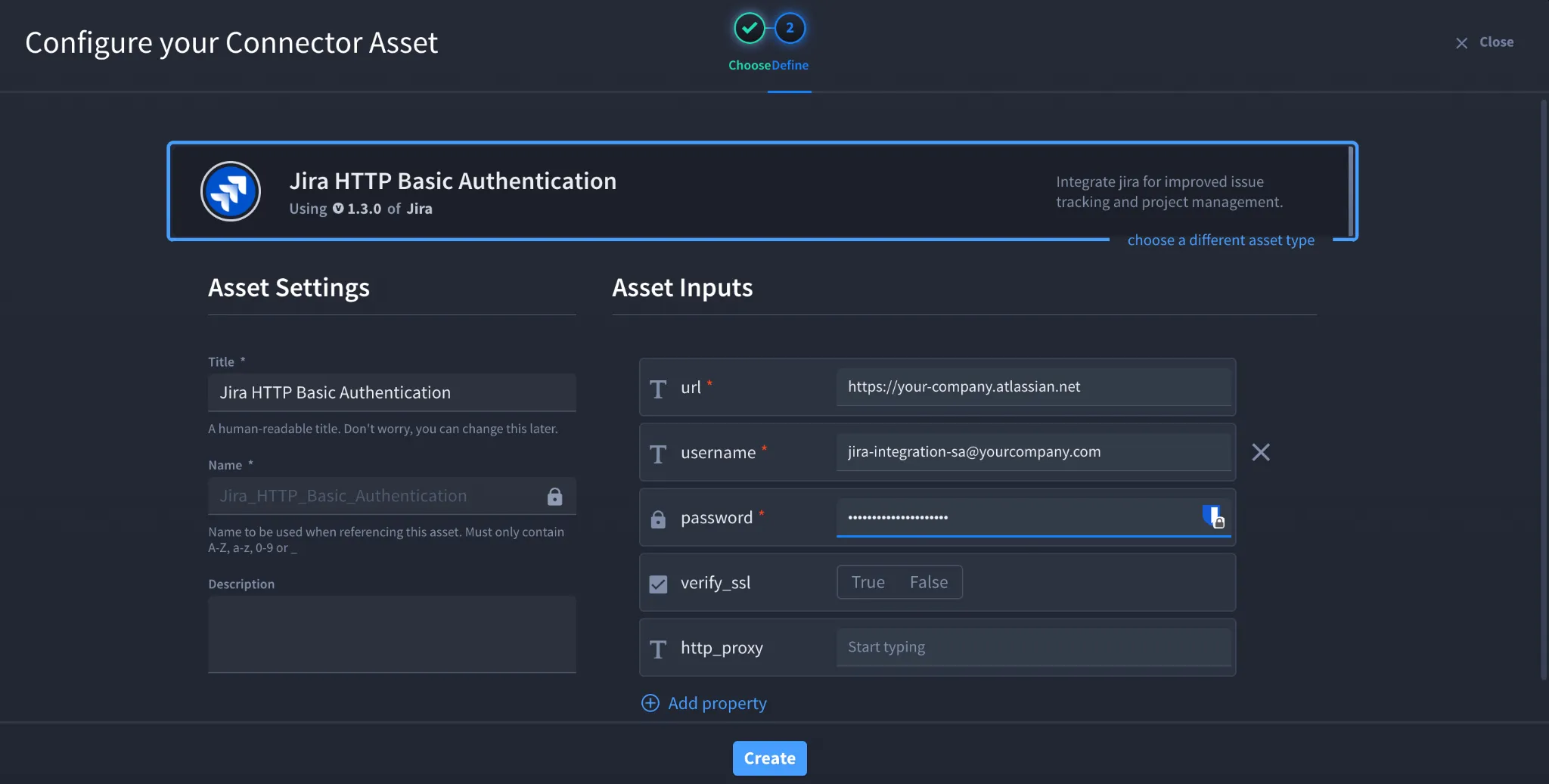
- Select Jira Service Desk HTTP Basic Authentication.
- Fill in the Asset Settings and Asset Input as shown:
Field | Description | Required/Optional |
|---|---|---|
url | Jira Service Desk instance URL | Required |
username | Atlassian account email | Required |
password | Atlassian API Token | Required |
verify_ssl | Enable/Disable SSL Verification | Optional |
http_proxy | Optional proxy configuration | Optional |
Fields with * marks are required.
- Click Create.
HTTP Bearer Authentication (OAuth 2.0)
Take the following steps to obtain a Bearer Access Token:
- Create an OAuth 2.0 application in the Atlassian Developer Console.
- Configure the required OAuth scopes for Jira Service Management.
- Complete the OAuth 2.0 authorization flow.
- Exchange the authorization code for an access token.
- Copy and securely save the Bearer Access Token.
Refer to the Atlassian OAuth 2.0 documentation for detailed application registration and authorisation steps. After obtaining the Bearer Token, take the following steps in swimlane:
- Log in to Turbine.
- From the left-hand navigation pane, click ORCHESTRATION and click Assets.
- Asset homepage opens.
- Click the plus icon to open the Configure your Connector Asset window.
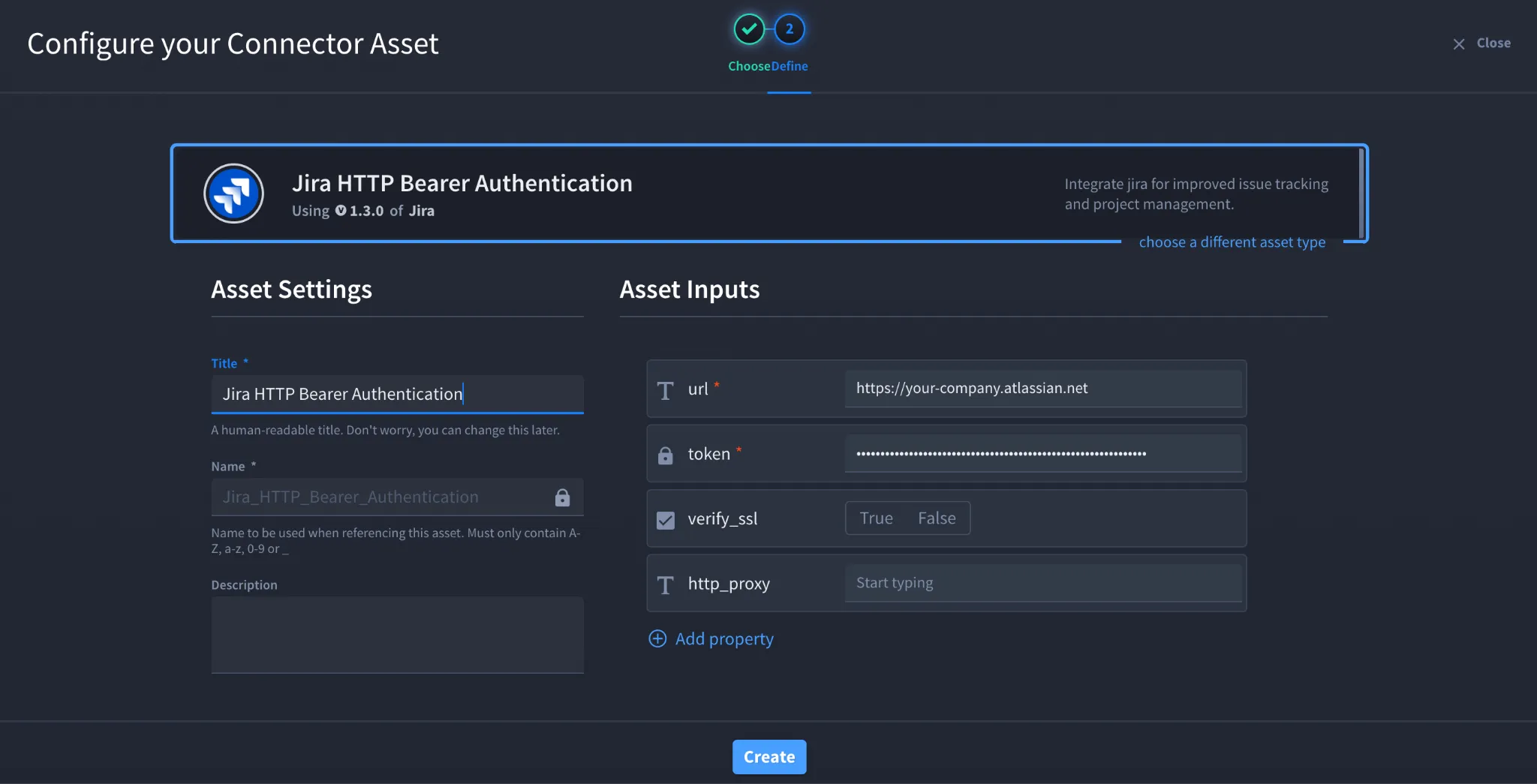
- Select Atlassian Jira Service Desk from the Asset type list.Select Jira Service Desk HTTP Bearer Authentication.
- Fill in the Asset Settings and Asset Input as shown:
Field | Description | Required/Optional |
|---|---|---|
url | Jira Service Desk instance URL | Required |
token | OAuth 2.0 Bearer Access Token | Required |
verify_ssl | Enable/Disable SSL Verification | Optional |
http_proxy | Optional proxy configuration | Optional |
Fields with * marks are required.
- Click Create.
Troubleshooting
Authentication Failed (401 Unauthorized)
Verify that:
- The API token or bearer token is valid.
- The username is your Atlassian account email (for Basic Authentication).
- The token has not expired or been revoked.
Permission Denied (403 Forbidden)
Verify that:
- Your account has permission to access Jira Service Management APIs.
- The OAuth application has the required scopes.
- Your user account has permission to access the requested service desk.
Unable to Connect
Verify that:
- The Jira Service Desk URL is correct.
- Your Jira Cloud instance is reachable.
- Firewall or proxy settings allow HTTPS traffic.
SSL Errors
If SSL verification fails:
- Verify that the Jira instance uses a trusted SSL certificate.
- Confirm that any proxy is not intercepting SSL traffic.
- Disable verify_ssl only for testing if permitted by your organization's security policy.
Result
You have successfully authenticated the Atlassian Jira Service Desk connector in Swimlane.
Sources
- Atlassian API Token Management https://support.atlassian.com/atlassian-account/docs/manage-api-tokens-for-your-atlassian-account/
- Atlassian OAuth 2.0 (3LO) Documentation https://developer.atlassian.com/cloud/jira/platform/oauth-2-3lo-apps/
- Atlassian Jira Service Management REST API Documentation https://developer.atlassian.com/cloud/jira/service-desk/rest/