More About the Installer UI on an Existing Cluster Install
The Turbine Platform Installer (TPI) UI is where you manage your application, version history, and configuration settings. This topic gives you more detail about the functional tabs in the Turbine Platform Installer UI.
To access the TPI UI after the initial install run:
Dashboard Tab
On the Dashboard tab you can view the status of your application, as well as the status of your install, upgrade or snapshot restoration. You can also easily access the version history, snapshots, and license details.
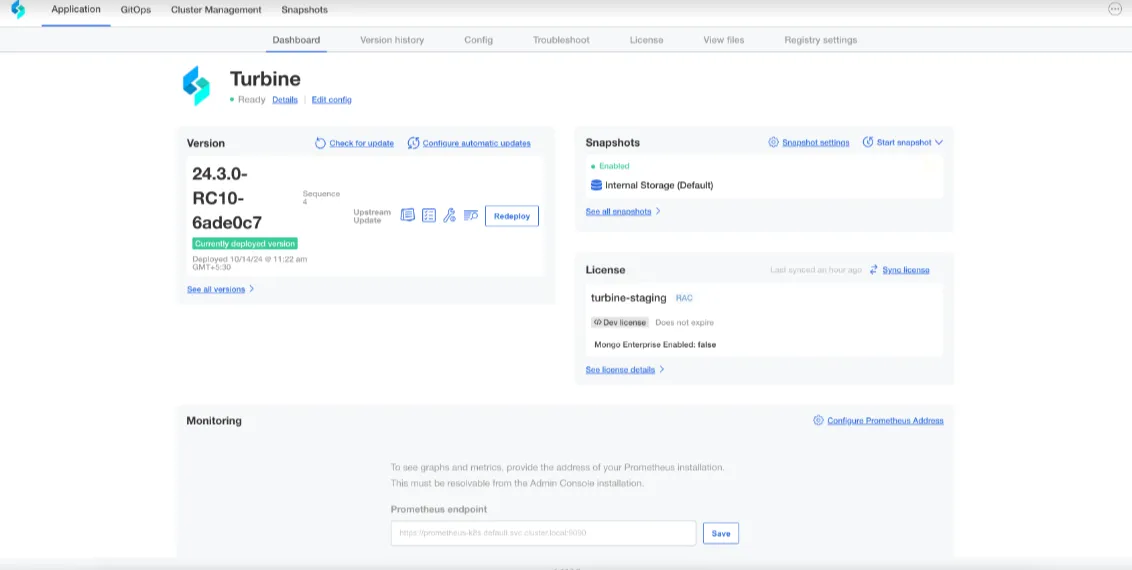
The graphs section of this page is only when using the embedded cluster install and is unusable for existing cluster installs.
Version History Tab
On the Version history tab you can view your currently deployed version of Turbine as well as any previous versions. Any changes you make to your configuration will display here as well. You can also redeploy previous versions from this tab and view the differences between versions.
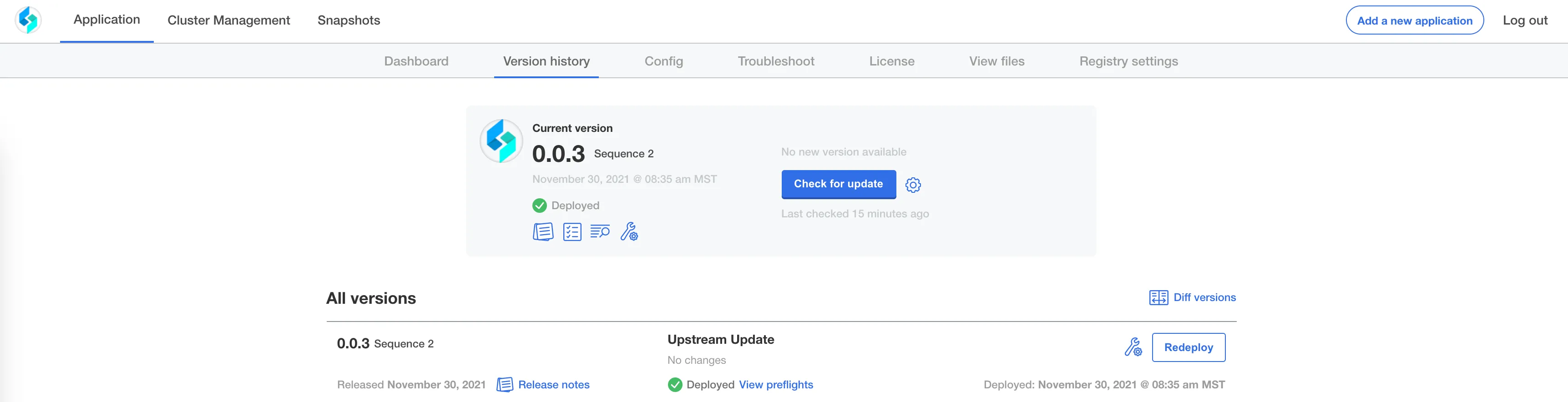
Click view logs to see your installation logs.
Config Tab
On the Config tab you can review the configuration settings you set when you first installed Turbine.
Do not attempt to reset the passwords for your install on this tab!
Troubleshoot Tab
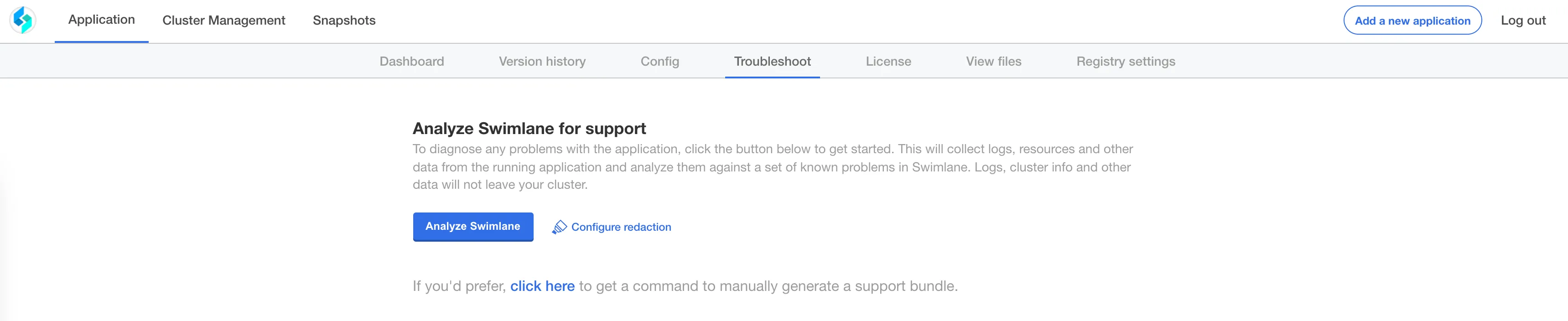
On the Troubleshoot tab you can generate support bundles that will help you troubleshoot issues with your Turbine instance.
Click Analyze Turbine to generate a support bundle. Most of the files in a support bundle are default files, but you can also check Mongo pods for disk space or see how much space is free. You can also check API logs. Click Download bundle to download it locally and send to Swimlane for investigation.
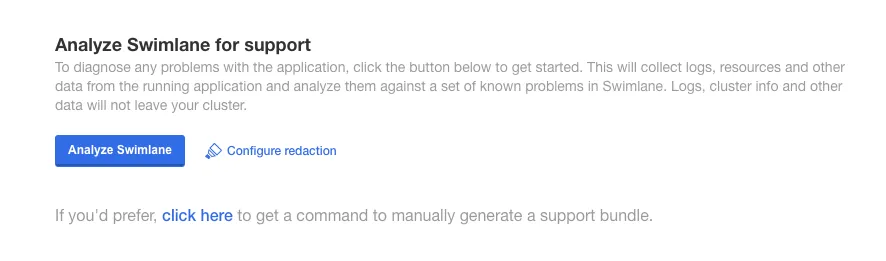
Configure Redaction
You can set up your support bundle to redact sensitive information such as database connection strings, passwords and other API tokens. The redaction is both built in and extensible.
The redactions are defined within a YAML file that defines which data to remove when creating a support bundle. Here is an example of a Redactor YAML file:
apiVersion: troubleshoot.sh/v1beta2 kind: Redactor metadata: name: my-redactor-name spec: redactors: - name: replace password # names are not used internally, but are useful for recordkeeping fileSelector: file: data/my-password-dump # this targets a single file removals: values: - abc123 # this value is my password, and should never appear in a support bundle - name: all files # as no file is specified, this redactor will run against all files removals: regex: - redactor: (another)(?P<mask>.*)(here) # this will replace anything between the strings `another` and `here` with `***HIDDEN***` - selector: 'S3_ENDPOINT' # remove the value in lines following those that contain the string S3_ENDPOINT redactor: '("value": ").*(")' yamlPath: - "abc.xyz.*" # redact all items in the array at key xyz within key abc in yaml documents
To define a redaction, prior to creating your support bundle, click Configure redaction.
An editor opens where you can write your own specifications for redaction or link to an existing YAML specification.
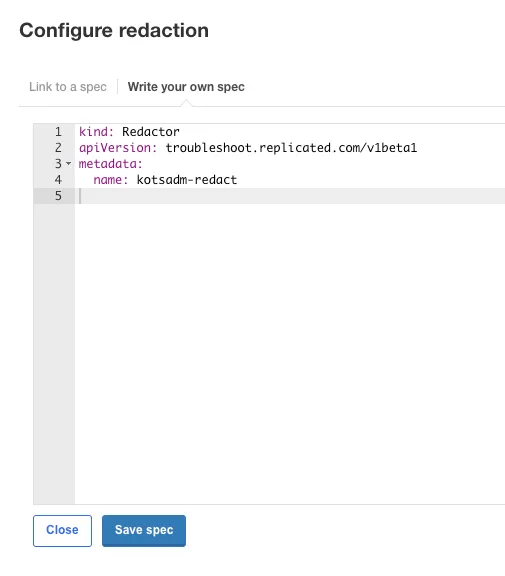
If you have technical questions about how to write up a redaction, contact your Swimlane support representative.
Snapshots Tab
For information on snapshots see Backup and Restore on an Existing Cluster with SnapshotsBackup and Restore on an Existing Cluster with Snapshots.
License Tab
The license tab shows information about the TPI license used for your environment. The Sync license button should only be used when instructed by Swimlane to sync a new expiration date or entitlements for your TPI license.
View Files Tab
The view files tab shows the underlying configuration files for the TPI admin console and is used for troubleshooting purposes when necessary by the Swimlane support team. The instructions shown under the Need to edit these files? link are for Swimlane support troubleshooting only and should not be used.
Registry Settings Tab
The registry settings tab is not supported or used at this time.