Air Gap Installation on an Existing Kubernetes Cluster
This topic details the process of installing Turbine in an existing Kubernetes cluster that is air-gapped. Air gap refers to a system that resides in a private network, "air-gapped" from external networks or the internet.
Swimlane provides the following:
- The air gap bundle
- A KOTS application license (.yaml)
- A Swimlane license (.lic)
The airgap bundle contains the images and Kubernetes manifests for Turbine. When it comes time to update your Turbine version, you will need a new air gap bundle. Reach out to your Swimlane support representative for access to the new bundle.
Before you begin you need:
- The airgap bundle in a jumpbox that your Kubernetes cluster can pull from.
- The KOTS kubectl addon version that is currently recommended by Swimlane.
- A private image registry.
Verify your environment meets Turbine's system requirementssystem requirements.
Install KOTS Kubectl Add-on
- The current recommended KOTS version is available through these links. Download the TPI kubectl add-on for the OS version of your jumpbox: Linux: https://get.swimlane.io/existing-cluster/install/linux OSX: https://get.swimlane.io/existing-cluster/install/osx
- Untar the file: tar zxf kots_<OS version>.tar.gz
- Rename the kots binary to kubectl-kots: mv kots kubectl-kots
- Move the kubectl-kots binary into your PATH so that it can be recognized by kubectl (e.g. /usr/local/bin/): mv kubectl-kots /usr/local/bin/
Install the Turbine Application using KOTS
- Choose the namespace within which you will install the Turbine Platform Installer (TPI) and Turbine platform. These instructions will refer to this namespace as `your-namespace`.
- Download the offline installer package to your jumpbox:https://get.swimlane.io/existing-cluster/install/offline-package
- Copy the offline installer package to the jumpbox.
- Upload the TPI container images to your private registry to prepare for installation into the Kubernetes cluster: kubectl kots admin-console push-images <path-to-offline-installer-package> <your-registry-endpoint>/<your-registry-name> \ --registry-username <your-registry-username> \ --registry-password <your-registry-password>
- The upload can take several minutes.
- Install the TPI pods: kubectl kots install turbine-platform \ --kotsadm-registry <your-registry-endpoint>/<your-registry-name> \ --registry-username <your-registry-username> \ --registry-password <your-registry-password> \ --namespace <your-namespace> It will automatically create the namespace specified if it does not exist.
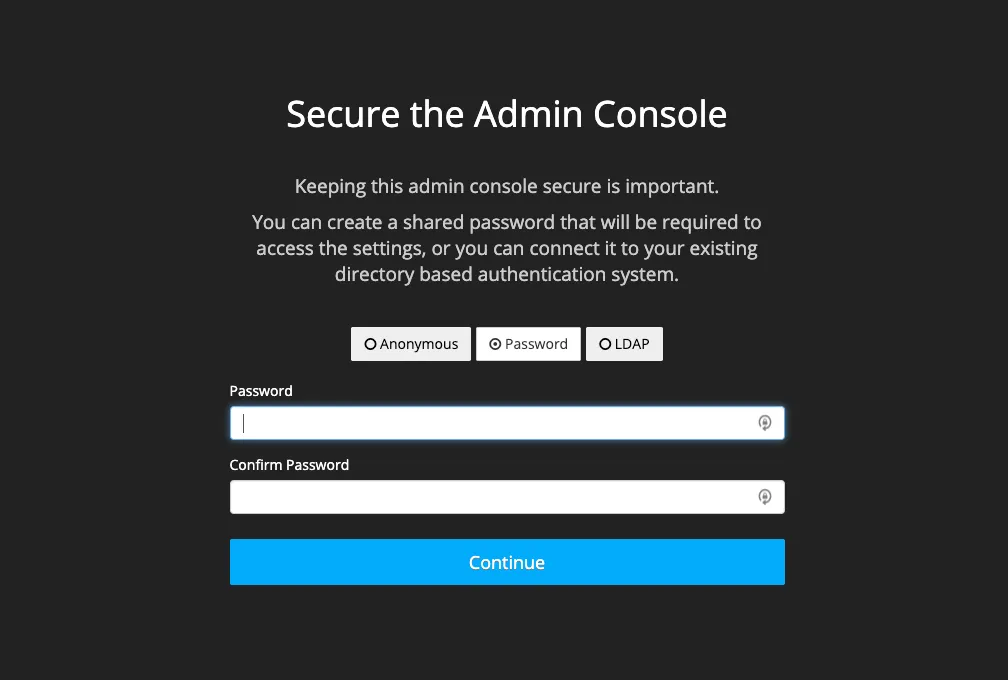
When the install is complete it will automatically proxy the TPI UI to http://localhost:8800.
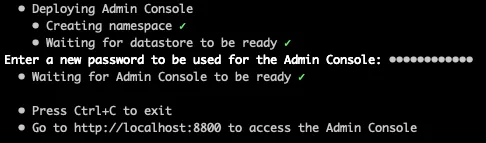
In a Chrome browser window, access the TPI UI at http://localhost:8800 to begin configuring the Turbine Platform.
Enter the password you specified during the install process.
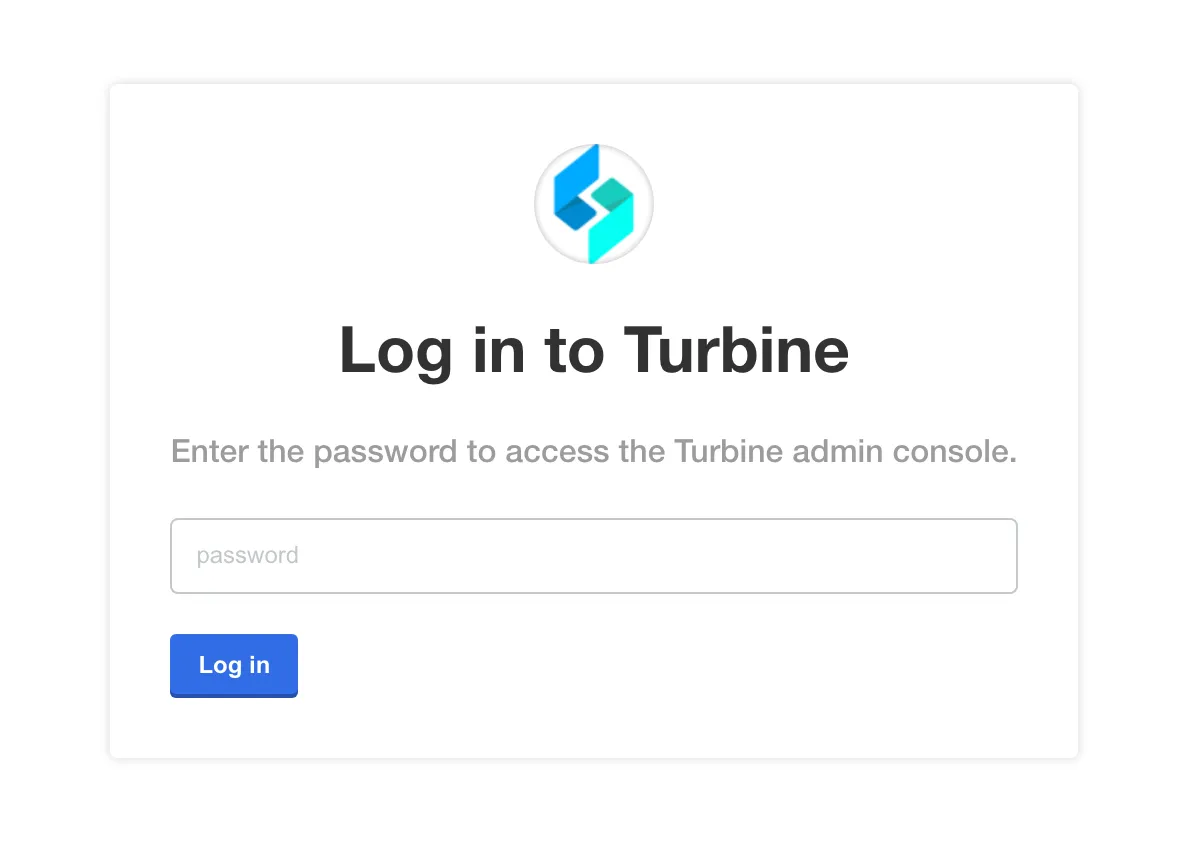
Next, you are prompted to upload your .yaml license file. Select or drag the file, and then click Upload license.
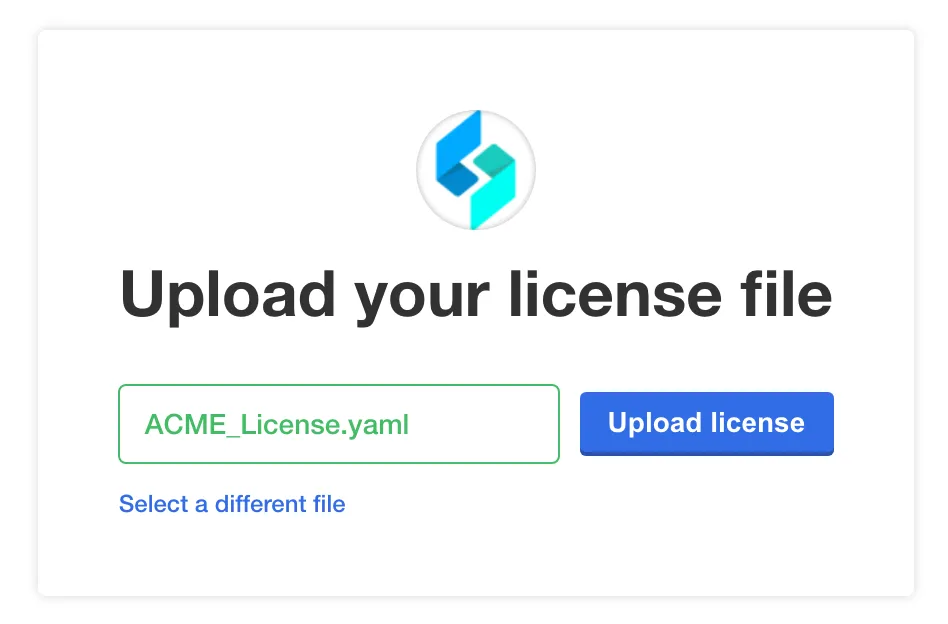
After the license is uploaded it will prompt you to confirm the private docker image registry settings.
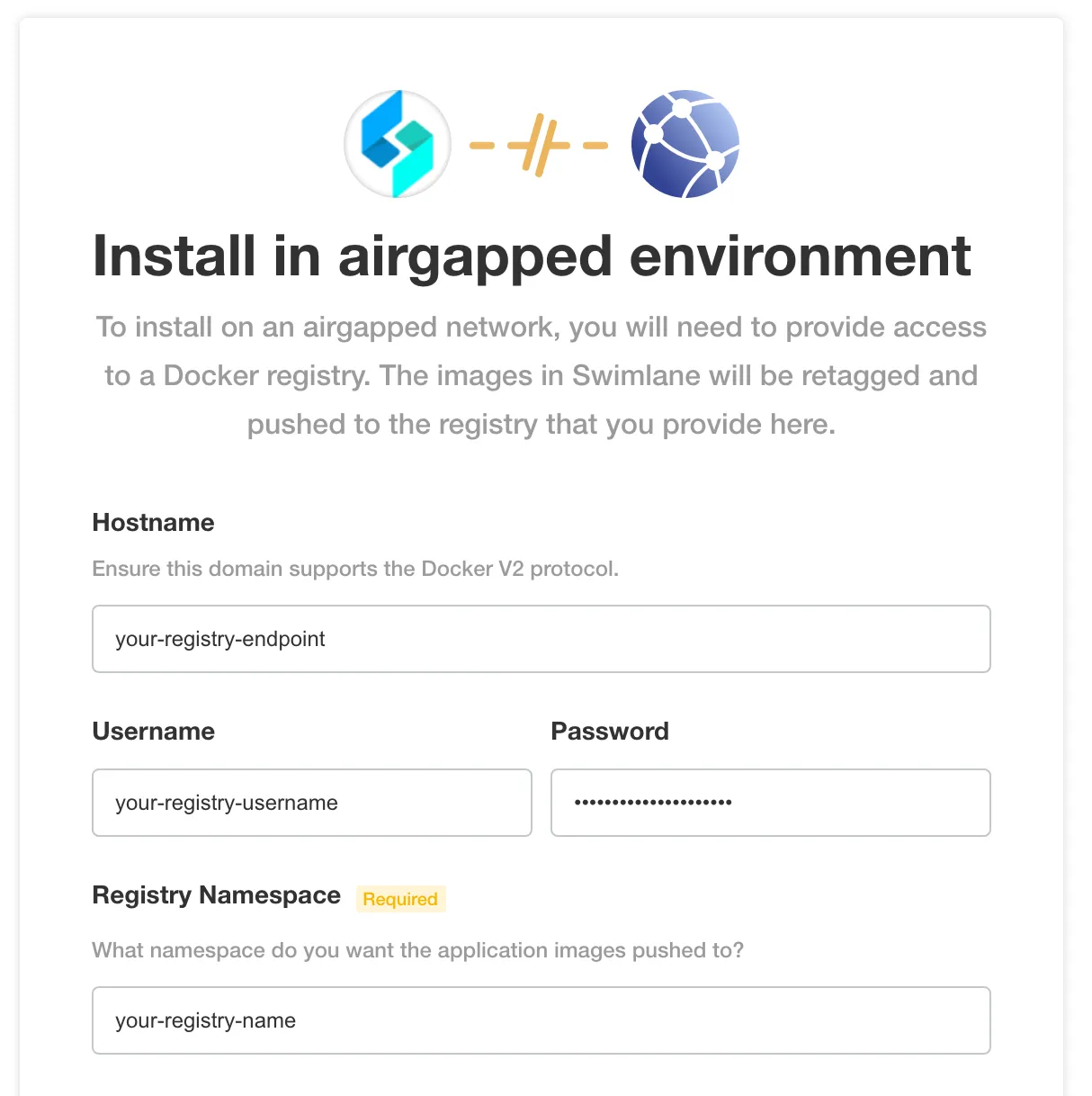
Verify the information here is correct.
Upload the airgap bundle.
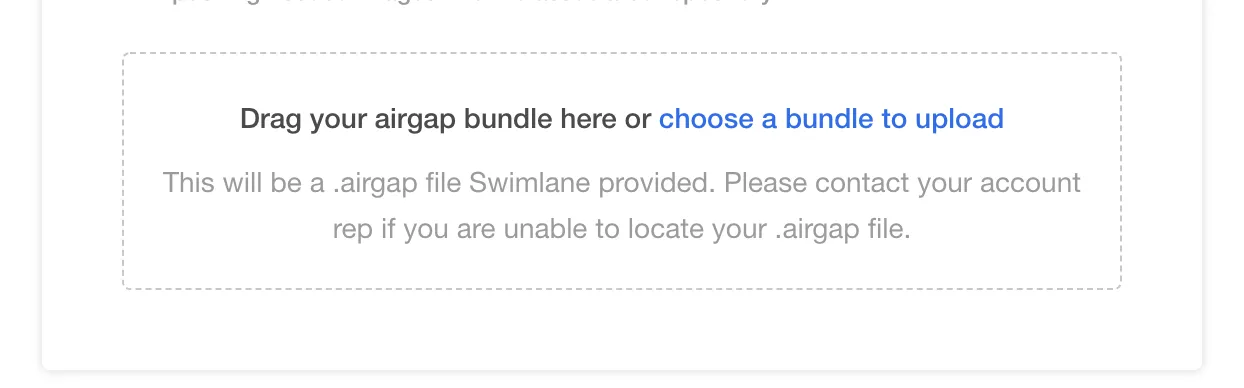
The upload can take several minutes. After the upload is complete it extracts the bundle and pushes the Turbine platform images to your private docker image registry.After the Turbine platform images are pushed to the private Docker image registry, the Config page opens. This is where you configure the Turbine platform. See Configure the Turbine Platform for an Existing Cluster InstallConfigure the Turbine Platform for an Existing Cluster Install to configure and deploy Turbine.