Share and Download Dashboards
A dashboard report can be shared by scheduling an email to be sent, sending an email now, or downloading a PDF of the dashboard report. To find these sharing options, while in the dashboard, click the Share icon on the dashboard header and select Schedule, Email, or Download under Sharing Options.
Schedule Dashboard
Schedule Dashboard allows you to schedule when an email of a dashboard report is sent to recipients. In addition to scheduling the email, you can choose to send the email now as well as later and choose to download a preview of the dashboard report.
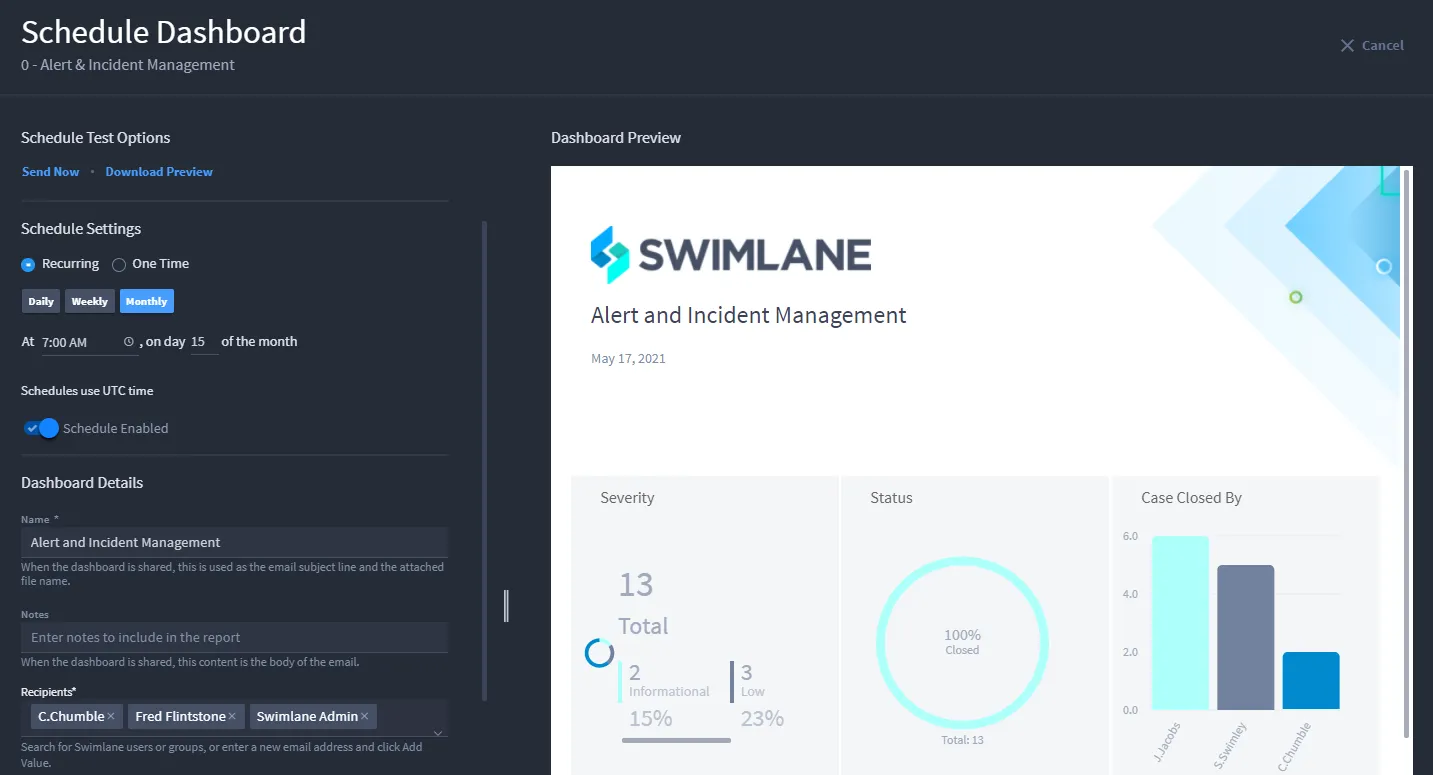
- Once in Schedule Dashboard, under Schedule Settings, select either Recurring or One Time for the frequency.
- Click the toggle button next to Schedule Disabled to enable the schedule.
- Under Dashboard Details, type a Name for your dashboard report.
- Under Notes, type notes to include on the dashboard report.
- Under Recipients, search for and select Turbine users or groups, or enter an email address and select Add Value.
- Under Dashboard Controls, choose to include a link to the dashboard report and select page orientation.
- Under Available Dashboard Report Cards, select the dashboard cards to display.
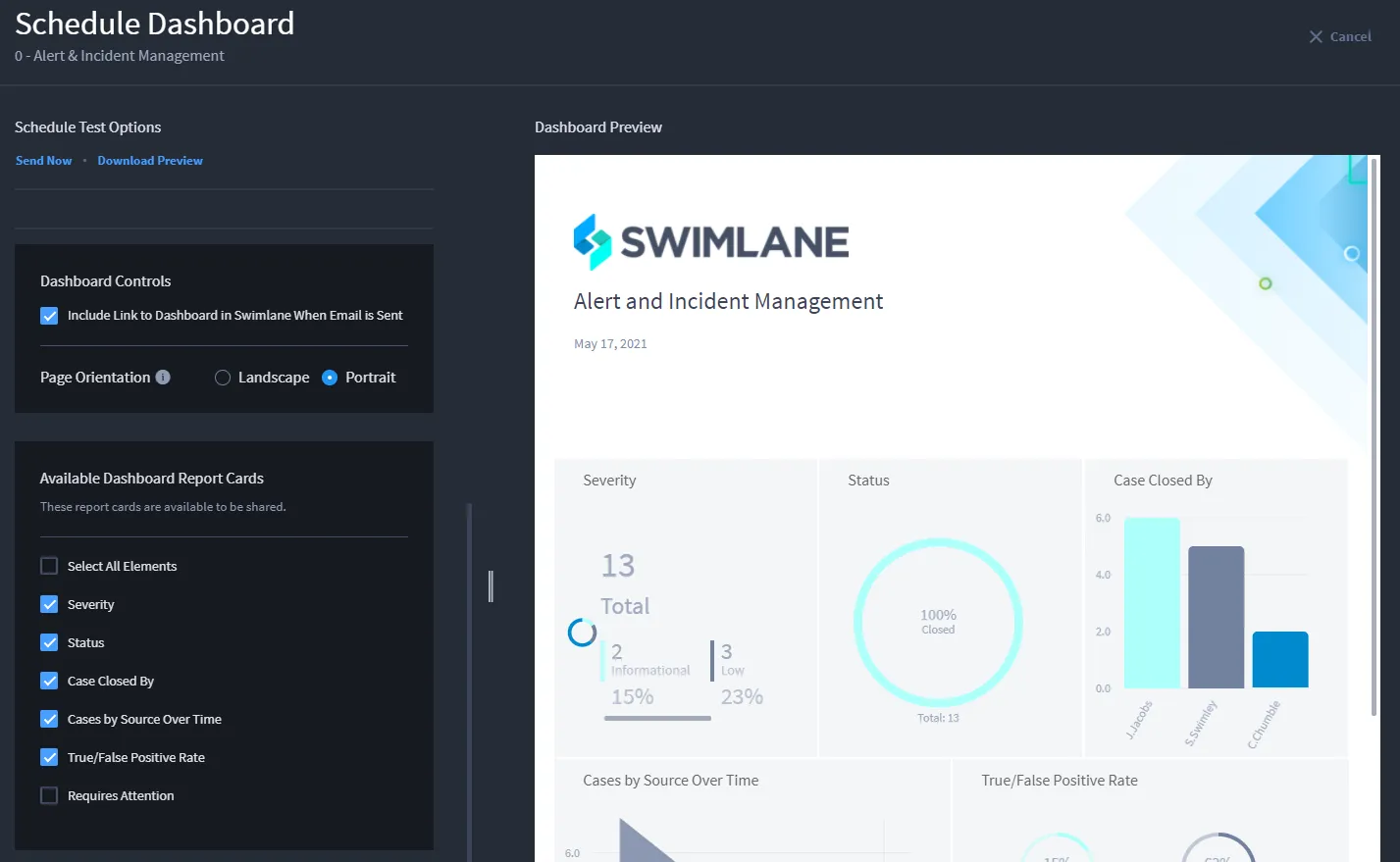
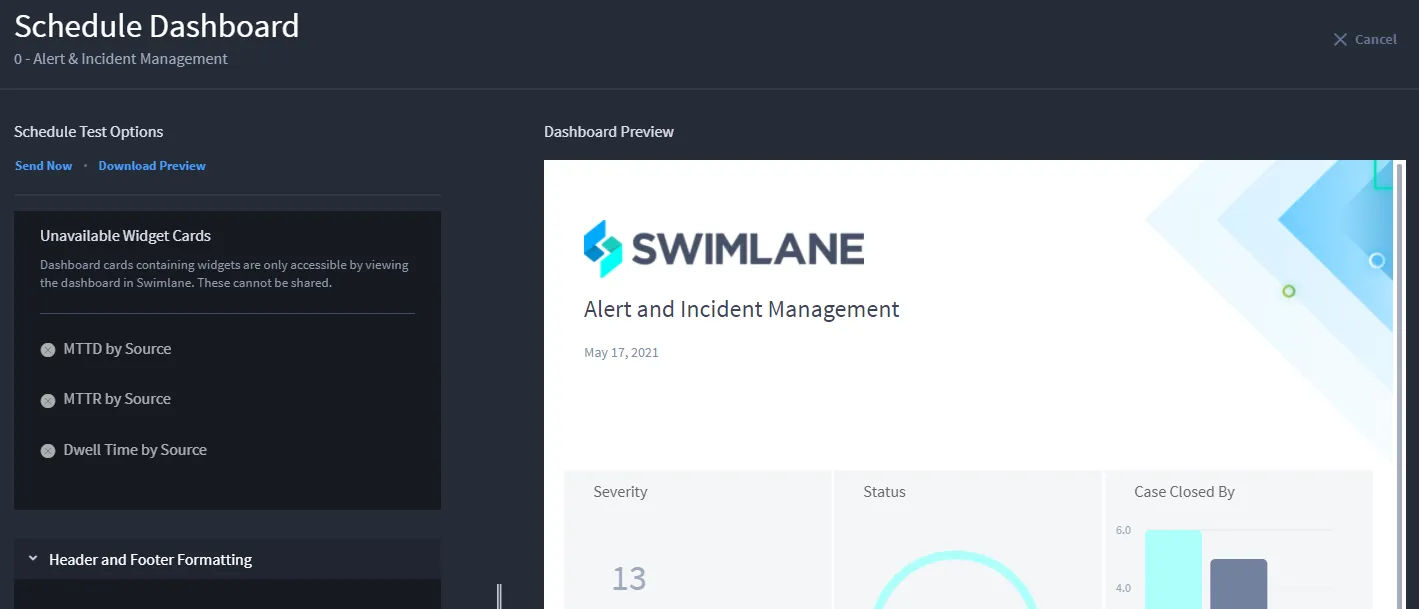
- In the Dashboard Preview, rearrange or resize cards as needed.
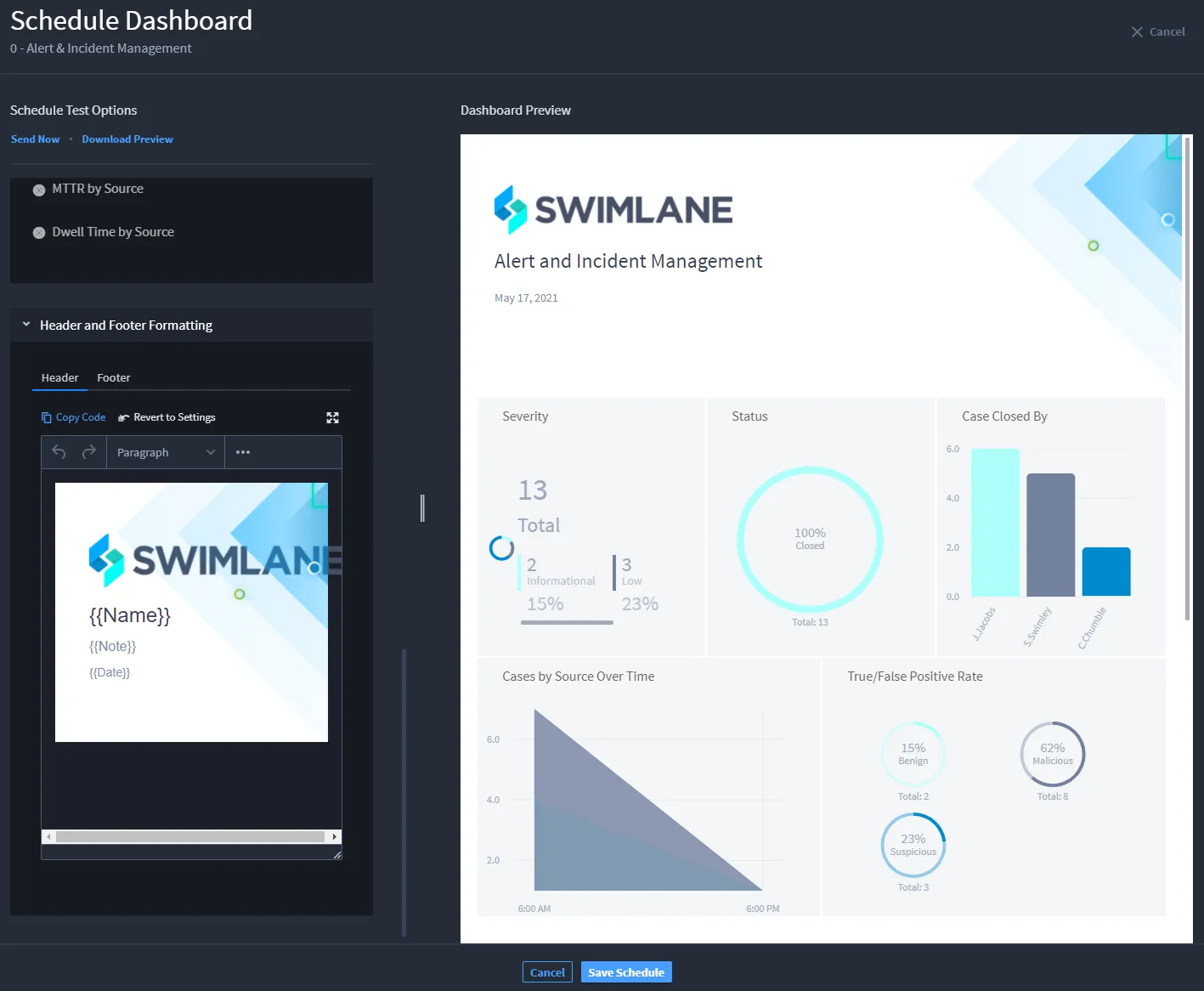
- Click the drop-down arrow next to Header and Footer Formatting to format the header and footer.
- Once finished, click Save Schedule. A confirmation dialog appears. Click Close to exit.
- The email includes: sender account, dashboard report name, notes, optional Turbine link, and a PDF.
Email Dashboard
Email Dashboard allows you to send a dashboard report immediately. Unlike Schedule Dashboard, it cannot be scheduled.
- In Email Dashboard, under Name, type a name.
- Under Notes, type notes.
- Under Recipients, search for Turbine users/groups or enter an email address and select Add Value.
- Under Dashboard Controls, choose to include a Turbine link and select page orientation.
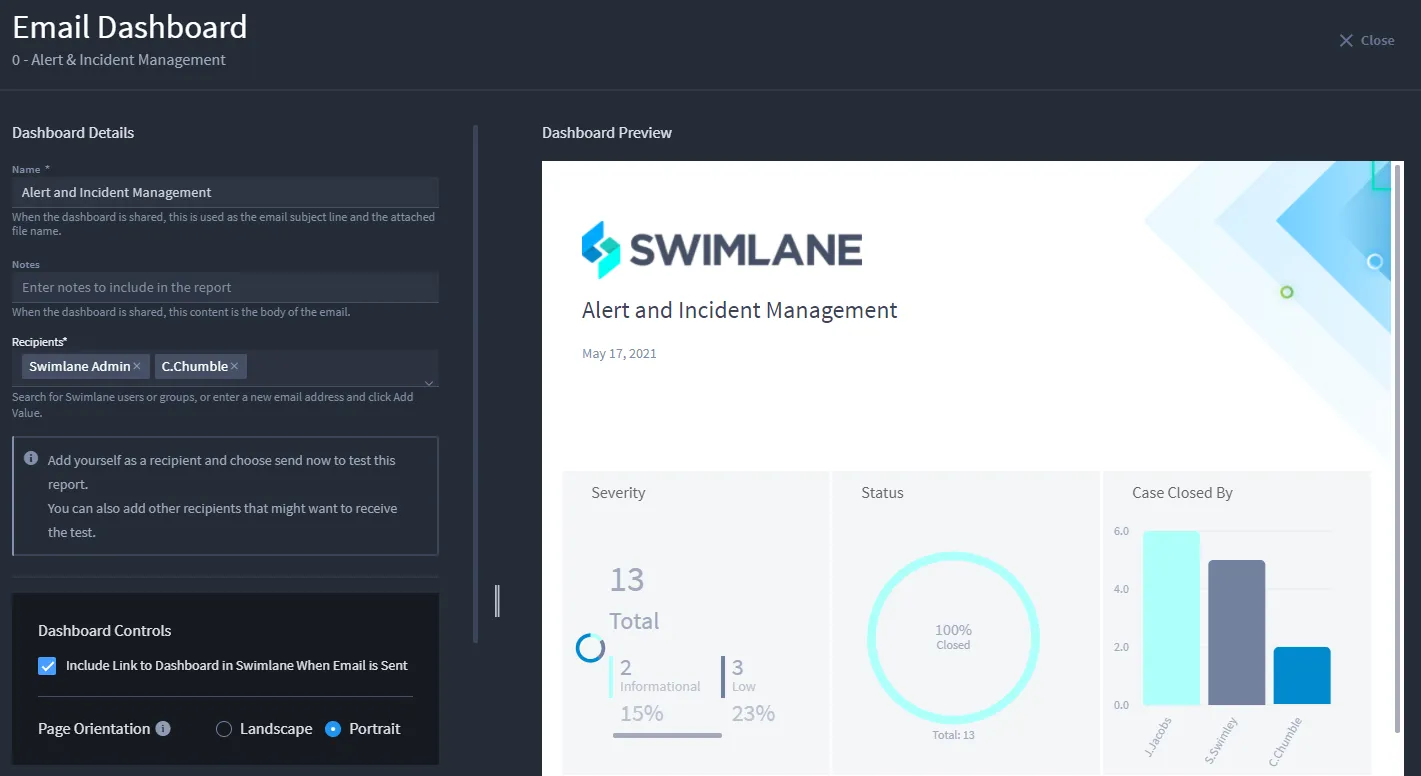
- Under Available Dashboard Report Cards, select the cards to include.
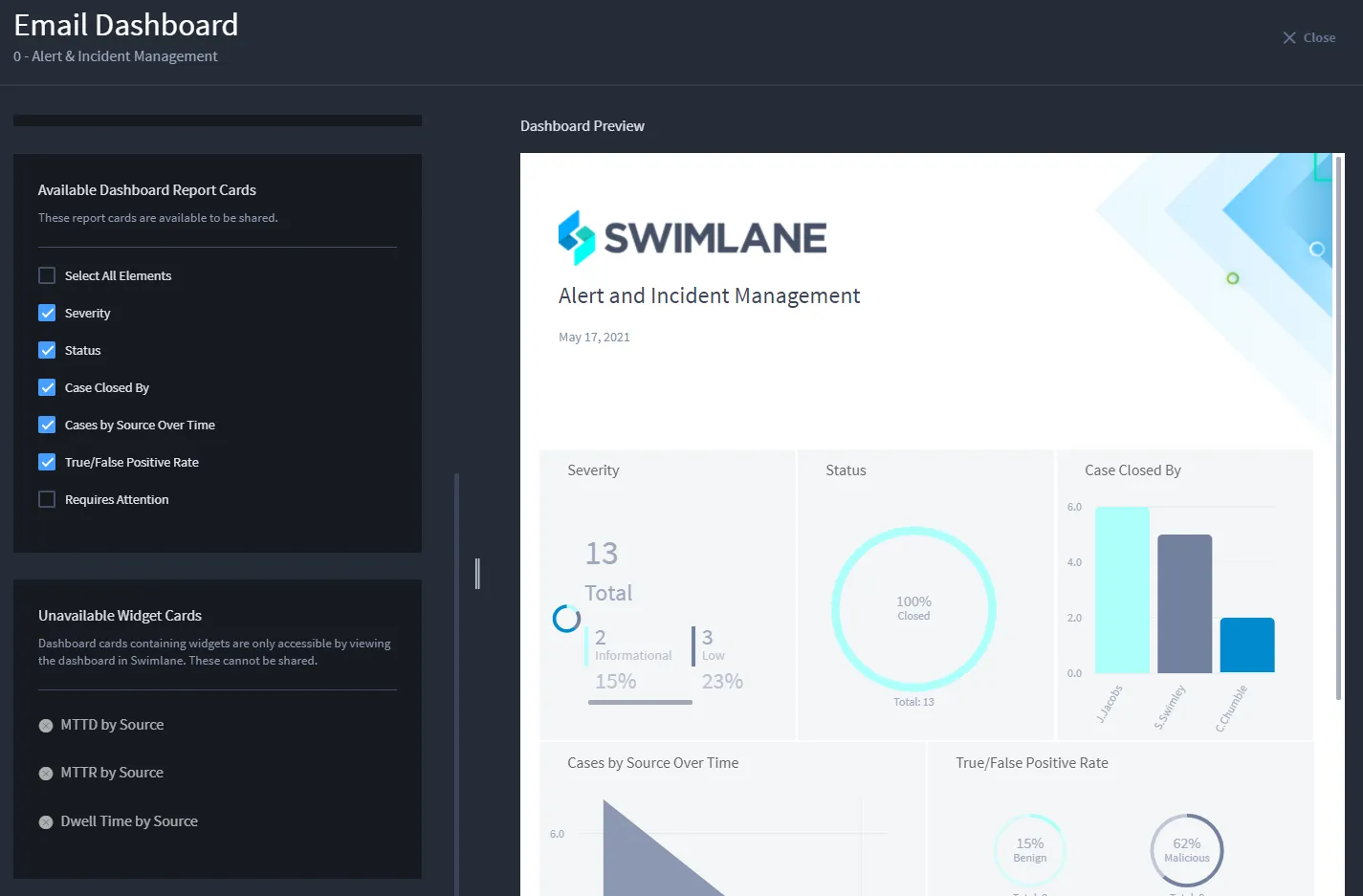
- In Dashboard Preview, rearrange or resize cards.
- Click Header and Footer Formatting to customize header/footer.
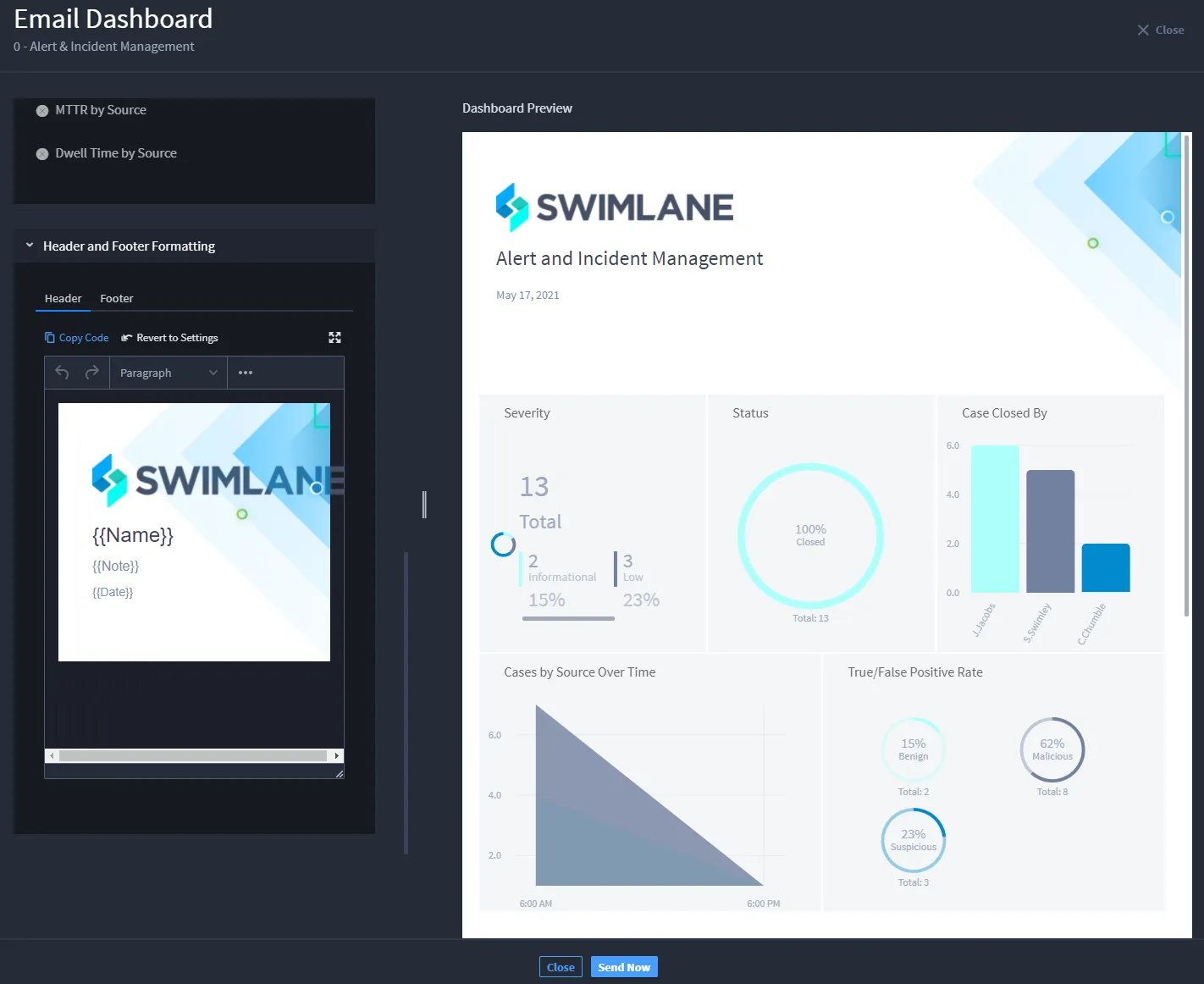
- Click Send Now. A confirmation dialog appears.
- The email includes: sender account, dashboard report name, notes, optional Turbine link, and a PDF.
- Default email/PDF settings are configured in Settings > Email and PDF Settings.
Download Dashboard
Download Dashboard allows you to download the dashboard report as a PDF.
- In Download Dashboard, under Name, type a name.
- Under Notes, type notes.
- Under Dashboard Controls, choose page orientation.
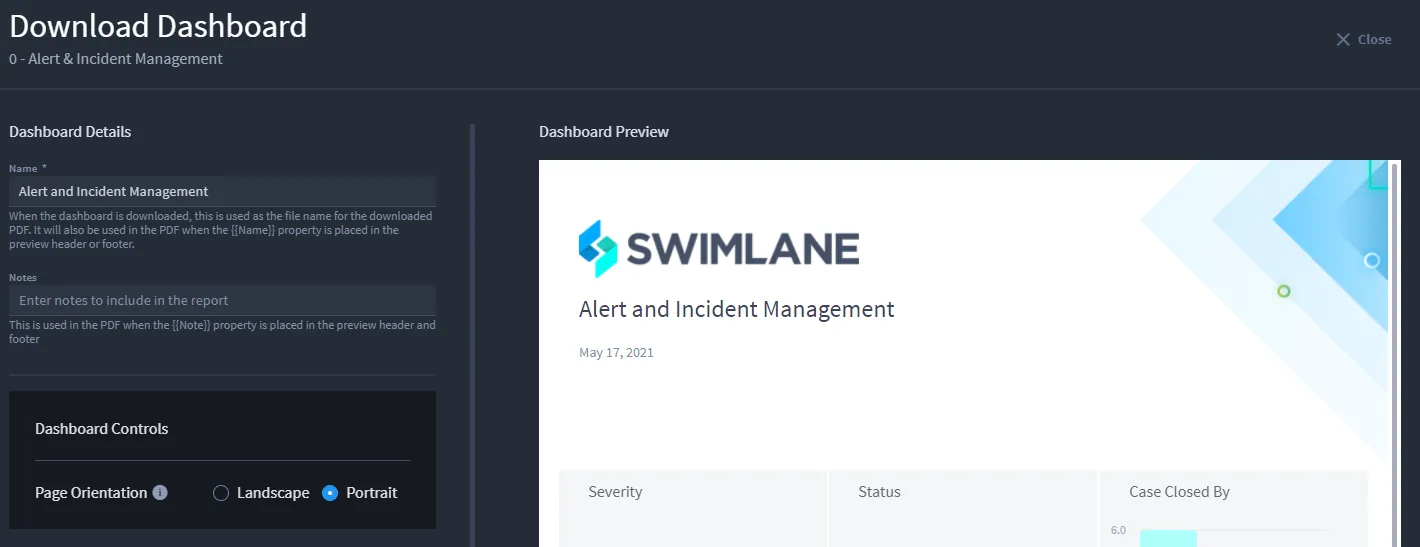
- Under Available Dashboard Report Cards, select the cards to include.
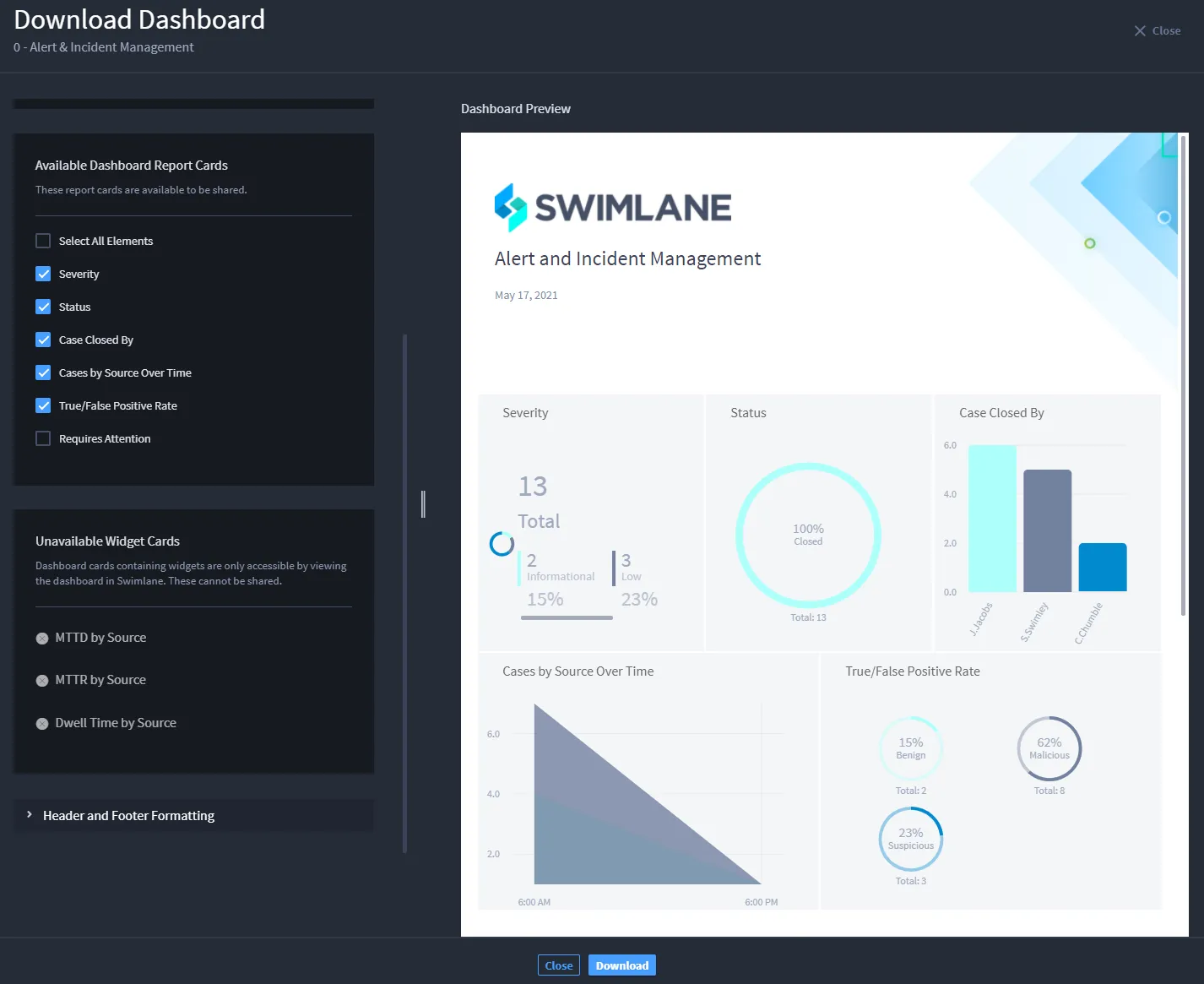
- In Dashboard Preview, rearrange or resize cards.
- Click Header and Footer Formatting to customize header/footer.
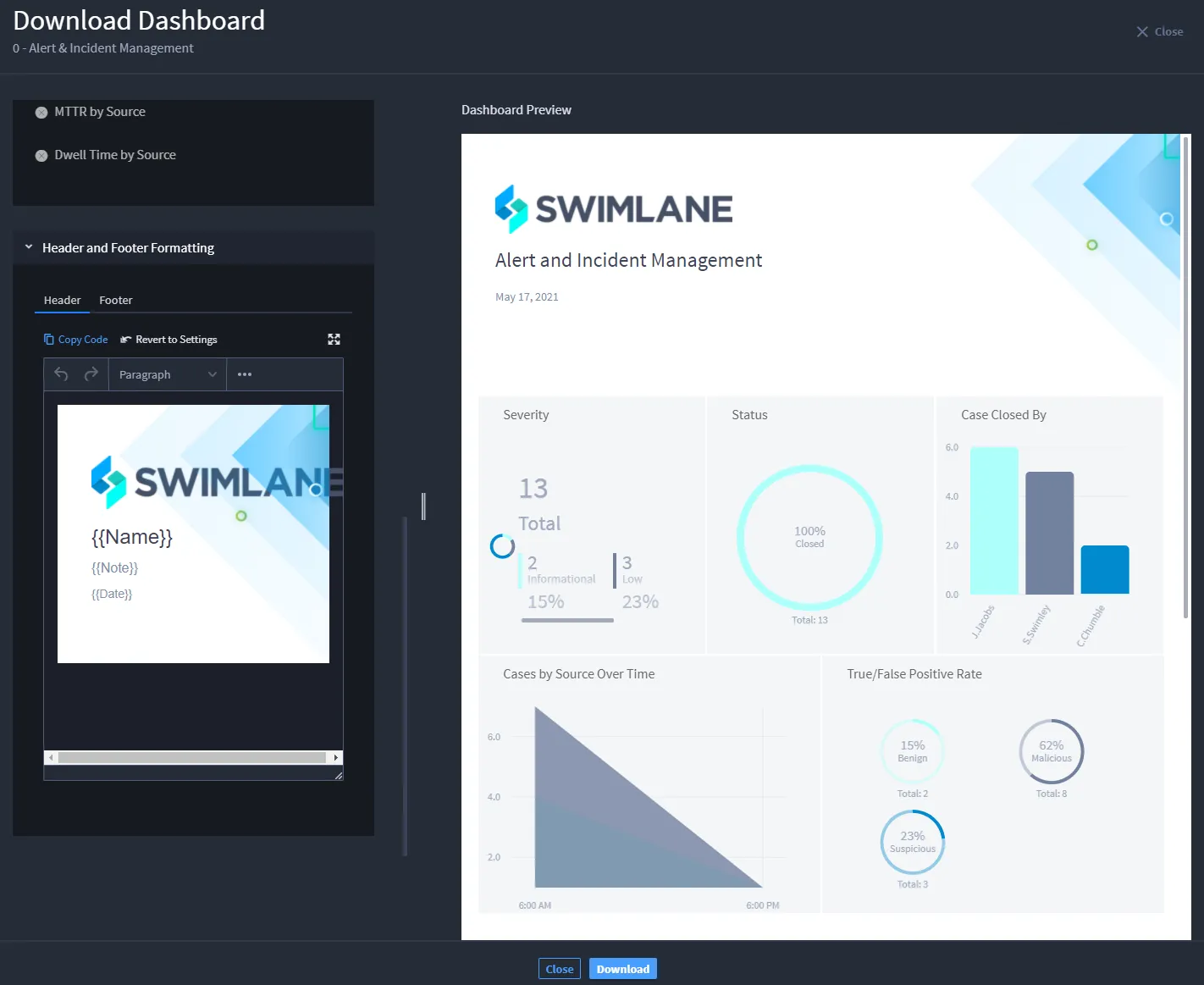
- Once finished, click Download. A green check appears on the Download button once complete. Click Close to exit.