Setting Up Session Timeout Parameters
As an administrator, you control how long a Turbine session can remain idle before the user must re-authenticate or log out and log back in. The timeout is based on inactivity, not total time signed in. User activity such as mouse movement, keyboard input, or touch resets the idle timer.
To set up session timeout parameters:
- From the Sessions & Security tab, click > to expand the Session controls.
- Specify the length and the unit of time for the user session, then click Save.
- Use the drop-down menu to specify the Session Unit, such as Hour(s) or Minute(s).
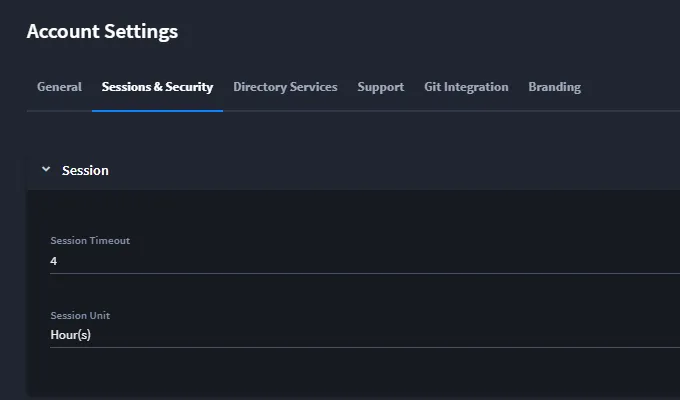
When you adjust the timeout session parameters here, users will need to log out and log back in for the updated time frame to apply. All user sessions will retain the previously-set timeout value until their current sessions expire or they log out and log back in.
Overriding a User's Session Timeout
Administrators can override a specific user's session timeout. This can be useful, for example, when using a Turbine session as a dashboard for a shared work area. It can also be helpful when you need to immediately disable a user's session.
To override a user's session timeout:
- From the Admin Panel, select Users.
- Choose the user whose session timeout you want to override from the Users list.
- In the user's profile settings, click the Session tab.
- Toggle the Override this user's session timeout switch, and then specify the time-frame for the override (minutes or hours).
- Click Save.
The minimum you can specify for this override is 5 minutes. The maximum is 5 years (43,800 hours or 2,628,000 minutes).
The override goes into immediate effect once you click Save.