Inputs
Actions are individual capabilities of connectors that interact with external technologies by passing in data via action inputs. Results are available from action outputs.
Actions can:
- Call another playbook
- Interact with external technologies
- Contain inputs and outputs (outputs can be promoted through the Playbook Outputs dialog)
You do not need a trigger to add an action to your playbook.
Create Actions
- From your current playbook, open the Add panel on the left side of the screen. The Add panel displays available actions, connectors, and components organized by category. The panel has three tabs: Triggers, Actions, and Components.
- Browse or search for the desired action from the available connectors and native actions.
- Native actions (such as Create Variables, Update Variables, HTTP Request, Script, Transform Data, Condition, Loop, Parallel, Create Record, Delete Record, Search Records) appear at the bottom of the Add panel
- Connector actions are organized by vendor/connector above the native actions
- Drag the action from the Add panel.
- Drop the action onto the canvas:
- Drop onto a drop zone (indicated by a plus icon) to add it to the flow
- Drop onto an edge to insert it between existing actions
- Drop onto a node to connect it after that action
- After dropping, the action appears on the canvas and the Action details panel automatically displays to the right of the playbook.
- In the Action details panel, under the Info section:
- The Action field displays the selected action type
- Enter the required Title field
- The Key field auto-populates based on the Title field, but you can edit it if needed
- Optionally add a Description
The Key field must be unique and only contain A-Z, a-z, 0-9, or underscore characters.
You can drag and drop connector actions, native actions, or existing playbooks (components) as actions to nest in your current playbook.
Once you have dropped an action, you can configure its inputs and outputs by clicking the Configure button in the Data section of the action details panel, or by clicking the Edit icon on the action node in the canvas.
Configure Action Inputs
Action inputs are information necessary for the execution of the task.
Action Icon Meanings
Icon | Meaning |
|---|---|
 | Edit icon: Opens the Configure dialog to edit action inputs and outputs |
 | Delete icon: This deletes the entire action. |
Open the Configure Dialog
To configure action inputs and outputs, open the Configure dialog in one of two ways:
- From the Action details panel: In the Data section, click the Configure button.
- From the canvas: Click the Edit icon that appears when you hover over an action node.
The Configure dialog opens with Inputs and Outputs tabs, where you can configure the action properties.
The Configure dialog appearance and available options vary depending on the action type. For example, native actions like Create Variables, Update Variables, HTTP Request, Script, Transform Data, Condition, Loop, and Record actions each have their own specialized configuration dialogs.
Based on the selected connector or action type, Action Inputs auto-populates properties under CONNECTOR ACTION or ACTION INPUTS.
Also, the Additional Options section displays available assets, which are based on the connector. Some actions may show additional options, depending on the action type.
Assets allow users to create a reusable set of values that can be applied to actions as inputs in playbooks. Assets can be for a specific connector, or created as a custom asset which can be applied to any action inputs. Assets are most useful for standardizing and securing configurations.
Assets = action configuration templates
Configure Connector Properties
When configuring an action, the available property types display under CONNECTOR ACTION. Depending on the property type, there are different values you can apply. The value options are different for string property types and all other types.
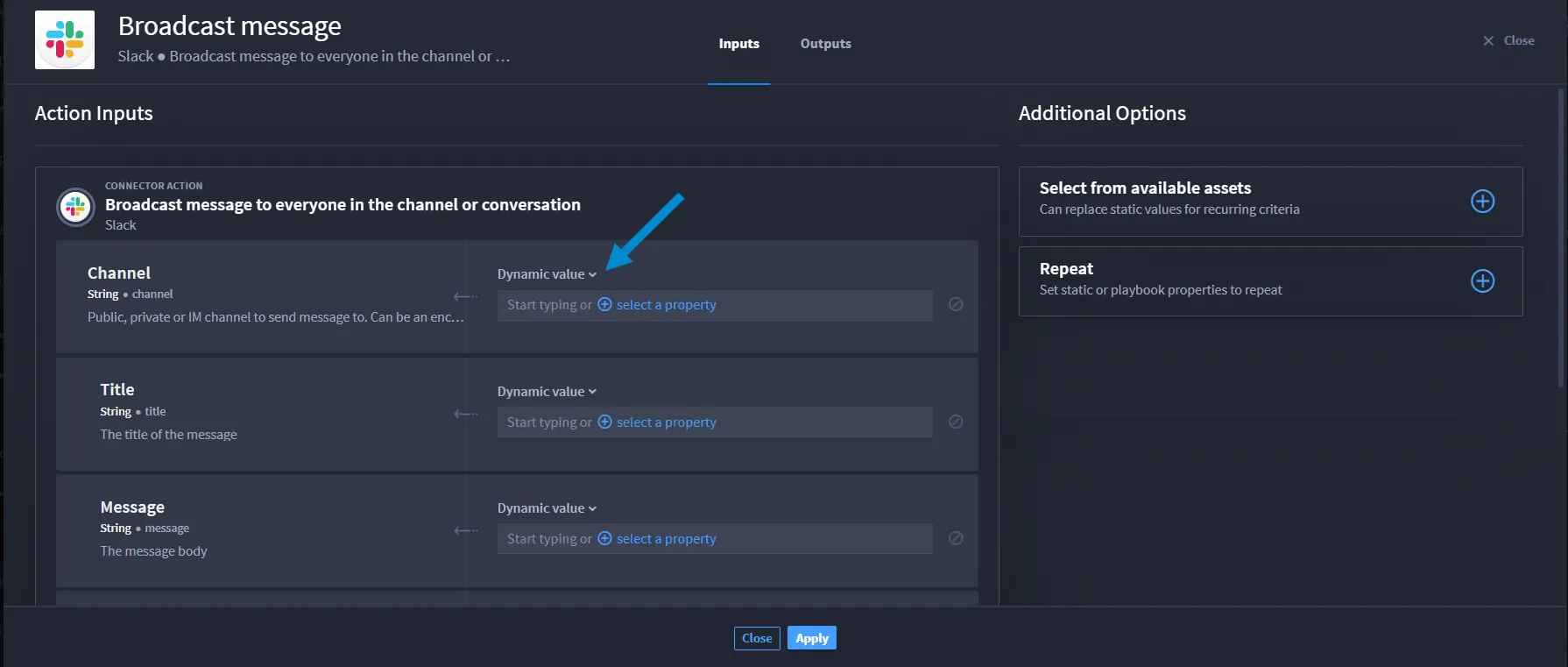
- The default value for string property type is Dynamic value.
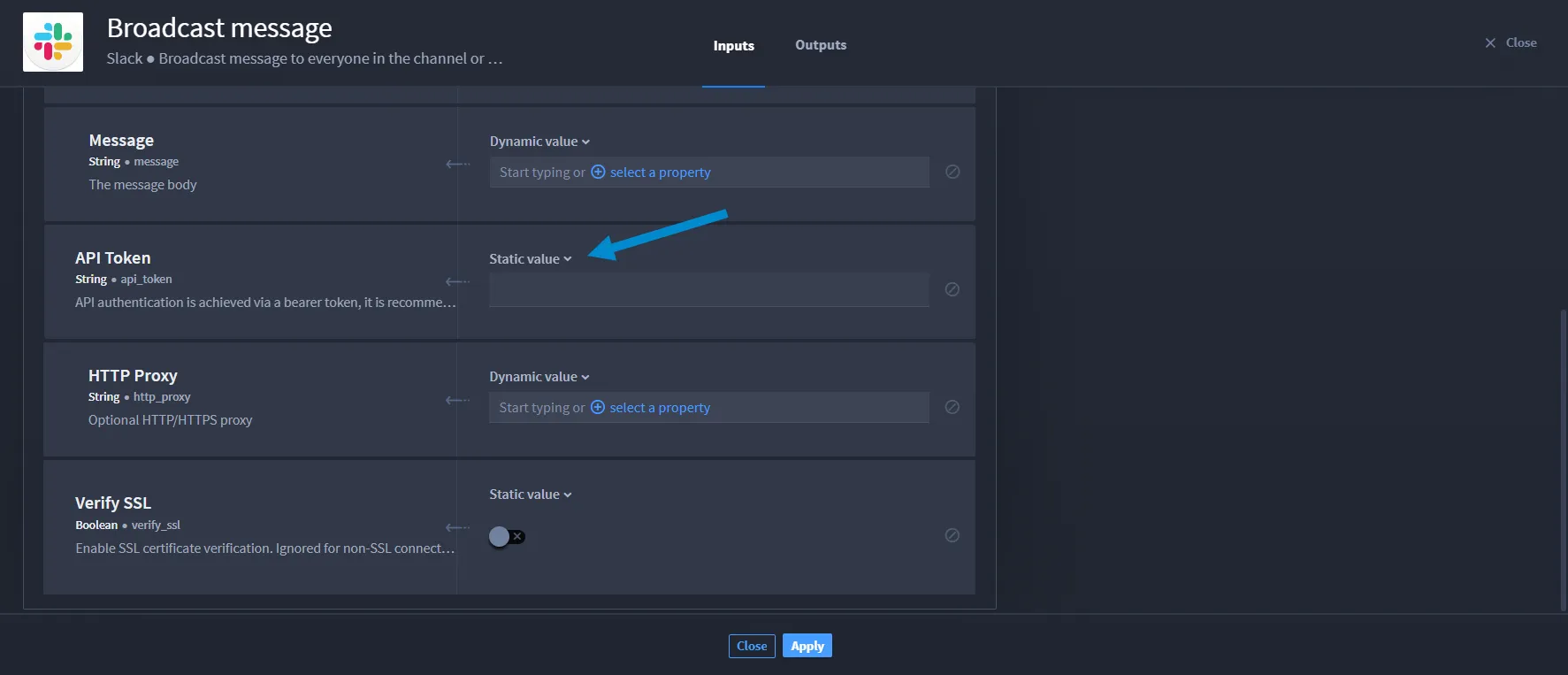
- The default value for other property types is Static value.
What's a dynamic value?
A dynamic value for string property types allows you to add context and/or repeats to a playbook property or expression.
For details, see the Configure Concatenation for Strings Without Formats sub-section.
Configure Other Values for Property Types
The default value for other property types is Static value.
For property types other than string, the drop-down menu options are: Static value, Playbook property, or Expression, which allow you to enter a static value, apply a playbook property, or create a dot notation expression.
To configure the connector properties:
- Click the property type drop-down, then select from Static value, Playbook property, or Expression.
- Complete for all required properties.
- Click Apply.
Select Assets
Connectors have assets. Assets are pre-defined configurations for some input fields required in actions, or you can customize assets.
Select Pre-defined Assets
- Navigate to the action inputs.
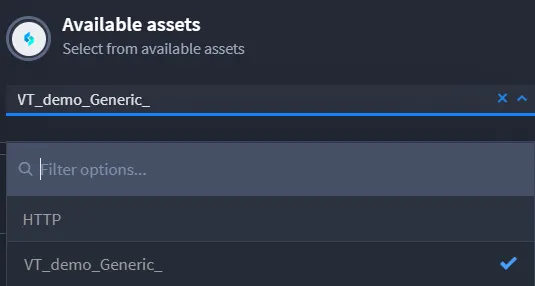
- If you want to apply an existing asset, click the Select from available assets menu and select an asset.
The available asset property fields are auto-filled.
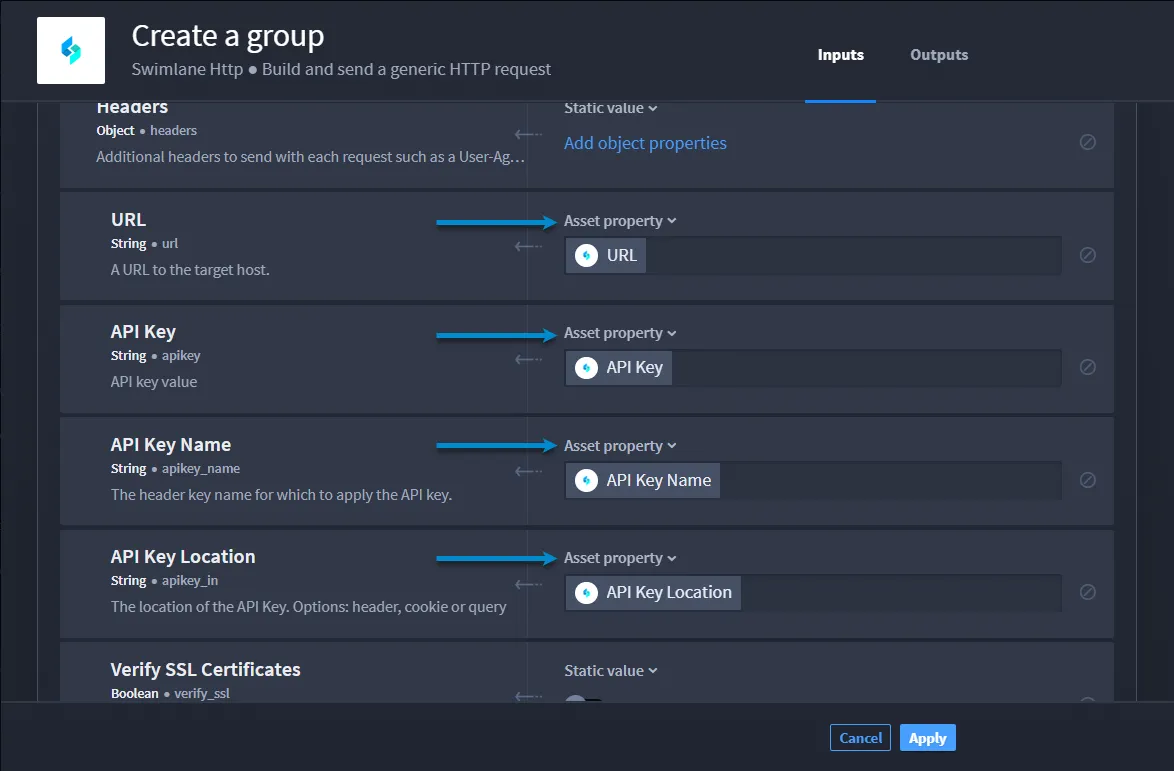
- Complete any fields that are not auto-populated.
- Click Apply.
Customize Assets
See Create Custom Assets for instructions on how to create and configure a custom asset and apply it to a playbook.
Action Property Types
Actions have the following input property types:
Property Types | Description |
|---|---|
String | Sequence of alphanumeric characters |
Number | Floating point and integers |
Integer | Real numbers that do not have a floating point |
Boolean | Either of the values true or false |
Object | Structure that contains more properties |
Array | Ordered list of zero or more elements, each of which may be of any type. Arrays use square bracket notation with comma-separated elements. Array Types: arrayNumber, arrayString, and arrayObject |
Null | Empty value, using the word null |
Date | ISO 8601 date string without time information |
Date & Time | ISO 8601 string with date and time |
Password | Obfuscated string, the text will not be human readable within the platform |
Code | Formatted code string |
Configure Concatenation for Strings without Formats
Concatenation is the ability to add context to a playbook input property. Turbine currently only supports the String property type without formatting:
Concatenation only works with string properties that do not have a format, i.e., API keys would not be used with string concatenation.
The property types: Date, Date & Time, and Password are string inputs; however, they are formatted. Therefore, you cannot create a string concatenation using those properties.
Before configuring concatenation for strings without formats, ensure you complete (as needed):
- Configure action inputs
- Configure connector properties
- Select assets
Now, create a concatenation for strings without formats. You need playbook inputs and/or expressions to configure an action input for string concatenation. Let's begin by creating a playbook input from the Action Inputs window.
- From Action Inputs, in the desired property field, click + select a property.
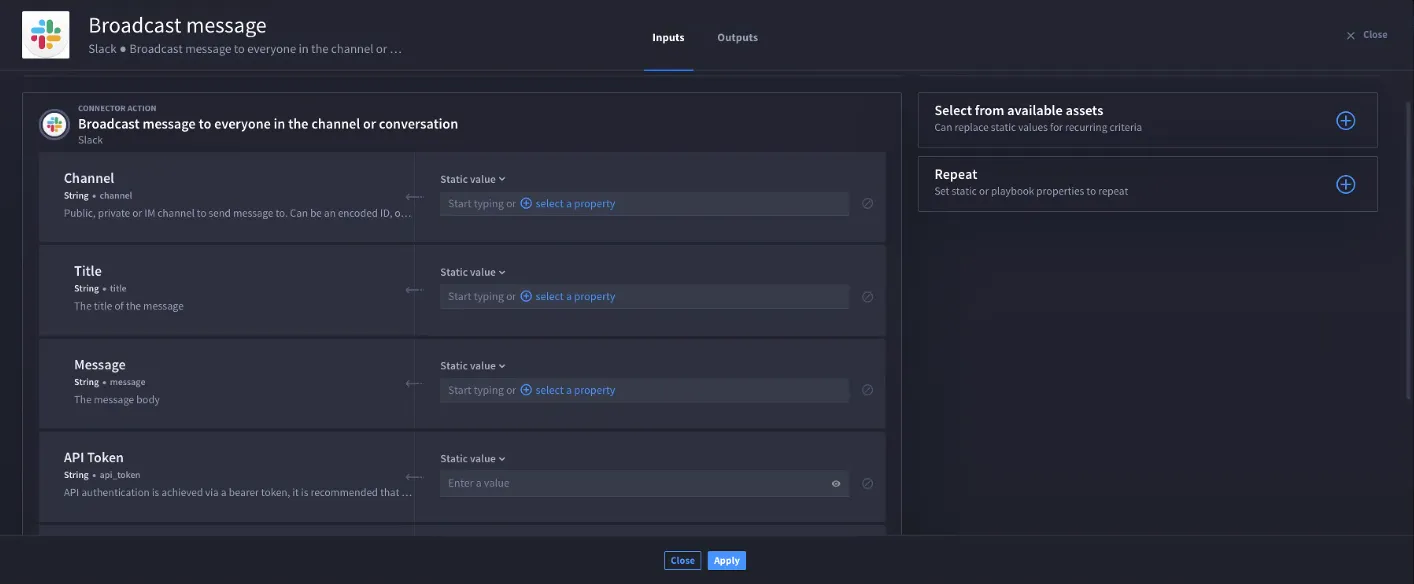
- Click Playbook Inputs.
If you have not added any playbook inputs yet, you will need to click Add a playbook input.
- Configure a playbook input for the string.
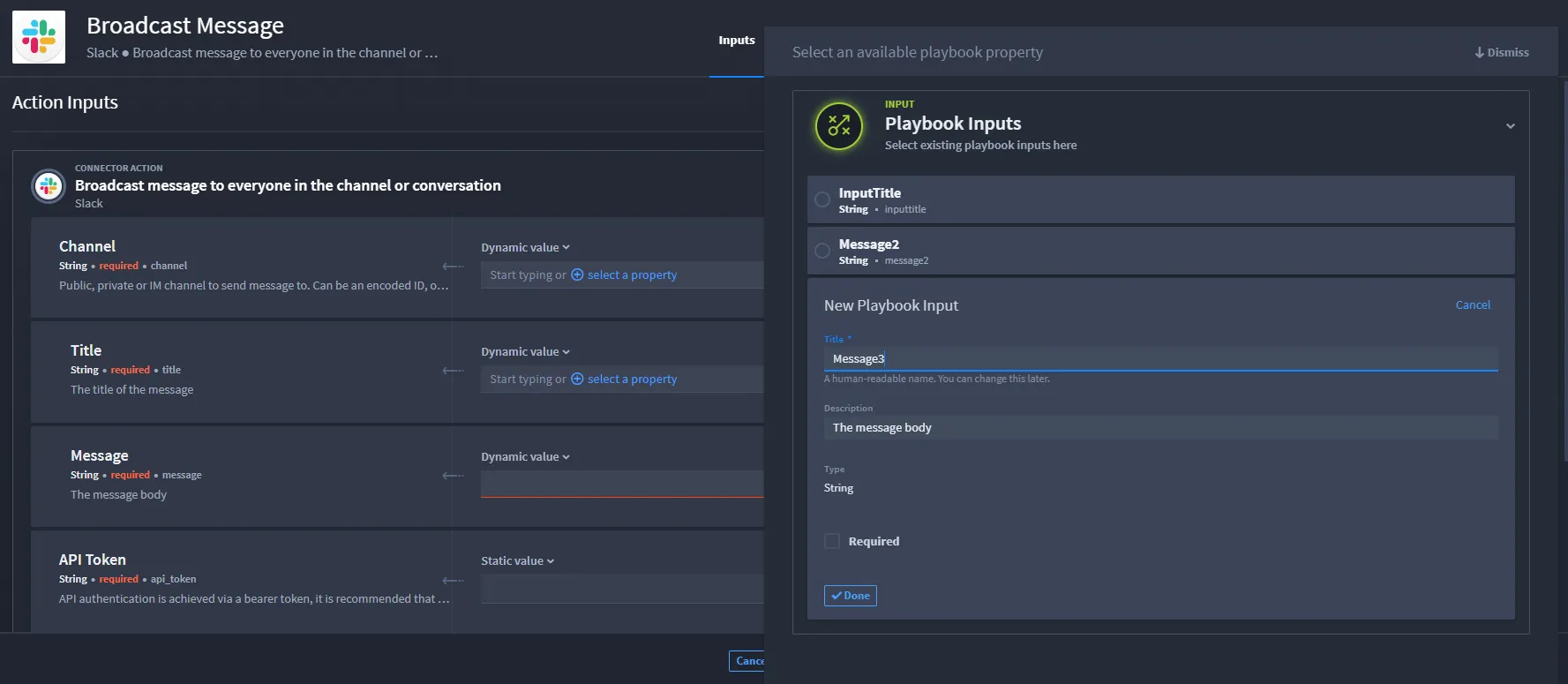
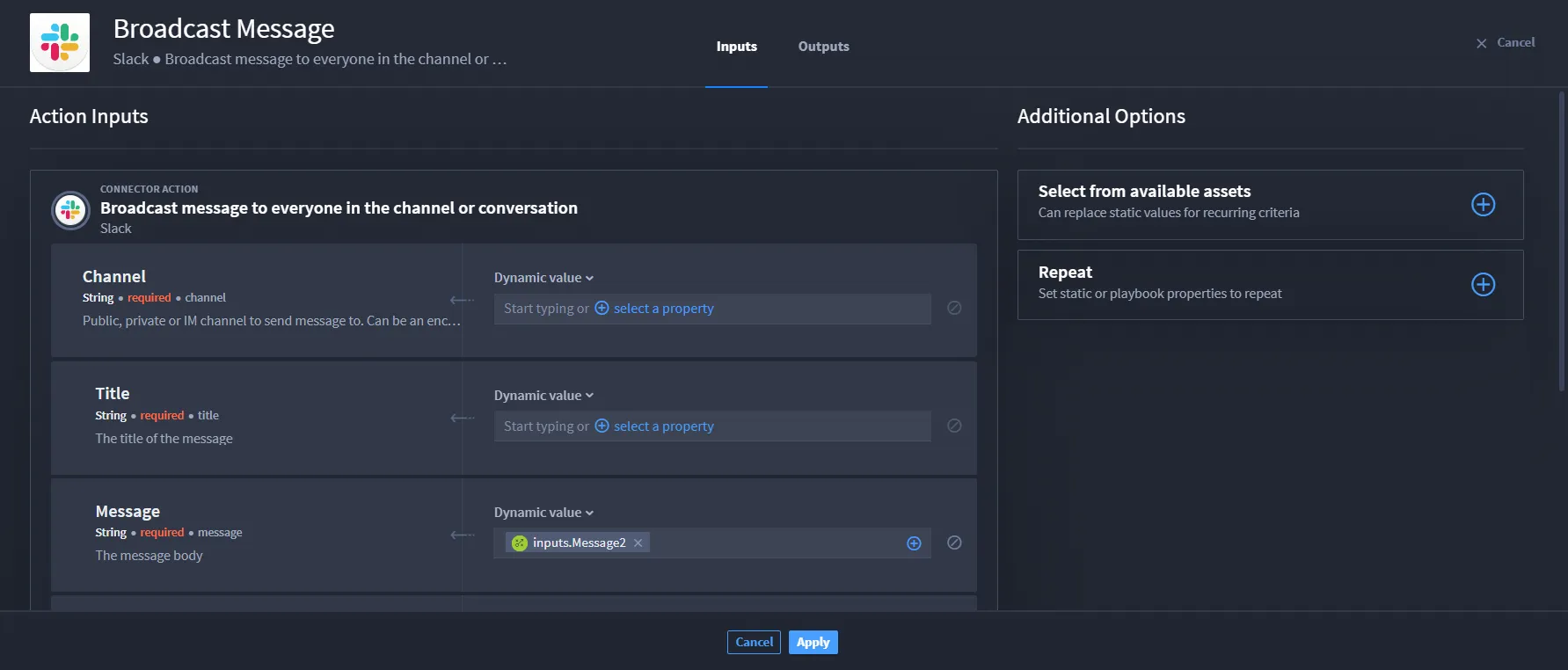
- Click Done, then select the playbook input you configured.
- The input displays as a token in the appropriate field.
- Next to the token, enter text, for example, world!
- The token and static value text display as string concatenation.
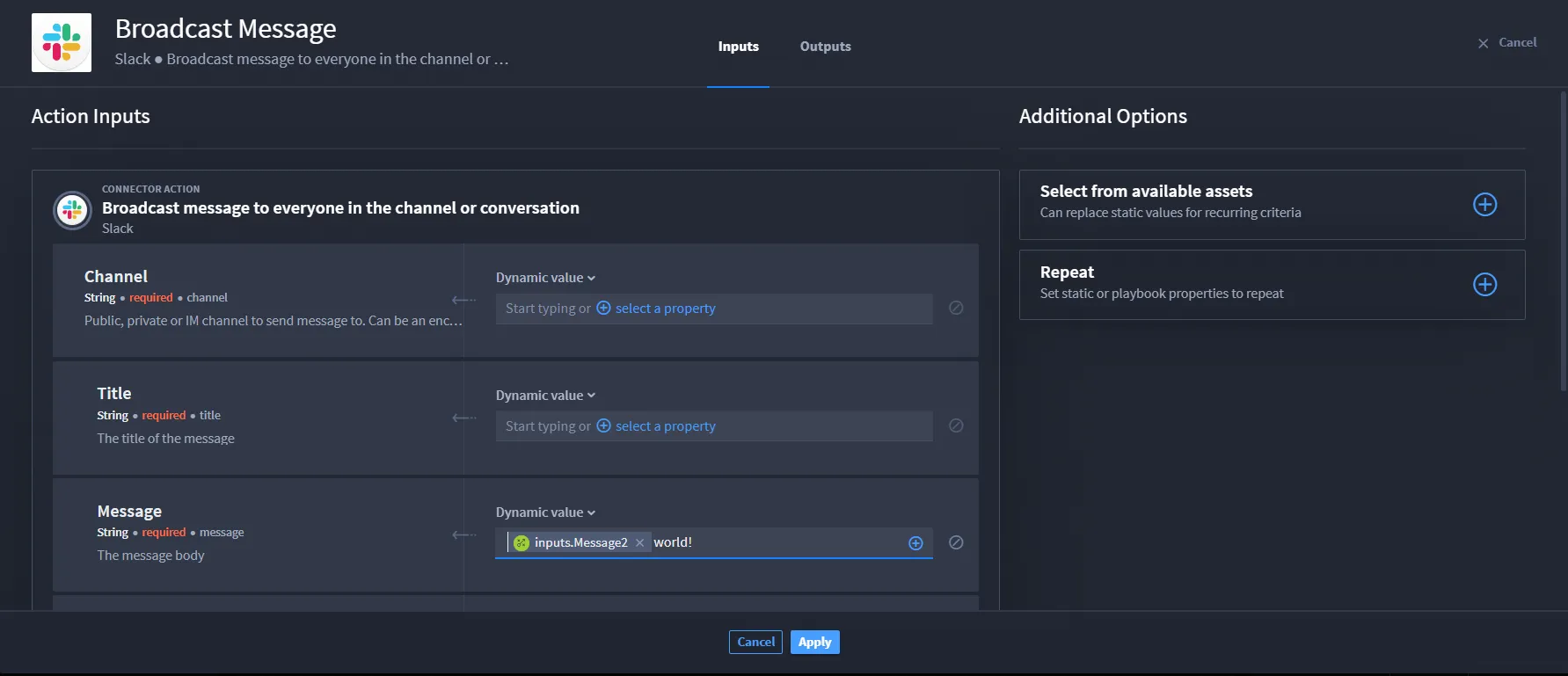
- You have successfully created a string concatenation!
- See String Concatenation for an example of executing string concatenation.
Using Expressions with Playbook Input Data
Playbook inputs can be structured as arrays or objects, allowing you to pass complex data structures into your playbook. You can use expressions (dot notation) to access nested properties within playbook input data.
Understanding Playbook Input Structure
When playbook inputs contain arrays or objects, you can structure your input data as follows:
Example Input Data Structure:
In this example, inputs is an array containing an object with name and value properties.
Accessing Playbook Input Data with Expressions
To access nested properties in playbook input data, use the $inputs prefix followed by dot notation to navigate through the data structure.
Expression Syntax:
- $inputs.propertyName - Access a top-level property
- $inputs.arrayName[index] - Access an array element by index
- $inputs.arrayName[index].propertyName - Access a property within an array element
- $inputs.objectName.propertyName - Access a nested object property
Example:
Given the input data structure above, you can access the name property using:
This expression:
- $inputs - References the playbook inputs
- inputs[0] - Accesses the first element of the inputs array
- .name - Accesses the name property of that object
Result: The expression evaluates to "applicationname"
Using Expressions in Action Inputs
To use expressions with playbook input data in action inputs:
- Navigate to the action inputs configuration.
- For the property where you want to use an expression, select Expression from the drop-down menu (for non-string types) or use Dynamic value (for string types).
- Enter the expression using dot notation, starting with $inputs.
Example Use Cases:
- Accessing array elements: If your playbook input is an array of objects, use $inputs.items[0].id to get the id of the first item.
- Accessing nested objects: If your playbook input contains nested objects, use $inputs.config.settings.timeout to access deeply nested properties.
- Dynamic array access: Use expressions like $inputs.inputs[$inputs.selectedIndex].value to dynamically select array elements based on other input values.
Note: Expression evaluation occurs at runtime, allowing you to dynamically access playbook input data based on the structure you provide when running the playbook.
Add Object Sub-properties
The property types Object and Array have sub-properties. You can map the sub-properties as a static value, playbook property, or dot notation expression.
To add an object sub-property:
- Navigate to the action inputs.
- Navigate to the Object property type.
- Click Add object properties.
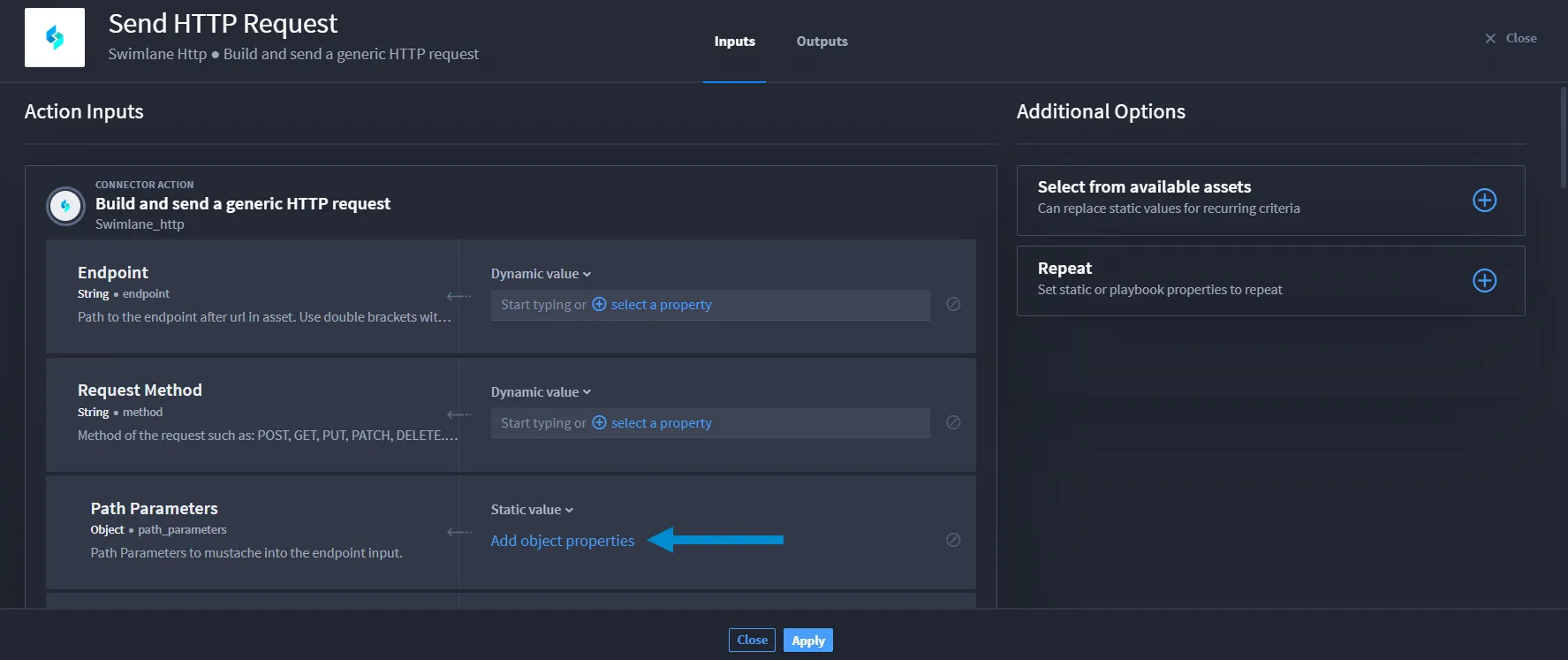
- Select a sub-property from the drop-down.
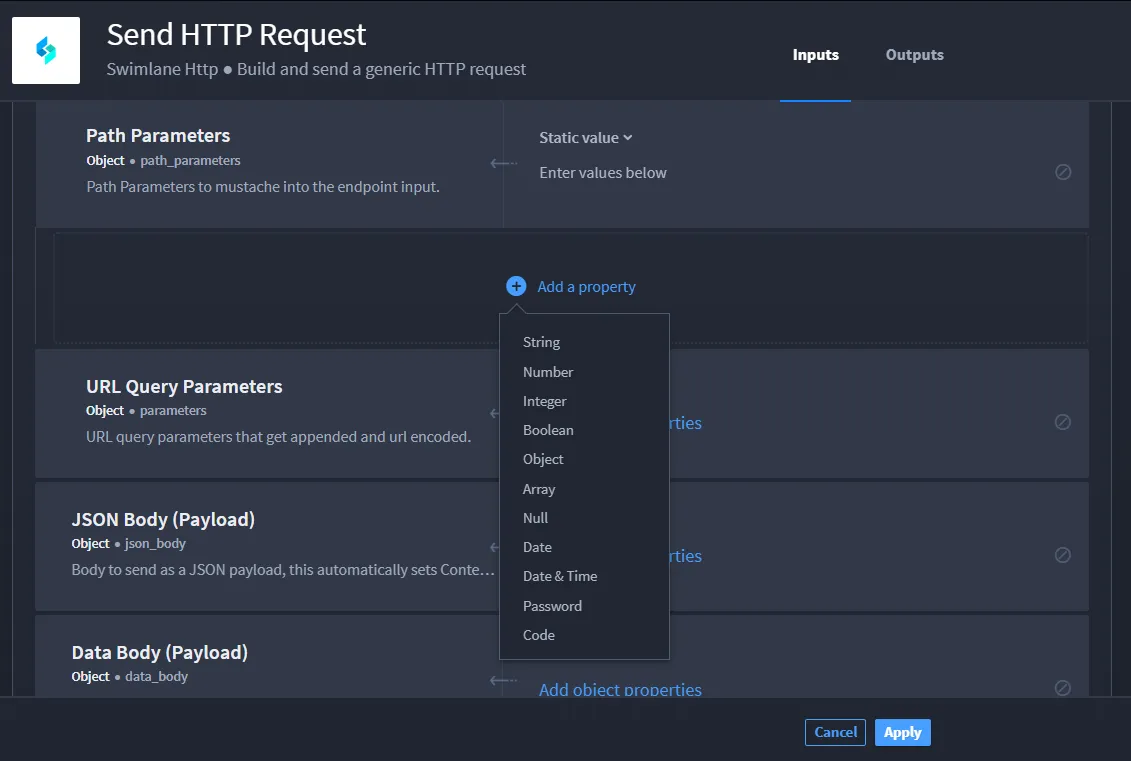
- Repeat steps 3 and 4 if you want to add more than one sub-property.
- Map the property type by selecting from Static value, Playbook property, or Expression.
- The Dynamic value option defaults for string property types.
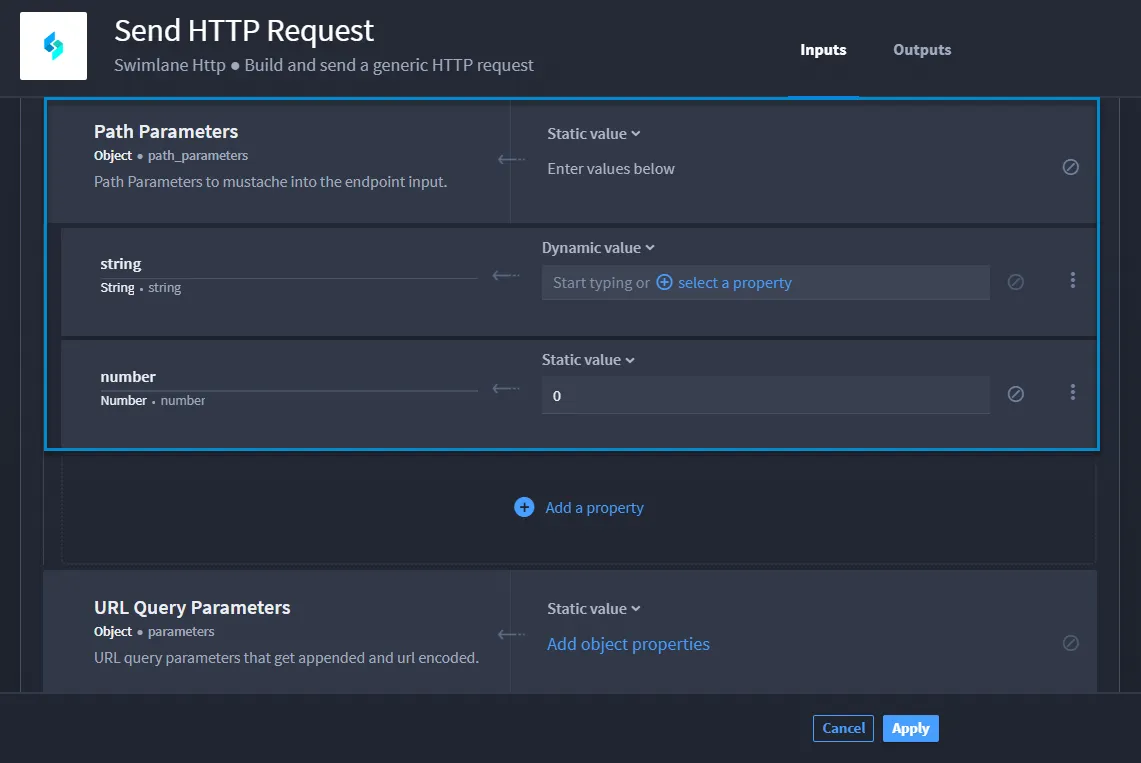
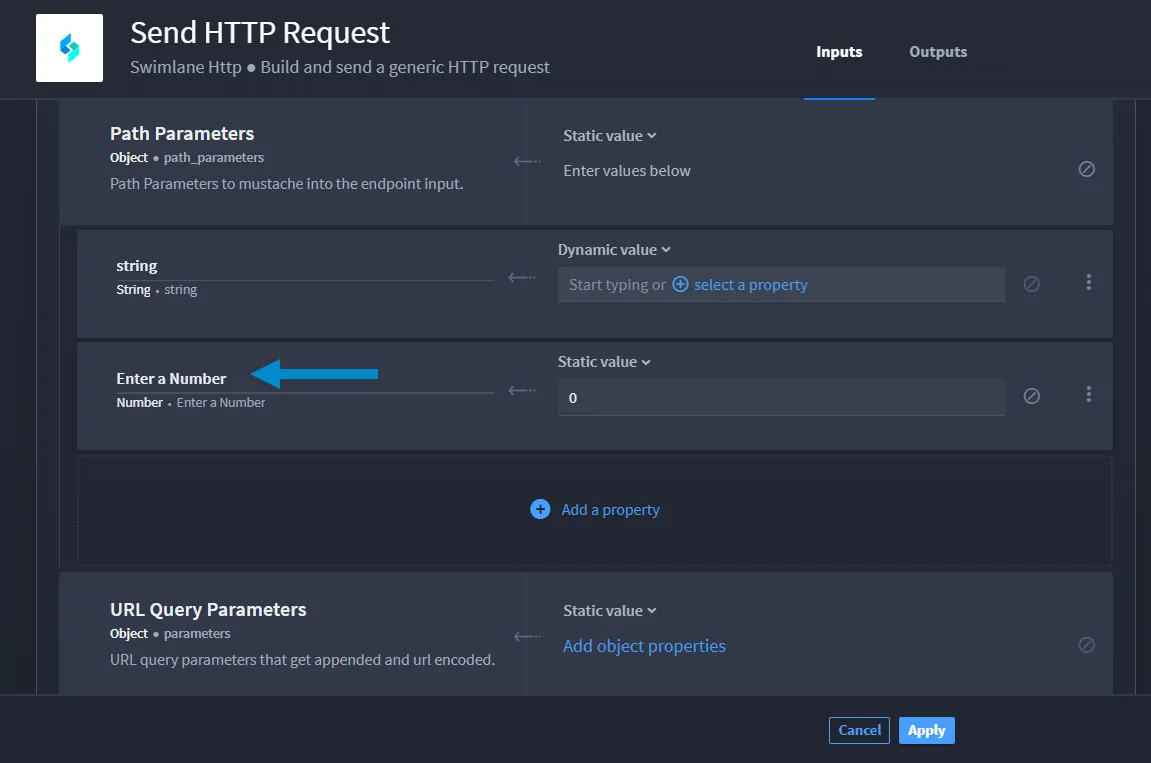
- If desired, you can also change the name of the sub-property.
- To enable editing, click in the sub-property field and enter a new name.
- The new name and selected mapped option display.
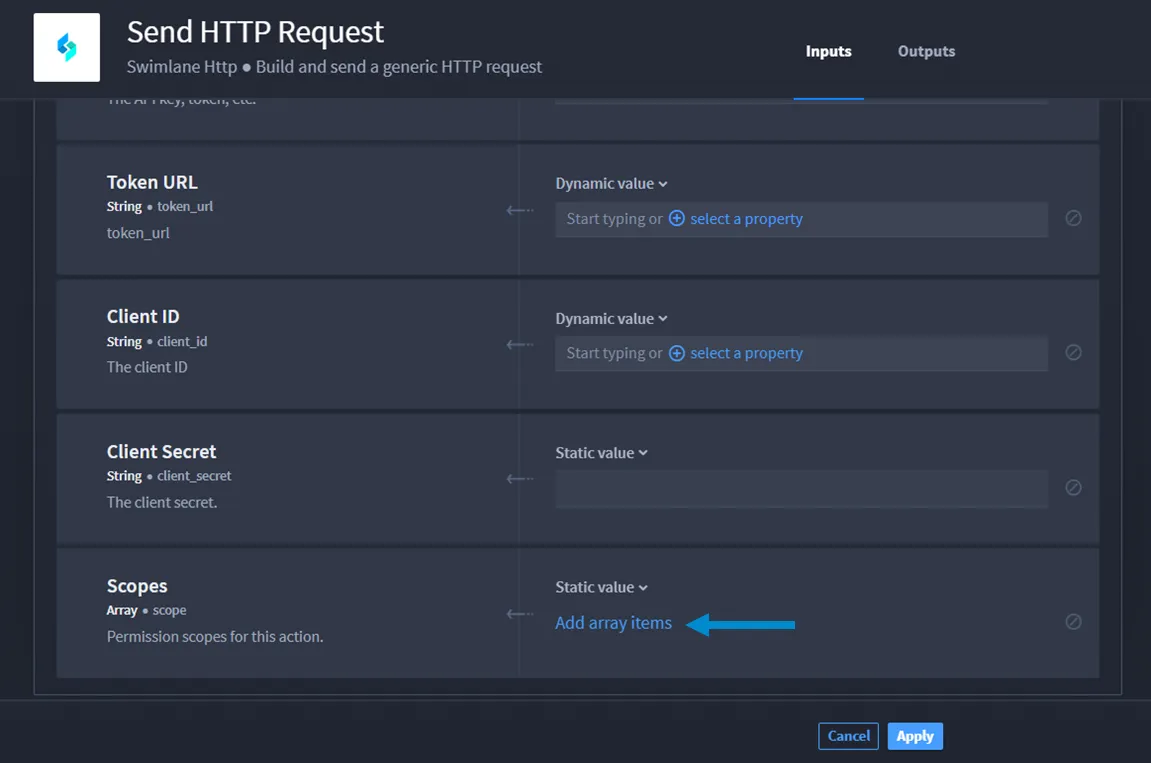
Add Array Sub-properties
- Navigate to the action inputs.
- Depending on the connector, array types might be available.
- Navigate to the array property type.
- Click Add array items.
- Click Add an item.
- Click Add.
- A Dynamic value field displays that allows you to add context and/or select a property.
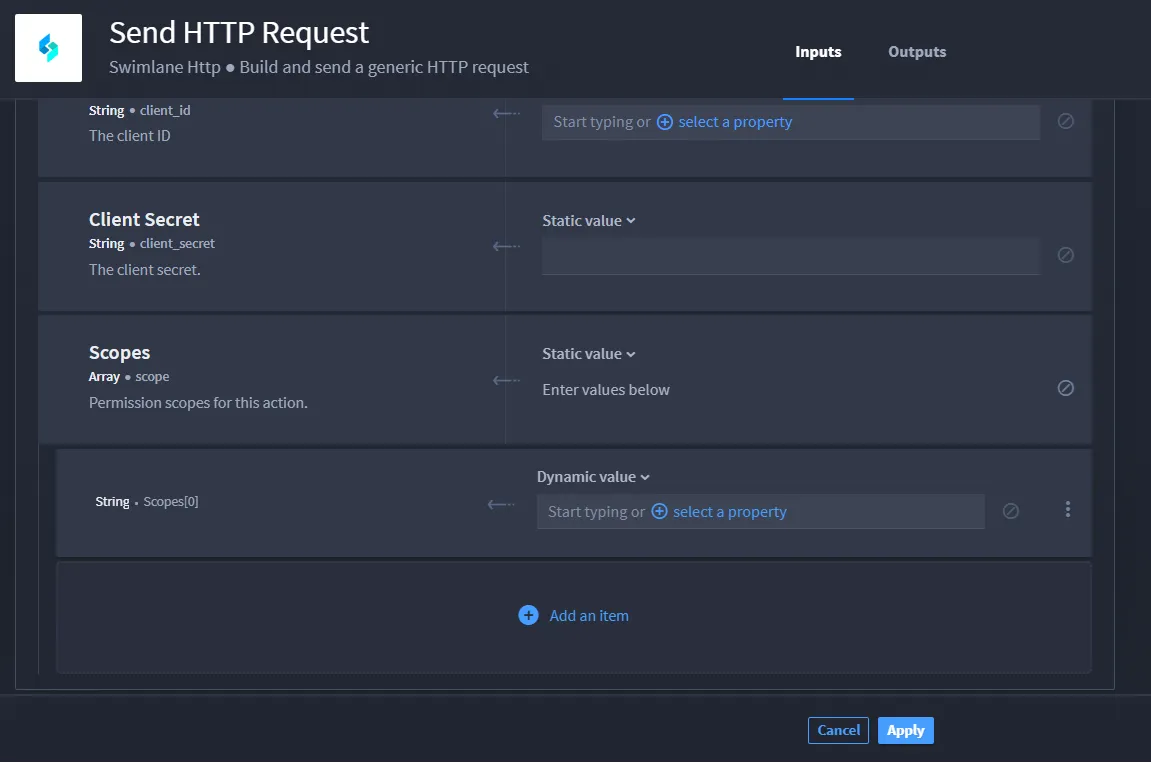
- Repeat steps 4–6 if you want to add more than one sub-property.
- Configure the array sub-property.
- Click Apply.
Clear a Sub-Property Entry
To clear the information for the sub-property:
- Click the Clear value icon.
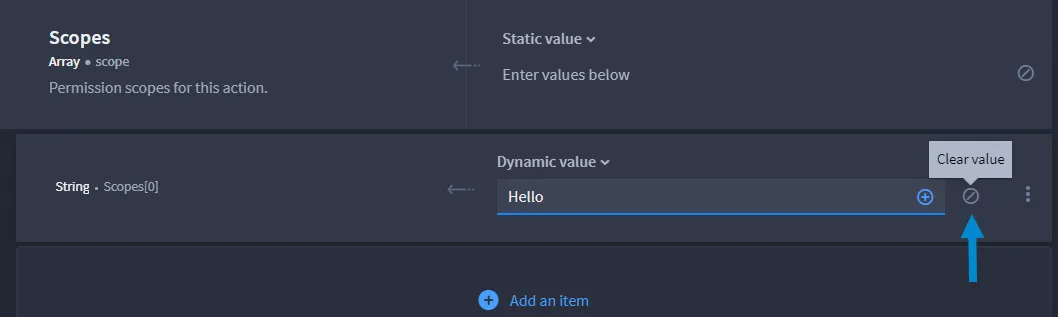
- Click Apply to save the changes.
Delete a Sub-Property Entry
To delete the information for the sub-property:
- Click the Delete vertical ellipsis.
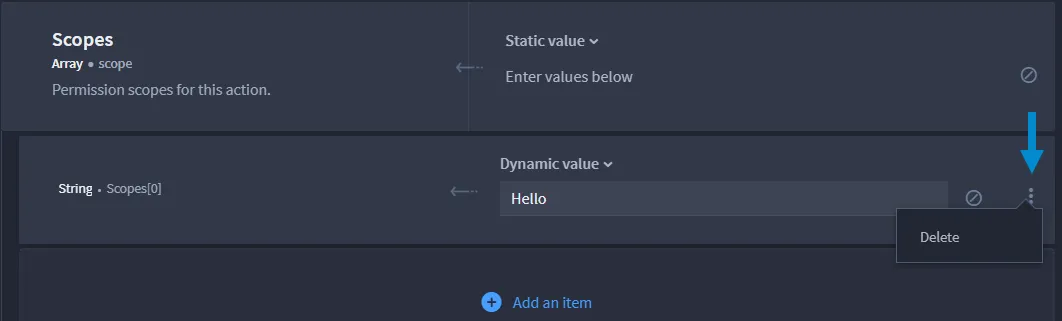
- Click Apply to save the changes.