Slack
Introduction
This guide tells you how to authenticate the Slack connector in Swimlane.
You can authenticate using one of the following methods:
- API Key Authentication
- HTTP Bearer Authentication
You will create a Slack app, assign required scopes, obtain an access token, and configure the connector in Swimlane.
Prerequisites
Slack Access Requirements
You must have Slack permissions to:
- Create and manage Slack apps for your workspace
- Install an app to your workspace
- Authorize requested OAuth scopes
Required Credentials
During setup, you will collect:
- URL
- API Token - Bot or User Token
URLs
Base URL
Use the following base URL for Slack API requests: https://slack.com/api
Slack Setup
The Slack asset requires an API Token - Bot or User Token.
To set up a Slack Bot OAUTH API with the appropriate permissions follow these steps:
- Go to the Slack API website: https://api.slack.com/.
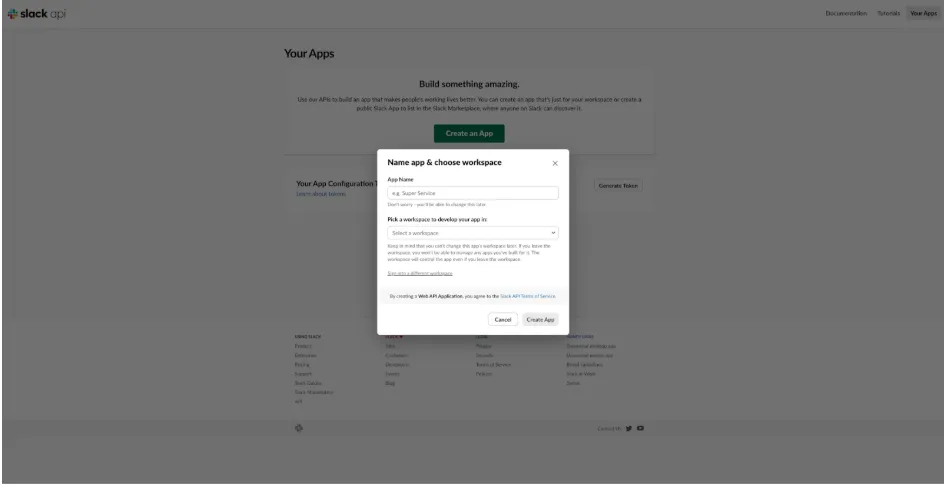
- Click Your Apps in the top-right corner and then click Create New App.
- Provide a name for your app and select the Slack workspace where you want to install the app.
- Once the app is created, you'll be redirected to the app's settings page.
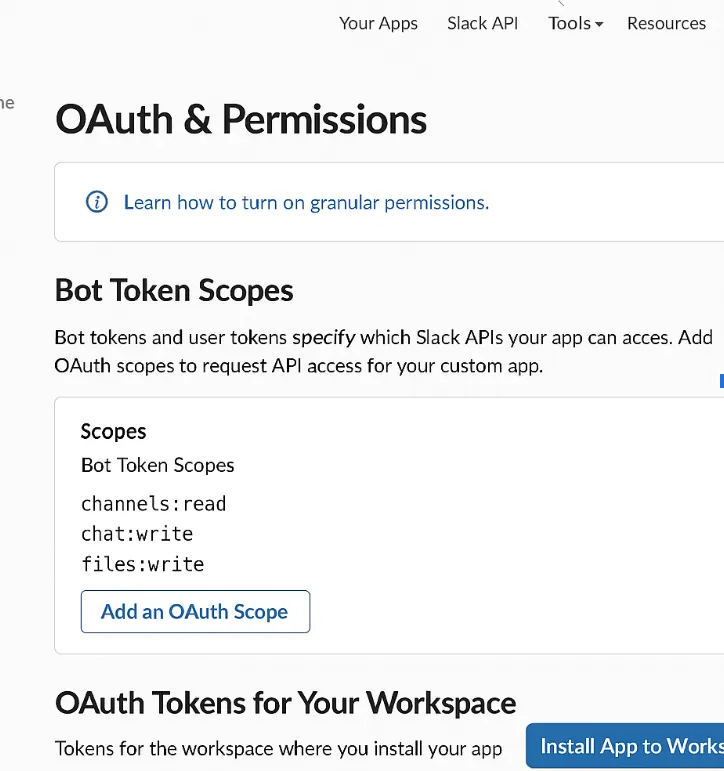
- From the app's settings page, navigate to OAuth & Permissions.
- Under Scopes section for Bot Token Scopes, add the necessary scopes for the API calls (see the scopes list below).
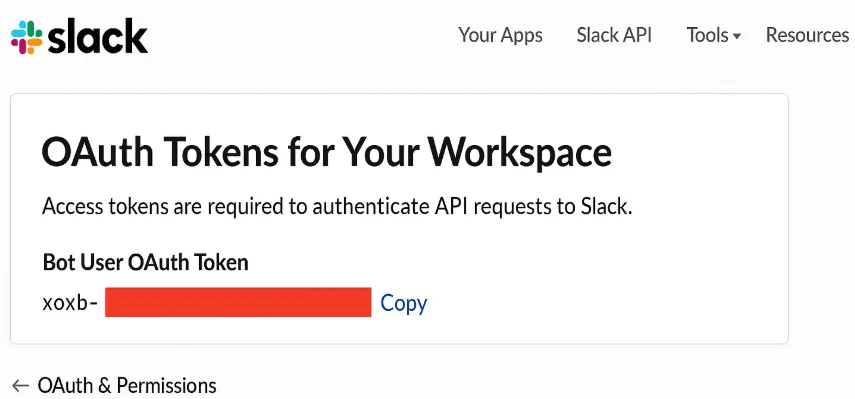
- Install the app to your workspace: In OAuth & Permissions, scroll down to the OAuth Tokens for Your Workspace section and click Install App to Workspace button.
- Authorize the app to access your Slack workspace by following the prompts.
- After installing the app, you'll be provided with access tokens such as Bot User OAuth Access Token. Copy the token for use in Swimlane.
Scopes
Add the necessary scopes based on the API calls you plan to run. Common scopes used by this connector include:
- chat:write
- chat:write.customize
- channels:history
- channels:manage
- channels:read
- groups:write
- groups:history
- groups:read
- im:history
- im:read
- im:write
- mpim:history
- mpim:read
- mpim:write
- users:read
For LookUp by Email action, please set the scope parameter to users:read.email .
Connector configuration in Swimlane
- Log in to Turbine.
- From the left-hand navigation pane, click ORCHESTRATION and click Assets. Asset homepage opens.
- Click plus icon to open the Configure your Connector Asset window.
- Select Slack from the Asset type list.
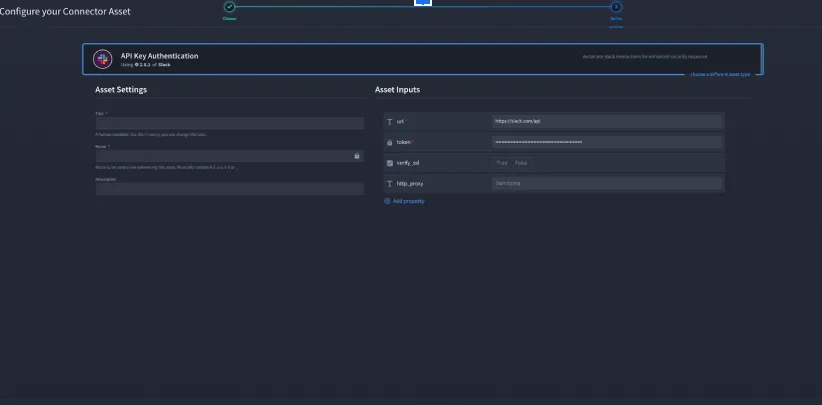
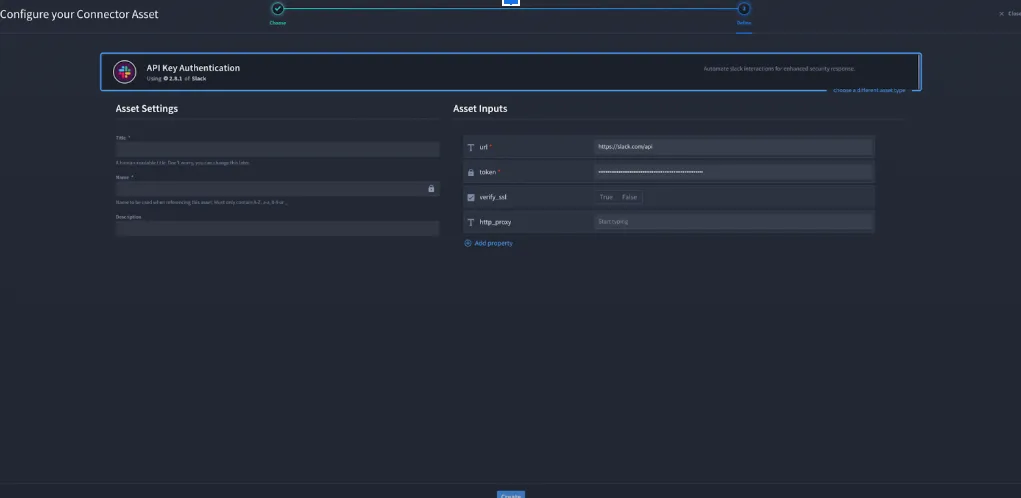
- Fill in the Asset Settings and Asset Input as shown:
Configuration - API Key Authentication
Authenticates using an API Key. Fill in the Asset Settings and Asset Input as shown:
Field | Description | Required/Optional |
|---|---|---|
url | A URL to the target host. | Required |
token | API key | Required |
verify_ssl | Verify SSL certificate | Optional |
http_proxy | A proxy to route requests through. | Optional |
Fields with * marks are required.
Configuration - HTTP Bearer Authentication
Authenticates using bearer token such as a JWT, etc. Fill in the Asset Settings and Asset Input as shown:
Field | Description | Required/Optional |
|---|---|---|
url | A URL to the target host. | Required |
token | The API key, token, etc. | Required |
verify_ssl | Verify SSL certificate | Optional |
http_proxy | A proxy to route requests through. | Optional |
Fields with * marks are required.
- Click Create.
Troubleshooting
If you encounter an authentication error:
- Verify the token is correct and has not been revoked.
- Verify the app is installed to the correct workspace.
- Verify the required scopes are added and re-install the app after changing scopes.
- For LookUp by Email, verify users:read.email is granted.
- If required, configure http_proxy and verify outbound connectivity.
You have successfully authenticated the Slack Connector in Swimlane.